

IT Home Academy: Make Win10 File Explorer's Details Pane Show More Information
When you enable the details pane in Windows Explorer and then select a file (the IT Home editor selected an exe file), you will see some information about this file on the right half of the window, including the modified date, created date, file size, and availability. However, for some users, this information is quite limited and still not detailed enough. In this article, IT Home will demonstrate how to configure the settings so that File Explorer can display more useful information about the selected file in the details pane. The method below applies
When you enable the details pane in Windows Explorer and then select a file (the IT Home editor selected an exe file), you will see some information about this file on the right half of the window, including the modified date, created date, file size, and availability. However, for some users, this information is quite limited and still not detailed enough.
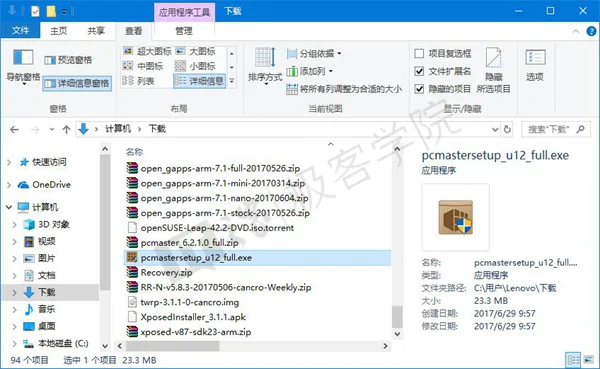
In this article, IT Home will demonstrate how to configure the settings so that File Explorer can display more useful information about the selected file in the details pane.

The method below applies to Windows Vista, Windows 7, Windows 8/8.1, and Windows 10. Before you begin, please note that modifying the registry is risky. Although following the steps in this article will not adversely affect your computer's system, mistaken operations may prevent your computer from continuing to work normally. Let's begin.
Search for and open regedit in Microsoft Cortana;
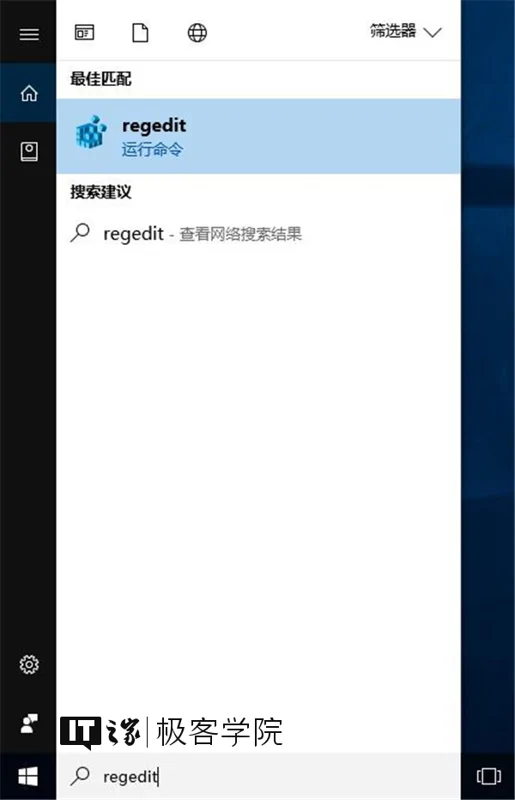
Go to the following path:
\HKEY_CLASSES_ROOT\
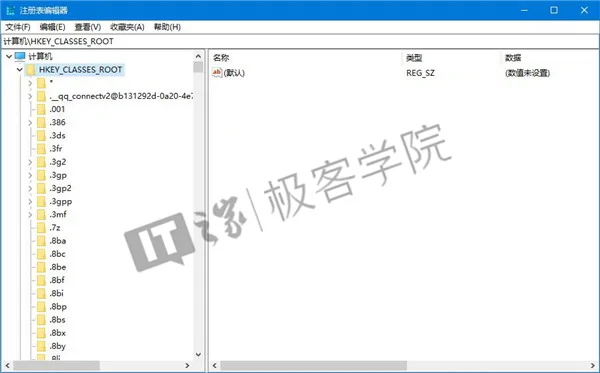
In this directory, you will see many subkeys that start with "." followed by file extensions such as 3gp, docx, and exe.
Here, the IT Home editor wants to make it so that when we select an exe file, the details pane can display more information about this file, so we select the subkey named .exe in the \HKEY_CLASSES_ROOT\ directory.
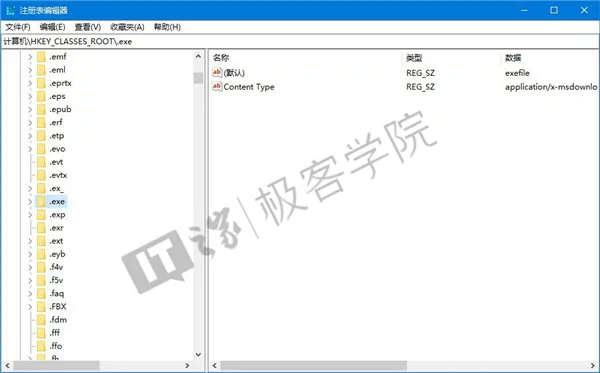
After selecting it, look to the right half of the window. We will see a string value named (Default), whose data value is exefile.
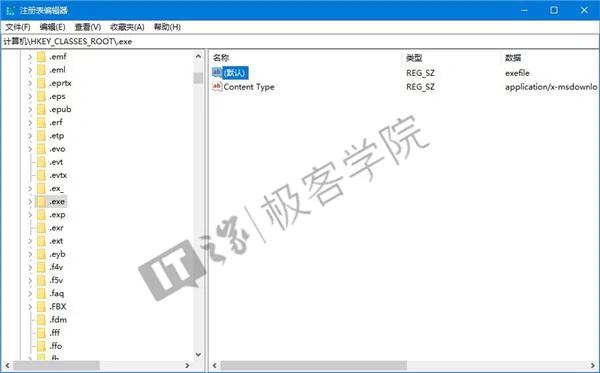
Remember this word, find it in the \HKEY_CLASSES_ROOT\ directory, and then click to enter that subkey.
Here for the IT Home editor, the full path of the exefile subkey is:
\HKEY_CLASSES_ROOT\exefile
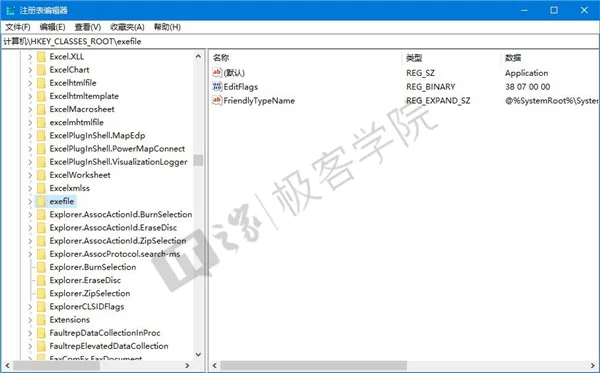
After selecting it, look to the right half of the window, place the mouse cursor in a blank area, right-click, choose New - String Value, and name the newly created string value:
PreviewDetails
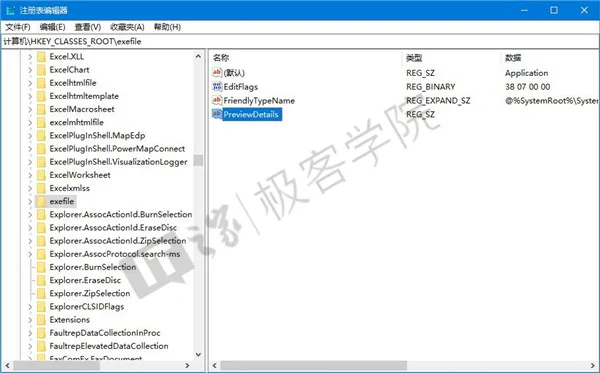
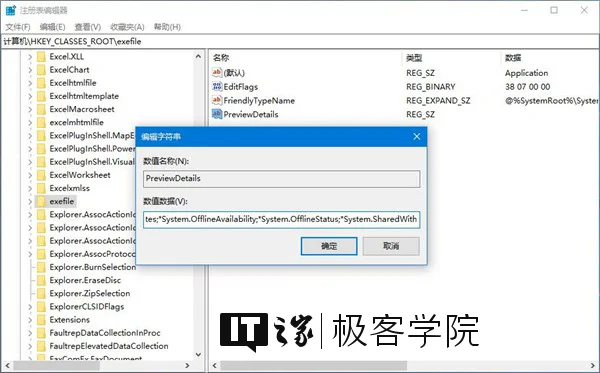
Double-click the string value named PreviewDetails that you just created, and set its value data to the following:
prop:System.ItemNameDisplay;System.ItemTypeText;System.ItemFolderPathDisplay;System.Size;System.DateCreated;System.DateModified;System.FileAttributesSystem.FileOwner;System.FileAttributes;*System.OfflineAvailability;*System.OfflineStatus;*System.SharedWith
Then click the OK button.
At this point, go back to Explorer, with the focus still on the exe file you just selected. Click the refresh button to the right of the address bar, or press F5 on the keyboard, and you will see that the details pane on the right side of the window now displays more useful information.
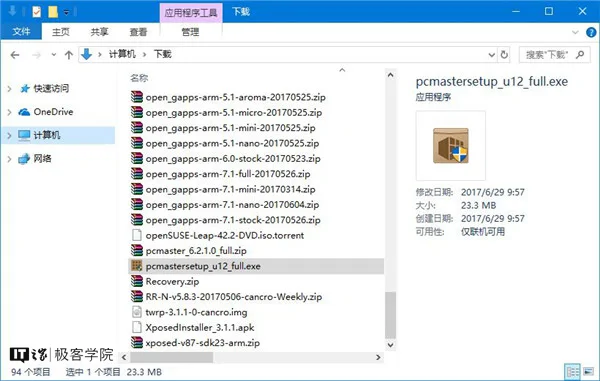
▲ Before modification
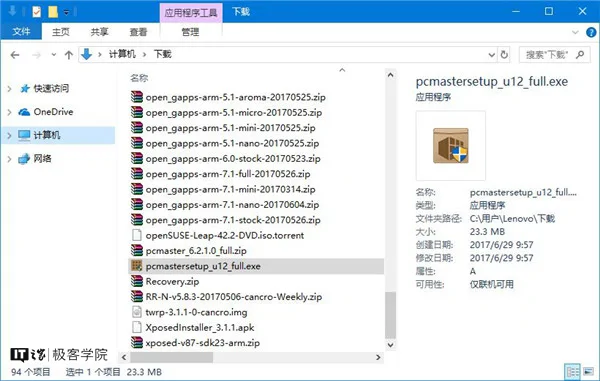
▲ After modification
Just now, we set the value data of the PreviewDetails string value. Now, let's see what this value includes.
-
System.ItemNameDisplay — file name;
-
System.ItemTypeText — file type;
-
System.ItemFolderPathDisplay — the full path of the folder containing this file;
-
System.Size — file size;
-
System.DateCreated — the file's creation date;
-
System.DateModified — the file's last modified date;
-
System.FileAttributesSystem.FileOwner — the owner of this file;
-
System.FileAttributes — the file's availability.
You can customize which information about the file you want to display in the file's details pane according to your personal preference, and modify the value data of the PreviewDetails string value accordingly.
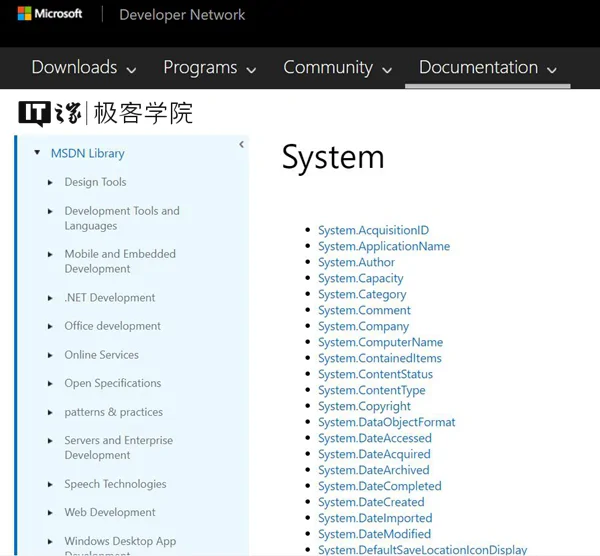
Of course, the metadata given in the example above is not complete. Microsoft has listed a more complete list of prop: metadata on the MSDN site. This list is very long. If you want to view this list, please click here to visit that page on the MSDN site.
If you want to restore the information items displayed in the details pane to the default values, you can open the registry and delete the string value named PreviewDetails in
\HKEY_CLASSES_ROOT\exefile
For more general knowledge and practical tutorials, please follow IT Home Academy.
_EOF_
IT Home Academy: Make Win10 File Explorer's Details Pane Show More Information
- 本文作者:
- 程序设计实验室
- 版权声明:
- 本博客所有文章除特别声明外,均采用 BY-NC-SA 许可协议。转载请注明出处!
相关文章
在Windows上部署OpenSSH服务
Windows终于学会了没羞没臊地用命令行装OpenSSH,结果设置界面还是卡得像屎,算了,至少比以前强点。不过这SSH连上去还是CMD,是哪个脑回路觉得这操作体验没问题啊?
2025-06-12 · Windows · 约 1 分钟
使用命令行删除 Windows 网络映射驱动器
Windows 这破系统至今还卡死右键菜单?命令行删映射盘算个事。真就没人修复这 XP 时代的老问题?
2025-10-02 · Windows · 约 1 分钟
使用EarTrumpet代替windows默认的音量调节功能
Windows 默认的音量调节功能挺弱的,要分别调节各个应用的音量得进入二级菜单,麻烦得很。有了这个功能就很方便了
2025-01-26 · Windows · 约 1 分钟
Win10安装Ubuntu子系统教程
一、启用“适用于Linux的Windows子系统” 通过Win10任务栏中的Cortana搜索框搜索打开“启用或关闭Windows功能”,向下滚动列表,即可看到“适用于Linux的Windows子系统”项。 勾选它,确定,然后按提示重启系统。 二、启用开发人员模式 然后进入“设置 - 更新和安全 - 针对开发人员”设置页面,选中“开发人员模式”。如图: 然后就会下载安装开发人员模式程序包,等待安装
2021-12-18 · Windows · 约 1 分钟
讨论
共 0 条加载评论中…