

Tutorial for Installing Ubuntu Subsystem on Win10
1. Enable “Windows Subsystem for Linux” Search for and open “Turn Windows features on or off” via the Cortana search box on the Win10 taskbar. Scroll down the list to find the “Windows Subsystem for Linux” item. Check it, click OK, then restart the system as prompted. 2. Enable Developer Mode Then go to the “Settings - Update & Security - For developers” settings page and select “Developer mode”. As shown: Then it will download and install the Developer Mode package; wait for the installation
目录6 个章节
1. Enable “Windows Subsystem for Linux”
Search for and open “Turn Windows features on or off” via the Cortana search box on the Win10 taskbar. Scroll down the list to find the “Windows Subsystem for Linux” item.
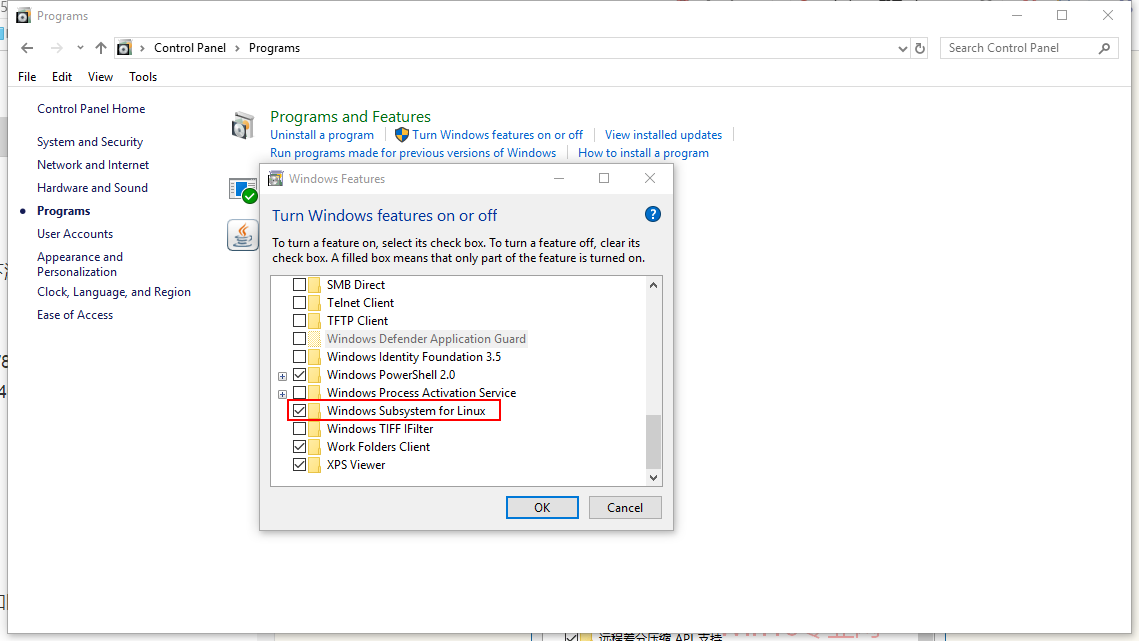
Check it, click OK, then restart the system as prompted.
2. Enable Developer Mode
Then go to the “Settings - Update & Security - For developers” settings page and select “Developer mode”. As shown:
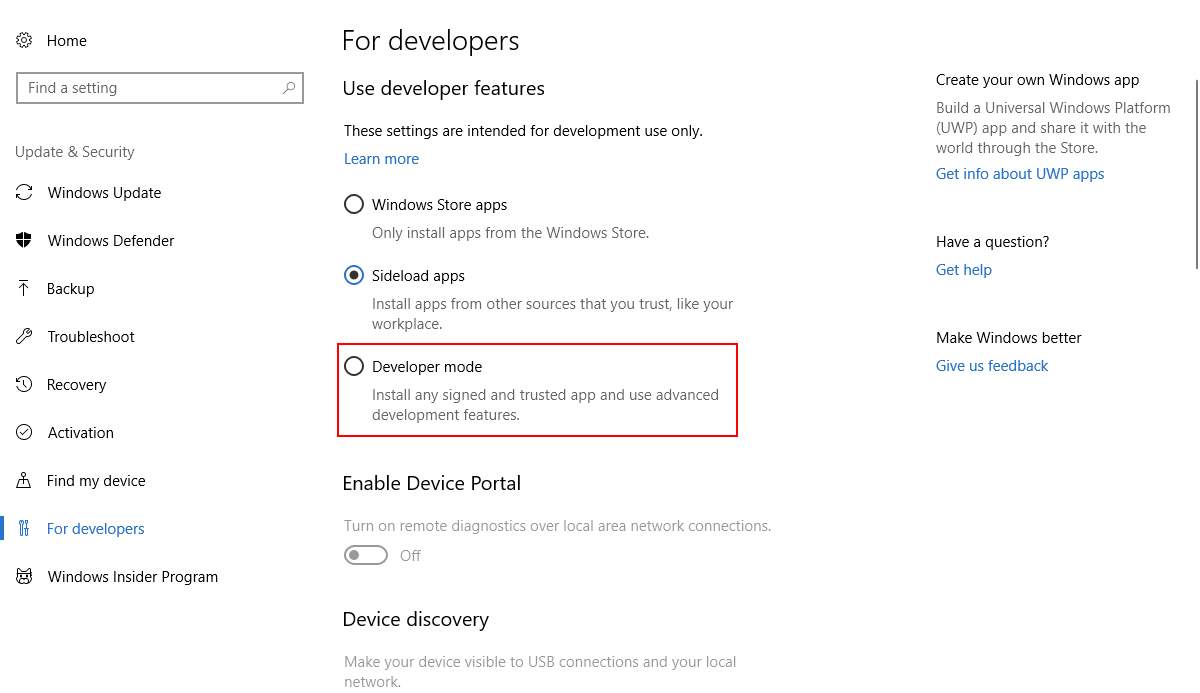
Then it will download and install the Developer Mode package; wait for the installation to complete.
3. Enable the Linux Subsystem
Right-click the Win10 Start button and select “Windows PowerShell (Admin)” to run Windows PowerShell as administrator.
Enter and run the following command by pressing Enter:
> Enable-WindowsOptionalFeature -Online -FeatureName Microsoft-Windows-Subsystem-Linux

You may need to restart the system.
At this point you can already enter bash, but there is no distribution available. Running bash will show the following prompt:

4. Install a Linux Distribution from the Windows Store
Open the Windows Store, then search for the name of any Linux distribution, for example I typed Ubuntu.
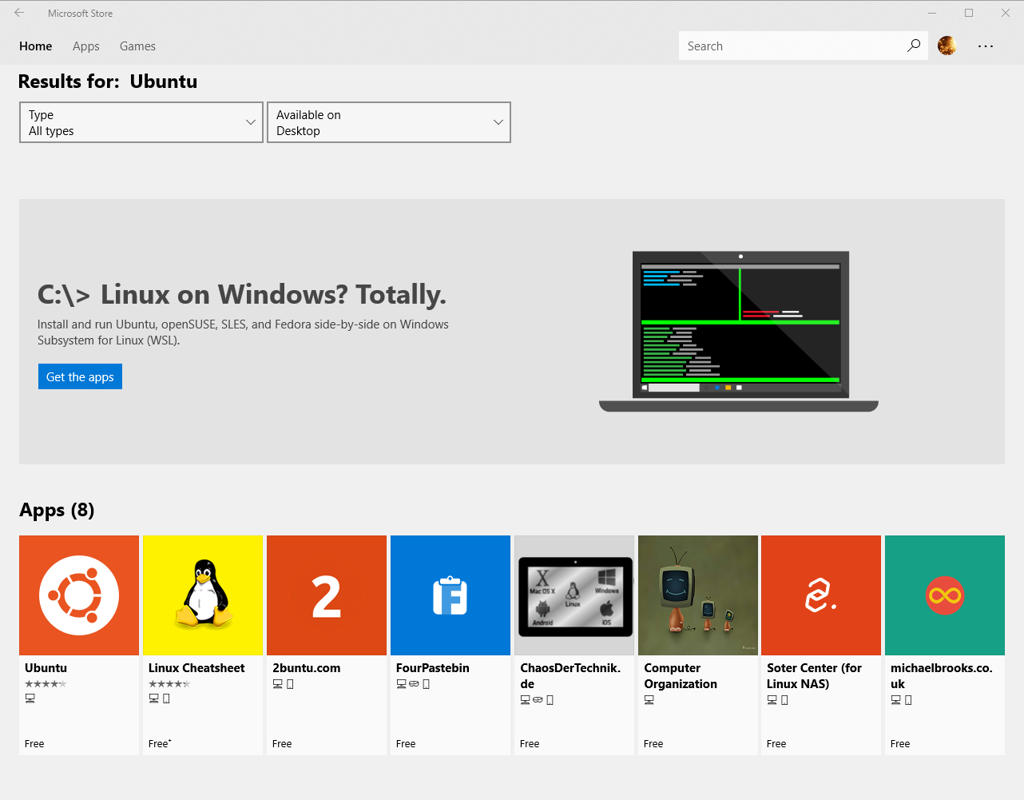
Click Get the app. You can see there are 3 distributions to choose from.
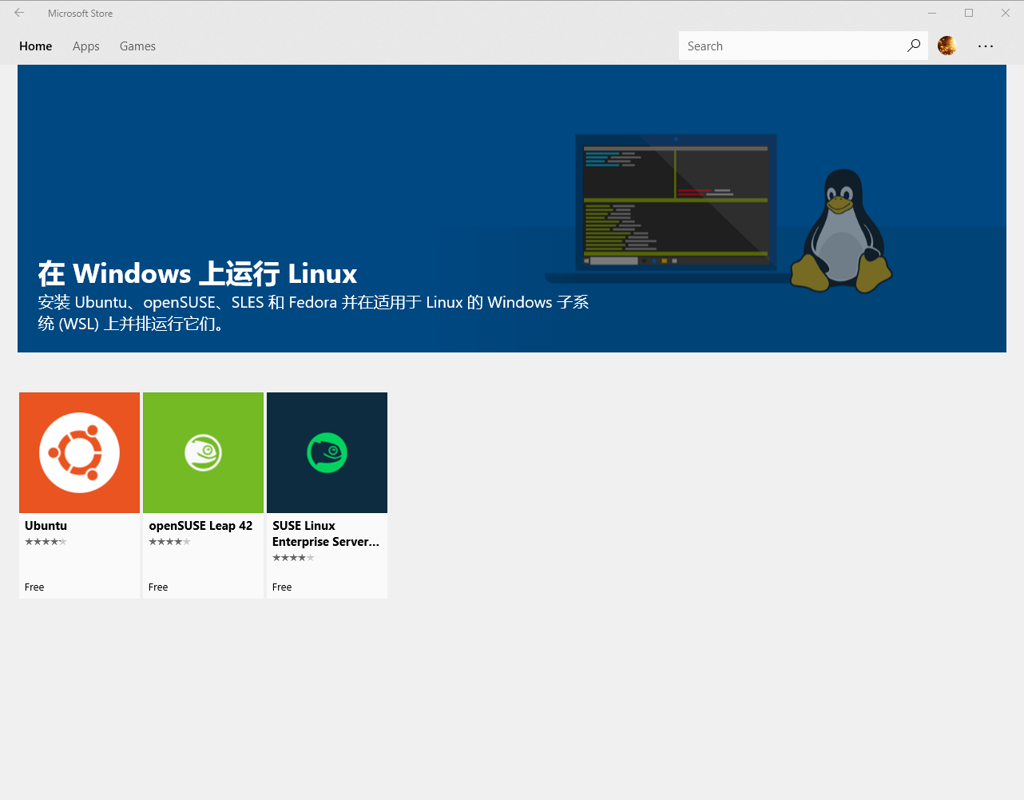
Here we’ll still choose Ubuntu, which I’m more familiar with.
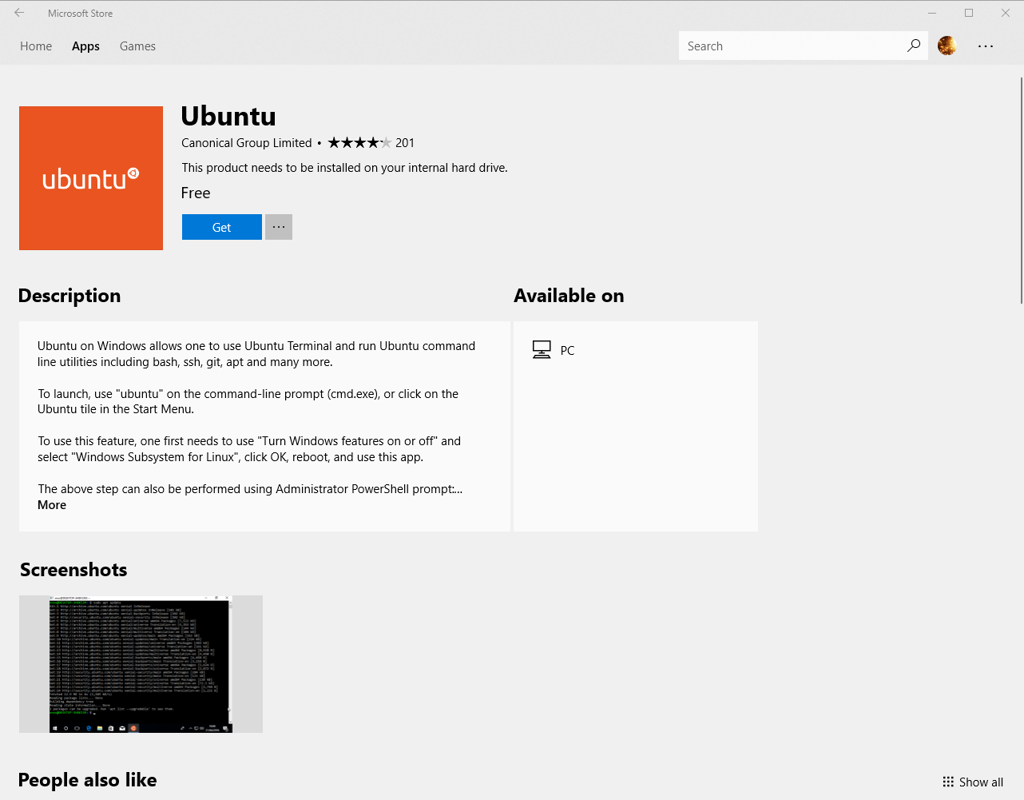
Click Get to start downloading.
Installation complete
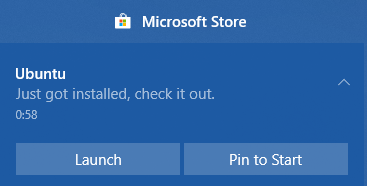
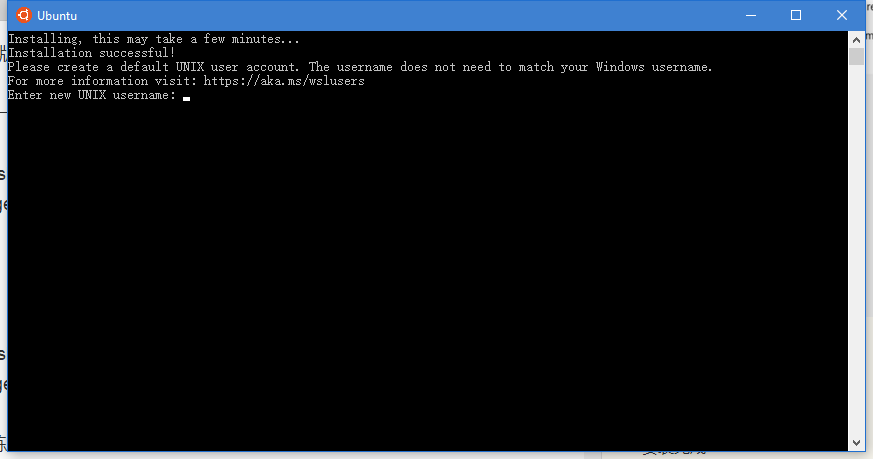
Click Launch and continue with the next installation steps.
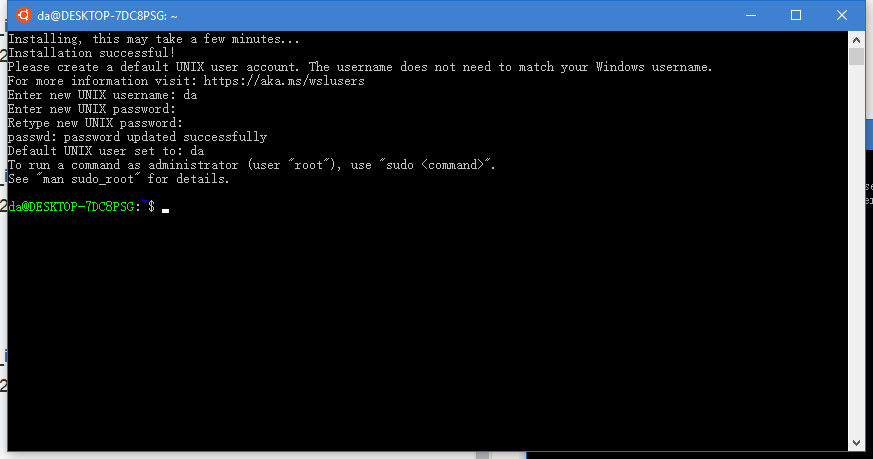
Just enter a username and password.
Installation complete. You can now have fun with it.
About

For more interesting tips, follow my WeChat official account: DealiAxy Every article is also collected on my blog: blog.deali.cn
_EOF_
Tutorial for Installing Ubuntu Subsystem on Win10
- 本文作者:
- 程序设计实验室
- 版权声明:
- 本博客所有文章除特别声明外,均采用 BY-NC-SA 许可协议。转载请注明出处!
相关文章
在 Windows 10 上实现免密码 SSH 登录
在日常开发中,SSH(Secure Shell)作为一种安全的远程登录协议,广泛用于 Linux 和 Windows 系统之间的连接。为了提高效率,我们可以通过配置免密码登录,省去每次连接时输入密码的繁琐过程。
2026-08-25 · Windows · 约 1 分钟
忘记WSL的root密码怎么办
解决方法 首先,打开WSL是不需要输入密码的,如果你打开WSL时的默认用户不是root,请按照一下方式修改。 修改默认登录WSL用户 以管理员权限启动Powershell lxrun /setdefaultuser root 此时重新打开WSL就是root用户了,并且不需要密码。 然后输入以下命令修改密码。 passwd root About 了解更多有趣的操作请关注我的微信公众号:DealiA
2021-12-18 · Windows · 约 1 分钟
在Windows上将git与ssh-agent搭配使用
Windows git 还自带 ssh?真是老土的兼容性思路。一行配置就能解决,不过得先管好 ssh-agent 的连接。 ProxyCommand 居然又添乱,难怪老出毛病。
2025-08-21 · Windows · 约 1 分钟
使用EarTrumpet代替windows默认的音量调节功能
Windows 默认的音量调节功能挺弱的,要分别调节各个应用的音量得进入二级菜单,麻烦得很。有了这个功能就很方便了
2025-01-26 · Windows · 约 1 分钟
讨论
共 0 条加载评论中…