

IT Home Academy: Make Win10 File Explorer's Details Pane Show More Information
When you enable the details pane in Windows Explorer and then select a file (the IT Home editor selected an exe file), you will see some information about this file on the right half of the window, including the modified date, created date, file size, and availability. However, for some users, this information is quite limited and still not detailed enough. In this article, IT Home will demonstrate how to configure the settings so that File Explorer can display more useful information about the selected file in the details pane. The method below applies
When you enable the details pane in Windows Explorer and then select a file (the IT Home editor selected an exe file), you will see some information about this file on the right half of the window, including the modified date, created date, file size, and availability. However, for some users, this information is quite limited and still not detailed enough.
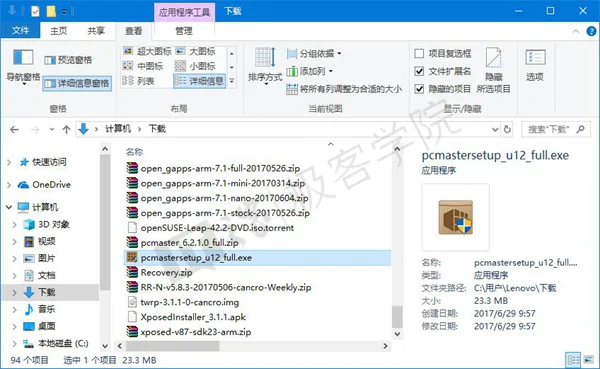
In this article, IT Home will demonstrate how to configure the settings so that File Explorer can display more useful information about the selected file in the details pane.

The method below applies to Windows Vista, Windows 7, Windows 8/8.1, and Windows 10. Before you begin, please note that modifying the registry is risky. Although following the steps in this article will not adversely affect your computer's system, mistaken operations may prevent your computer from continuing to work normally. Let's begin.
Search for and open regedit in Microsoft Cortana;
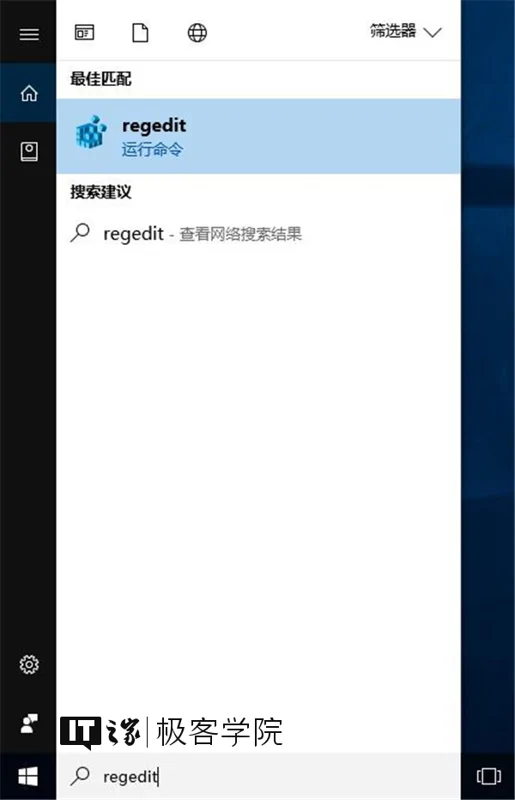
Go to the following path:
\HKEY_CLASSES_ROOT\
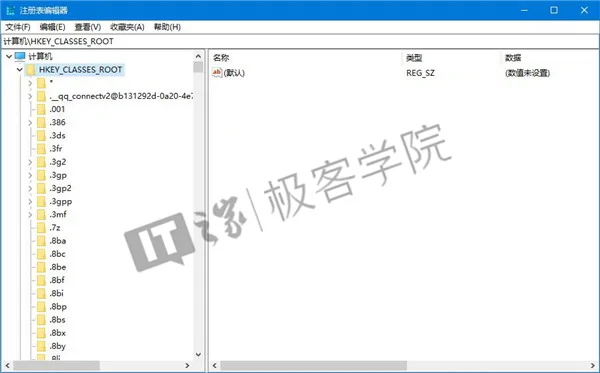
In this directory, you will see many subkeys that start with "." followed by file extensions such as 3gp, docx, and exe.
Here, the IT Home editor wants to make it so that when we select an exe file, the details pane can display more information about this file, so we select the subkey named .exe in the \HKEY_CLASSES_ROOT\ directory.
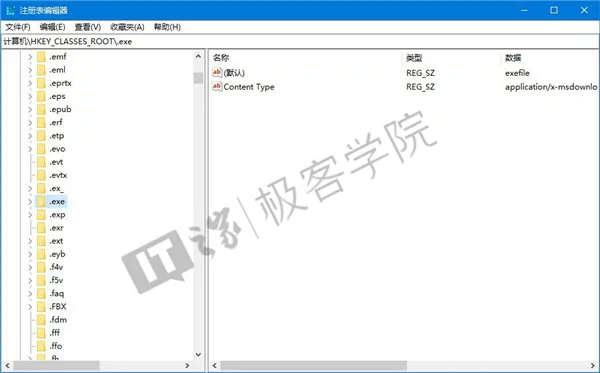
After selecting it, look to the right half of the window. We will see a string value named (Default), whose data value is exefile.
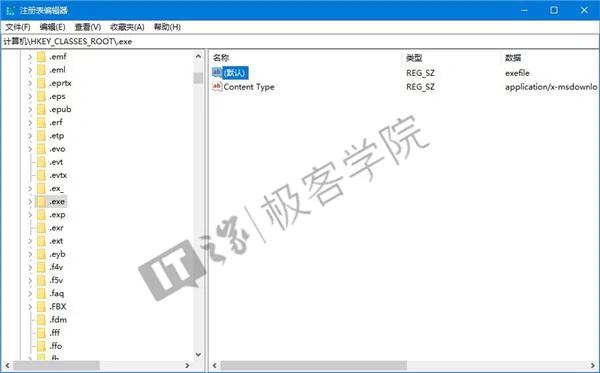
Remember this word, find it in the \HKEY_CLASSES_ROOT\ directory, and then click to enter that subkey.
Here for the IT Home editor, the full path of the exefile subkey is:
\HKEY_CLASSES_ROOT\exefile
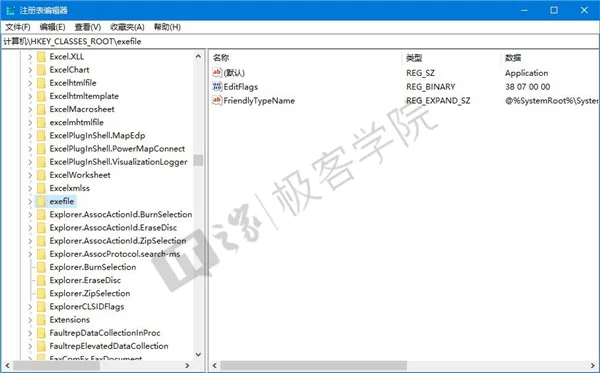
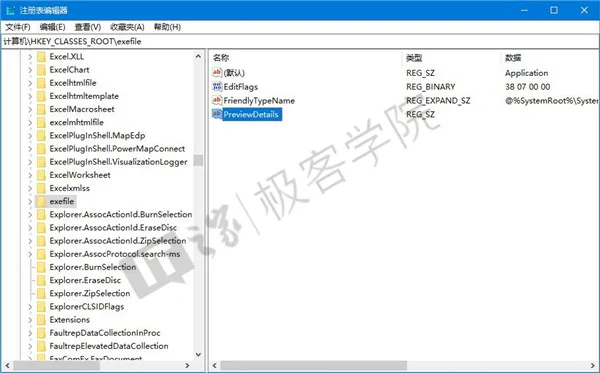
After selecting it, look to the right half of the window, place the mouse cursor in a blank area, right-click, choose New - String Value, and name the newly created string value:
PreviewDetails
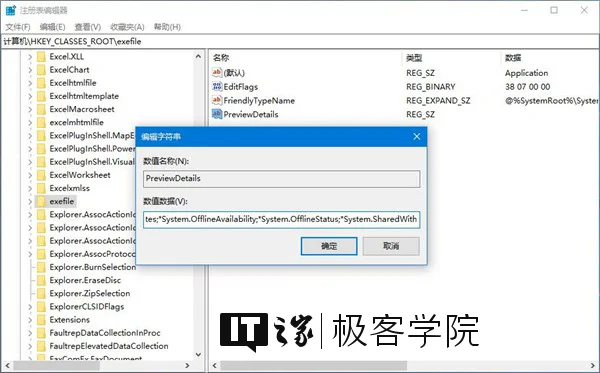
Double-click the string value named PreviewDetails that you just created, and set its value data to the following:
prop:System.ItemNameDisplay;System.ItemTypeText;System.ItemFolderPathDisplay;System.Size;System.DateCreated;System.DateModified;System.FileAttributesSystem.FileOwner;System.FileAttributes;*System.OfflineAvailability;*System.OfflineStatus;*System.SharedWith
Then click the OK button.
At this point, go back to Explorer, with the focus still on the exe file you just selected. Click the refresh button to the right of the address bar, or press F5 on the keyboard, and you will see that the details pane on the right side of the window now displays more useful information.
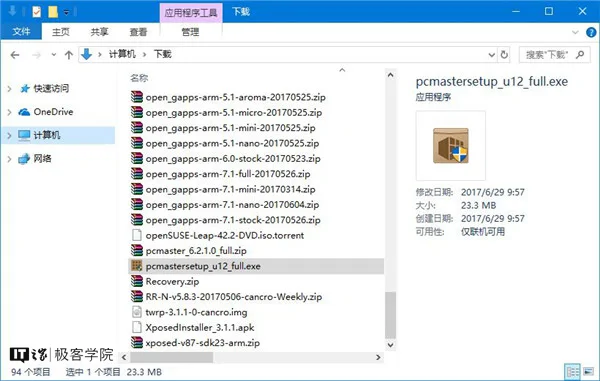
▲ Before modification
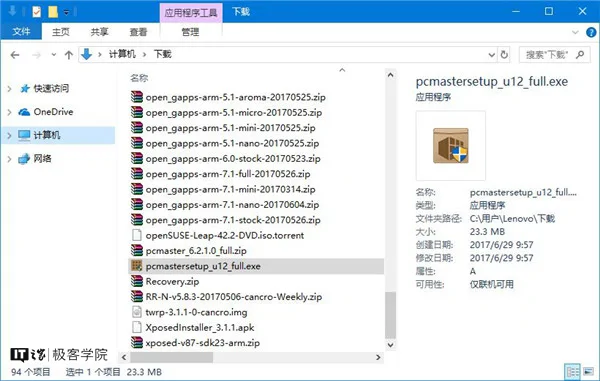
▲ After modification
Just now, we set the value data of the PreviewDetails string value. Now, let's see what this value includes.
-
System.ItemNameDisplay — file name;
-
System.ItemTypeText — file type;
-
System.ItemFolderPathDisplay — the full path of the folder containing this file;
-
System.Size — file size;
-
System.DateCreated — the file's creation date;
-
System.DateModified — the file's last modified date;
-
System.FileAttributesSystem.FileOwner — the owner of this file;
-
System.FileAttributes — the file's availability.
You can customize which information about the file you want to display in the file's details pane according to your personal preference, and modify the value data of the PreviewDetails string value accordingly.
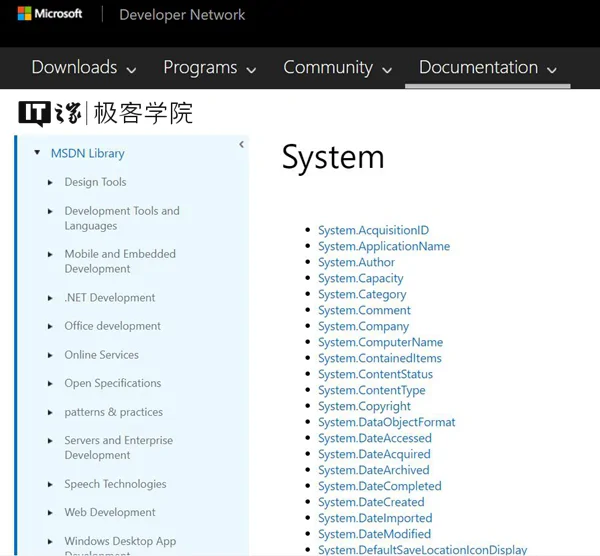
Of course, the metadata given in the example above is not complete. Microsoft has listed a more complete list of prop: metadata on the MSDN site. This list is very long. If you want to view this list, please click here to visit that page on the MSDN site.
If you want to restore the information items displayed in the details pane to the default values, you can open the registry and delete the string value named PreviewDetails in
\HKEY_CLASSES_ROOT\exefile
For more general knowledge and practical tutorials, please follow IT Home Academy.
_EOF_
IT Home Academy: Make Win10 File Explorer's Details Pane Show More Information
- 本文作者:
- 程序设计实验室
- 版权声明:
- 本博客所有文章除特别声明外,均采用 BY-NC-SA 许可协议。转载请注明出处!
相关文章
使用twinkle-tray快捷调整多个显示器的亮度
自从安装了这个小工具,我再也没用过笔记本键盘上的快捷键了~
2025-01-26 · Windows · 约 1 分钟
修复winget命令找不到的问题
微软官方包管理器winget在Windows 10 1809以上版本中,用于快速安装、更新和管理应用程序。本文介绍了因系统环境变化导致winget命令失效的问题,分析了可能原因,并提供了解决方案及预防措施,包括修复命令、定期更新检查、备份环境变量等。
2025-04-04 · Windows · 约 1 分钟
2024年,提升Windows开发和使用体验的实践经验 - RIME输入法
上一篇文章介绍了 Windows 下的包管理器,本文继续介绍输入法。 事实上 Windows 的输入法生态比 Linux/Mac 丰富很多,不过很多国产输入法存在窃取隐私、植入广告、乱安装流氓软件等问题,现在有开源的 RIME 输入法可以选择,何必受这气呢
2024-02-29 · Windows · 约 1 分钟
忘记WSL的root密码怎么办
解决方法 首先,打开WSL是不需要输入密码的,如果你打开WSL时的默认用户不是root,请按照一下方式修改。 修改默认登录WSL用户 以管理员权限启动Powershell lxrun /setdefaultuser root 此时重新打开WSL就是root用户了,并且不需要密码。 然后输入以下命令修改密码。 passwd root About 了解更多有趣的操作请关注我的微信公众号:DealiA
2021-12-18 · Windows · 约 1 分钟
讨论
共 0 条加载评论中…