

Using Hyper-V Virtual Machines on Windows 11
WSL turned on Hyper-V, so VMware is completely dead. Nested virtualization? Dream on. Switched to the native Hyper-V Manager—enabling it was actually easy. Windows Admin Center login failed; couldn't be bothered to mess with it, just used the console.
目录5 个章节
Introduction
I recently wanted to create a virtual machine to test a project. I switched from VirtualBox to VMware, and the latter was pretty decent.
However, neither of them could enable AMD-V/RVI Virtualize. It suddenly dawned on me that I had enabled WSL in order to use Docker Desktop, and WSL is based on Hyper-V.
Once these features are turned on, the Windows system itself runs on top of the Hyper-V hypervisor.
In that case, VMware is essentially just another VM running on top of Hyper-V. It cannot punch through Hyper-V to access the underlying hardware virtualization instruction set (AMD-V), so it cannot provide nested virtualization to the VMs inside it.
The impact
- Limited functionality: You cannot install and run KVM, Docker, or another virtual machine inside a VMware VM.
- Performance overhead: Because VMware no longer accesses hardware directly and instead runs through the Windows Hypervisor Platform, VMs may run slightly slower.
No wonder the Linux desktop I installed felt extremely laggy—enabling 3D acceleration didn't help either.
In that case, I might as well try Windows's native Hyper-V VMs.
Enabling Hyper-V Manager
Note that only Pro and higher editions have this feature; Home edition does not.
Press Win + R, type optionalfeatures and press Enter
In the list that pops up, find Hyper-V.
Make sure both Hyper-V Management Tools and Hyper-V Platform are checked

Windows Admin Center
Official docs: https://learn.microsoft.com/en-us/windows-server/manage/windows-admin-center/overview
Windows Admin Center is Microsoft's next-generation server and system management platform.
It implements graphical management by calling the underlying Hyper-V role.
You can install it directly with winget
winget install Microsoft.WindowsAdminCenter
After installation, a browser page will open
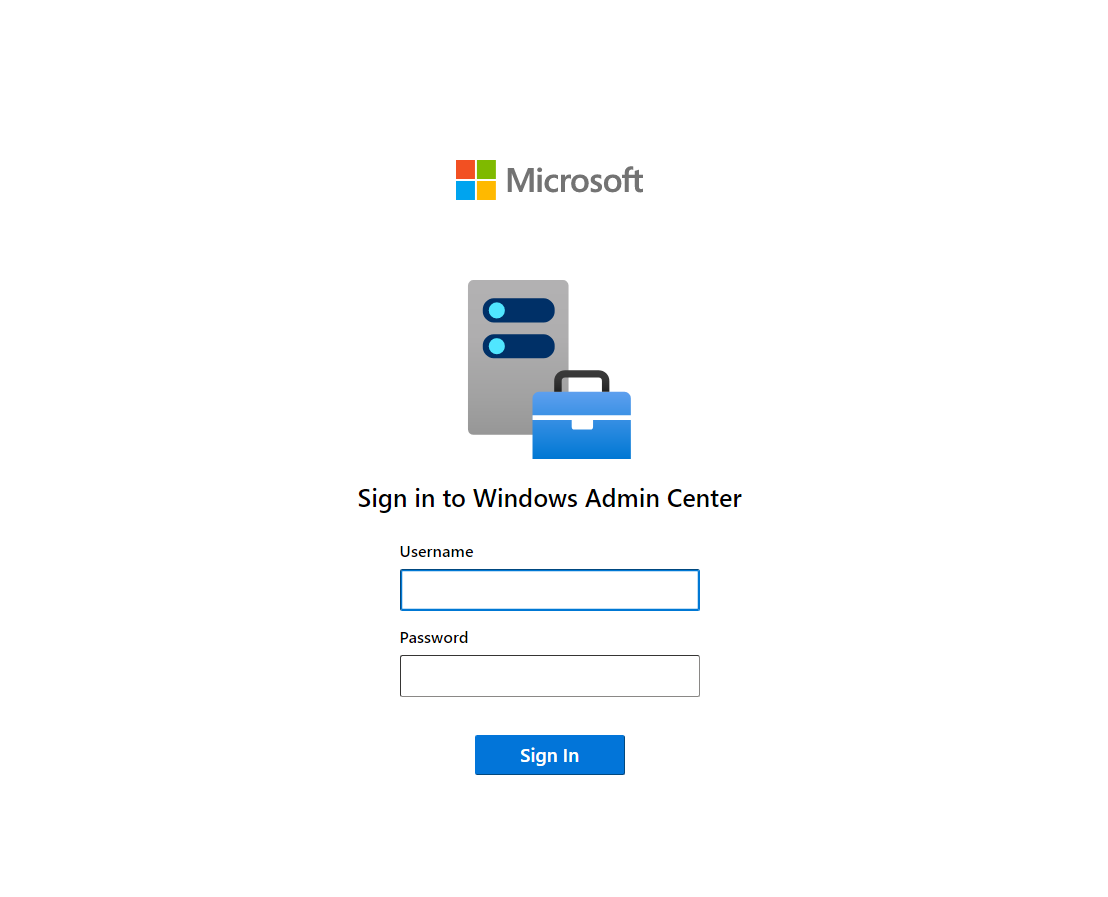
Enter your computer username and password here to log in
The username here needs to include the computer name. You can open PowerShell and run the following command to see the full username:
whoami
In actual testing, though, something went wrong somewhere and I could never log in on that page. I didn't really want to mess with it, so I just used the system's Hyper-V console instead.
Hyper-V Manager
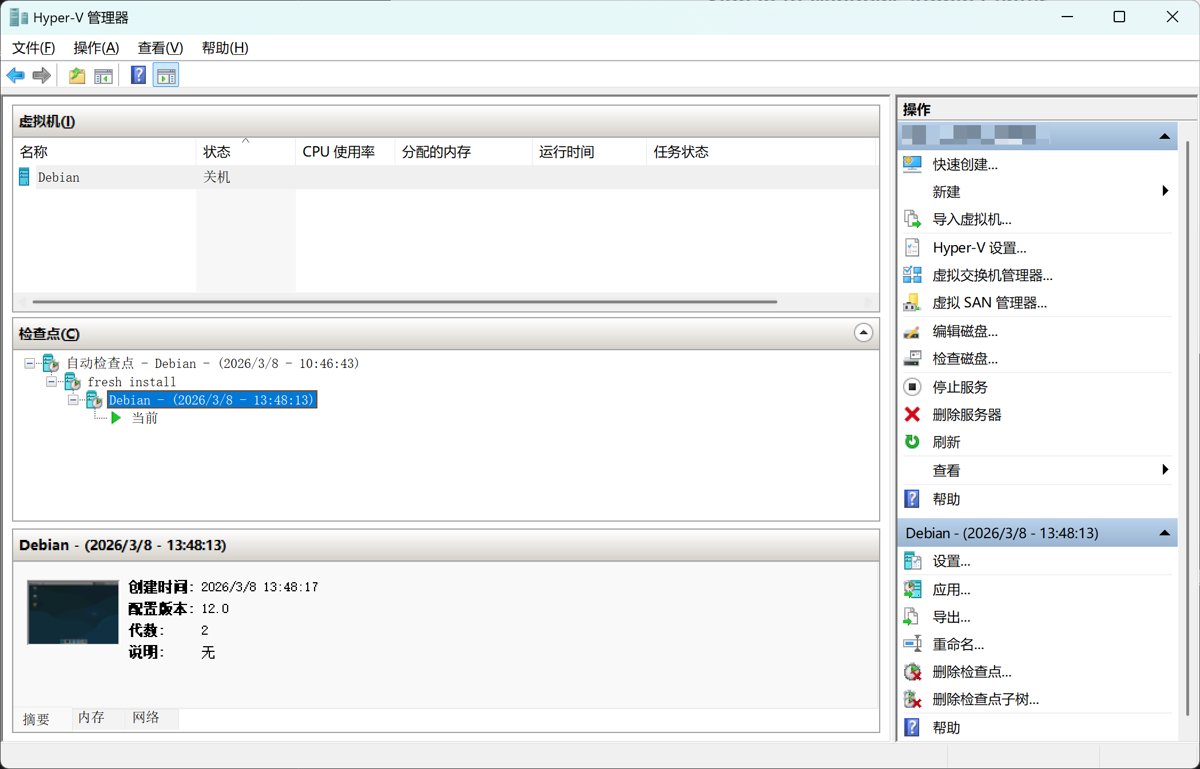
After the enabling steps above, this manager is already in the system—just open it.
The steps for creating a VM are similar to VMware/VirtualBox. This is a VM I already created, with Debian 13 installed and configured.
Wrap-up
The remaining steps (such as choosing a Debian desktop environment, system configuration, installing OpenClaw, etc.) aren't closely related to Hyper-V, so I'll cover them in a separate article.
_EOF_
Using Hyper-V Virtual Machines on Windows 11
- 本文作者:
- 程序设计实验室
- 版权声明:
- 本博客所有文章除特别声明外,均采用 BY-NC-SA 许可协议。转载请注明出处!
相关文章
这是演习:Win10蓝屏,随你召唤
蓝屏似乎是很多IT之家用户不希望看到的东西,虽然在Win10中你还可以扫描屏幕下方二维码参与微软互动赢取大……那个,蓝屏的好处就是为专业人员提供问题信息,比如当前的内存转储,有助于排查和解决问题。当然,可能光是默认蓝屏给出的信息不够,此时可以开启Win10蓝屏详细信息显示。 ▲这二维码居然“上位”了……VM12虚拟机测试结果 微软在Windows10中安排了手动“调取”蓝屏的方式,那就是**按住右
2021-12-18 · Windows · 约 1 分钟
使用EarTrumpet代替windows默认的音量调节功能
Windows 默认的音量调节功能挺弱的,要分别调节各个应用的音量得进入二级菜单,麻烦得很。有了这个功能就很方便了
2025-01-26 · Windows · 约 1 分钟
IT之家学院:让你的Win10桌面比macOS还简洁漂亮高大上
感谢IT之家网友 yiyueduzui 的原创投稿 直奔主题,先给大家看看我的电脑桌面: 有人开始骂了:你特么逗我呢?这明明就是一张图片好不啦! 我读书那么多,怎么会骗你,这真的是我的电脑桌面,不还有个桌面数字时钟呢嘛!论简洁,还有谁? 那这啥都没有,要怎么用啊? 看好啦,当我的鼠标移动到屏幕下方的时候, 出现了一个Dock栏,跟苹果系统的一样一样的。 有些图标其实是一个目录或者文件夹,当它展开的
2021-12-18 · Windows · 约 1 分钟
Windows10-快捷键大全,整理+排版
前言 偶然在微软官网看到的,整理了一下,非常全面。不只有Windows10能用,大部分快捷键在7/8/8.1里都是通用的。 发现这东西对提高效率帮助很大啊,下面是整理之后的。 复制、粘贴及其他常规的键盘快捷方式 | 按键 | 操作
2021-12-18 · Windows · 约 1 分钟
讨论
共 0 条加载评论中…