

Using Hyper-V Virtual Machines on Windows 11
WSL turned on Hyper-V, so VMware is completely dead. Nested virtualization? Dream on. Switched to the native Hyper-V Manager—enabling it was actually easy. Windows Admin Center login failed; couldn't be bothered to mess with it, just used the console.
目录5 个章节
Introduction
I recently wanted to create a virtual machine to test a project. I switched from VirtualBox to VMware, and the latter was pretty decent.
However, neither of them could enable AMD-V/RVI Virtualize. It suddenly dawned on me that I had enabled WSL in order to use Docker Desktop, and WSL is based on Hyper-V.
Once these features are turned on, the Windows system itself runs on top of the Hyper-V hypervisor.
In that case, VMware is essentially just another VM running on top of Hyper-V. It cannot punch through Hyper-V to access the underlying hardware virtualization instruction set (AMD-V), so it cannot provide nested virtualization to the VMs inside it.
The impact
- Limited functionality: You cannot install and run KVM, Docker, or another virtual machine inside a VMware VM.
- Performance overhead: Because VMware no longer accesses hardware directly and instead runs through the Windows Hypervisor Platform, VMs may run slightly slower.
No wonder the Linux desktop I installed felt extremely laggy—enabling 3D acceleration didn't help either.
In that case, I might as well try Windows's native Hyper-V VMs.
Enabling Hyper-V Manager
Note that only Pro and higher editions have this feature; Home edition does not.
Press Win + R, type optionalfeatures and press Enter
In the list that pops up, find Hyper-V.
Make sure both Hyper-V Management Tools and Hyper-V Platform are checked

Windows Admin Center
Official docs: https://learn.microsoft.com/en-us/windows-server/manage/windows-admin-center/overview
Windows Admin Center is Microsoft's next-generation server and system management platform.
It implements graphical management by calling the underlying Hyper-V role.
You can install it directly with winget
winget install Microsoft.WindowsAdminCenter
After installation, a browser page will open
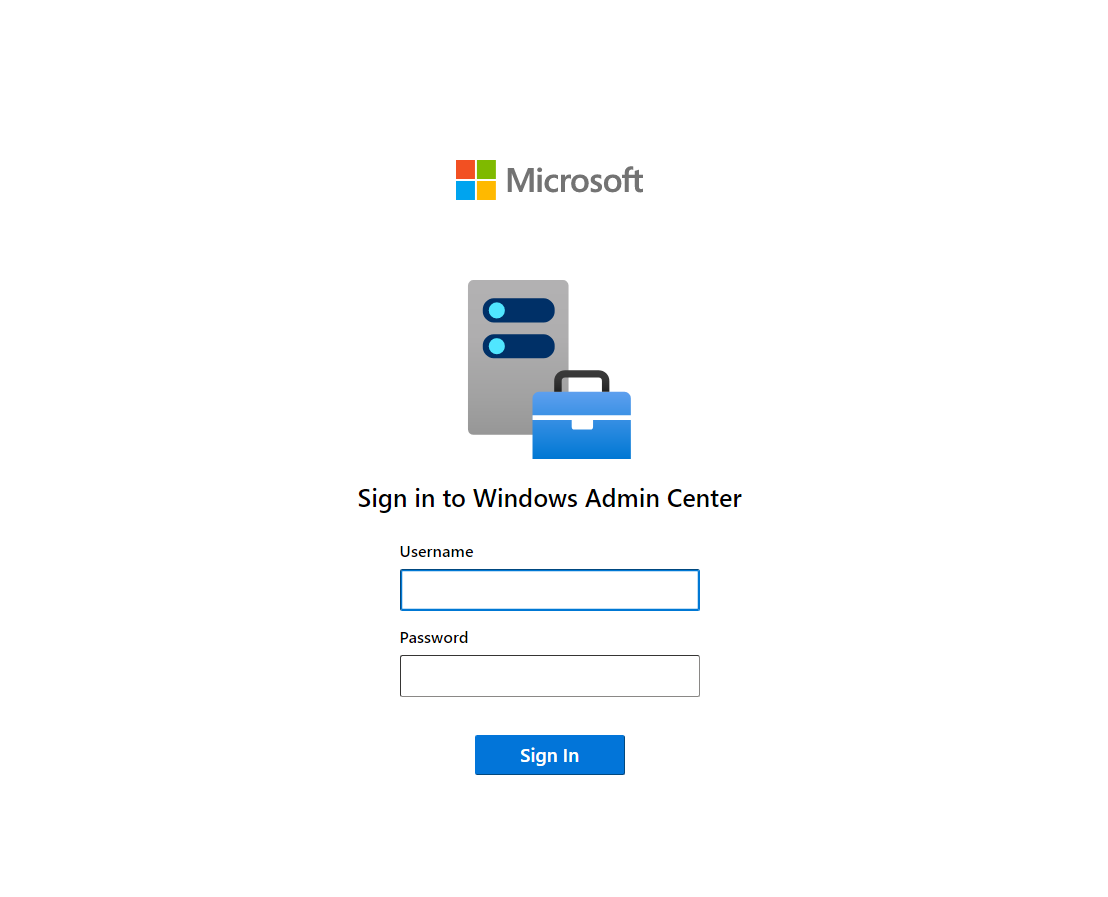
Enter your computer username and password here to log in
The username here needs to include the computer name. You can open PowerShell and run the following command to see the full username:
whoami
In actual testing, though, something went wrong somewhere and I could never log in on that page. I didn't really want to mess with it, so I just used the system's Hyper-V console instead.
Hyper-V Manager
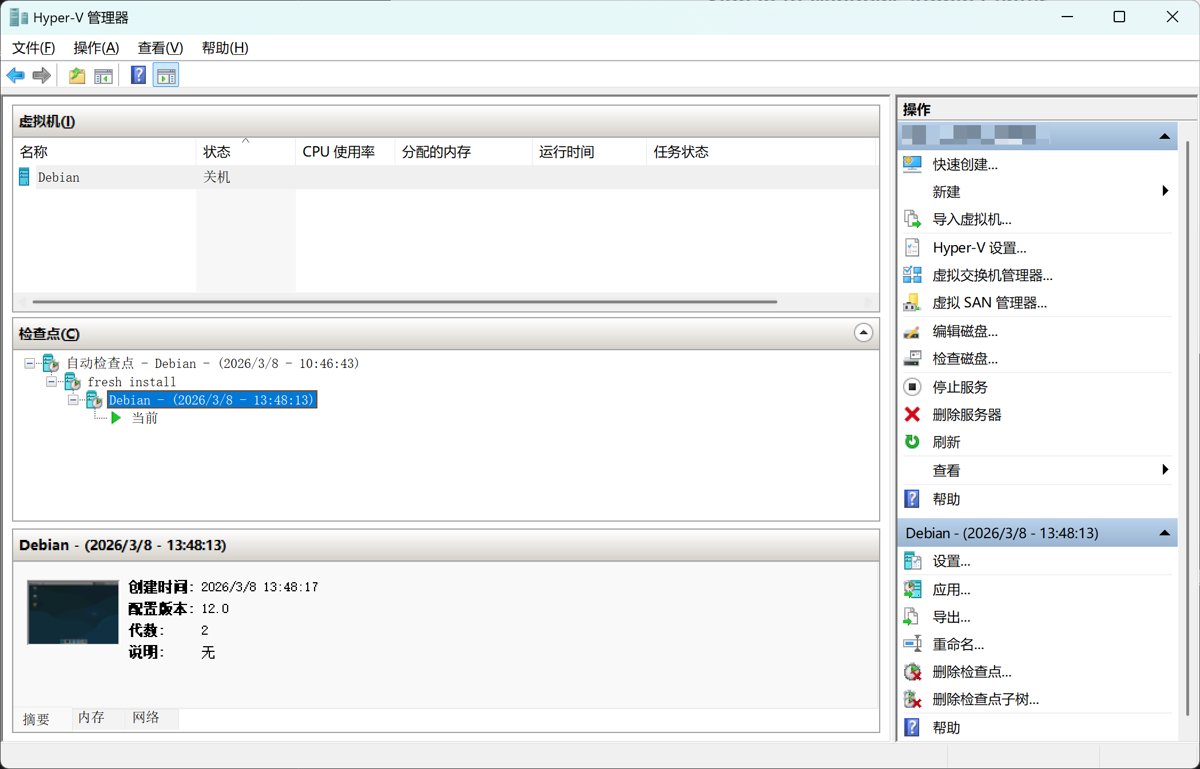
After the enabling steps above, this manager is already in the system—just open it.
The steps for creating a VM are similar to VMware/VirtualBox. This is a VM I already created, with Debian 13 installed and configured.
Wrap-up
The remaining steps (such as choosing a Debian desktop environment, system configuration, installing OpenClaw, etc.) aren't closely related to Hyper-V, so I'll cover them in a separate article.
_EOF_
Using Hyper-V Virtual Machines on Windows 11
- 本文作者:
- 程序设计实验室
- 版权声明:
- 本博客所有文章除特别声明外,均采用 BY-NC-SA 许可协议。转载请注明出处!
相关文章
Kali-Linux-on-WSL2安装与简单配置指南
Windows在更新到2004版本之后正式开启了WSL2的支持,这次是完整的运行在HyperV虚拟机中的Linux系统了,可以称之为真正的Linux了,难不成Windows即将成为最好的Linux发行版? 实际体验下来还是可以的,不过小问题不少,爱折腾的同学安排一手,对提高Windows平台下的开发体验还是有很大帮助的~ Kali on WSL2安装指南 升级系统 首先检查当前系统版本,按Win+
2021-12-18 · Windows · 约 1 分钟
2024年,提升Windows开发和使用体验的一些实践 - 包管理器篇
Windows包管理器?scoop开源自定义,winget官方凑合,WingetUI图形界面总算不用手动折腾了。效率提升?哼,总算不是Linux小众玩家的专利。
2024-02-29 · Windows · 约 1 分钟
2024年,提升Windows开发和使用体验的实践经验 - RIME输入法
上一篇文章介绍了 Windows 下的包管理器,本文继续介绍输入法。 事实上 Windows 的输入法生态比 Linux/Mac 丰富很多,不过很多国产输入法存在窃取隐私、植入广告、乱安装流氓软件等问题,现在有开源的 RIME 输入法可以选择,何必受这气呢
2024-02-29 · Windows · 约 1 分钟
Windows平台下Git的安装与配置
一、下载 Git for Windows,主页:http://gitforwindows.org/ 点击页面中“Download”进入下载列表。可根据个人喜好选择下载版本。 这里选择下载最新版:Git-1.8.3-preview20130601.exe. 二、安装 下载完毕,双击开始安装: 1、除了AdvancedXXX选项,其余全选中 2、选择“Use Git Bash only” 3、选择
2021-12-18 · Windows · 约 1 分钟
讨论
共 0 条加载评论中…