

Let C# Have a gofmt-like Experience Too: Implementing csfmt with CSharpier + Roslyn
C# code so long it looks like garbage? Use CSharpier to wrap lines automatically, then Roslyn to fix K&R braces, and wrap it up with one Taskfile command. Add format-check so CI doesn't keep producing Git diffs. This two-step pipeline isn't native gofmt—you still have to honestly lock down the order and versions.
目录14 个章节
Preface
Over the past two years, as AI has spread, the entire IT industry has undergone earth-shaking changes. Caught in this wave of development, my attitude toward AI has gone with the flow from initial resistance to gradual acceptance.
The proportion of AI-generated code in projects has also been rising. AI has leveled the gap in proficiency with programming languages and tech stacks, so there are more directions available when choosing technologies.
For example, half a year ago I was still sticking with Django, as also recorded in "When Everyone Can Write Code with AI, Why Did I Choose to Return to Django?".
Later I read Flask author Armin Ronacher's blog post "90%". I also did some experiments myself and found that Go really does pair well with AI. I used to not want to use Go for project backends because the code was too smelly and too long, rivaling Java—but when you don't have to write it yourself, Go actually starts looking rather neat. Aside from the ugly code, it's all advantages no matter how you look at it.
So this year I've also developed quite a few projects with Go; I'll write articles to share them when I have time.
This article is mainly about another tech stack. Longtime readers should know I really like C# and the .NET ecosystem. In the pre-AI era I already built a series of projects, plus the StarBlog series of web development tutorials that got quite a few people hooked 😂
Over the past two years I've also tried using AI to develop C# projects, but my thinking was still stuck in traditional design patterns like MVC and DDD and hadn't shifted yet. I started a few projects that all eventually flopped because complexity exploded.
Repeated setbacks made me a bit intimidated by C#. After that, my tech choices for projects were mainly Python and TypeScript. These two scripting languages really thrive in the AI era, but once projects scale up they get genuinely ugly.
But as a veteran C# enthusiast, I certainly couldn't give up easily. After constant experimentation, it wasn't until I combined monorepo, modular, and monolith that it suddenly dawned on me: this is what I wanted!
I've gone on a bit without realizing it—let me reel it in. I recently organized the new approach described above into a scaffold. Early practice has shown it to be extremely useful; I'll share the details later. Now, back to the main topic.
Why AI + Go works so well is that Go's design philosophy really matches AI's taste. You used to be able to call it crude, rigid, and inflexible, but now that crudeness has become an advantage. The code all comes out looking the same; coding habits and the toolchain are unified across the board, and the cognitive load is very low.
By contrast, C# maxed out on syntactic sugar actually suffers. Just as the character 茴 has nine ways of being written, C# has far too many ways to implement the same functionality. People of different skill levels produce wildly different quality, and it's the same problem on the AI side: without constraints, you really don't know what the AI will turn the code into, or how many layers a single feature can be split into 😂
Even just code style has many schools. C# by default follows the C++ brace-on-new-line school; I prefer Java's K&R style. AI-generated code generally doesn't match my personal habits. Especially with ASP.NET Core Minimal APIs, lots of endpoint registration code, lambda expressions, and method calls nested together often produce lines hundreds of characters long.
For example, code like this:
wallets.MapPost("/{orgId:guid}/top-ups", async (Guid orgId, ConfirmTopUp body, HttpContext http, WalletLedger ledger, CancellationToken token) => Results.Ok(await ledger.TopUp(Actor(http), orgId, body, ApiProtocol.ReadIdempotencyKey(http.Request.Headers), token, administrator: true)));
There's nothing particularly wrong with the code itself, but when you read it—what a mess.
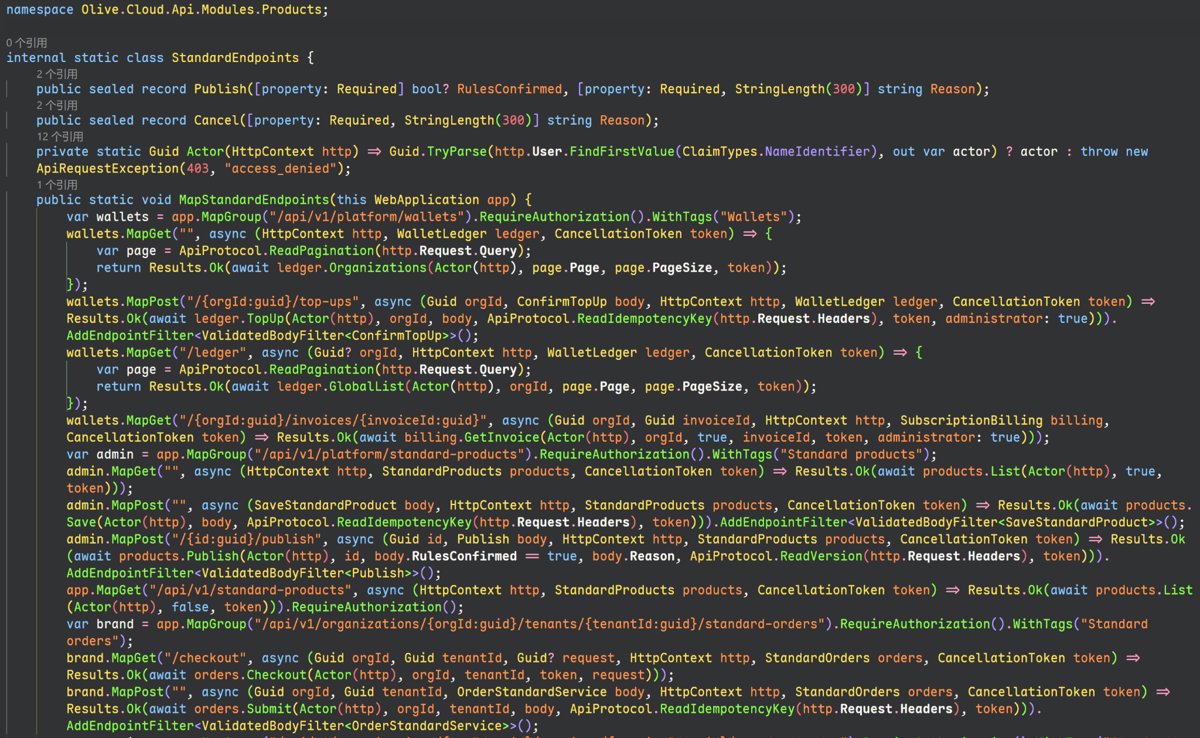
I've always had a fairly consistent C# code style; my habits were basically formed back when I was developing StarBlog.
The two most important points are:
- I like K&R-style braces, meaning
{stays on the same line as the type, method, or control statement. - I want long expressions and parameter lists to wrap reasonably automatically, rather than stretching infinitely to the right of the screen.
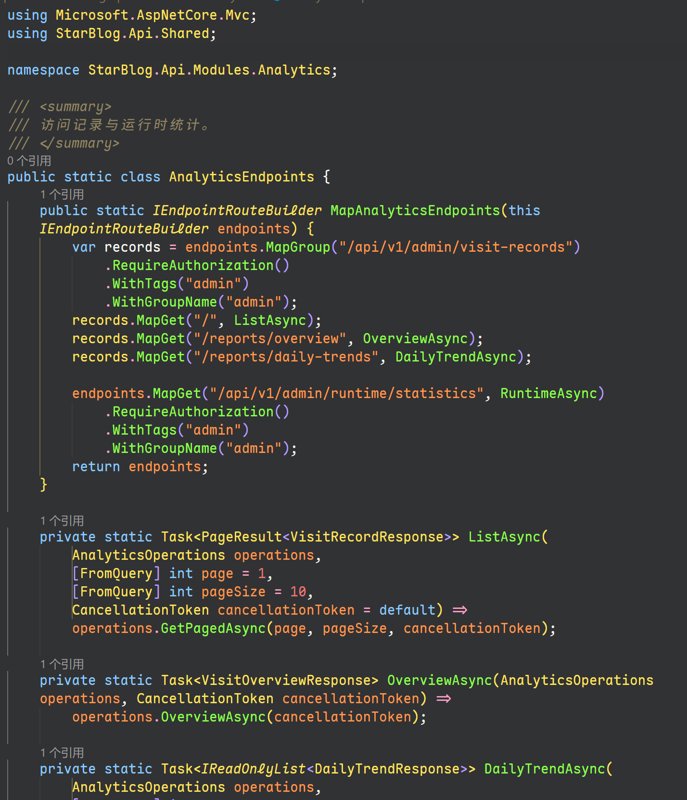
These two requirements are actually quite ordinary.
I don't want to extra-remind the AI to follow some formatting spec every time I have it generate code, and I certainly don't want to adjust the layout by hand.
Ideally, it should be like Go's gofmt: run one command and the entire project's code is tidied into a unified style.
So I started looking into C# code formatting tools.
Does C# Have a Tool Like gofmt?
Of course it does—and more than one.
Before this, I always wrote code in Rider, used the IDE's formatting features, and exported the code style as .editorconfig into the project, so that when opened on different computers the IDE would all recognize this code style.
In today's AI era, I rarely use Rider anymore; I generally use VSCode.
After some AI-assisted research: .NET's built-in dotnet format already supports code formatting and can work with .editorconfig to control indentation, spaces, braces, and other style aspects.
There's also a very interesting open-source tool: CSharpier.
GitHub: https://github.com/belav/csharpier
CSharpier's positioning is very similar to Prettier: it's an Opinionated Code Formatter, meaning it minimizes configuration options and uses a single unified set of rules to decide how code should be laid out.
This happens to match my needs.
I want the formatter to automatically decide:
- when a line of code should wrap;
- how to arrange method parameters when there are too many;
- how to lay out chained calls and complex expressions;
- how to keep indentation and whitespace consistent.
CSharpier does a decent job in these areas.
CSharpier's Brace Style Isn't What I Want
CSharpier uses an Allman style like the following:
public class MyService
{
    public void Execute()
    {
        if (true)
        {
            Console.WriteLine("Hello!");
        }
    }
}
But I prefer K&R style:
public class MyService {
    public void Execute() {
        if (true) {
            Console.WriteLine("Hello!");
        }
    }
}
This is purely code aesthetics and personal habit; neither style is more advanced.
For me, K&R style is more compact—you can see more code on a screen of the same size—and I've always written C# this way.
CSharpier does not support changing brace placement via .editorconfig's csharp_* settings.
Its design philosophy is to unify code style as much as possible, not to let users freely configure every layout detail.
That's a bit awkward.
CSharpier can solve the wrapping problem but can't satisfy my brace preference; dotnet format can control braces but can't fully replace CSharpier's automatic wrapping.
Do I have to pick only one?
A Different Approach: Why Not Combine the Two Tools?
Then it suddenly occurred to me:
Since the two tools each have their strengths, why must one of them do all the work?
Could I first let CSharpier handle the code layout, then use dotnet format to adjust the braces back?
The idea is actually very simple:
Step 1: CSharpier handles wrapping and overall layout.
Reorganize overly long method signatures, parameter lists, lambda expressions, and call chains into more readable structures.
This stage doesn't consider brace style; even if CSharpier moves braces to the next line, that's fine.
Step 2: Roslyn handles brace layout.
Use dotnet format whitespace to adjust braces to my preferred K&R style according to .editorconfig.
The resulting code has both CSharpier's automatic wrapping and Roslyn's brace configuration.
The whole process can be summarized as:
        原始 C# 代码
              |
              v
          CSharpier
     自动折行、整理代码布局
              |
              v
   dotnet format whitespace
       恢复 K&R 花括号
              |
              v
        最终格式化代码
This way I don't need to modify CSharpier, nor develop a new C# formatter myself.
Two mature tools, each responsible for what they're good at.
After actual testing, this approach really does work.
Getting to Work: CSharpier + Roslyn
To validate the approach, I created a standalone demo project and used Taskfile to manage the entire formatting process.
This uses CSharpier 1.3. Formatting behavior and configuration support may differ across versions; for production use, I recommend locking the tool version.
1. Install CSharpier
First, create a .NET local tool manifest in the project directory and install CSharpier:
dotnet new tool-manifest
dotnet tool install csharpier
This way CSharpier is recorded in the project's .config/dotnet-tools.json, making it easy for other developers to restore the same tool version.
Then you can use:
dotnet csharpier format .
to format the C# code in the current directory.
In my demo, I use CSharpier's default layout configuration: 100-character line width, 4-space indentation.
Note that CSharpier will not change its own output style just because K&R brace rules are set in .editorconfig.
So a second step is still needed.
2. Configure .editorconfig
Create .editorconfig in the demo project directory:
root = true

[*.cs]
csharp_new_line_before_open_brace = none
csharp_new_line_before_else = false
csharp_new_line_before_catch = true
csharp_new_line_before_finally = true
The intent of this configuration is:
- Braces stay on the same line as the corresponding declaration or statement;
elsedoes not wrap onto its own line;catchandfinallyuse a wrapping style.
Of course, this is only the demo's minimal configuration; a real project can continue adjusting according to its own code style.
I also deliberately set root = true to prevent the demo from inheriting .editorconfig settings from higher up in the repo.
That's because the repo root originally had settings like max_line_length = 120, while the demo wanted to independently verify CSharpier's default 100-character line width behavior.
3. Use dotnet format to Fix Braces
The second stage runs:
dotnet format whitespace FormatDemo.csproj
The most important part here is the whitespace subcommand.
Besides whitespace formatting, dotnet format also supports style and analyzer-related fix operations.
My need is only to adjust formatting; I don't want it to incidentally change code logic or perform other code fixes.
Therefore, explicitly using dotnet format whitespace is more appropriate than running dotnet format without a subcommand.
That said, whitespace will still process applicable whitespace formatting rules, not necessarily only the four settings listed above. So a real project should still inspect the diff produced by formatting.
At this point, the core two-stage idea is implemented.
Wrapping It into One Command with Taskfile
If we want a gofmt-like experience, we naturally can't have developers run two commands by hand every time.
I use Task to organize the whole process. In my previous monorepo projects, I used Taskfile as the project orchestration tool.
It's a cross-platform task runner, somewhat similar to Makefile, but it defines tasks in YAML.
Here's a simplified Taskfile:
version: '3'

vars:
  PROJECT: FormatDemo.csproj

tasks:
  format:
    desc: CSharpier defaults, then K&R braces
    cmds:
      - task: csharpier
      - task: braces

  csharpier:
    desc: Reprint C# with CSharpier defaults
    cmds:
      - dotnet csharpier format .

  braces:
    desc: Apply K&R braces
    cmds:
      - dotnet format whitespace {{.PROJECT}} --verbosity quiet
This way, running from the project root:
task format
completes the entire formatting process.
Doesn't that feel a bit like gofmt?
An Interesting Problem: How Do You Check Whether Code Is Already Formatted?
At this point, the formatting feature already works.
But if you want to bring it into a real project, there's another problem to solve:
How do you check whether the code conforms to this formatting spec?
CSharpier itself provides a check mode.
But for my approach, using CSharpier's check directly isn't viable.
The reason is simple: the final formatted result has been processed a second time by Roslyn, and the braces no longer match CSharpier's own default format.
If you let CSharpier check on its own, it will consider the code incorrectly formatted.
This produces a rather interesting phenomenon:
Code that one formatter considers non-compliant may happen to be the canonical result of the entire formatting pipeline.
So what actually needs to be checked is not CSharpier's output alone, but the final output of the entire pipeline.
Let:
- C stand for CSharpier;
- R stand for the Roslyn whitespace formatter;
- F stand for the final formatting pipeline.
Then:
F(x) = R(C(x))
We want already-formatted code to produce no changes when the full pipeline is run again, i.e. it should satisfy:
F(F(x)) = F(x)
This is the idempotence of formatting (Idempotence).
For a formatter, this is a very important property.
If every formatting run produces new changes, the formatting process can't be used stably in continuous integration, and it easily creates meaningless Git diffs.
My format-check Implementation
In the demo, I implemented a simple check task:
format-check:
  desc: Fail when formatting would change C# files
  cmds:
    - |
      set -eu
      snapshot="$(mktemp -d)"
      cp -a samples "$snapshot/samples"

      task format

      if ! diff -ru "$snapshot/samples" samples; then
        cp -a "$snapshot/samples/." samples/
        rm -rf "$snapshot"
        exit 1
      fi

      rm -rf "$snapshot"
The idea is:
- First save a snapshot of the original files;
- Run the full formatting pipeline;
- Compare the files before and after formatting;
- If there are differences, that means the code does not yet meet the final formatting standard.
This implementation is mainly for demo verification, not a complete production-grade side-effect-free checker. For example, if the formatting task fails midway, file restoration is not fully guaranteed.
When introducing this into CI properly, you can run the full formatting in a clean Git working tree, then use git diff --exit-code to check whether any changes exist.
I also plan to test further: starting from unformatted source, run task format multiple times in a row, and check whether the result is fully stable after the first run.
Only after verifying this can I more confidently use this combination in real projects for the long term.
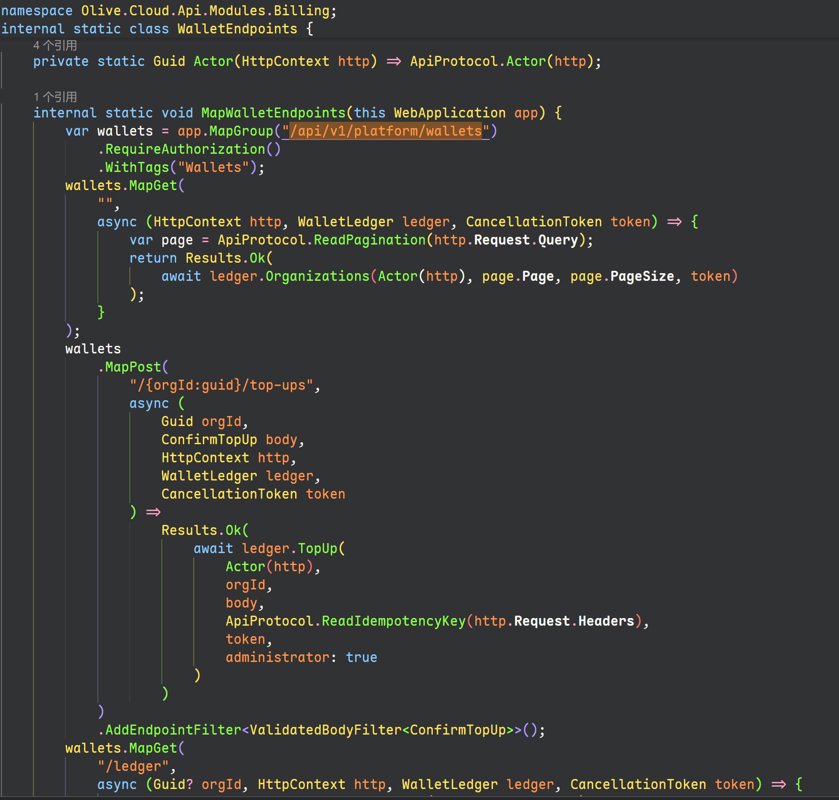
Real Results: Olive Cloud Before and After Formatting
After all that talk, how does the end result look?
Just look at the screenshot.
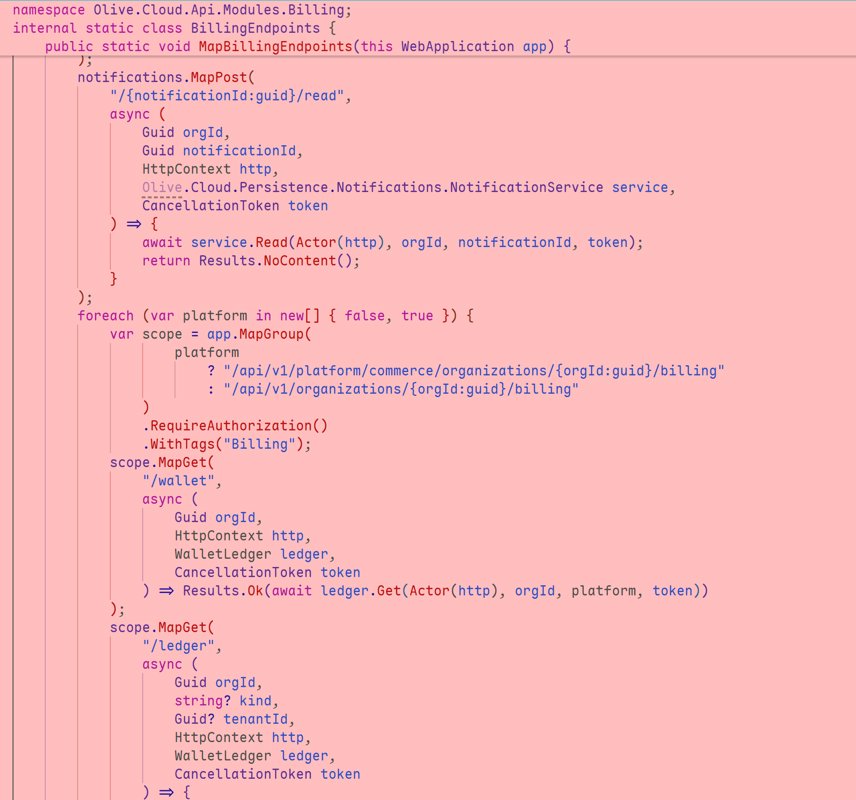
This is the Billing module in Olive Cloud, with the formatting pipeline described above already applied.
You can see that long parameter lists and Lambda expressions are reasonably split across multiple lines, and the complex Endpoint registration code is no longer all jammed together.
At the same time, the braces still keep the K&R style I prefer.
This kind of formatting cannot solve every problem in the code itself, but at least in terms of layout, it already matches my personal habits reasonably well.
[Before / After comparison of the same Endpoint]
| Before | After |
|---|---|
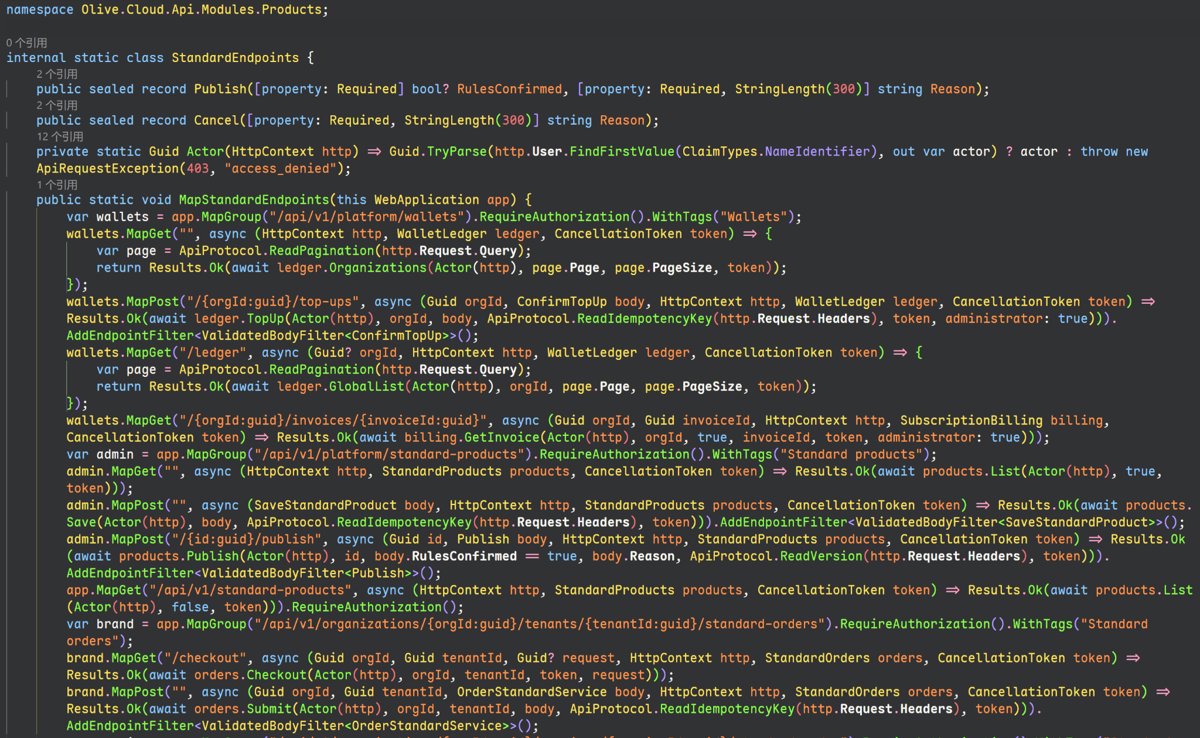 |  |
Two concepts still need to be distinguished here:
Code formatting is not the same as code refactoring.
For example, even after automatic line wrapping, an Endpoint may still be hard to maintain because it contains too much inline business logic.
That kind of problem needs to be solved by extracting Handlers, splitting modules, adjusting responsibilities, and so on—not by relying on a Formatter.
But a Formatter at least solves a problem that should not take up a developer's energy: layout.
From now on, whether I write the code myself or generate it with AI, I can restore a consistent style with the same command.
Does This Approach Have Drawbacks?
Of course it does.
First, it is not a true gofmt.
Go's gofmt uses a single formatting rule, whereas my approach is a combination of two Formatters.
Changes in tool versions, configuration, and interactions between the formatters can all change the final output.
So I prefer to pin tool versions and verify the formatting results with automated tests.
Second, the execution order cannot be changed at will.
Having CSharpier do the overall layout first, then Roslyn fix the braces—that is the core of this workflow.
If CSharpier is run again on its own at the end, the braces may switch back to Allman style.
This also means that if CSharpier's Format on Save is enabled in the IDE, you need to pay special attention to whether it will overwrite the final format.
Finally, two-stage formatting obviously adds some execution overhead compared to running a single Formatter.
For my own development workflow, though, as long as performance is within an acceptable range, trading a bit of tool runtime for a consistent code style is still worth it.
Summary
This whole effort actually started from a very small need: I don't like the layout of AI-generated C# code.
But after looking into it, I found that sometimes you don't necessarily have to find a single fully featured, fully configurable tool.
If two mature tools each solve part of the problem, combining them may well be the simplest solution.
Looking back, this also fits well with my recent experience of AI-assisted development.
In the past, developers spent a lot of time writing code themselves, so tweaking indentation, blank lines, and braces along the way didn't seem like a big deal.
It's different now: AI can generate large amounts of code in a very short time, and if developers still have to adjust the format line by line, that clearly doesn't make much sense.
I also don't want to write a long-winded prompt for the Agent just for code style, making it repeatedly imitate my layout habits.
I'd rather hand these rules over to deterministic tools.
AI implements the features, the Formatter unifies the style, and developers put their energy into requirements, architecture, and code quality.
Of course, this doesn't mean that formatted code is necessarily good code. But at least when it comes to code layout, I hope I no longer have to keep worrying about it.
In the end, the experience I want is actually very simple:
task format
When it finishes, the entire project is formatted in the style I like.
Of course this still falls short of the C# fmt workflow I ultimately want. I'll try this workflow for a while, and later I may consider forking CSharpier to get K&R brace style working, so I no longer need to depend on a two-step workflow.
_EOF_
Let C# Have a gofmt-like Experience Too: Implementing csfmt with CSharpier + Roslyn
- 本文作者:
- 程序设计实验室
- 版权声明:
- 本博客所有文章除特别声明外,均采用 BY-NC-SA 许可协议。转载请注明出处!
相关文章
试一下用DotNetCore来做机器学习,ML-Net框架跑起来
ML.Net简介 官网:https://dotnet.microsoft.com/apps/machinelearning-ai/ml-dotnet 官方介绍:The ML.NET command line interface (CLI), provides tools for building machine learning models with ML.NET. ML.NET 是面向.NET
2021-12-18 · C# · 约 1 分钟
C#高性能数组拷贝实验
前言 昨天 wc(Wyu_Cnk) 提了个问题 C# 里多维数组拷贝有没有什么比较优雅的写法? 这不是问对人了吗?正好我最近在搞图像处理,要和内存打交道,我一下就想到了在C#里面直接像C/C++一样做内存拷贝。 优雅?no,要的就是装逼,而且性能还要强🕶 概念 首先澄清一下 C# 里的多维数组 (Multi-dimensional Array) 是这样的 byte[,] arr = new by
2023-01-30 · C# · 约 1 分钟
一次小而美的重构:使用 C# 在 Avalonia 中生成真正好看的词云
重构StarBlogPublisher中词云展示功能的过程。作者对比了两个流行的C#词云库,最终选择了功能更强大的Sdcb.WordCloud。文章详细说明了如何使用该库获取词频数据并生成词云图像,并展示了重构前后的效果对比。
2025-04-26 · C# · 约 1 分钟
C#中的Attribute与Python-TypeScript的装饰器是同个东西吗
前言 最近成功把「前端带师」带入C#的坑~~(实际是前端带师开始从cocos转unity游戏开发了)~~ 某天,「前端带师」看到这段代码后问了个问题:[这个是装饰器]? [HttpGet] public Response Get() { return ... } 我第一反应觉得不是,这玩意在C#中叫“特性”(英文名Attribute,下文统称为特性),在Java中叫注解,虽然写法和Pyth
2022-06-26 · C# · 约 1 分钟
讨论
共 0 条加载评论中…