

2024, Improving Windows Development and Usage Experience Practices - Small Tools Edition
It was originally meant to be a single article, but before I knew it, it turned into a series. I actually finished the long version during the first few days of work, but got busy these past few days and didn't post them consecutively. This article introduces some handy tools for Windows.
目录16 个章节
Preface
What was meant to be a single article has, without me realizing it, turned into a series.
In fact, I had already written the long article during the initial days of starting the work, but got too busy these past few days and didn’t manage to post it consecutively.
This article introduces some useful tools for use on Windows.
Beautification/Tinkering/Utilities
Although I'm using Windows, it can't stop my desire to tinker! I bring out the tricks from tinkering with Linux. Although Windows isn't as customizable as Linux, there's still plenty to play with. Here, I'll offer a few ideas to get the conversation started.
Status Bar Transparency (状态栏透明) TranslucentTB
https://github.com/TranslucentTB/TranslucentTB
A lightweight (uses a few MB of RAM and almost no CPU) utility that makes the Windows taskbar translucent/transparent on Windows 10 and Windows 11.
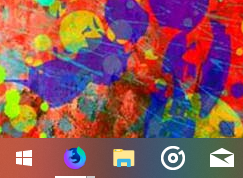
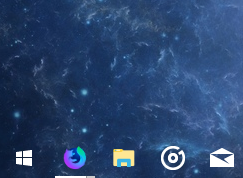
Many of you have probably used this software before. It can make the taskbar transparent or give it an Acrylic (亚克力) blur effect, which looks quite nice and basically doesn't affect system performance.
Let's share a few more official screenshots:
| Acrylic | Fully Transparent |
|---|---|
 |  |
System Monitoring
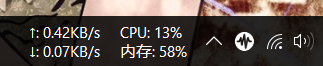
A desktop floating window software that displays current network speed, CPU and memory utilization, along with taskbar display features
Previously on Linux, I also installed a similar plugin to display the current system load on the taskbar, and similar tools are available on Windows as well
Project address: https://github.com/zhongyang219/TrafficMonitor
The effect is like this
System Optimization Tool
Stop using those "XX Master" or "XX Manager" apps, and switch directly to an open-source toolkit.
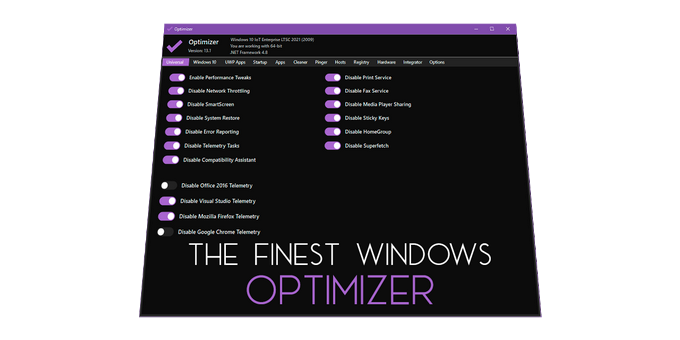
Optimizer is an optimization tool for Windows systems, designed to enhance computer performance, privacy, and security.
Project URL: https://github.com/hellzerg/optimizer
PS: There's a Chinese version available, no worries.
Status Bar Vocabulary Learning
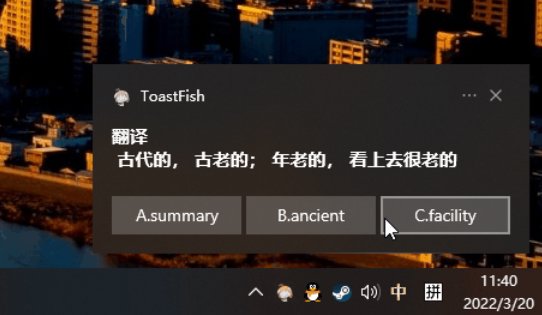
ToastFish is a software that utilizes the Windows notification bar for vocabulary memorization, allowing you to safely and discreetly learn words in challenging environments like at work or in class (slacking off while studying)
Project Repository: https://github.com/Uahh/ToastFish
Everything
This is also a very well-known search tool designed specifically for the NTFS file system, and it's extremely fast.
It's considered essential software for any Windows user.
You can install it directly using scoop:
scoop install everything
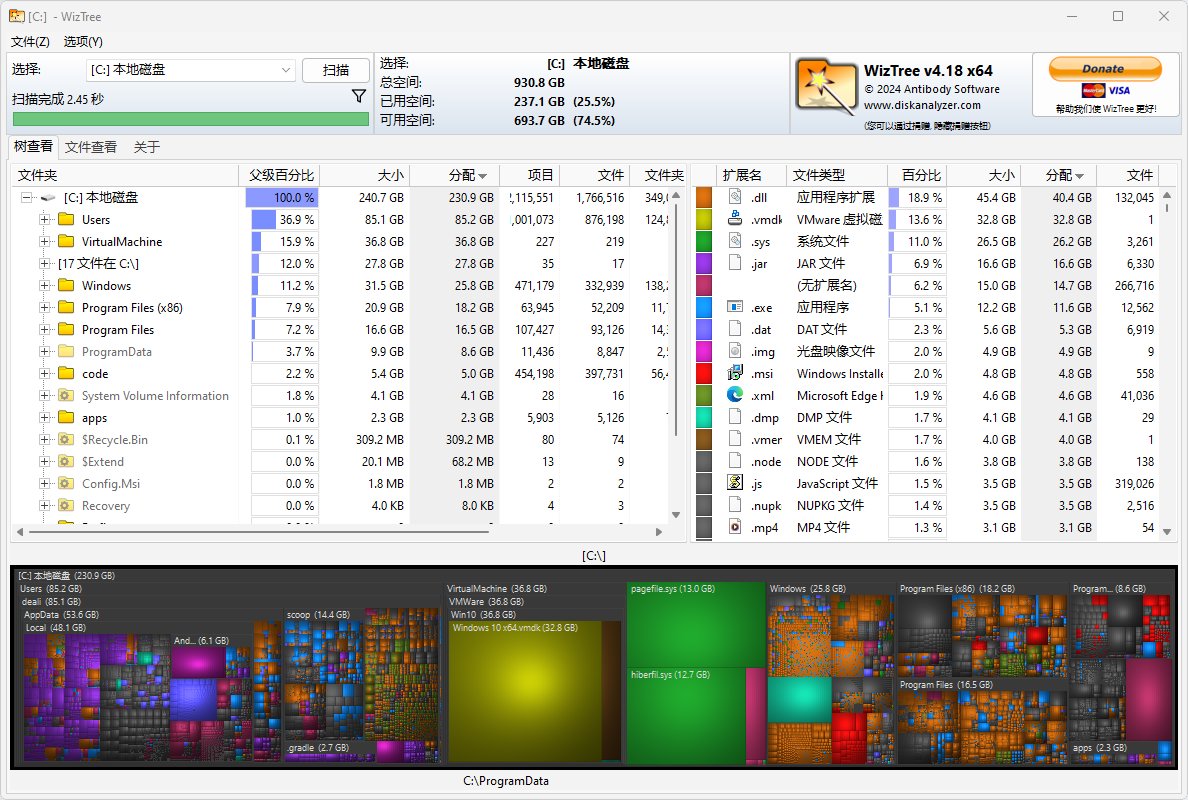
WizTree
This software is used to view space usage and is very effective.
The principle is the same as Everything; both scan the NTFS index.
Installation
scoop install wiztree
PS: Similar tools also include TreeSize and SpaceSniffer.
PowerToys
An efficiency tool officially released by Microsoft: https://learn.microsoft.com/en-us/windows/powertoys/
This single tool can handle most of your daily needs. Previously, you might have used tools like Wox or uTools for quick launching, but now you can just use PowerToys—it has everything.
You can install it directly from the Microsoft Store.
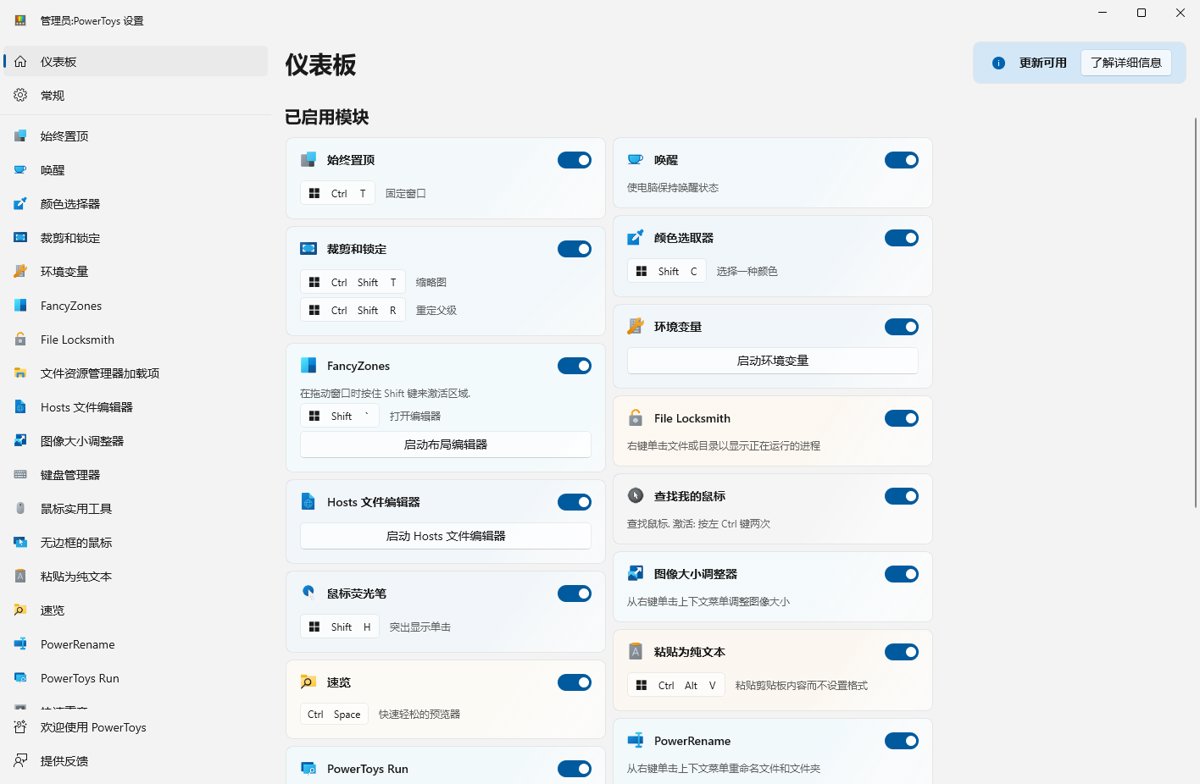
Beyond its most commonly used Quick Launch feature, there are a bunch of other functions. You can explore them gradually after installation~
PS: The Quick Launch feature supports pinyin input; you just need to enable it in the settings.
MobaXTerm
This is a remote access tool I've recently started using. It supports multiple remote protocols like SSH/RDP and others. I mainly use it to connect to RDP remote desktops because the system's built-in remote desktop connection always malfunctions, while this one works fine. It’s also quite user-friendly, so I’m recommending it together.
You can still install it using scoop.
Obsidian
A famous bidirectional linking note-taking app that I also started using last year. Compared to other software, Obsidian's advantage is that it directly manages local Markdown files. You can use the arguably most powerful Markdown editor, Typora, to edit files, and then use Obsidian to manage dual-link (双链). Synchronization/version management can also be implemented using Git.
It can also be installed via scoop.
Heroic Epic Launcher
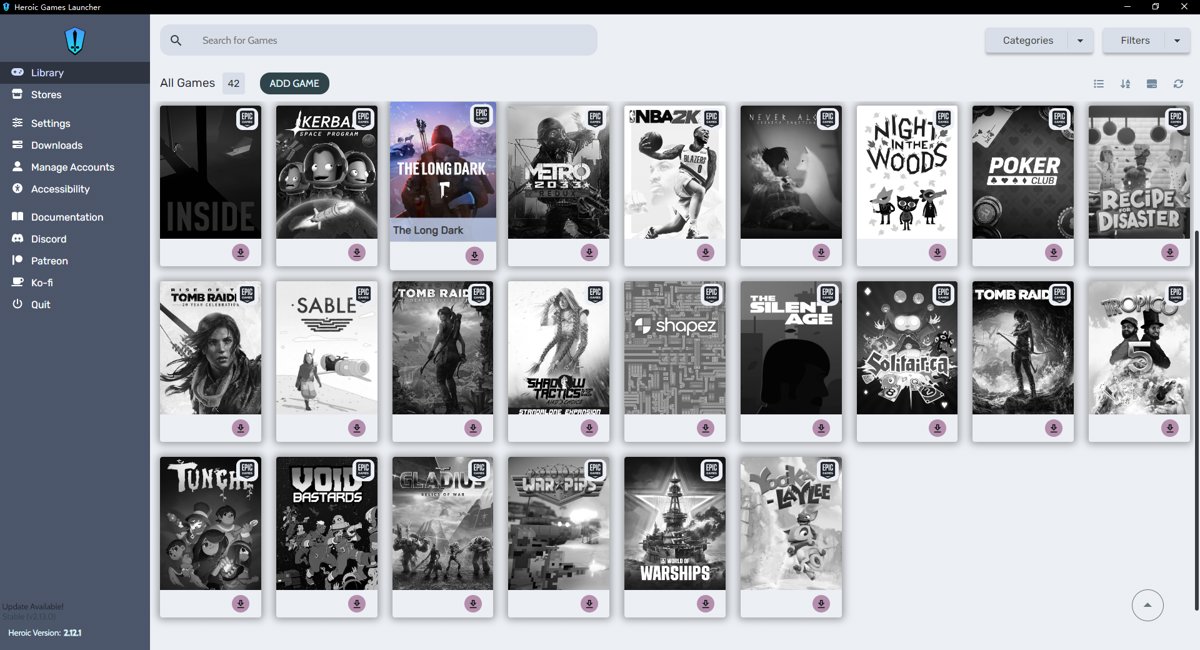
Although Heroic also supports GOG from CD Projekt, I only use it to manage my Epic library. The official Epic app is terrible, and there are even rumors that it secretly scans user files. It's safer to use an open-source alternative.
(By the way, Epic is just for claiming free games; I've never actually downloaded any of the games on it...)
It can also be installed using scoop.
Screenshot Tools
There are many screenshot tools. I'm used to using Snipaste and ShareX, and both can be highly recommended. One supports pinning images to the screen, and the other features automatic uploading; their functionalities complement each other. (It seems there's a missing tool for long screenshots—for this, you'll need PixPin).
Both are available in Scoop; you can simply install them directly.
defender-control
A small utility for disabling Windows Defender.
Whether Windows Defender is useful or not aside, it definitely affects my normal usage. Sometimes even my own software gets flagged as a virus.
You can't turn off this annoying thing through regular methods unless you install another antivirus, but antivirus software can slow down your computer, which feels unnecessary.
Fortunately, some experts have developed a tool.
Project URL: https://github.com/qtkite/defender-control
Before using it, first temporarily disable Defender's real-time protection, and then you can turn it off permanently. 😊
You can also use this software to re-enable Defender.
Other
Introducing each one would make this too long. Please visit the official websites to download them yourself.
- Geek Uninstaller - A software uninstallation tool
- ScreenToGif - As the name suggests, a screen recording software
- Twinkle Tray - For adjusting brightness; may be needed for laptops
- PDFgear - A PDF reading tool; SumatraPDF is also commonly used
- AnyTXT - A full-text search tool. While Everything can only search file names, this one can search file content
- drawio - An open-source drawing tool, essential for creating software architecture diagrams, flowcharts, etc.
- IrfanView - An image viewer that can replace the default Windows Photos app
- Rufus / Ventoy - Bootable USB drive creation tools. I generally use the latter now.
- ditto - A clipboard tool. In fact, Windows 10 has a built-in one; just press Win+V to use it.
That's about it...
Actually, I have many more tools collected here, but if I were to talk about each one, it would exceed the scope again. I'll introduce each tool separately in the future.
(Each one individually to fill space 💦)
Next up: an introduction to the Windows Terminal
_EOF_
2024, Improving Windows Development and Usage Experience Practices - Small Tools Edition
- 本文作者:
- 程序设计实验室
- 版权声明:
- 本博客所有文章除特别声明外,均采用 BY-NC-SA 许可协议。转载请注明出处!
相关文章
Windows平台下Git的安装与配置
一、下载 Git for Windows,主页:http://gitforwindows.org/ 点击页面中“Download”进入下载列表。可根据个人喜好选择下载版本。 这里选择下载最新版:Git-1.8.3-preview20130601.exe. 二、安装 下载完毕,双击开始安装: 1、除了AdvancedXXX选项,其余全选中 2、选择“Use Git Bash only” 3、选择
2021-12-18 · Windows · 约 1 分钟
解决Windows蓝牙耳机音质差的问题
Windows 把蓝牙耳机麦克风一调用就切 HFP,全损音质,真当用户听不出来?mmsys.cpl 里把录制设备禁掉,世界清净。这破系统还得手动治。
2026-11-12 · Windows · 约 1 分钟
2024年,提升Windows开发和使用体验的一些实践 - 包管理器篇
Windows包管理器?scoop开源自定义,winget官方凑合,WingetUI图形界面总算不用手动折腾了。效率提升?哼,总算不是Linux小众玩家的专利。
2024-02-29 · Windows · 约 1 分钟
WSL小技巧:切换到zsh以及加入右键菜单
切换到zsh 说明 在 Windows Subsystem for Linux 中,执行 chsh -s /bin/zsh 并不能成功地将默认 shell 修改为 zsh。在打开 WSL 时,默认 shell 仍然为 bash。 这是因为WSL 在启动时并没有执行 login 相关的组件,而这些组件和默认 shell 有关。Microsoft 已经知晓了这个问题,但并没有计划去解决。 方法 我们可
2021-12-18 · Windows · 约 1 分钟
讨论
共 0 条加载评论中…