

Installing and Configuring Git on Windows
I. Download Git for Windows, homepage: http://gitforwindows.org/ Click “Download” on the page to enter the download list. You can choose a version based on personal preference. Here we choose to download the latest version: Git-1.8.3-preview20130601.exe. II. Installation After downloading, double-click to start the installation: 1. Select all options except AdvancedXXX 2. Choose “Use Git Bash only” 3. Choose
目录18 个章节
I. Download
Git for Windows, homepage: http://gitforwindows.org/
Click “Download” on the page to enter the download list. You can choose a version based on personal preference.
Here we choose to download the latest version: Git-1.8.3-preview20130601.exe.
II. Installation
After downloading, double-click to start the installation:
1. Select all options except AdvancedXXX
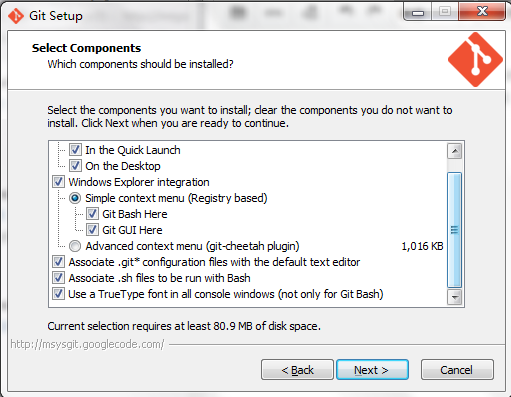
2. Choose “Use Git Bash only”
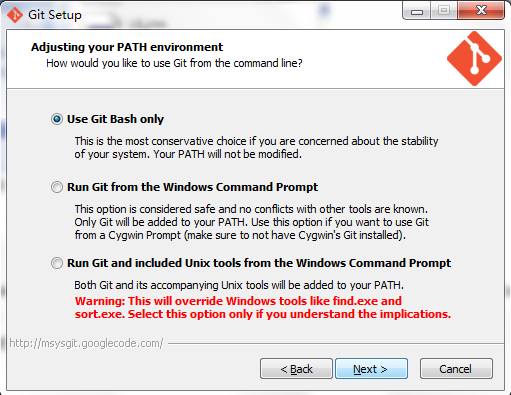
3. Choose “Checkout as-is, commit as-is”
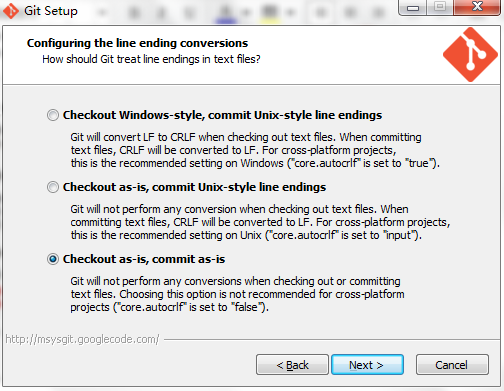
4. Wait for the installation to complete.
III. Configuration
1. After installation, there will be a Git Bash icon on the desktop

Double-click to enter the Git Shell interface
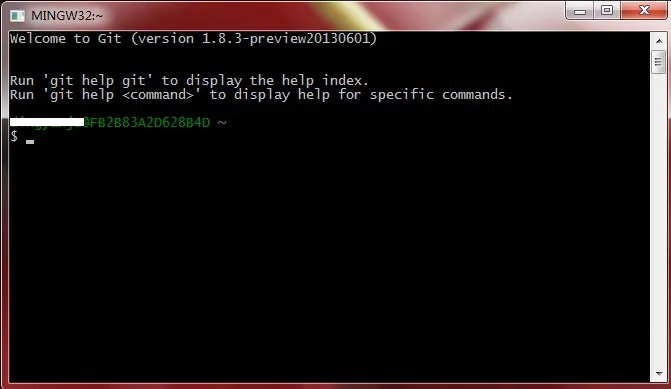
2. Configure Name and Email
Command format:
git config --global user.name "your name"
git config --global user.email "your email address"
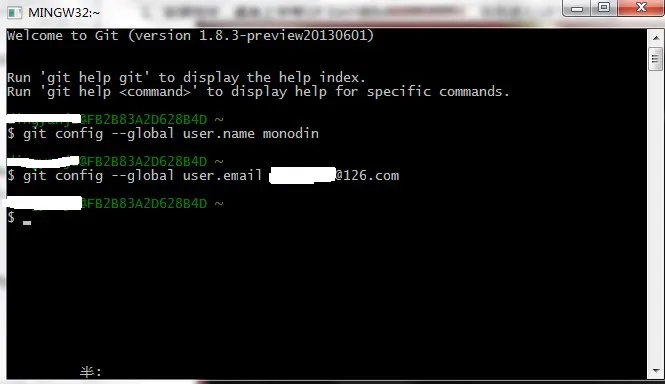
3. Generate Public/Private RSA Key
Command format:
ssh-keygen -C "your email address" -t rsa
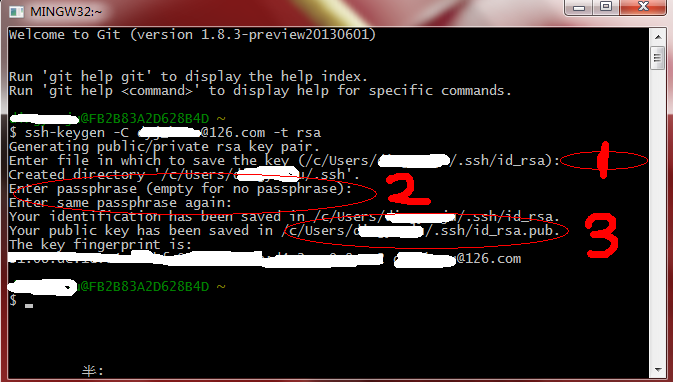
Note the red numbers marked in the figure:
-
Set the save location for the Public RSA Key; press Enter directly to use the default address;
-
Set a password and enter it again to confirm (setting one is not recommended here, for convenience of local use)
-
Save path of the Public RSA Key: c:\users\username.ssh\id_rsa.pub
-
Provide the Public Key to Github
Please first register a github account, Home Page: https://github.com/ . Then go to the Account Settings page, open SSH Keys, and click “Add SSH Key”. Open c:\users\username\.ssh\id_rsa.pub, copy all of its contents into the input box corresponding to Key, and click “Add Key”.
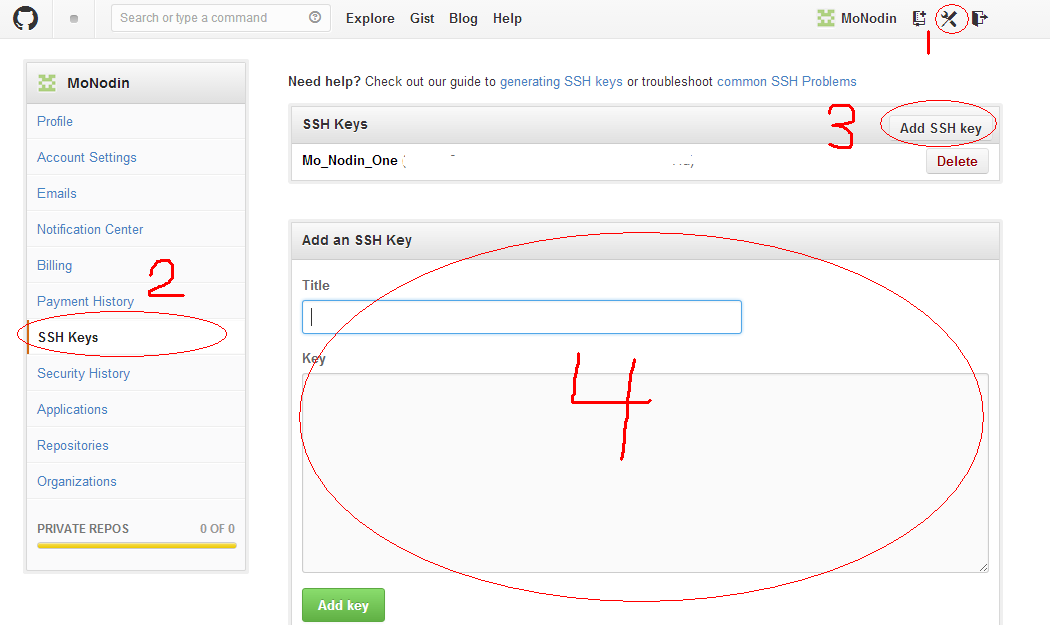
IV. Clone Repositories
1. Enter the Git Workspace, right-click and choose Git GUI Here:
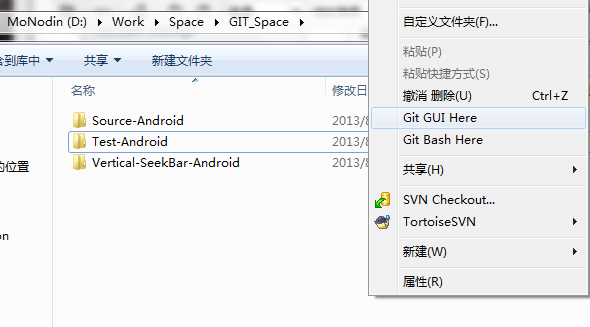
2. Choose “Clone Existing Repository”
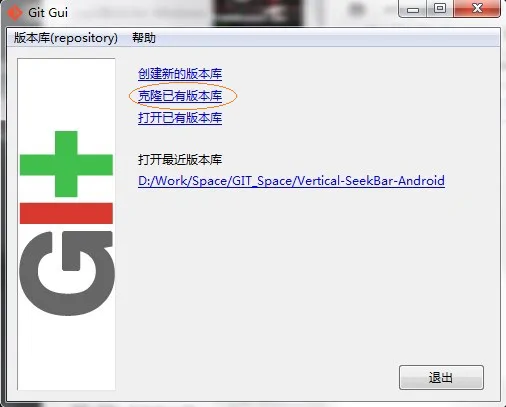
3. Enter the address of the repository to clone and the save directory.
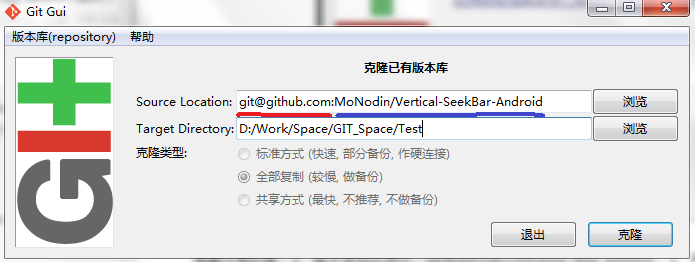
Note that:
- Repository address format:
git@github.com:your resp address - The last level of the save directory cannot Exist
- The blue line in the figure marks your resp address, which can be seen in Account Settings-->Respositories on github.com, as shown by the red circle in the figure below.

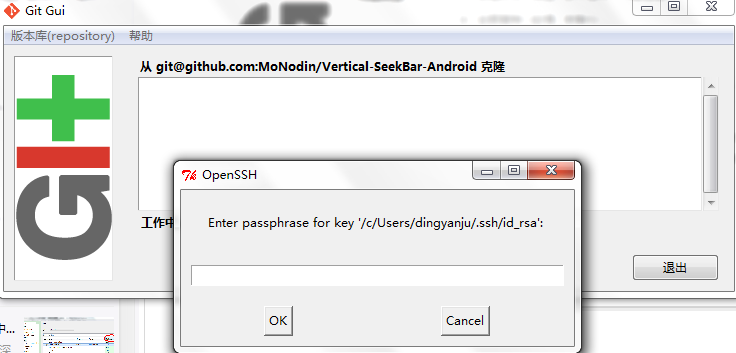
4. Enter the password as prompted (the one set in item 3 of section III); you may need to enter it multiple times.
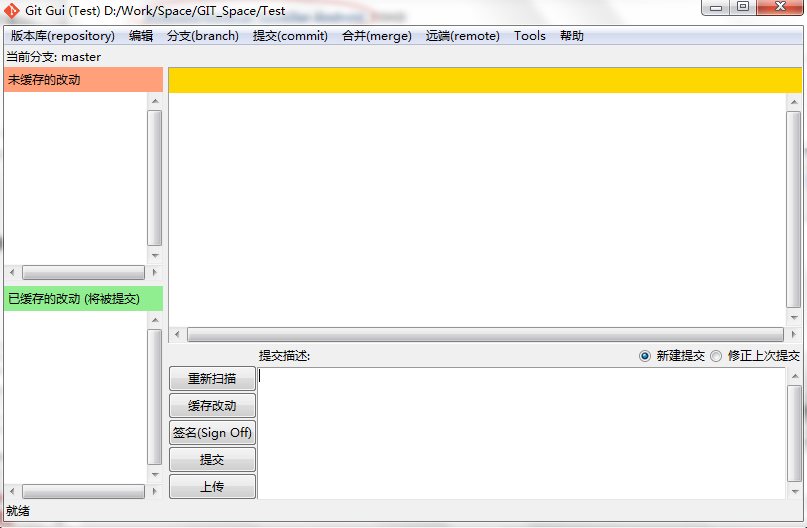
### 5. Clone succeeded.
V. Simplification
The method introduced in section IV is relatively complicated, especially with frequent password entry. Below is a simpler method:
-
Definitely do not set a password!!!
-
Open Git Bash Here in the Git Workspace
-
Enter ssh git@github.com and press Enter; the following prompt indicates that the git@github.com site is already trusted.

About

For more interesting operations, please follow my WeChat official account: DealiAxy Every article is also collected on my blog: blog.deali.cn
_EOF_
Installing and Configuring Git on Windows
- 本文作者:
- 程序设计实验室
- 版权声明:
- 本博客所有文章除特别声明外,均采用 BY-NC-SA 许可协议。转载请注明出处!
相关文章
2024年,提升Windows开发和使用体验的实践经验 - RIME输入法
上一篇文章介绍了 Windows 下的包管理器,本文继续介绍输入法。 事实上 Windows 的输入法生态比 Linux/Mac 丰富很多,不过很多国产输入法存在窃取隐私、植入广告、乱安装流氓软件等问题,现在有开源的 RIME 输入法可以选择,何必受这气呢
2024-02-29 · Windows · 约 1 分钟
如何阻止Win10重置默认应用?
前言 Win10比之前版本的Windows系统更现代,然而却不见得更好用,喜欢自作主张重置默认应用就是一个大问题。 就像这样,真的是烦。 解决方法 改注册表。 新建一个 去除重置默认应用.reg 的注册表文件,粘贴一下代码。 Windows Registry Editor Version 5.00 ;Description: Prevents Windows 10 from resetting
2021-12-18 · Windows · 约 1 分钟
在 Windows11 上启用 ssh-agent
微软的坑真多!!!
2026-08-25 · Windows · 约 1 分钟
WSL小技巧:切换到zsh以及加入右键菜单
切换到zsh 说明 在 Windows Subsystem for Linux 中,执行 chsh -s /bin/zsh 并不能成功地将默认 shell 修改为 zsh。在打开 WSL 时,默认 shell 仍然为 bash。 这是因为WSL 在启动时并没有执行 login 相关的组件,而这些组件和默认 shell 有关。Microsoft 已经知晓了这个问题,但并没有计划去解决。 方法 我们可
2021-12-18 · Windows · 约 1 分钟
讨论
共 0 条加载评论中…