

Tutorial for Installing Ubuntu Subsystem on Win10
1. Enable “Windows Subsystem for Linux” Search for and open “Turn Windows features on or off” via the Cortana search box on the Win10 taskbar. Scroll down the list to find the “Windows Subsystem for Linux” item. Check it, click OK, then restart the system as prompted. 2. Enable Developer Mode Then go to the “Settings - Update & Security - For developers” settings page and select “Developer mode”. As shown: Then it will download and install the Developer Mode package; wait for the installation
目录6 个章节
1. Enable “Windows Subsystem for Linux”
Search for and open “Turn Windows features on or off” via the Cortana search box on the Win10 taskbar. Scroll down the list to find the “Windows Subsystem for Linux” item.
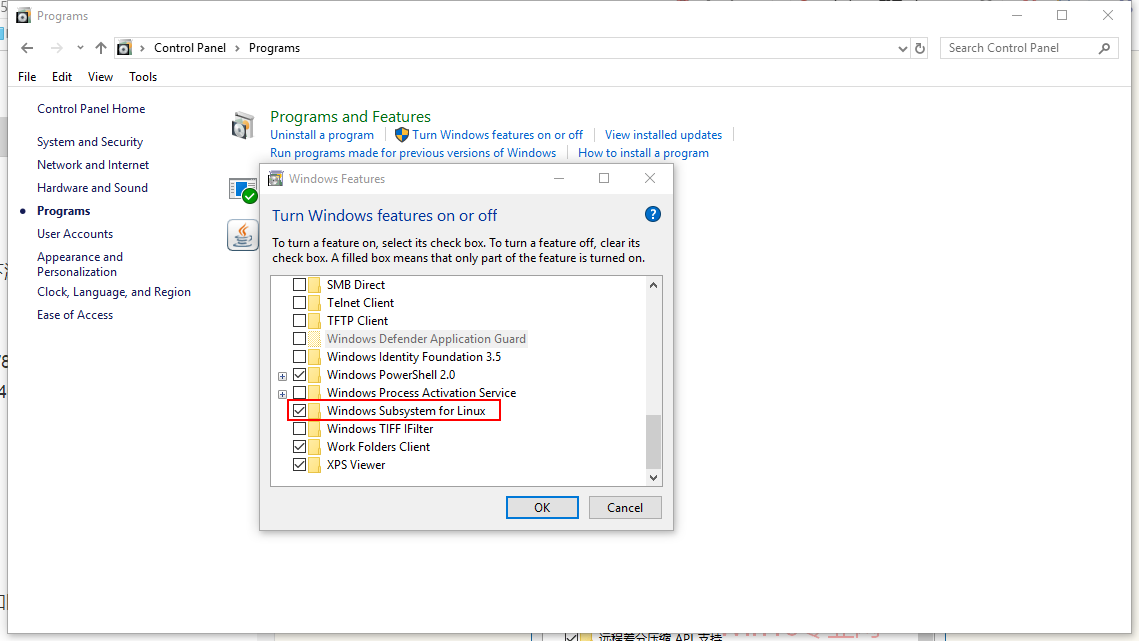
Check it, click OK, then restart the system as prompted.
2. Enable Developer Mode
Then go to the “Settings - Update & Security - For developers” settings page and select “Developer mode”. As shown:
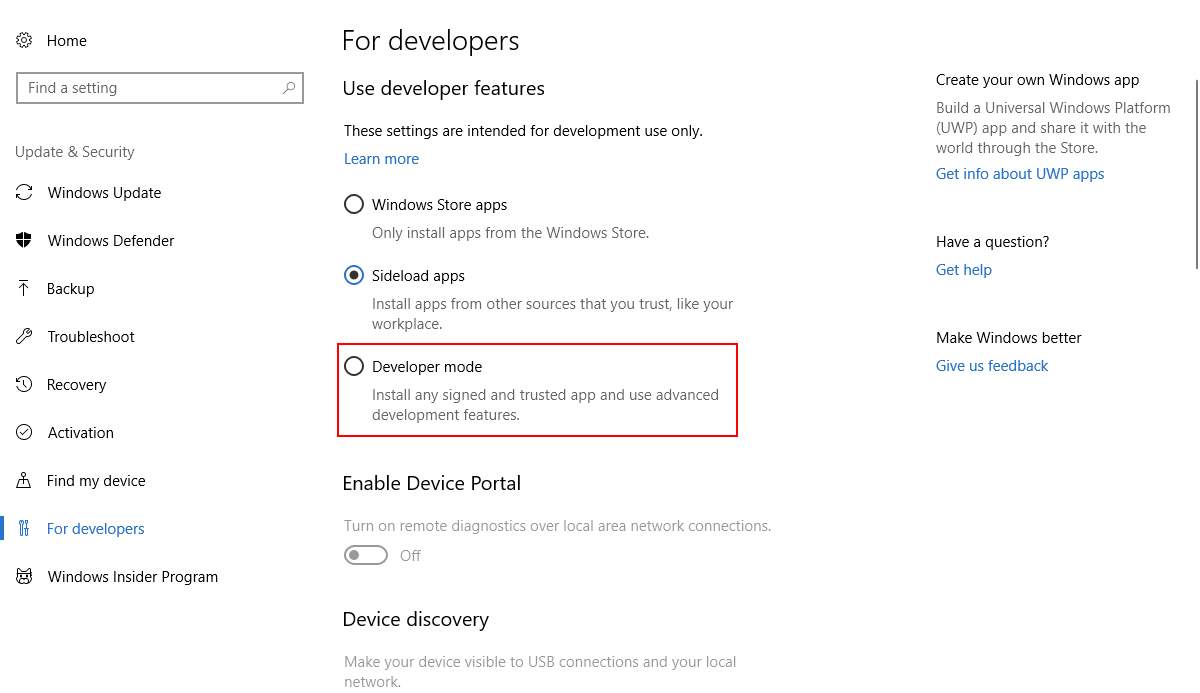
Then it will download and install the Developer Mode package; wait for the installation to complete.
3. Enable the Linux Subsystem
Right-click the Win10 Start button and select “Windows PowerShell (Admin)” to run Windows PowerShell as administrator.
Enter and run the following command by pressing Enter:
> Enable-WindowsOptionalFeature -Online -FeatureName Microsoft-Windows-Subsystem-Linux

You may need to restart the system.
At this point you can already enter bash, but there is no distribution available. Running bash will show the following prompt:

4. Install a Linux Distribution from the Windows Store
Open the Windows Store, then search for the name of any Linux distribution, for example I typed Ubuntu.
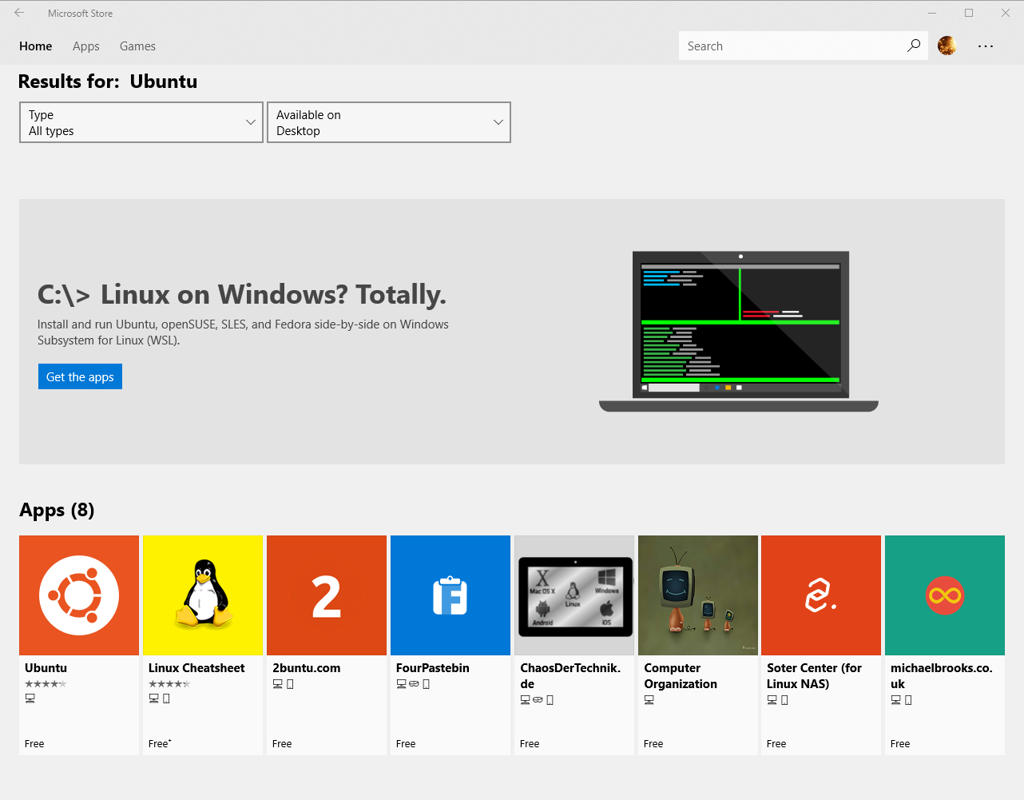
Click Get the app. You can see there are 3 distributions to choose from.
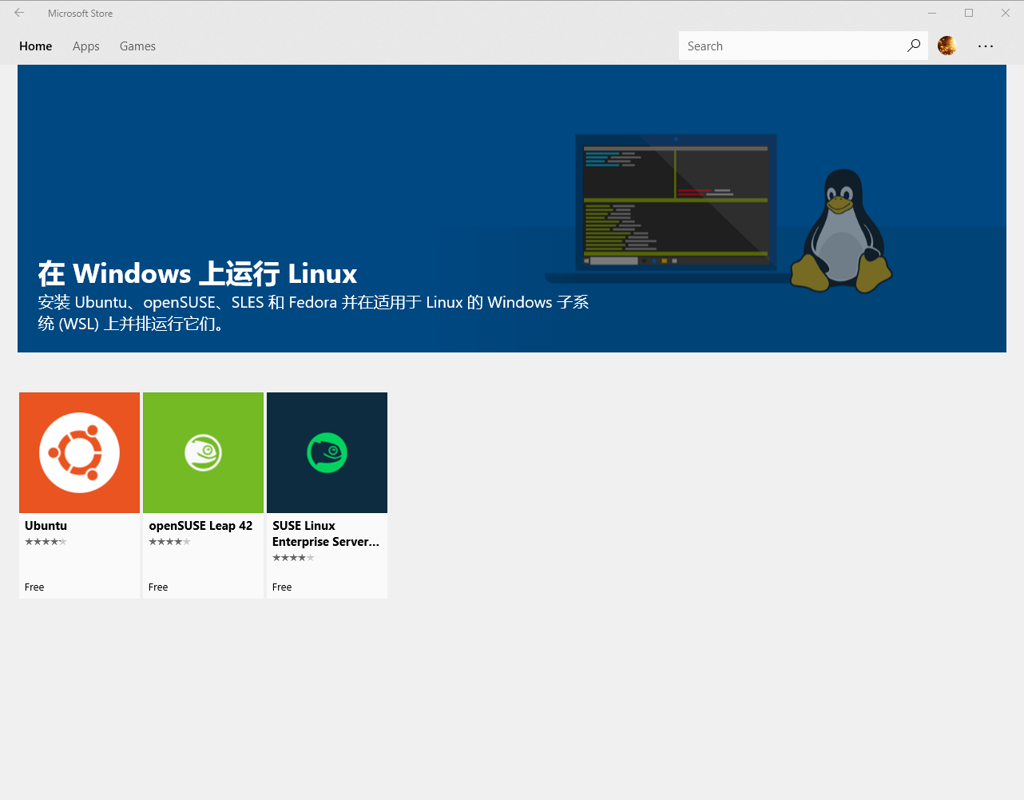
Here we’ll still choose Ubuntu, which I’m more familiar with.
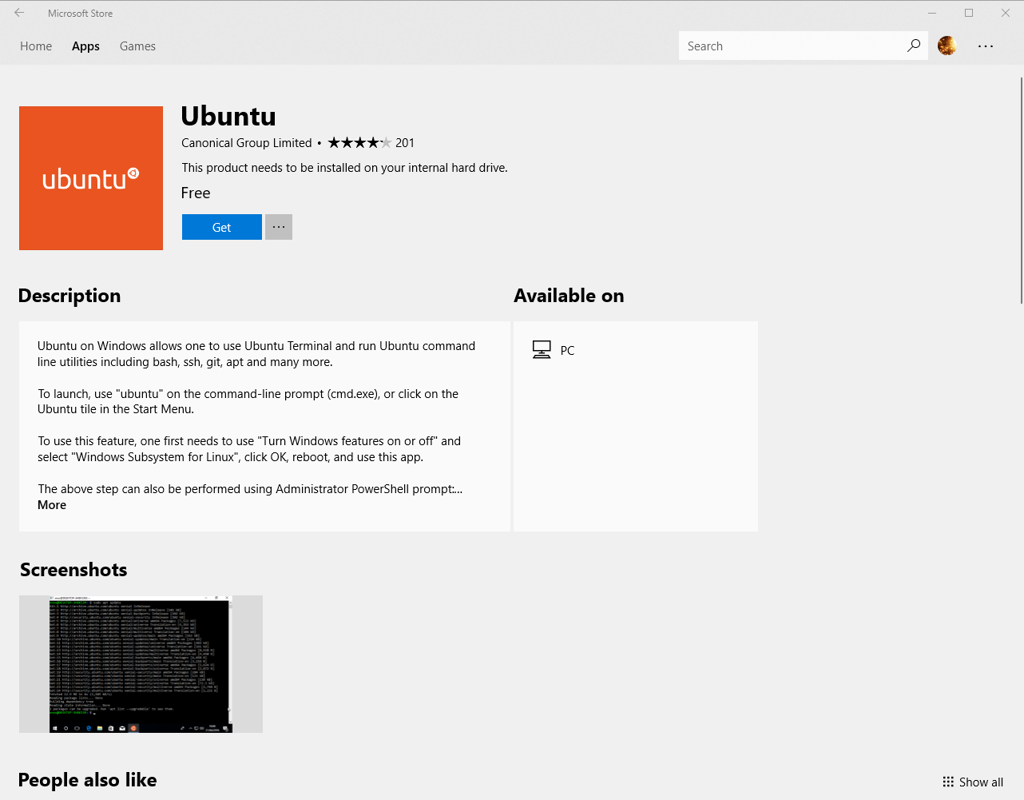
Click Get to start downloading.
Installation complete
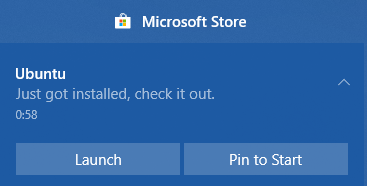
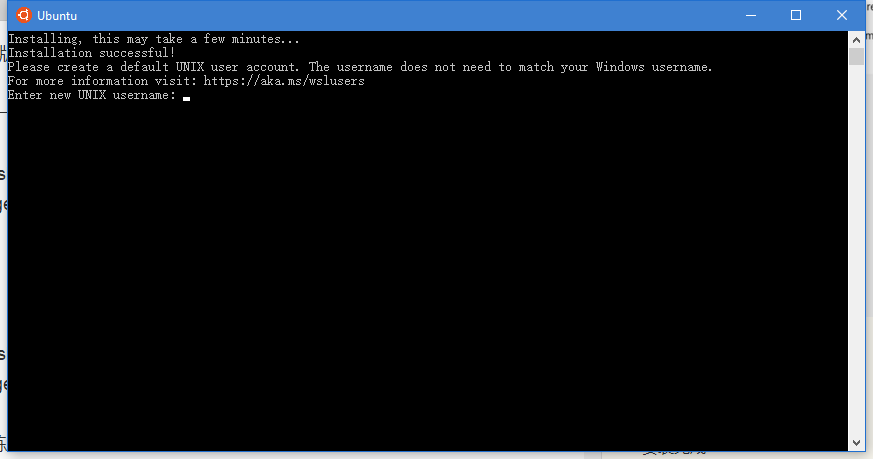
Click Launch and continue with the next installation steps.
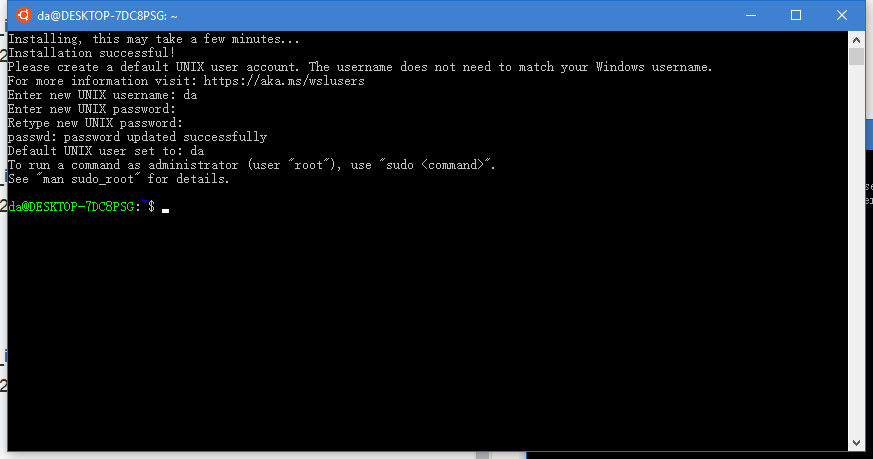
Just enter a username and password.
Installation complete. You can now have fun with it.
About

For more interesting tips, follow my WeChat official account: DealiAxy Every article is also collected on my blog: blog.deali.cn
_EOF_
Tutorial for Installing Ubuntu Subsystem on Win10
- 本文作者:
- 程序设计实验室
- 版权声明:
- 本博客所有文章除特别声明外,均采用 BY-NC-SA 许可协议。转载请注明出处!
相关文章
如何阻止Win10重置默认应用?
前言 Win10比之前版本的Windows系统更现代,然而却不见得更好用,喜欢自作主张重置默认应用就是一个大问题。 就像这样,真的是烦。 解决方法 改注册表。 新建一个 去除重置默认应用.reg 的注册表文件,粘贴一下代码。 Windows Registry Editor Version 5.00 ;Description: Prevents Windows 10 from resetting
2021-12-18 · Windows · 约 1 分钟
2024年,提升Windows开发和使用体验的一些实践 - 包管理器篇
Windows包管理器?scoop开源自定义,winget官方凑合,WingetUI图形界面总算不用手动折腾了。效率提升?哼,总算不是Linux小众玩家的专利。
2024-02-29 · Windows · 约 1 分钟
从SSH远程到Git Push:在Windows上一步到位实现免密码登录
我一直希望在Windows上能像在Linux系统中那样,通过SSH密钥实现免密码远程连接。每次远程连接到服务器时,手动输入密码既麻烦又不太安全,尤其是在我需要频繁操作的情况下。
2025-02-10 · Windows · 约 1 分钟
2024年,提升Windows开发和使用体验的实践经验 - RIME输入法
上一篇文章介绍了 Windows 下的包管理器,本文继续介绍输入法。 事实上 Windows 的输入法生态比 Linux/Mac 丰富很多,不过很多国产输入法存在窃取隐私、植入广告、乱安装流氓软件等问题,现在有开源的 RIME 输入法可以选择,何必受这气呢
2024-02-29 · Windows · 约 1 分钟
讨论
共 0 条加载评论中…