

Ubuntu-18-04-Modify Login Screen Background Image
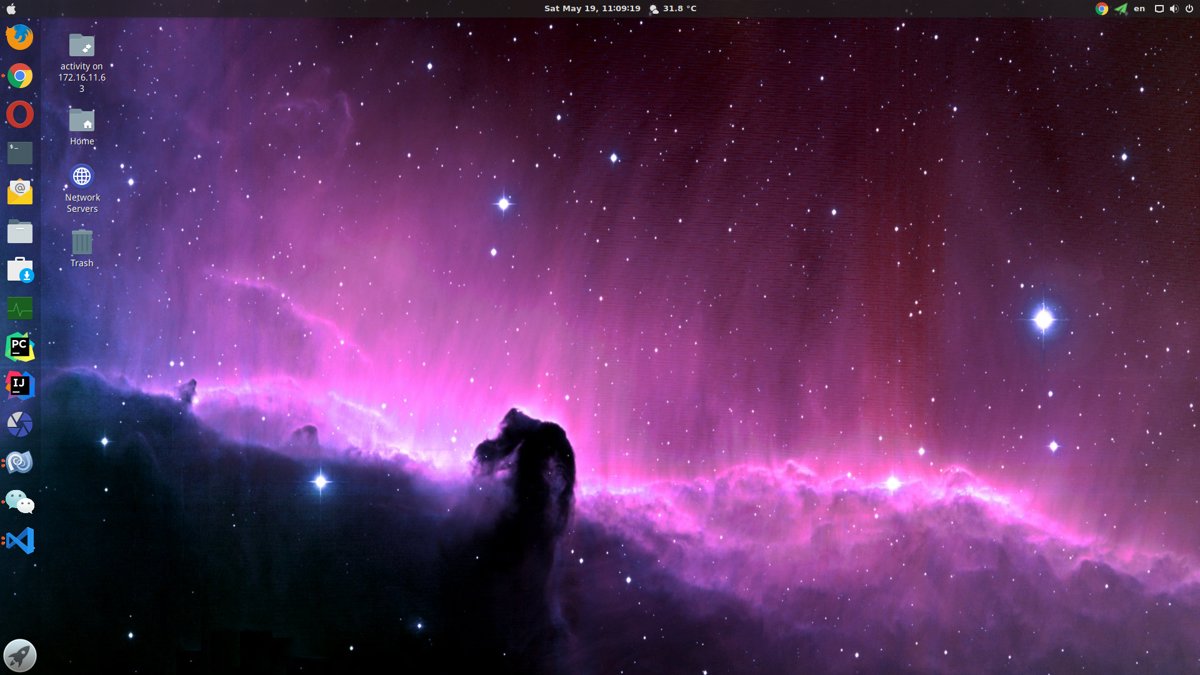
Preface I have been using Ubuntu 18.04 for a while now. With the addition of the Gnome desktop, the visual appeal of Ubuntu 18.04 is quite impressive. After pairing it with a few GTK themes I customized, the experience is absolutely delightful. The only slight drawback is that after switching Ubuntu’s login manager to GDM, the background of the login screen can no longer be modified. This just wouldn’t do, so after some tinkering, this article was born. First, prepare an image. The image size should be determined based on your screen resolution. Then, place the image in the /usr/share/backgrounds/ directory.
目录5 个章节
Foreword
I've been using Ubuntu 18.04 for a while now. With the Gnome desktop, Ubuntu 18.04 (nicknamed "Rabbit") actually looks quite good. After pairing it with a few GTK themes I customized, it feels absolutely delightful. The only slight downside is that after Ubuntu switched its login manager to GDM, there's no longer a straightforward way to change the login screen background. That just wouldn't do! So, after some tinkering, this article was born.
First, prepare an image
The dimensions of the image should be determined based on your screen resolution.
Then, place the image in the /usr/share/backgrounds/ directory.
Modifying GDM's CSS File
For those working in front-end development, using Gnome would be a delightful experience. Themes, extensions, and various customization options can be explored extensively.
File Location
/etc/alternatives/gdm3.css
/*Find the default section*/
#lockDialogGroup {
  background: #2c001e url(resource:///org/gnome/shell/theme/noise-texture.png);
  background-repeat: repeat;
}

/*Change it to*/
#lockDialogGroup {
  background: #2c001e url(file:///usr/share/backgrounds/mypicture.jpg);
  background-repeat: no-repeat;
  background-size: cover;
  background-position: center;
}
Note: The CSS code provided is for reference only. Those familiar with front-end development can create better effects according to their preferences. Don’t forget to share your creations when you do!
Restart
You can restart the system or restart the graphical interface. To avoid any hassle, it's recommended to just restart the system—it's quick either way.
About

For more interesting operations, please follow my WeChat official account: DealiAxy.
Every article is also included in my blog: blog.deali.cn.
_EOF_
Ubuntu-18-04-Modify Login Screen Background Image
- 本文作者:
- 程序设计实验室
- 版权声明:
- 本博客所有文章除特别声明外,均采用 BY-NC-SA 许可协议。转载请注明出处!
相关文章
Debian配置默认不开启图形界面
前言 Linux的图形界面实在是太耗资源了,同时开几个虚拟机感觉已经hold不住了,赶紧把这些Linux服务器的图形界面都关掉。 CLI:command Line Interface,命令行界面。 现在的Linux发行版默认登陆界面几乎都是默认为GUI界面,如果按照旧版本的修改inittab文件,在一些比较新的版本是没有这个文件的(Linux的启动服务机制发生改变) 修改Grub配置文件 打开gr
2025-10-27 · 系统配置 · 约 1 分钟
给你的Deepin系统换主题~
我现在的桌面: 因为美国封锁然后华为电脑用上Deepin系统的事情,Deepin系统最近名声大噪,其实Deepin本来的界面就很好看,号称打造最适合国人的系统不是盖的。 不过Deepin有一个坏处,就是默认主题的标题栏太大了…… 太占空间。所以我们要换主题折腾一下。 Deepin的桌面是Qt写的,所以首先要换KDE主题,然后再安排一下GTK3的主题,在Deepin系统设置里面换的主题就是GTK的,
2025-10-01 · 系统配置 · 约 1 分钟
Linux终端输入密码显示星号
Linux默认密码星号?这体验真不错。一行sudoers配置搞定,真就有人非要用脚本整这些。关闭?那不是自讨没趣吗。
2025-10-01 · 系统配置 · 约 1 分钟
在Nginx上配置https加密服务器
前言 最近开发微信小程序需要使用Https,于是折腾了一番。 超简单步骤 1. 申请SSL证书 一般云服务器提供商就会提供这种服务,我在腾讯云上申请了,十分钟就完成了。 2. 上传证书 上传到一个文件夹里面 3. 配置nginx 网络上的资料都是直接修改 /etc/nginx/nginx.conf 这个文件。 不过我的服务器上这个文件里头没有 server 这个节点可以配置。 因此需要修改 /et
2025-10-27 · 系统配置 · 约 1 分钟
讨论
共 0 条加载评论中…