

Nginx configuration for HTTP to HTTPS redirect - force HTTPS access
Preface Several projects have recently gone live, and I have applied for the corresponding SSL certificates. However, I discovered an issue: when users directly enter a domain name in the browser, the browser defaults to accessing the HTTP site, but our website only supports HTTPS access, so they cannot access it. Actually, in the global Nginx configuration, all visits can be redirected to HTTPS. But since some sites on the server provide HTTP services, the configuration must be done separately for each site. Based on information found through search engines, this article summarizes three configuration methods. Those in need can choose the one they prefer.
目录13 个章节
Preface
Recently, several projects went live, and corresponding SSL certificates were applied for. However, I discovered an issue: when users type the domain directly in the browser, the browser defaults to the HTTP site, but our website only supports HTTPS access, so it becomes inaccessible.
You can actually redirect all access to HTTPS in the global nginx configuration, but some sites on the server provide HTTP services, so each site needs to be configured separately.
Based on the information found through search engines, this article summarizes three configuration methods. If needed, you can choose the one that suits you best.
nginx's Rewrite Method
Description
This should be the most straightforward method everyone thinks of: simply redirect all HTTP requests to HTTPS using rewrite rules.
Configuration
server {
	listen	192.168.1.111:80;
	server_name	test.com;

	rewrite ^(.*)$	https://$host$1	permanent;
}
Once this virtual host is set up, all requests to http://test.com will be rewritten to https://test.com.
nginx's 497 Status Code
Error Code 497
497 - normal request was sent to HTTPS
Explanation: This error code occurs when a virtual site only allows HTTPS access, but an attempt is made to access it via HTTP. In this case, Nginx returns the 497 error code.
Instructions
Use the error_page directive to redirect links with a 497 status code to the domain https://test.com.
Configuration
server {
	listen       192.168.1.11:443;	# SSL port
	listen       192.168.1.11:80;	# Users are accustomed to accessing via http, so port 80 is added. Later, through the 497 status code, it automatically redirects to port 443.
	server_name  test.com;
	# Enable SSL support for a server block {......}
	ssl                  on;
	# Specify the certificate file in PEM format
	ssl_certificate      /etc/nginx/test.pem;
	# Specify the private key file in PEM format
	ssl_certificate_key  /etc/nginx/test.key;

	# Redirect http requests to https requests
	error_page 497	https://$host$uri?$args;
}
index.html Refresh Method
Explanation
Both of the above methods require server-side computation and will consume server resources. The page refresh method was learned from Baidu.
Let's use curl to access baidu.com to see how Baidu implements the redirect from baidu.com to www.baidu.com.
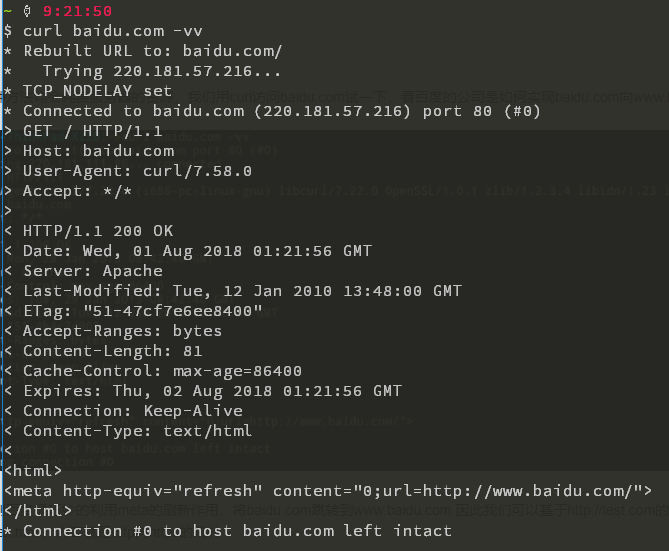
As you can see, Baidu cleverly uses the meta refresh to redirect baidu.com to www.baidu.com. Therefore, we can also create an index.html file in the virtual host path for http://test.com, with content that redirects from http to https.
index.html Web Content
<html>
<meta http-equiv="refresh" content="0;url=https://test.com/">
</html>
Site Configuration
Add an HTTP site configuration in the server configuration to provide access to the index.html file mentioned earlier.
server {
	listen 80;
	server_name	test.com;

	location / {
                #index.html is placed in the root directory listened by the virtual host
		root /srv/www/http.test.com/;
	}
        #Redirect 404 page to the https homepage
	error_page	404	https://test.com/;
}
References
_EOF_
Nginx configuration for HTTP to HTTPS redirect - force HTTPS access
- 本文作者:
- 程序设计实验室
- 版权声明:
- 本博客所有文章除特别声明外,均采用 BY-NC-SA 许可协议。转载请注明出处!
相关文章
Linux--使用Snap安装第三方微信客户端Electronic-Wechat
前言 腾讯估计是不会给Linux系统开发任何软件了,不过问题不大。我们有很多好用的第三方软件替代~~(无奈之举,摊手)~~ 关于Snap Ubuntu官网上的介绍 Snaps are applications packaged with all their dependencies to run on all popular Linux distributions from a single bu
2025-10-27 · 系统配置 · 约 1 分钟
在Nginx上配置https加密服务器
前言 最近开发微信小程序需要使用Https,于是折腾了一番。 超简单步骤 1. 申请SSL证书 一般云服务器提供商就会提供这种服务,我在腾讯云上申请了,十分钟就完成了。 2. 上传证书 上传到一个文件夹里面 3. 配置nginx 网络上的资料都是直接修改 /etc/nginx/nginx.conf 这个文件。 不过我的服务器上这个文件里头没有 server 这个节点可以配置。 因此需要修改 /et
2025-10-27 · 系统配置 · 约 1 分钟
linux配置sendmail发邮件服务
前言 因为开发需要,搞了个wiki系统,并且用到了邮件订阅,所以研究了一番发送邮件的方法。 安装 没什么好说的,先安装必要组件。 apt install sendmail-bin apt install sendmail apt install sendmail-cf #配置工具 配置sendmail sendmail默认是本机用户发送给本机,所以需要修改可以发送到整个Internet: 修改se
2025-10-27 · 系统配置 · 约 1 分钟
Ubuntu-18-04-开启托盘图标点击最小化
前言 Ubuntu的托盘挺好看的,美中不足的就是点击一个打开的应用图标不能像Windows那样最小化。 操作 gsettings set org.gnome.shell.extensions.dash-to-dock click-action 'minimize' 截图
2025-10-27 · 系统配置 · 约 1 分钟
讨论
共 0 条加载评论中…