

IT Home Academy: Make Your Win10 Desktop Cleaner, More Beautiful, and More High-End Than macOS
Thanks to IT Home user yiyueduzui for the original submission Let's get straight to the point—first, take a look at my computer desktop: Someone's already cursing: Are you fucking kidding me? That's clearly just a picture! I've read so many books, how would I lie to you? This really is my computer desktop—there's even a desktop digital clock! When it comes to being clean and simple, who else can compete? Then how do you even use it with nothing there? Watch closely: when I move my mouse to the bottom of the screen, a Dock appears, just like on Apple's system. Some of the icons are actually directories or folders; when they expand
Thanks to IT Home user yiyueduzui for the original submission
Let's get straight to the point—first, take a look at my computer desktop:

Someone's already cursing: Are you fucking kidding me? That's clearly just a picture!
I've read so many books, how would I lie to you? This really is my computer desktop—there's even a desktop digital clock! When it comes to being clean and simple, who else can compete?
Then how do you even use it with nothing there?
Watch closely: when I move my mouse to the bottom of the screen,

a Dock appears, just like on Apple's system.
Some of the icons are actually directories or folders; when they expand, they look like this:

Or like this:
But after all, this is the noble Windows10 system. For convenience, we still need the Start menu and the taskbar, so I hid them on the right side. Just like the Dock, they won't bother you normally—they only appear when you slide the mouse to the right edge of the screen.

Combined with Win10's powerful keyboard shortcuts, using it feels simply great.
Sharp-eyed readers may have also noticed that my taskbar is fully transparent. Unlike Win7's frosted glass effect, this one doesn't even have a border. How is this achieved? Don't worry, I'll walk you through it step by step.
First, to give the Win10 desktop this kind of makeover, it can be briefly summarized as: use a third-party desktop beautification tool to manage desktop apps and the taskbar, then apply a Mac OS-style skin within that framework, and then delete all those icons on your desktop—hide whatever should be hidden.
To achieve this result, we need a few tools:
1 RocketDock-v1.3.5.exe (desktop beautification)
2 Mac-OS-X-Leopard-1.zip (Mac OS X-style skin)
3 Win10任务栏设置工具.exe (can achieve full transparency)
4 Windows 8风格Desktop Clock桌面数字时钟.exe
5 Several macOS icon files
6 Some wallpapers
I've packed them all up and uploaded them to Baidu Netdisk for you. Folder name: 美化你的win10桌面工具合集. Latest download: click this link, password: u9b9
If you run into download issues, please email yiyueduzui@163.com to request it, and I'll send it to you by email.
After downloading, the files should look like these (the files have been updated, including a more useful clock, etc.—go by what you actually get)

Now follow along with me!
1. First, give the taskbar a makeover: install "Win10任务栏设置工具.exe". After opening it, it looks like this

There are many settings; I'll just cover taskbar transparency—explore the rest yourself.
Click Appearance on the left to adjust, and click "OK" after you're done.

Set the taskbar to auto-hide
Right-click a blank area of the taskbar and select "Properties"
Check "Automatically hide the taskbar", set the location to "Right" or wherever you like, then click "OK". Here, if you haven't checked "Lock the taskbar", you can drag the taskbar with the mouse to any of the four edges of the screen. Otherwise, the taskbar cannot be moved.
2. Install the desktop beautification tool RocketDock-v1.3.5.exe
Be sure to remember your installation directory so you can find it later. For example, mine is
D:\Program Files (x86)\RocketDock\
If you forget, you can right-click the desktop icon and choose "Open file location" to find it.
After opening, the interface looks like this; we'll set it up as follows.
First, click "Style", then click "Get more" to the right of "Theme".

This takes you to the official site's resource download page. Under the skins directory we see "Mac OS X Leopard Skin"—that's the skin we need. However, it's already in the resource pack you downloaded from the netdisk, so you don't need to download it again.

Extract the "Mac-OS-X-Leopard-1.zip" you downloaded earlier.

Place the extracted folder "Mac OS X Leopard" into the "skins" folder under your RocketDock-v1.3.5.exe installation directory.


Then, in the software settings, under the "Style" screen, select the Mac OS X skin from the "Theme" dropdown. If it doesn't appear, just exit and reopen the program.

Now see if your Dock has already changed. Adjust the other options as you like.
Under "General", select the language, then check these two options, otherwise you'll have to open it manually after boot.

"Icons"—set according to your preference.

"Position"—set to your taste. You can adjust these parameters and watch how the Dock changes.

Under the "Behavior" options, check "Auto-hide" so the Dock stays hidden normally and only appears when the mouse passes over it. Adjust the timing yourself, then click "OK".

At this point, most of the work is done. I recommend putting the settings program on the Dock.

Next, tidy up your desktop: change to a nice wallpaper, selectively drag desktop shortcuts onto the Dock, and gather the rest into a folder stored somewhere other than the desktop. Make it as clean as you want. For example:
[Image upload failed...(image-282249-1522916687283)]
3. Set up the desktop digital clock
A wallpaper alone is minimalist, but a bit too incomplete—adding a clock and calendar is nice.

The download files provided include several clock widgets to choose from, and you can also find more online.
4. Further optimize the Dock
When your mouse pointer passes the bottom of the screen, the Dock appears automatically. You can drag frequently used apps onto the Dock. To remove (not uninstall) an app, just drag it off the Dock with the mouse—there's even a cool disappearing animation.
You can also change app or folder icons: right-click the icon you want to change and select "Icon Settings".

Then choose the icon you like here. Of course, the name can be changed as well.
[Image upload failed...(image-980d41-1522916687283)]
You can put all the Mac icons from the folder you downloaded earlier into the software's icons folder, and they will appear here. For example, mine is D:\Program Files (x86)\RocketDock\Icons
[Image upload failed...(image-65cd30-1522916687283)]
Alright, next I'll introduce a plugin used to achieve this cool effect.
[Image upload failed...(image-c720c8-1522916687283)]
[Image upload failed...(image-9a0649-1522916687283)]
This plugin is Stacks Docklet.
Open the main software's settings, then under the "Style" options click "Get more" next to Theme to download it. Place the extracted folder "StackDocklet" into the Docklets folder under the installation directory. Likewise, it's already in the folder you downloaded at the beginning.
[Image upload failed...(image-e62a36-1522916687283)]
Then right-click the Dock and select "Add Item"-"stack Docklet".
[Image upload failed...(image-d2a501-1522916687283)]
Then you'll find an extra special icon on the Dock.
[Image upload failed...(image-56c4f7-1522916687283)]
Click this icon to set the linked directory or file.
[Image upload failed...(image-1bf197-1522916687283)]
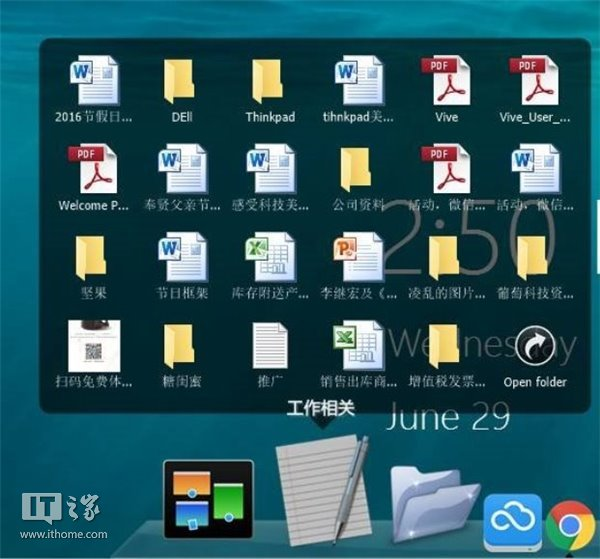
For example, I set it to a folder of all app shortcuts and changed the icon to this, resulting in the following effect. Click the Open folder icon to open the target folder. The "Work" icon on the right is actually also a folder.

What if some desktop icons can't be deleted directly? Just set it up like this.
Click Win10's "Settings"-"Personalization"-"Themes"-"Desktop icon settings".
[Image upload failed...(image-c37d67-1522916687283)]
Check the ones you want to display. If you check none of them, it'll be completely clean.
[Image upload failed...(image-dac9a6-1522916687283)]
After the above round of surgery, your desktop will look like this.

That's the end of the tutorial.
This article was originally published on the personal WeChat official account [张脑湿]. If you like it, feel free to check it out.
_EOF_
IT Home Academy: Make Your Win10 Desktop Cleaner, More Beautiful, and More High-End Than macOS
- 本文作者:
- 程序设计实验室
- 版权声明:
- 本博客所有文章除特别声明外,均采用 BY-NC-SA 许可协议。转载请注明出处!
相关文章
在Windows上将git与ssh-agent搭配使用
Windows git 还自带 ssh?真是老土的兼容性思路。一行配置就能解决,不过得先管好 ssh-agent 的连接。 ProxyCommand 居然又添乱,难怪老出毛病。
2025-08-21 · Windows · 约 1 分钟
2024年,提升Windows开发和使用体验实践 - 小工具篇
本来是一篇文章的,不知不觉写成了系列。 其实开工那几天就已经写好了长文,这几天一忙就没连着发了。 本文介绍一些 Windows 上用的小工具。
2024-02-29 · Windows · 约 1 分钟
解决Windows蓝牙耳机音质差的问题
Windows 把蓝牙耳机麦克风一调用就切 HFP,全损音质,真当用户听不出来?mmsys.cpl 里把录制设备禁掉,世界清净。这破系统还得手动治。
2026-11-12 · Windows · 约 1 分钟
使用EarTrumpet代替windows默认的音量调节功能
Windows 默认的音量调节功能挺弱的,要分别调节各个应用的音量得进入二级菜单,麻烦得很。有了这个功能就很方便了
2025-01-26 · Windows · 约 1 分钟
讨论
共 0 条加载评论中…