

Effortlessly Solve Linux+Windows Dual-Boot Time Inconsistency Issue
Foreword Many Linux users likely use dual-boot systems, as there are still many software applications that require opening Windows. However, there has always been a persistent issue: the time displays correctly in Linux, but when switching to Windows, the time is 8 hours behind = = This happens because Windows uses the hardware clock by default, whereas Linux uses network time. Now, a single command can resolve this issue. Solution Open a terminal in Linux and enter the command: timedatectl set-local-
目录3 个章节
Preface
Many Linux users probably use dual-boot setups, after all, there are still quite a few software applications that are only available on Windows and require you to switch over. However, there's always been a nagging issue: the time displays correctly in Linux, but when you switch back to Windows, the time is off by 8 hours ==. This happens because Windows uses the hardware clock by default, while Linux uses network time. The good news is, you can fix this problem with just a single command.
Solution
Open a terminal under Linux and enter the command:
timedatectl set-local-rtc 1
Then enter the following to verify (not strictly necessary):
timedatectl
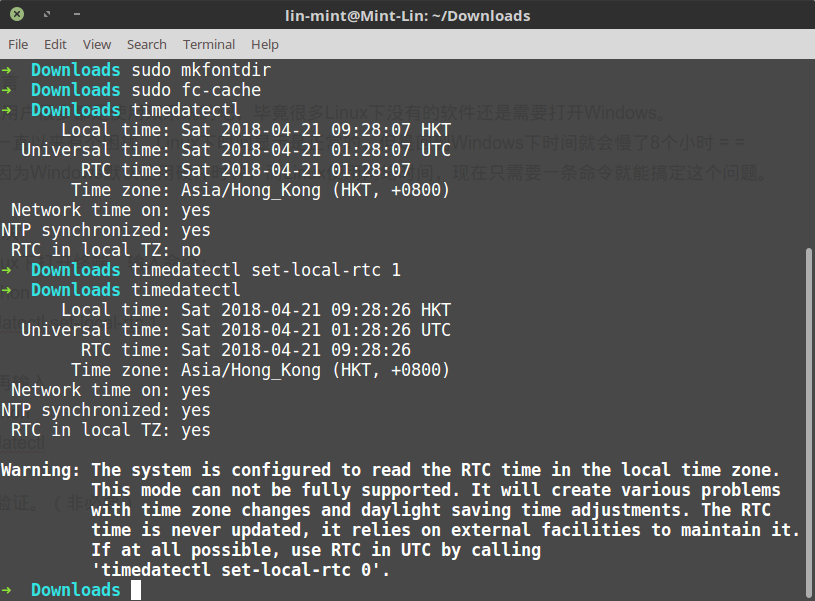
And just like that, the problem is solved—super simple, right?
About

Discover more interesting operations by following my WeChat official account (微信公众号): DealiAxy Every article is recorded on my blog: blog.deali.cn
_EOF_
Effortlessly Solve Linux+Windows Dual-Boot Time Inconsistency Issue
- 本文作者:
- 程序设计实验室
- 版权声明:
- 本博客所有文章除特别声明外,均采用 BY-NC-SA 许可协议。转载请注明出处!
相关文章
Useful-Gnome-Plugins
About 了解更多有趣的操作请关注我的微信公众号:DealiAxy 每一篇文章都在我的博客有收录:blog.deali.cn
2025-10-27 · FAQ & Tips · 约 1 分钟
KDE下OBS直播闪屏解决
关闭避免撕裂即可。 直播效果
2025-10-27 · FAQ & Tips · 约 1 分钟
ModuleNotFoundError--No-module-named-'apt_pkg'-错误解决
前言 今天在安装docker的时候遇到这个问题了,通过搜索解决方案解决了,所以记录一下。 猜测原因应该是今天升级了系统的Python版本,然后python3的软链接也被我改成指向最新版本了。 解决方法 sudo apt-get remove --purge python-apt sudo apt-get install python-apt -f cd /usr/lib/python3/dist
2025-10-27 · FAQ & Tips · 约 1 分钟
How-to-Convert-OpenSSH-keys-to-Putty-(-ppk)-on-Linux
On Arch Linux pacman -S putty Then cd to path of key(s): puttygen keyname -o keyname.ppk On Debian/Ubuntu apt-get install putty-tools puttygen keyname -o keyname.ppk Notice! replace the “keyname” with
2025-10-27 · FAQ & Tips · 约 1 分钟
讨论
共 0 条加载评论中…