2024, Some Practices for Improving the Windows Development and Usage Experience - Package Managers Part
Windows Package Manager? Scoop is open-source and customizable, Winget is the official but so-so option, and WingetUI with its graphical interface finally spares us the hassle of manual fiddling. Efficiency boost? Humph, at least it’s no longer the exclusive domain of niche Linux enthusiasts.
目录11 个章节
Preface
The brief Chinese New Year holiday flew by, and another busy year is about to begin 🔛
The previous article discussed using the Linux desktop 🐧 as my primary system in 2024 and received attention from many friends.
However, the Linux desktop remains a niche hobby after all, and the mainstream system is still Windows. As the saying goes, "A craftsman must first sharpen his tools to do his work well." This article compiles some software tools and tips to enhance your Windows user experience and productivity 🔝
Package Manager
For those who have used macOS or Linux, you've likely heard of package management tools. Through package managers, you can quickly and automatically install, configure, uninstall, and upgrade software directly in the terminal, without needing to download installers from the web and manually step through the installation process yourself. (If you search using Baidu, you'll often be redirected to various messy advertising software sites, and you might accidentally download modified rogue software 💢)
This is incredibly useful for installing a large number of software at once, significantly saving time and effort required for software installation, while also ensuring a certain level of security for the software source. 🔒
Back in the Windows 7/8 era, the lack of similar package management tools meant the Windows development ecosystem was quite barren. However, in the Windows 10 era, the situation improved. As Microsoft embraced open source and became more open—although Windows has also acquired a certain "curry flavor" (referring to Indian developers' influence)—the Windows development experience has become vastly better than before. With Microsoft officially participating, tools like WSL and Windows Terminal, along with various productivity tools, have emerged endlessly. You could say that the good times have arrived. 👍
Package managers are divided into two categories: official package managers and third-party ones. The official one is called winget, while third-party options include Chocolatey and Scoop 🧼
In the Linux system context, the official winget is equivalent to apt in the Debian ecosystem; the tools within it are all reviewed and available in the Microsoft Store.
Third-party ones like Scoop are similar to the AUR in the Arch ecosystem, where the software is packaged and maintained by the community.
I personally prefer Scoop because it offers a high degree of customization. I use winget as a supplement; if Scoop doesn't have a piece of software, I then go to winget to install it.
Installing winget
winget supports Windows 10 version 1809 and later.
You can install it through the Microsoft Store or download the installer manually from GitHub.
Store Installation
Installing through the Store is recommended for convenience.
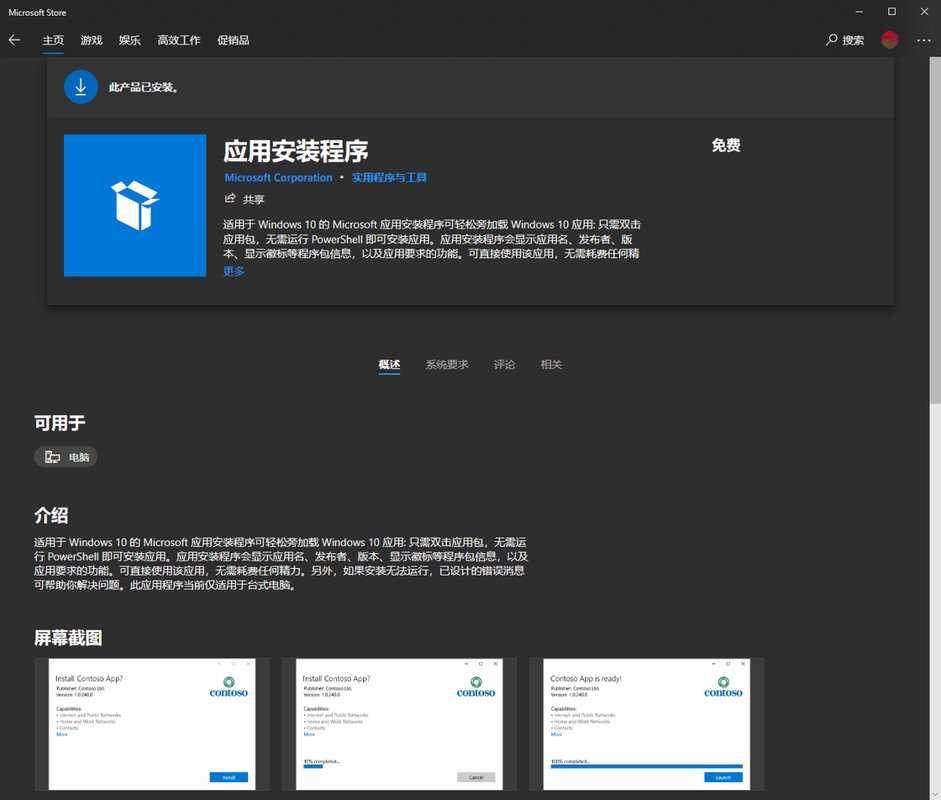
Open the Microsoft Store, search for "App Installer", and click Install. This is not only the simplest method but also the most convenient, as winget will automatically update to the latest version with Microsoft Store updates.
Manual Installation
If you cannot download through the Microsoft Store, you can manually download the winget installer directly from the official winget-cli GitHub repository.
Unlike traditional exe files, this is a Store application. Due to security restrictions, Windows 10 does not allow installing Store apps from unknown sources by default. You need to go to System Settings > "Update & Security" > "For developers" and turn on "Developer mode" to allow app installation from any source.
Download page: https://github.com/microsoft/winget-cli/releases
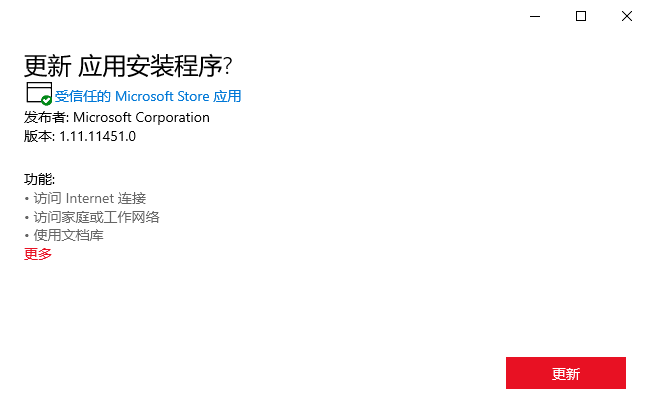
Here, you need to select and download the file with the .appxbundle extension and double-click to install.
Installing Scoop
This is my favorite Windows package manager. Chocolatey is also good to use, but it's closed-source, while Scoop is completely open-source.
Official website: https://scoop.sh/
According to the instructions on the official website, you can install it by opening PowerShell in administrator mode and executing the following commands.
Set-ExecutionPolicy -ExecutionPolicy RemoteSigned -Scope CurrentUser
Invoke-RestMethod -Uri https://get.scoop.sh | Invoke-Expression
Configure scoop
Scoop has very flexible configuration options, such as setting up aria2 for download acceleration, but I'm too lazy to tinker with it. The default speed is already very fast.
I just configured a proxy.
scoop config proxy 127.0.0.1:7890
Actually, by default, scoop uses the system proxy, but I still prefer to configure it.
Using Package Managers
winget and scoop are quite similar in usage.
Use search to search for packages.
Use install to install packages.
For more detailed usage, you can refer to their official documentation. I have also found a few good reference materials here, which you can take a look at.
Package Manager GUI
Someone mentioned here that using Windows is precisely because they don't want to type commands, so why go back to that?
OK, then let's also arrange a graphical interface package manager, all right 👌
In fact, the Microsoft Store is a graphical package manager; it's just done so poorly, often failing to load or crashing, so I won't recommend it.
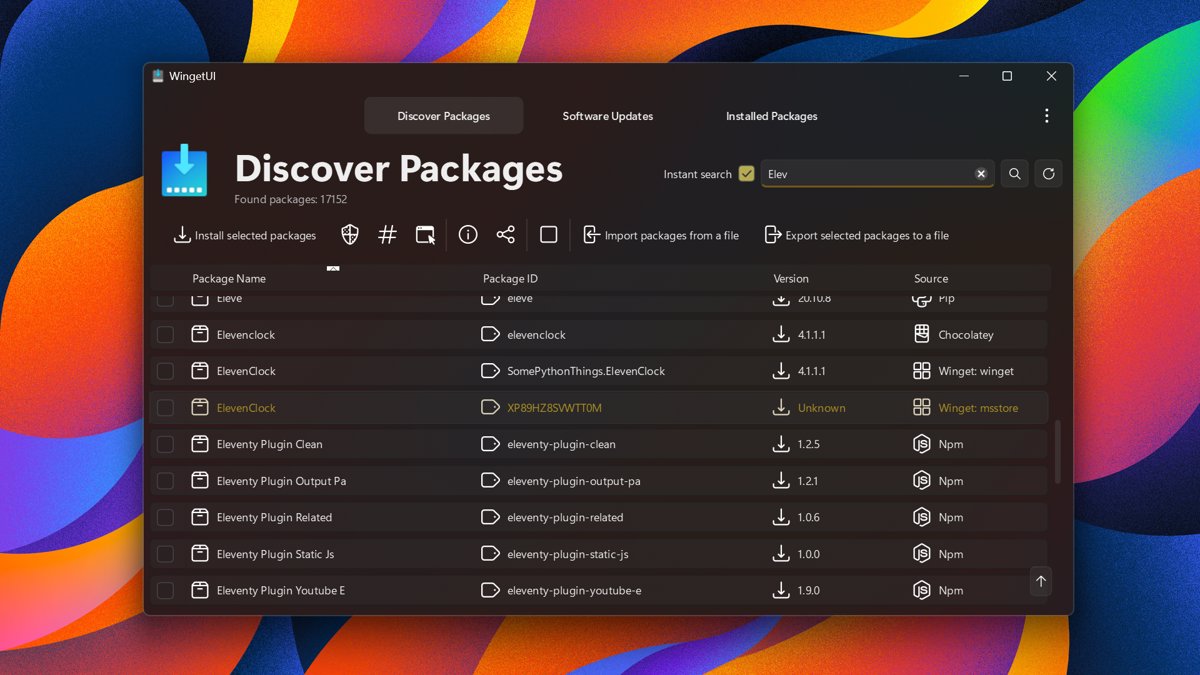
What I recommend here is an open-source project, WingetUI. As the name implies, it's a GUI for package managers. It's quite powerful—it doesn't just manage the package managers mentioned in this article but can also manage packages for some programming languages, such as Pip, Npm, .NET Tool, and PowerShell Gallery, which is really 6️⃣
Project address: https://github.com/marticliment/WingetUI
Installation is also very easy. On the basis that we already have a package manager, it only takes one command to get it done.
winget install SomePythonThings.WingetUIStore
Or use scoop
scoop bucket add extras
scoop install extras/wingetui
It's very convenient to use. Here's a screenshot taken from the official website.
Explore the specifics on your own; using a graphical interface has zero cost.
References
- This is perhaps the best package management tool for Windows: Windows Package Manager - https://sspai.com/post/67005
- Manage your Windows software installation and uninstallation with a 'single line of code' using Scoop - https://sspai.com/post/52496
- Add these software repositories to Scoop to make it a powerful Windows software manager - https://sspai.com/post/52710
Summary
The next part will continue introducing the RIME input method.
_EOF_
2024, Some Practices for Improving the Windows Development and Usage Experience - Package Managers Part
- 本文作者:
- 程序设计实验室
- 版权声明:
- 本博客所有文章除特别声明外,均采用 BY-NC-SA 许可协议。转载请注明出处!
相关文章
IT之家学院:让你的Win10桌面比macOS还简洁漂亮高大上
感谢IT之家网友 yiyueduzui 的原创投稿 直奔主题,先给大家看看我的电脑桌面: 有人开始骂了:你特么逗我呢?这明明就是一张图片好不啦! 我读书那么多,怎么会骗你,这真的是我的电脑桌面,不还有个桌面数字时钟呢嘛!论简洁,还有谁? 那这啥都没有,要怎么用啊? 看好啦,当我的鼠标移动到屏幕下方的时候, 出现了一个Dock栏,跟苹果系统的一样一样的。 有些图标其实是一个目录或者文件夹,当它展开的
2021-12-18 · Windows · 约 1 分钟
Windows平台下Git的安装与配置
一、下载 Git for Windows,主页:http://gitforwindows.org/ 点击页面中“Download”进入下载列表。可根据个人喜好选择下载版本。 这里选择下载最新版:Git-1.8.3-preview20130601.exe. 二、安装 下载完毕,双击开始安装: 1、除了AdvancedXXX选项,其余全选中 2、选择“Use Git Bash only” 3、选择
2021-12-18 · Windows · 约 1 分钟
IT之家学院:让Win10文件管理器的详细信息窗格显示更多信息
当你在Windows的资源管理器中将详细信息窗格设置为可用,然后选中一个文件时(IT之家小编选中了一个exe文件),你将在窗口的右半部分看到这个文件的一些信息,包括修改日期、创建日期、文件大小和可用性,不过对于一些用户来说,这些信息十分有限,还是不够详细。 在这篇文章中,IT之家将为大家演示如何进行设置,以使文件资源管理器可在详细信息窗格中显示更多的关于已被选中的文件的有用信息。 下文中的方法适用
2021-12-18 · Windows · 约 1 分钟
使用命令行删除 Windows 网络映射驱动器
Windows 这破系统至今还卡死右键菜单?命令行删映射盘算个事。真就没人修复这 XP 时代的老问题?
2025-10-02 · Windows · 约 1 分钟
讨论
共 0 条加载评论中…