

Can Windows also have a good command line? PowerShell+Terminal tweaking notes (Version 1.0)
Windows has always been known for its easy-to-learn graphical interface, so its command-line support has often been criticized, far behind that of Linux or macOS. This situation has improved in recent updates of Windows 10, especially after Microsoft officially released the powerful Windows Terminal tool~ Therefore, in response to the question in the title, it can only be said that it is "more than adequate." This article introduces several ways to work with the command line. Effect picture ~~Borrowing an official screenshot, hopefully, no one will notice~~ It is recommended to first thoroughly read the official documentation: https
目录5 个章节
PS: This article was written in 2021. Now it's 2024, and there have been many new developments. I will continue to update this in upcoming articles.
Preface
Windows has always been known for its easy-to-use graphical interface, which is why its command-line support has long been criticized, falling far behind Linux or macOS. This situation has improved in recent Windows 10 updates, especially after Microsoft officially released Windows Terminal, a powerful tool~
So, regarding the question in the title, one can only say, "it's passable." This article introduces several ways to tinker with the command line.
Screenshot
Borrowing an official screenshot, hope nobody notices
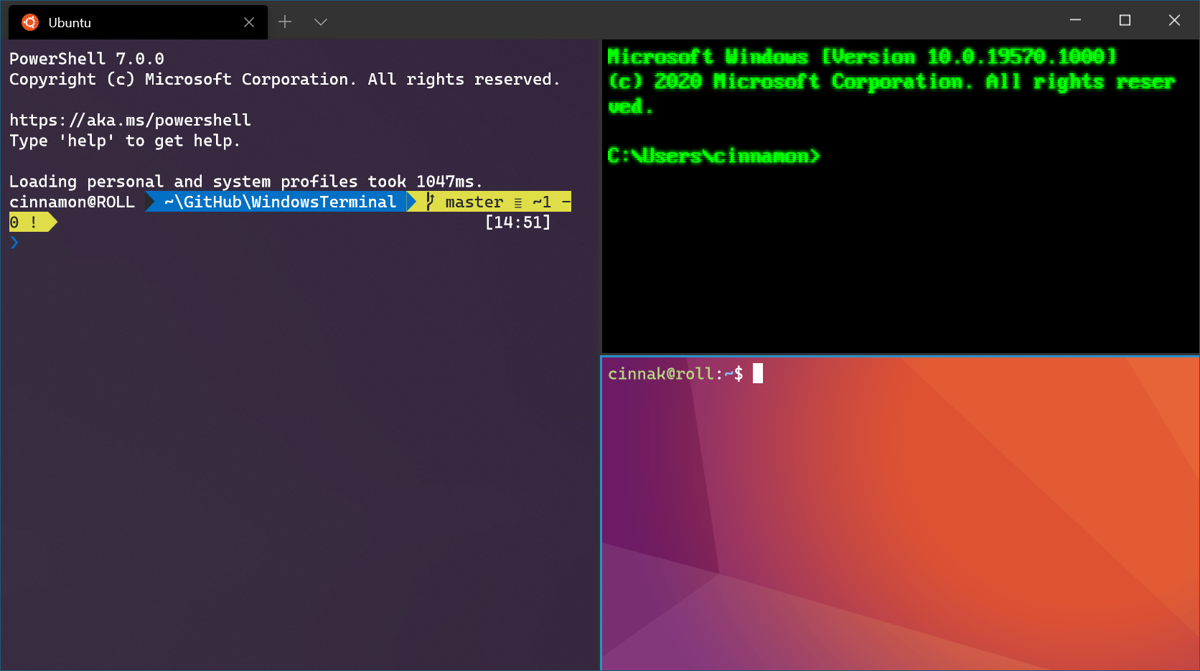
It is recommended to first thoroughly read the official documentation (官方文档): https://docs.microsoft.com/zh-cn/windows/terminal/
Scoop: A Package Manager for Windows
Don't be envious of the convenient apt and yum on Linux. Windows also has some excellent package managers, such as Chocolatey, the official WinGet, and the one introduced here, Scoop. Compared to Chocolatey, Scoop's package repositories are community-maintained and open-source, offering better security and being much more extensive than the official WinGet. If that's not enough, you can even add your own software sources, similar to apt's PPA repositories.
Official Website: https://scoop.sh/
Installation:
Set-ExecutionPolicy RemoteSigned -scope CurrentUser
iwr -useb get.scoop.sh | iex
oh-my-posh & powerline
If you're familiar with oh-my-zsh, you'll recognize this oh-my-xxx project~ It's a must-have on Windows~
First, download and install the powerline font. These fonts can be installed from the Cascadia Code GitHub releases page.
Enter commands to install the PowerShell plugin. posh-git requires Git support. If you don't already have it, install Git for Windows.
Install-Module posh-git -Scope CurrentUser
Install-Module oh-my-posh -Scope CurrentUser
Open your PowerShell profile with notepad $PROFILE and enter the following content:
Import-Module posh-git
Import-Module oh-my-posh
Set-Theme Paradox
Open the terminal configuration and modify the font, for example:
{
    // Make changes here to the powershell.exe profile.
    "guid": "{61c54bbd-c2c6-5271-96e7-009a87ff44bf}",
    "name": "Windows PowerShell",
    "commandline": "powershell.exe",
    "fontFace": "Cascadia Code PL",
    "hidden": false
},
The effect after configuration:
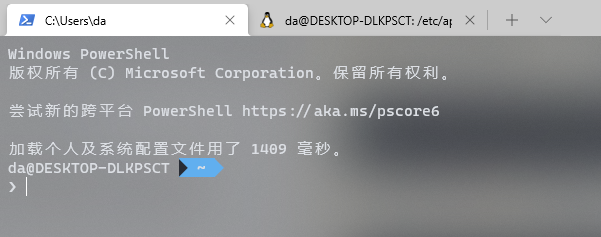
Reference materials: https://docs.microsoft.com/en-us/windows/terminal/tutorials/powerline-setup
Using sudo (gsudo)
When using PowerShell on Windows, some operations require administrator privileges. Unlike Linux, where you can simply use the sudo command to elevate privileges, Windows often requires right-clicking the Start menu and selecting the PowerShell admin mode.
Not only is this inconvenient, but it might also lead impatient users to smash their keyboards.
However, where there's a will, there's a way. That's where the open-source gsudo comes in handy, allowing easy privilege escalation on Windows. Here's how to install it:
Installation:
PowerShell -Command "Set-ExecutionPolicy RemoteSigned -scope Process; iwr -useb https://raw.githubusercontent.com/gerardog/gsudo/master/installgsudo.ps1 | iex"
Once installed, you can directly use the sudo command in PowerShell to elevate privileges. You can also add an administrator-privilege tab in Terminal. Let's see how to configure it.
Add the following entry to your Terminal configuration file:
"list": [
  {
      "guid": "{41dd7a51-f0e1-4420-a2ec-1a7130b7e950}",
      "name": "Windows PowerShell Elevated",
      "commandline": "gsudo.exe powershell.exe",
      "hidden": false,
      "colorScheme": "Solarized Dark",
      "fontFace": "Fira Code",
      "icon" : "https://i.imgur.com/Giuj3FT.png"
  },
  //...
]
Reference: https://blog.csdn.net/weixin_39858881/article/details/107026065
_EOF_
Can Windows also have a good command line? PowerShell+Terminal tweaking notes (Version 1.0)
- 本文作者:
- 程序设计实验室
- 版权声明:
- 本博客所有文章除特别声明外,均采用 BY-NC-SA 许可协议。转载请注明出处!
相关文章
在 Windows 11 上使用 Hyper-V 虚拟机
WSL开了Hyper-V,VMware直接报废,嵌套虚拟化?做梦。改用原生Hyper-V管理器,开启倒简单。Windows Admin Center登录失败,懒得折腾,直接用控制台。
2026-03-10 · Windows · 约 1 分钟
在Windows上部署OpenSSH服务
Windows终于学会了没羞没臊地用命令行装OpenSSH,结果设置界面还是卡得像屎,算了,至少比以前强点。不过这SSH连上去还是CMD,是哪个脑回路觉得这操作体验没问题啊?
2025-06-12 · Windows · 约 1 分钟
Windows设置Pageant开机自动启动并且加载秘钥
场景 用Linux的时候ssh和git这些很方便,因为只要一次ssh-add就可以一劳永逸,以后需要认证的时候ssh-agent会帮我们搞定,不需要输入秘钥的密码。 其实Windows也可以实现这种生产力解放,就是用putty附带的工具里的Pageant。 Pageant主要负责和服务器端进行身份验证,但是每次在启动Pageant后都需要手动的加载秘钥文件,本文就是要介绍让Pageant开机自动加
2021-12-18 · Windows · 约 1 分钟
从SSH远程到Git Push:在Windows上一步到位实现免密码登录
我一直希望在Windows上能像在Linux系统中那样,通过SSH密钥实现免密码远程连接。每次远程连接到服务器时,手动输入密码既麻烦又不太安全,尤其是在我需要频繁操作的情况下。
2025-02-10 · Windows · 约 1 分钟
讨论
共 0 条加载评论中…