

Win10's Linux Subsystem Can Also Run Graphical Programs
Preface I previously wrote an article about installing the Linux subsystem on Win10. Although the Linux subsystem is both practical and convenient, some of you might find having only a command line rather boring, so today I'll share a method for running graphical programs. After trying it out, the results are pretty good. This article will walk you through installing and running Gimp in Win10's subsystem step by step (PS: Gimp is the Photoshop of Linux, and it's quite powerful), as well as some other Linux graphical software. Preparations The Linux subsystem is a must, of course, no need to say much more
目录11 个章节
Preface
I previously wrote an article about installing the Linux subsystem on Win10. Although the Linux subsystem is both practical and convenient, some of you might find having only a command line rather boring, so today I'll share a method for running graphical programs. After trying it out, the results are pretty good. This article will walk you through installing and running Gimp in Win10's subsystem step by step (PS: Gimp is the Photoshop of Linux, and it's quite powerful), as well as some other Linux graphical software.
Preparations
The Linux subsystem is a must, of course, no need to say more. If you need a tutorial, you can check out the article I posted earlier on my blog. Here I'm using the Ubuntu subsystem.
And then! You also need a piece of software. Xming, let's just call it Xiao Ming = =. You need this software to run Linux graphical programs on Windows.
Xming is an open-source X-Windows terminal emulator (X server) that runs on Microsoft Windows computers. Xming allows Windows machines to display graphical Linux programs executed on a remote Linux server Official website: sourceforge.net/projects/xming.
Installing XMing
After downloading, this thing looks like this:

Open it and install; just keep clicking Next.
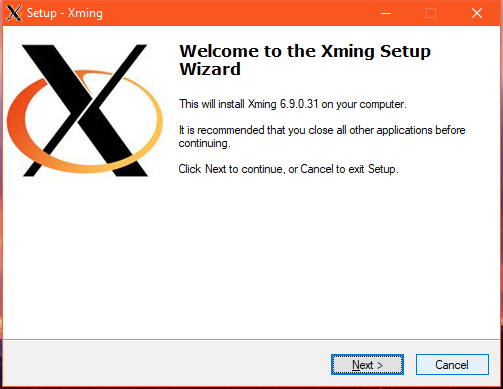
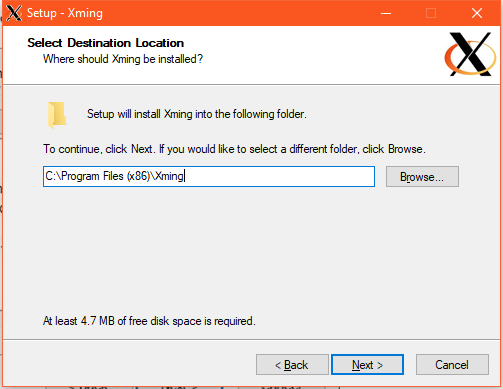
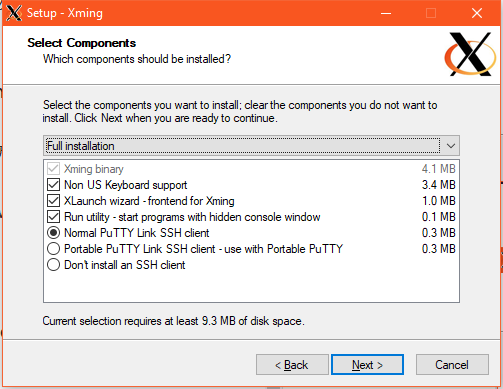
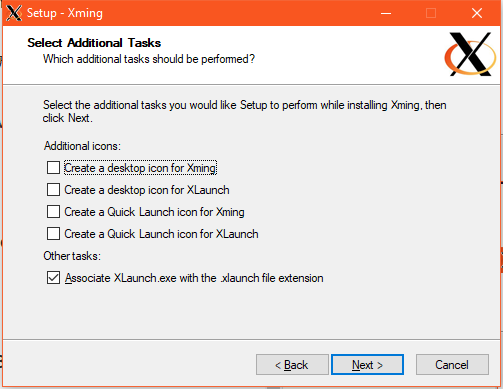
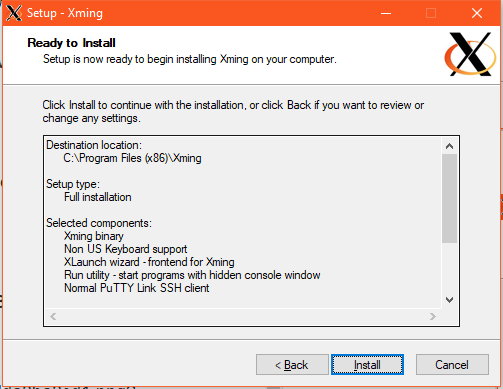
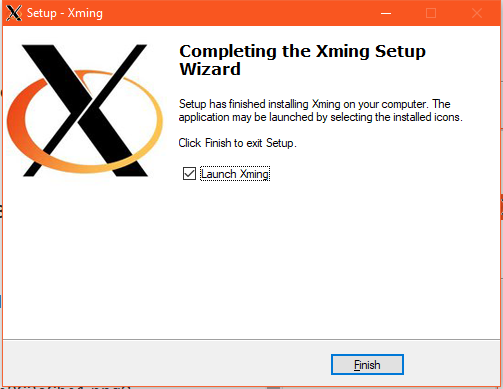
Launching XMing
In the Start menu under recently installed apps, you can see XMing and XLaunch.
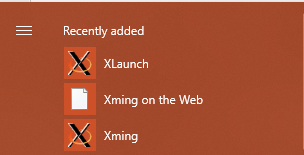
Open XLaunch. Select how Xming should display the windows of Linux graphical programs (multiple windows, single window, fullscreen, or a single window without a title bar), then click the Next button;
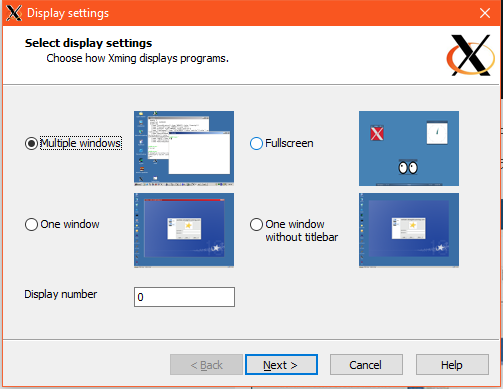
Leave this option unchanged, click the Next button;
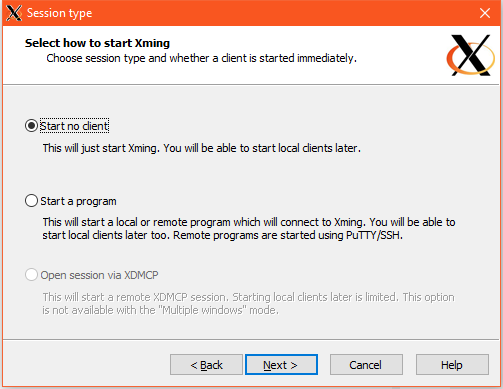
Leave this option unchanged, click the Next button;
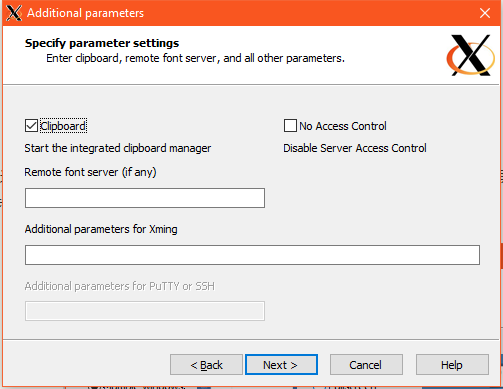
Click the Finish button;
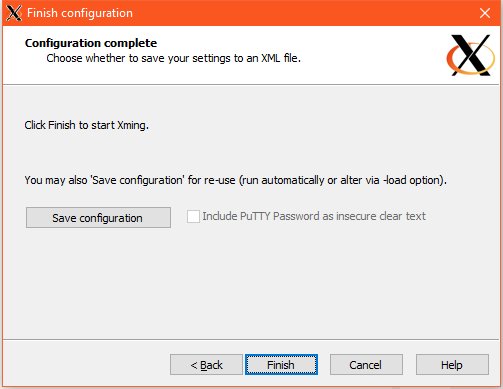
Now the XMing configuration is complete. Next we'll install graphical programs in the Linux subsystem.
Installing Gimp
First, start the Linux subsystem bash:
Press Win+R, open the Run window, type bash, and press Enter.
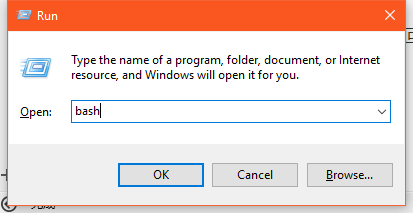
First, update the software repositories:
sudo apt update
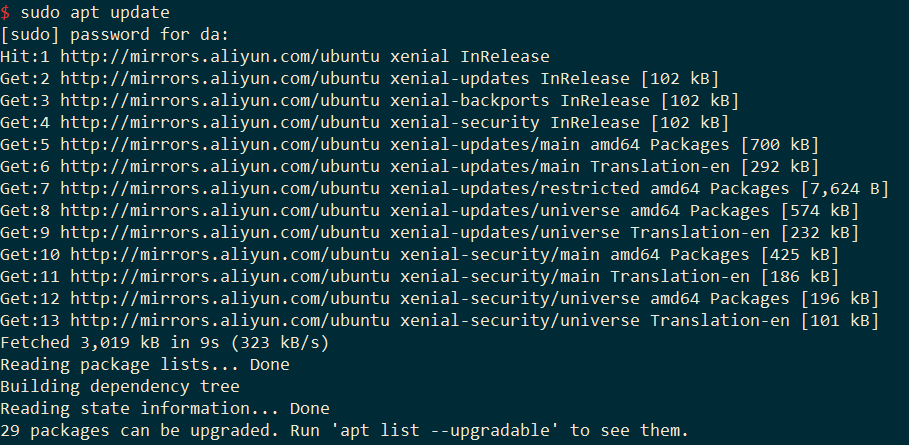
Whoa, so much software needs upgrading. Let's run sudo apt upgrade first then.
After the upgrade is done, let's start installing Gimp.
sudo apt install gimp
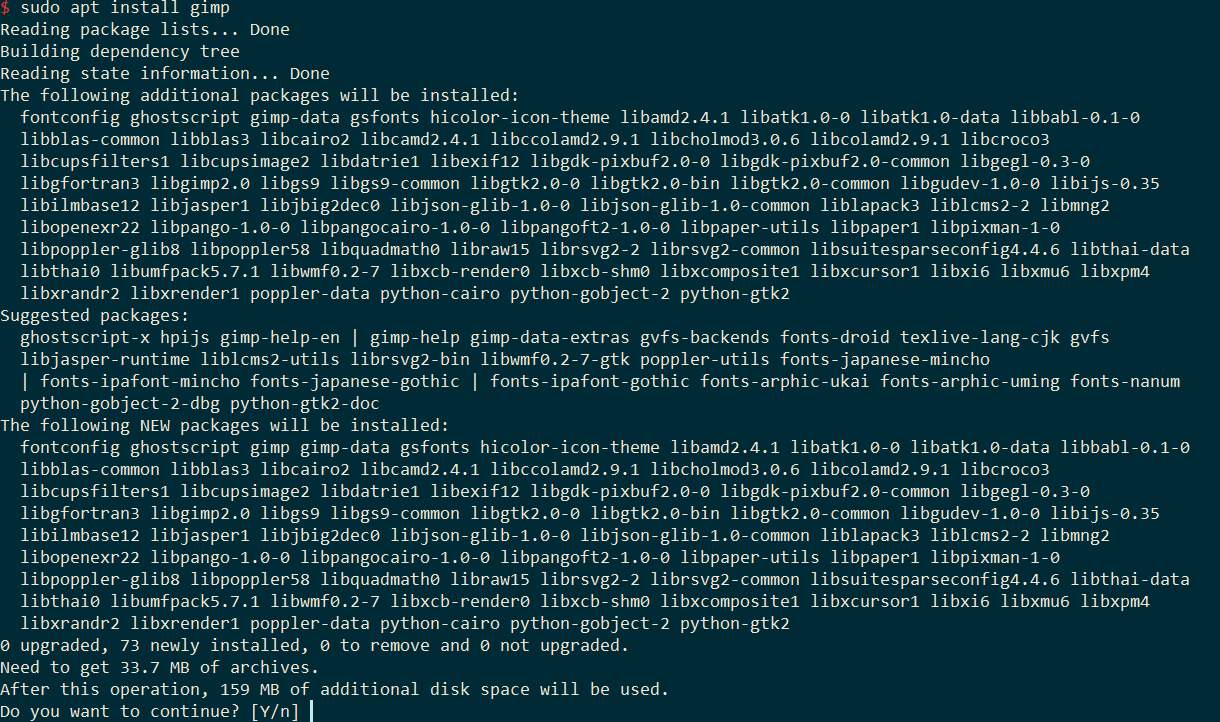
Here it asks if you want to continue; we press y to continue. Seems like Gimp is pretty big. No worries though, I currently have 100m internet.
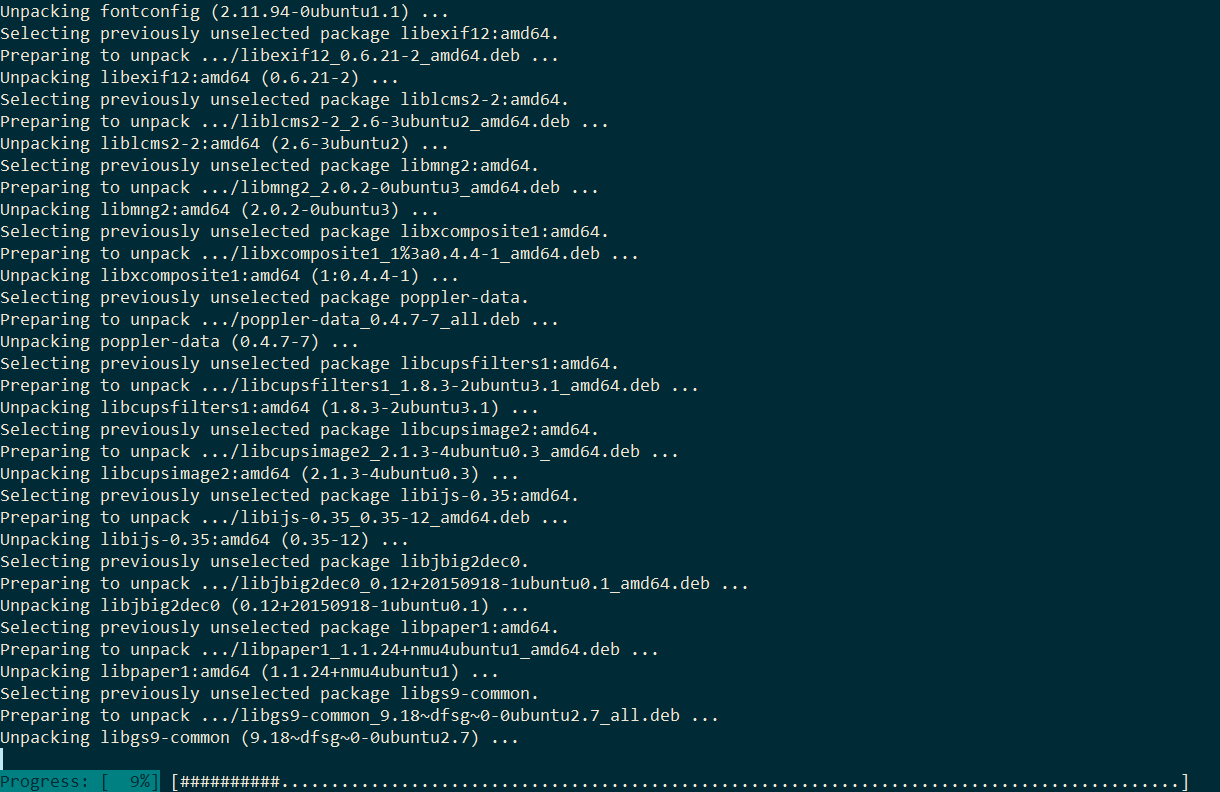
OK~ Now the download is done, and a series of installation operations are starting. It's all automatic, just sit back and watch the show.
This process feels even slower than the download. = =
Launching Gimp
After a long wait, it's finally installed. Hehe, Linux is still faster than Windows; if I were installing Photoshop it would definitely take longer than this.
Now we can finally run Gimp, but! There's one thing to do first:
DISPLAY=:0 gimp
If you can run Gimp without typing the command above, I'll admit I lost.
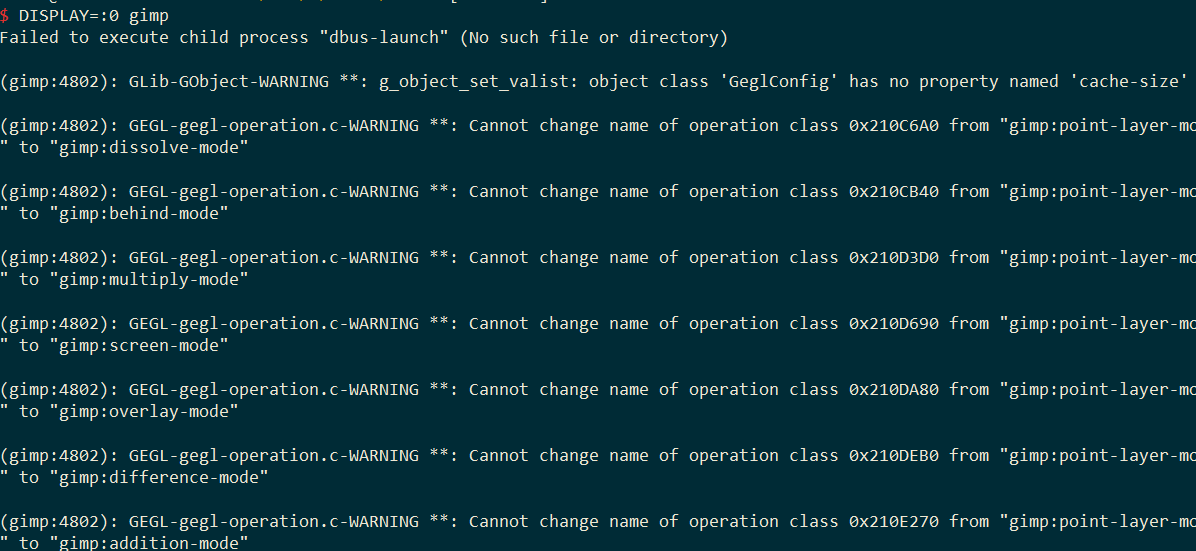
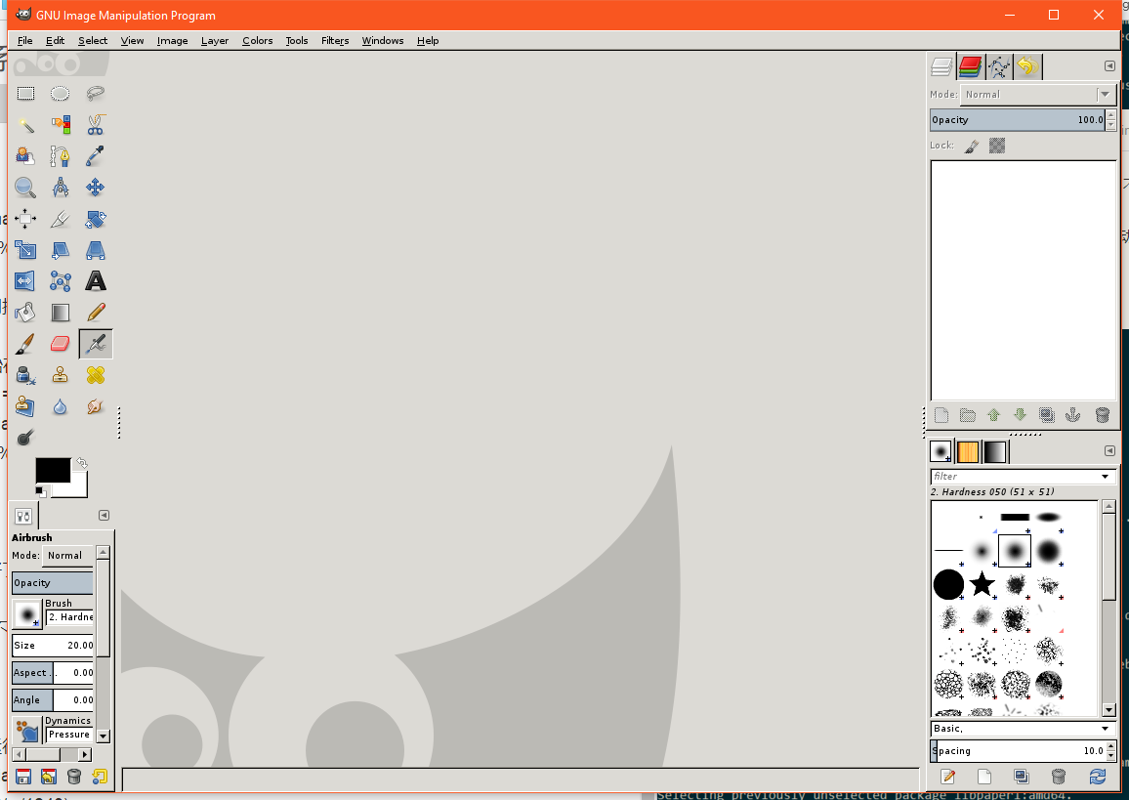
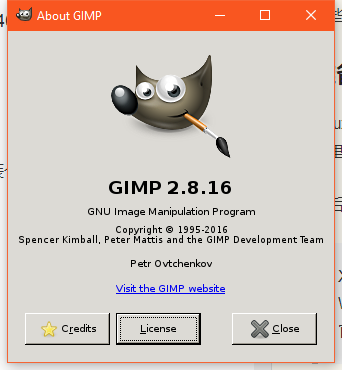
Successfully launched Gimp!
Other Linux Graphical Tools
I feel like other software either depends on Gnome or the KDE environment. The software itself isn't that big, but adding these two desktop environments makes it huge. My 120G hard drive is shivering in fear = =. So I thought of this super lightweight graphical software
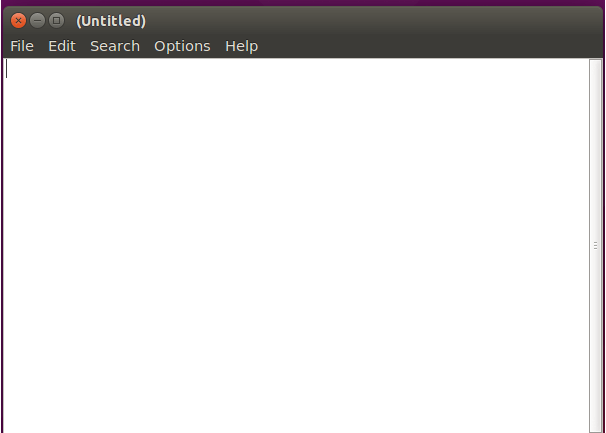
Leaf Pad
(Image from the internet; after installing you can see how it looks in Windows.)
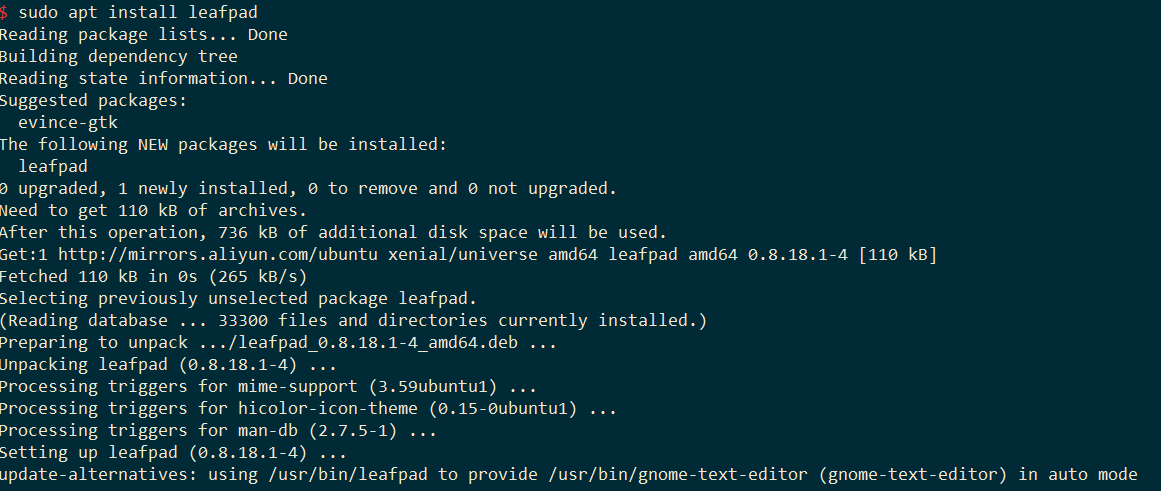
First, install it via apt as usual
sudo apt install leafpad
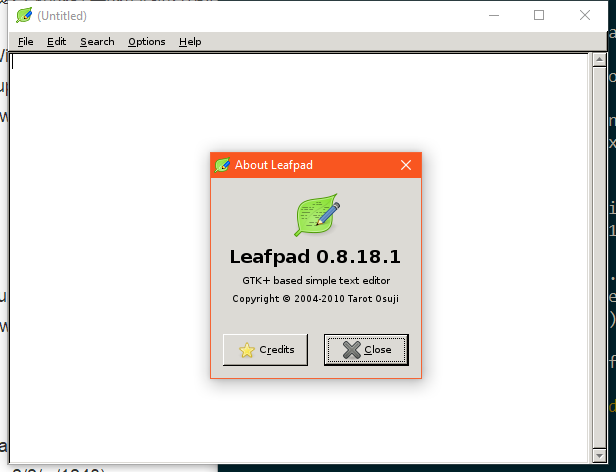
Then type leafpad to run it.
Huh? What's going on

Remember what I did when running Gimp earlier?
You have to prepend DISPLAY=:0! That is, you need to type: DISPLAY=:0 leafpad
Let's try again. There we go, success.
Wrapping Up
Due to space constraints, I'll just introduce these two pieces of software. Other software is pretty much the same; interested readers can try installing them yourselves. But I think these Linux programs look pretty ugly when run on Windows. They look better in a Linux desktop environment with a nicer GTK theme. Running Linux graphical programs in the subsystem is indeed pretty fun, though it's limited to just being fun. As for practical use = =. Can't think of any = =.
About

For more interesting tricks, please follow my WeChat official account: DealiAxy Every article is also collected on my blog: blog.deali.cn
_EOF_
Win10's Linux Subsystem Can Also Run Graphical Programs
- 本文作者:
- 程序设计实验室
- 版权声明:
- 本博客所有文章除特别声明外,均采用 BY-NC-SA 许可协议。转载请注明出处!
相关文章
这是演习:Win10蓝屏,随你召唤
蓝屏似乎是很多IT之家用户不希望看到的东西,虽然在Win10中你还可以扫描屏幕下方二维码参与微软互动赢取大……那个,蓝屏的好处就是为专业人员提供问题信息,比如当前的内存转储,有助于排查和解决问题。当然,可能光是默认蓝屏给出的信息不够,此时可以开启Win10蓝屏详细信息显示。 ▲这二维码居然“上位”了……VM12虚拟机测试结果 微软在Windows10中安排了手动“调取”蓝屏的方式,那就是**按住右
2021-12-18 · Windows · 约 1 分钟
Windows平台下Git的安装与配置
一、下载 Git for Windows,主页:http://gitforwindows.org/ 点击页面中“Download”进入下载列表。可根据个人喜好选择下载版本。 这里选择下载最新版:Git-1.8.3-preview20130601.exe. 二、安装 下载完毕,双击开始安装: 1、除了AdvancedXXX选项,其余全选中 2、选择“Use Git Bash only” 3、选择
2021-12-18 · Windows · 约 1 分钟
在 Windows11 上启用 ssh-agent
微软的坑真多!!!
2026-08-25 · Windows · 约 1 分钟
2024年,提升Windows开发和使用体验的实践经验 - RIME输入法
上一篇文章介绍了 Windows 下的包管理器,本文继续介绍输入法。 事实上 Windows 的输入法生态比 Linux/Mac 丰富很多,不过很多国产输入法存在窃取隐私、植入广告、乱安装流氓软件等问题,现在有开源的 RIME 输入法可以选择,何必受这气呢
2024-02-29 · Windows · 约 1 分钟
讨论
共 0 条加载评论中…