Switching from WebStorm to VSCode! One-Week Experience Report
JetBrains raises the open-source threshold? Forced to switch to VSCode, experience riddled with pain points: weak path recognition, auto-import adds wrong suffixes, tags don't auto-close, and the control panel can't even be collapsed. It's lightweight and responsive, but the details are anti-human—it's free, so what more can you ask for?
目录16 个章节
Foreword
My Jetbrains open source project authorization (Jetbrains 开源项目授权) recently expired. When I tried to renew, I discovered that Jetbrains has raised the application requirements for open source projects. My StarBlog project couldn't be approved because its name contains the word "blog." Although I have many open source projects on GitHub, I've been too busy near year-end and neglected updates. I suddenly realized I couldn't find a project that meets Jetbrains' requirement of having commits every month in the last three months...
So, until one of my projects qualifies for the application, I'll have to use VSCode for the time being.
Introduction
As an amateur "alchemy enthusiast," VSCode is actually a tool I use daily. Training and fine-tuning models require high GPU computing power, and it’s impractical to run them locally. My habit is to use VSCode's Remote Development feature to connect to a server, directly edit and debug Python code. Of course, this is only for quick implementation and validation in the early stages; for real projects, I still complete them in PyCharm. Therefore, VSCode is both familiar and unfamiliar to me—I use it frequently, but it’s not my primary development tool, and I haven’t studied it in depth before.
This article records my experience using VSCode for frontend project development, mainly for Next.js projects using TypeScript.
Regarding extensions, the following are related to frontend development:
- Babel JavaScript
- ESLint
- Live Preview
- Live Server
- open in browser
- Path Intellisense
- React Native Tools
- Tailwind CSS IntelliSense
In practice, I probably only use Live Server and the last one, Tailwind CSS IntelliSense. The other extensions don’t leave a strong impression on me. It seems VSCode itself already provides good support for frontend development, especially for TypeScript.
Configuration
Keyboard Shortcuts Settings
I'm used to the JetBrains IDE, and the shortcuts I've learned are in the IntelliJ IDEA style. Thanks to the rich plugin ecosystem of VS Code, after installing the IntelliJ IDEA Keybindings extension, I can get a keyboard shortcut experience similar to that of JetBrains.
Configuring Explorer File Tree Indentation
Settings › Workbench › Tree: Indent
Originally set to 8, the directory hierarchy was not very clear. I changed it to 14, and it became much clearer.
| Before Change | After Change |
|---|---|
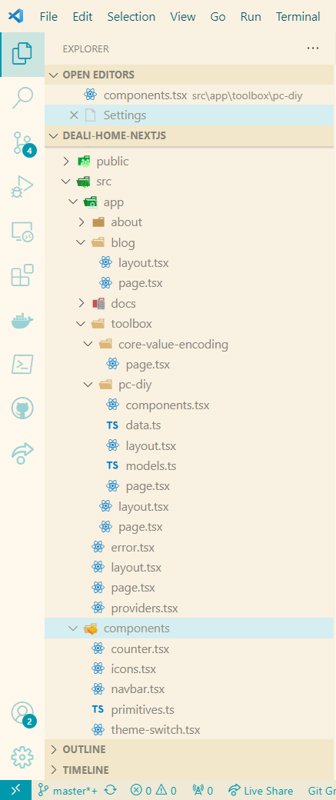 | 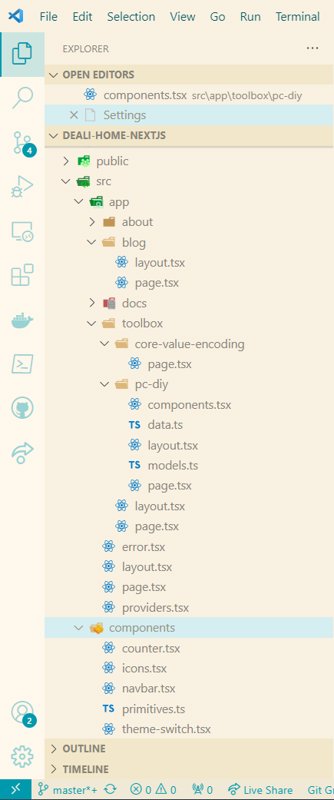 |
Other
The rest are all highly personalized items. I configured my GitHub account to view PRs, issues, and such, offering an experience similar to JetBrains.
The sync feature is also quite good. Initially, I thought it wasn't possible to disable theme syncing, but later I discovered you just need to edit the configuration file and add the following configuration:
"settingsSync.ignoredSettings": [
  "workbench.colorTheme"
]
Debugging
The debugging features supported by WebStorm are also available in VSCode, except that the former uses a graphical interface for configuration while the latter uses a JSON file.
Click the Run and Debug button on the left side of VSCode to create a launch.json file.
In the lower right corner, there is an Add Configuration... button with many templates to choose from. Using my current Next.js project as an example, I created an npm configuration and made a few minor adjustments.
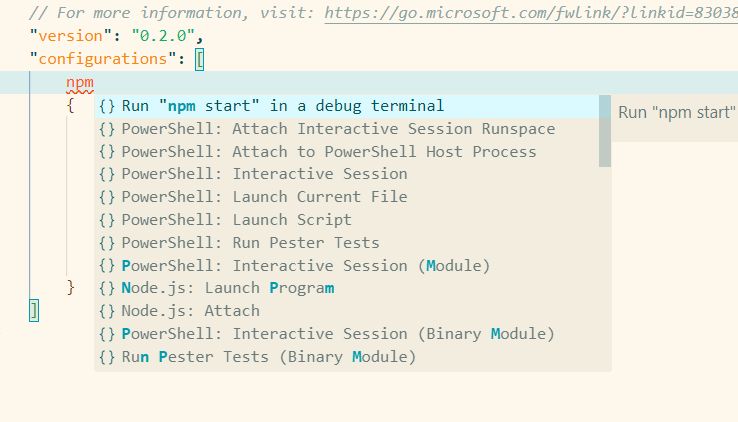
The configuration suitable for the Next.js dev mode is as follows:
{
  // Use IntelliSense to learn about possible attributes.
  // Hover to view descriptions of existing attributes.
  // For more information, visit: https://go.microsoft.com/fwlink/?linkid=830387
  "version": "0.2.0",
  "configurations": [
    {
      "command": "yarn dev",
      "name": "next dev",
      "request": "launch",
      "type": "node-terminal",
      "env": {
        "NEXT_PUBLIC_BASE_URL": "http://localhost:5234"
      }
    }
  ]
}
Once configured, just click the triangle button to run it~
PS: Setting breakpoints should also work fine, but I haven't tested it yet.
Pain Points
Weak Path Recognition
Although I have installed the Path Intellisense plugin, the path still cannot be recognized in many cases, and it cannot achieve out-of-the-box functionality like JetBrains.
In addition to the inability to detect paths in many places within front-end projects, there are also...
For example, when editing the .gitignore file, the path does not auto-complete;
For example, when writing a commit message, the file name does not auto-complete;
Copying Code Within the Same Project Does Not Automatically Import Dependencies
When copying code from one file to another within the same project, the dependencies required by that code are not automatically imported.
For example, the following code
<div>
  <h1 className='text-2xl'>任务列表</h1>
  <Breadcrumbs className='mt-3'>
    <BreadcrumbItem>主页</BreadcrumbItem>
    <BreadcrumbItem>任务列表</BreadcrumbItem>
  </Breadcrumbs>
  <Spacer y={4} />
</div>
requires the following dependencies to be imported
import { Breadcrumbs, BreadcrumbItem } from "@nextui-org/breadcrumbs";
import { Spacer } from "@nextui-org/spacer";
In WebStorm, when you copy this code to another file, it will automatically add the corresponding dependency imports to the top of the new file. However, in VSCode by default, this functionality is not available, and you would likely need to use an extension to achieve this.
Code Suggestions Fail After Completion While in Highlight Mode
For example, I want to write a div like this:
<div className="flex justify-items-center">
</div>
Now <div></div> is already there. I then type clas, press tab to complete it to className="", which is great, and the cursor automatically moves inside the double quotes.
But! Why are the double quotes highlighted? In this state, no suggestions appear. I have to press Esc to exit this highlight mode before suggestions show up...
What the heck is going on here!!
It's not related to className—this happens with anything completed via tab.
The moment the completion is inserted, it enters a pure-text highlight mode.
Seriously, which genius designed this feature 😂
Auto-imported Components Default to .jsx Suffix
I wrote a component PageHeader in the src/components/page-header.tsx file.
Then, in another page, I needed to use this component. After typing <PageH, it auto-completed to <PageHeader and prompted me to import the component. Everything seemed fine, and it even generated the import statement.
However, the import statement it generated looks like this!
import { PageHeader } from "@/components/page-header.jsx";
Why is it adding a suffix?? It's unnecessary, and the suffix is wrong—my file is a .tsx file...
This caused next.js to immediately throw an error:
Module not found: Can't resolve '@/components/page-header.jsx'
【前端带师】 suggested I turn off allowJs in tsconfig.json, but I tested it and the result is the same (摊手.gif).
Input / Auto-closing tag does not work
For example, if I want to use the component above.
<PageHeader
  title="任务列表"
  breadcrumbs={[
    { title: '主页', href: RouterMap.Index },
    { title: '任务列表' }
  ]}
/>
Initially, when I type <PageH in the IDE, it auto-completes to <PageHeader.
At this point, when I type /, WebStorm will auto-close the tag, automatically generating the right angle bracket: <PageHeader />
However, in VSCode, nothing happens. I'm not sure if some configuration is needed.
Modifying a tag does not synchronize the corresponding close tag
Consider this tag:
<h1 className={title()}>Blog</h1>
Now I want to change h1 to div.
In WebStorm, modifying it will simultaneously change the following </h1> to </div>.
However, VS Code will not do this—perhaps additional configuration is required.
Console Panel Cannot Collapse
When I open the console panel below, it takes up space on the screen, right? When I need to write code, I'd like to collapse it, but this feature is missing. The button in the top-right corner can only close it.
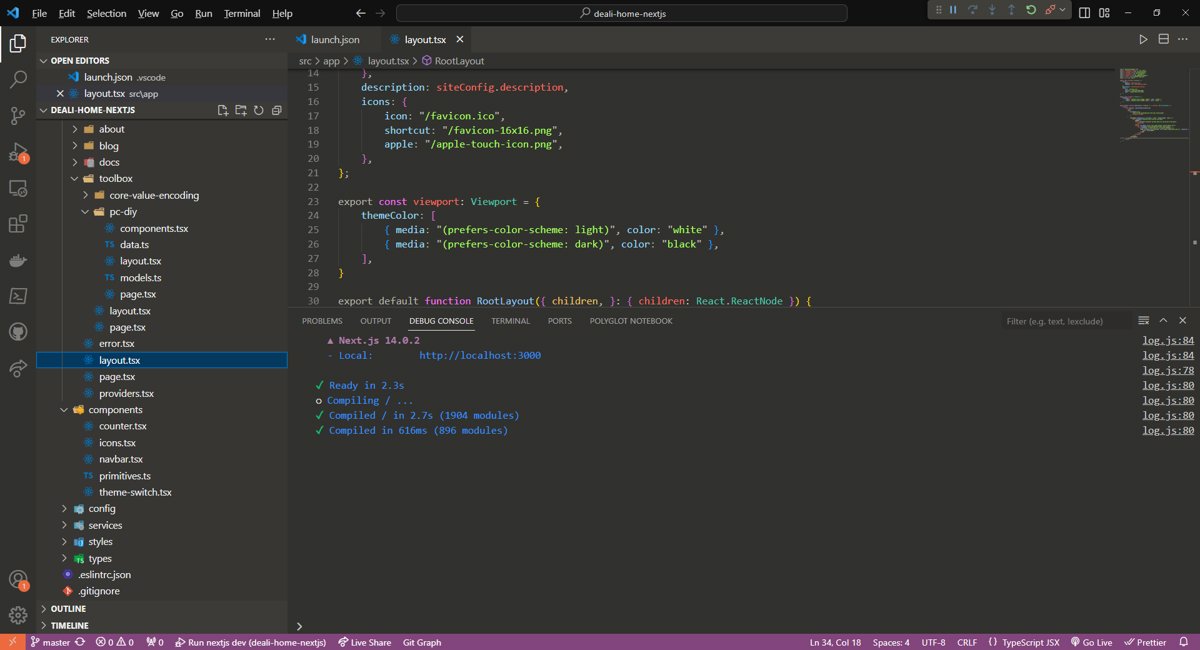
Then, when I want to reopen the console to view it, clicking the "No problems" button in the bottom-left corner brings up the Problems panel instead. I then have to manually switch to the console, which is really inconvenient.
After researching, I learned that you can use keyboard shortcuts to toggle these:
- Press Alt+F8 to toggle the debug console.
- Press Alt+F12 to toggle the Terminal.
Summary
Using VS Code, my feeling is that it's lightweight. Although it's just an editor, after adding a bunch of plugins, it's almost as bulky as an IDE, but it still gives me a lightweight feel compared to the JetBrains series. The response is also quite fast. However, many functions and details are a bit counter-intuitive; perhaps I'm not yet familiar with it~ But considering it's open source and free, what more can you ask for?……
_EOF_
Switching from WebStorm to VSCode! One-Week Experience Report
- 本文作者:
- 程序设计实验室
- 版权声明:
- 本博客所有文章除特别声明外,均采用 BY-NC-SA 许可协议。转载请注明出处!
相关文章
是谁 2026 年还在用 Sublime Text 写代码?
Sublime Text 十几年了还这么流畅?C++ 原生驱动才是真香,默认设置都能用十年?瞎折腾一下发现真香? Adaptive 主题自动调色就挺好看,LSP 插件能当 VSCode 用?这年头还有人用 Sublime?
2026-03-18 · IDE · 约 1 分钟
浅谈次世代代码编辑器 Zed:Rust 原生性能、GPU 渲染
Zed?一群老司机在 Atom 失败后,用 Rust 重新造轮子?性能确实骚,GPU 渲染的丝滑感 VSCode 始终没学会。协作功能也挺有意思,但插件生态暂时还够看?
2026-03-25 · IDE · 约 1 分钟
Zed AI 白嫖免费模型,搭配 DeepSeek v4,玩转 Agent 编程技巧
Zed AI功能够用但不算顶尖,自由度高轻量灵活,比主流工具舒服些。配置ACP协议和外部agent效果还行,但稳定性一般。白嫖DeepSeek、智谱等模型免费额度可行,但配置稍繁琐,Zed Agent虽开放但插件生态不足,Git Graph这类常用插件缺失令人头疼。
2026-04-28 · IDE · 约 1 分钟
修改Cursor侧边栏位置,改成和VSCode一样的风格
Cursor把侧边栏图标放顶部?既不能快速折叠,插件图标还塞不下,纯属为差异化而差异化。改回VSCode熟悉的竖排侧边栏,配置文件加一行的事,原作者至于在那儿批判半天吗?
2026-09-28 · IDE · 约 1 分钟
讨论
共 0 条加载评论中…