

Personal Data Preservation Plan: Migrating from Evernote to Joplin
Actually, I haven't used Evernote for many years now. The last time I used it was probably during my university days quite a while ago. Back then, I even subscribed to the membership for several years, using it to save web pages and WeChat official accounts articles—it was really quite useful. Unfortunately, Evernote introduced a China-exclusive version starting from a certain year, completely separating it from the international version, becoming increasingly greedy in its approach. Moreover, the export format was changed to a proprietary one, making it increasingly closed. This is not a good sign, as I am most afraid of being tied to a particular platform or ecosystem.
目录7 个章节
Foreword
While recently exploring various modern note-taking tools, I happened to try out Joplin. Although its interface isn't the most attractive, it's open-source, supports Markdown, has comprehensive features, and offers multiple import methods (in fact, many open-source note apps do).
Among its import functions, there was an option for Evernote (印象笔记), which reminded me of my long-forgotten Evernote account.
I haven't actually used Evernote for many years—my last time was probably back in university a long time ago. I had a paid membership for several years back then and used it to save web pages and WeChat public account articles, which was quite handy.
Unfortunately, Evernote (印象笔记) started a few years ago to completely cut off its China-specific version from the international edition, engaging in increasingly questionable business practices. It also changed its export format to a proprietary one, becoming more and more closed off. This isn't a good sign—I'm most wary of being locked into a specific platform or ecosystem.
Moreover, keeping data in your own hands is always the safest option. So, I began the process of migrating my notes, as described in this article.
Troubleshooting Process
evernote-backup
https://github.com/vzhd1701/evernote-backup
Initially, I used evernote-backup, but it kept throwing errors.
evernote.edam.error.ttypes.EDAMUserException: EDAMUserException(errorCode=8, parameter='consumerKey')
I suspect it's because the Chinese version of Evernote (印象笔记) has changed its token mechanism.
Many blog posts online show that this tool can export notes normally, but these articles were written 2-3 years ago.
There are also issues mentioning this problem. For reference: https://github.com/vzhd1701/evernote-backup/issues/113
evernote2
https://github.com/JackonYang/evernote2
Later, I found in the issues that a fellow user had forked the evernote-sdk and created a new version, with a fairly recent update.
I attempted to try it out, but it still threw an error. However, this error did not seem to be related to the interface. I resolved it by modifying the code of this tool.
For details, see the issue I submitted here: https://github.com/JackonYang/evernote2/issues/8
However, even after exporting using this method, Joplin still could not import the files. Upon examining the exported files, although they also had the .enex extension, they were actually in XML format and came with a resources directory. This seems to be different from the format Joplin expects.
Back to evernote-backup
The next day, I continued using the evernote-backup project, reading the code to try to solve this problem. However, I couldn't find the issue in the code (and some of the Python code was really hard to read 😂).
So, I had to keep looking through the issues, and sure enough, someone mentioned this problem. The solution for the error was to use a token directly, instead of logging in with a username and password.
First, go to the official website of the Chinese version of Evernote (印象笔记) to create a token: https://app.yinxiang.com/api/DeveloperToken.action
Then, use the following command to create a backup:
evernote-backup init-db --backend china -t token
The tool was quite fast—it downloaded several thousand notes in no time.
The exported files are in the format of one ENEX file per notebook.
Importing to Joplin
At this point, you can proceed to import into Joplin.
In Joplin, select the import option and choose the "enex directory" format. Since I primarily saved webpages and WeChat Official Account articles (公众号文章) in Evernote (印象笔记), I chose the HTML format here to better preserve the original styling. However, this also sacrifices editability (webpage editing support within Joplin is limited).
If you prefer to edit the content, you can choose Markdown, but the formatting might appear somewhat odd. You'll need to weigh the trade-offs yourself...
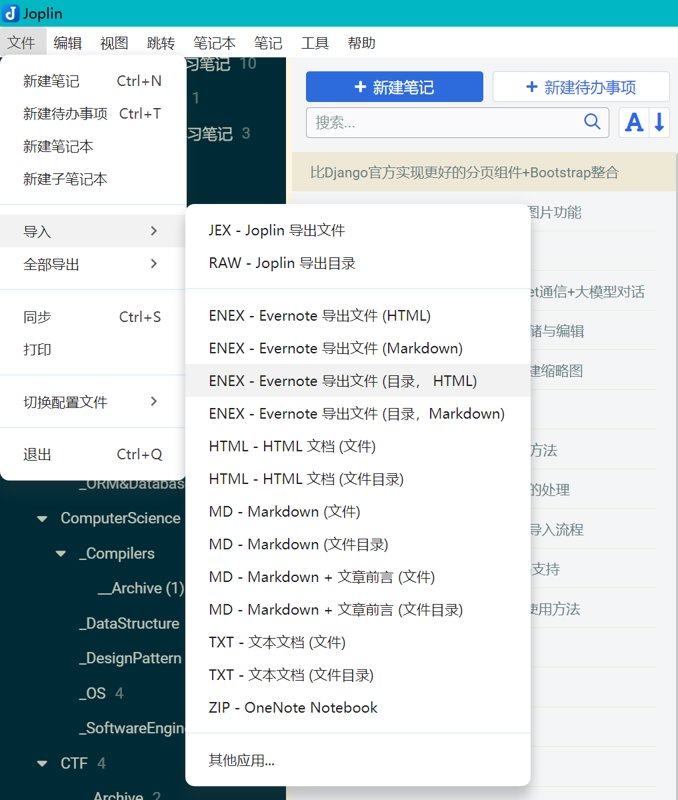
The import process will display progress, and the overall experience is quite good.
Each enex file automatically creates a corresponding notebook, and tags are also correctly recognized.
Summary
And just like that, you've successfully said goodbye to Evernote...
If you plan to use Joplin as a replacement for Evernote, you'll also need to configure the sync feature. I don't have that need at the moment, so I'll set up the sync feature later.
Recently, I've also tried out note-taking tools like Zettlr and Trilium (I've previously used Obsidian and Notion). I'll write a comparison when I have time.
_EOF_
Personal Data Preservation Plan: Migrating from Evernote to Joplin
- 本文作者:
- 程序设计实验室
- 版权声明:
- 本博客所有文章除特别声明外,均采用 BY-NC-SA 许可协议。转载请注明出处!
相关文章
PVE折腾笔记 (2) 挂载之前在QNAP里使用的硬盘
QNAP硬盘数据迁移真够折腾的,RAID、DRBD、LVM层层嵌套,读出来比解方程还难。mdadm能识别但挂载失败,还得激活LVM才能看到文件,这坑比啥玩意儿。直接重做系统最省事,留原方案也行但风险不小,QTS的鸡贼设计简直让人想砸机器。
2025-06-15 · 个人数据保全计划 · 约 1 分钟
个人数据保全计划:(4)基础环境配置
关闭swap 内存足够的话(8G以上),可以考虑关闭swap提高系统性能 查看开启了哪些swap cat /proc/swaps 输出 | Filename | Type | Size | Used | Priority | | ------------------------------------- | ----
2022-11-13 · 个人数据保全计划 · 约 1 分钟
PVE折腾笔记 (1) 告别卡顿的QTS,在威联通TS464c上安装PVE系统
QNAP 的 QTS 系统真是垃圾中的垃圾,臃肿不堪还拖慢速度。换个 PVE 系统立马飞起,纯净高效,性能和自由度直接拉满。折腾安装过程虽然繁琐,但结果绝对物超所值,NAS 升级服务器只需一步。
2025-06-15 · 个人数据保全计划 · 约 1 分钟
个人数据保全计划:安装docker
快速开始 App Center 中安装 Container Station 然后建议先在 FileStation 里自行创建一个 Container 文件夹,这样可以控制要在哪个卷上保存 docker 的数据,我是放在固态盘上。 安装后第一次打开会提示创建 Container 共享文件夹,直接选之前创建好的 Container 目录就行。 然后全部回归命令行 默认自带 docker-compose
2022-11-13 · 个人数据保全计划 · 约 1 分钟
讨论
共 0 条加载评论中…