The pitfalls and solutions for installing Virtualbox on Manjaro Linux~
Foreword Not long ago, my Ubuntu installation disk ran out of space, so I decided to install another system on a new SSD. This led me back to Manjaro, and the KDE desktop is really user-friendly. However, I still need to explore many configuration aspects, as I’ve mainly used Gtk-based desktops in the past. Now, onto the main topic: Installing VirtualBox VirtualBox is available in Manjaro’s official repository. You can simply open Octopi and search for it. Alternatively, you can install it by entering the command: sudo pacman -S virtu
目录9 个章节
Preface
Not long ago, as my Ubuntu installation disk ran out of space, I decided to install another system on a new SSD, which led me back to Manjaro. The KDE desktop is truly excellent to use, though many configuration aspects still require some research, given that my primary desktop experience in the past was mainly with Gtk-based environments~
Getting Started
Installing VirtualBox
VirtualBox is available in Manjaro's official repositories. You can find it by opening Octopi and searching.
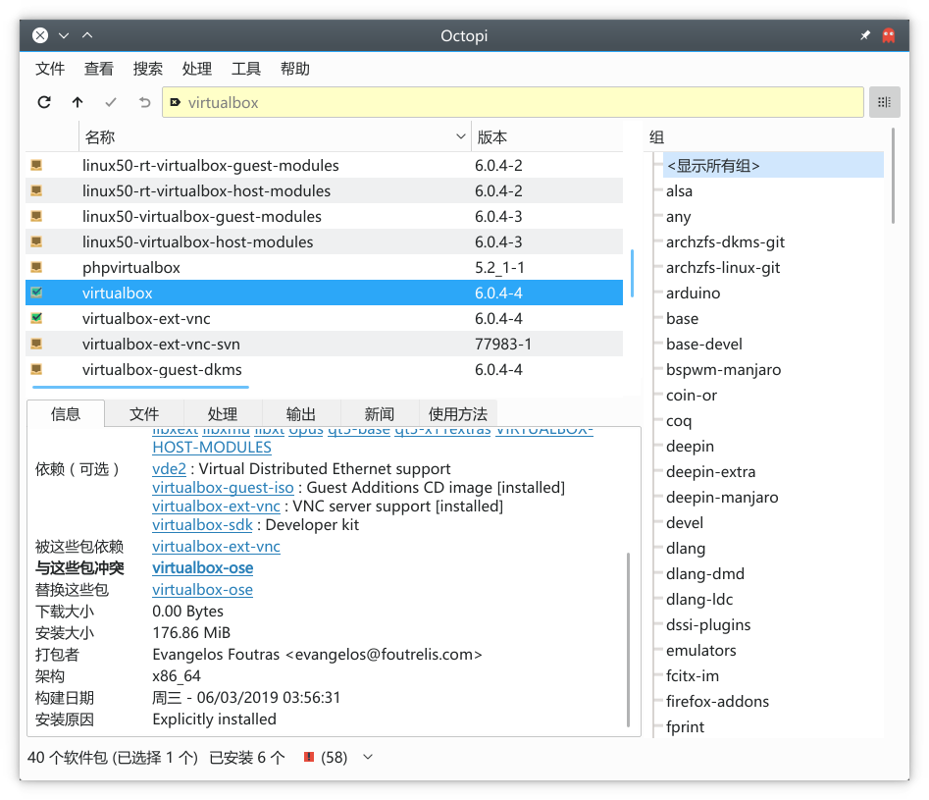
Or you can install it by entering the following command:
sudo pacman -S virtualbox
Installing Kernel Modules
The previous step installed VirtualBox, but it cannot be used yet—you need to install and activate the kernel modules first.
The corresponding kernel modules are available in the official repositories, but you should check the correct version first.
How do you check the kernel version? Open the Manjaro Settings Manager as shown below:
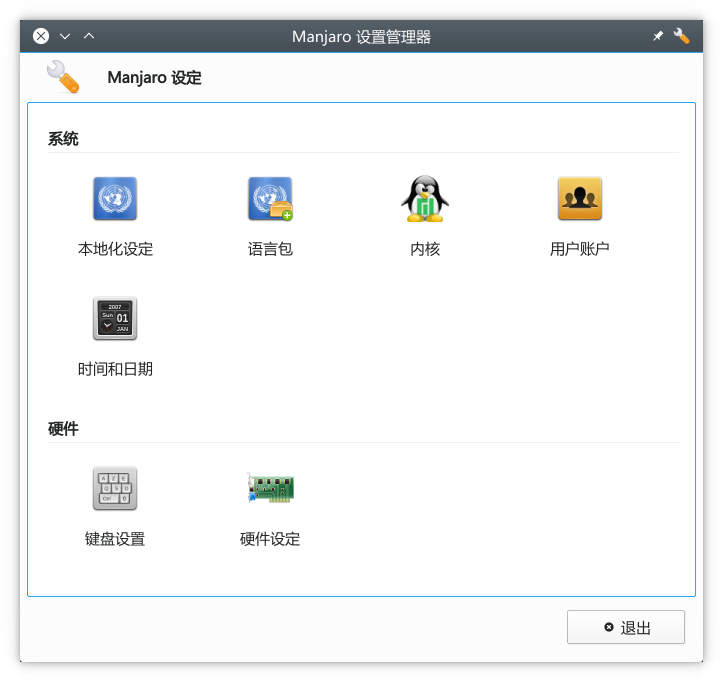
Select "Kernel":
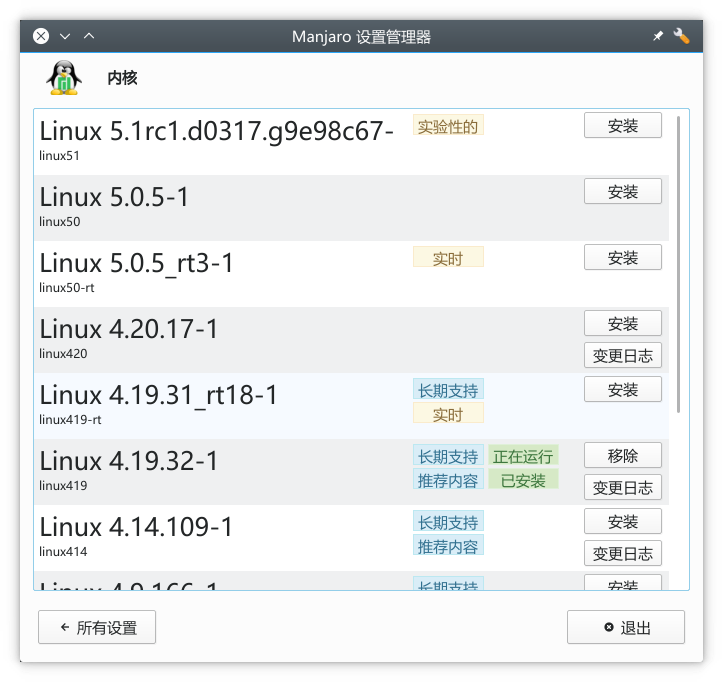
You can see the current kernel version is 4.19.32-1. Then you can proceed to install the kernel modules~
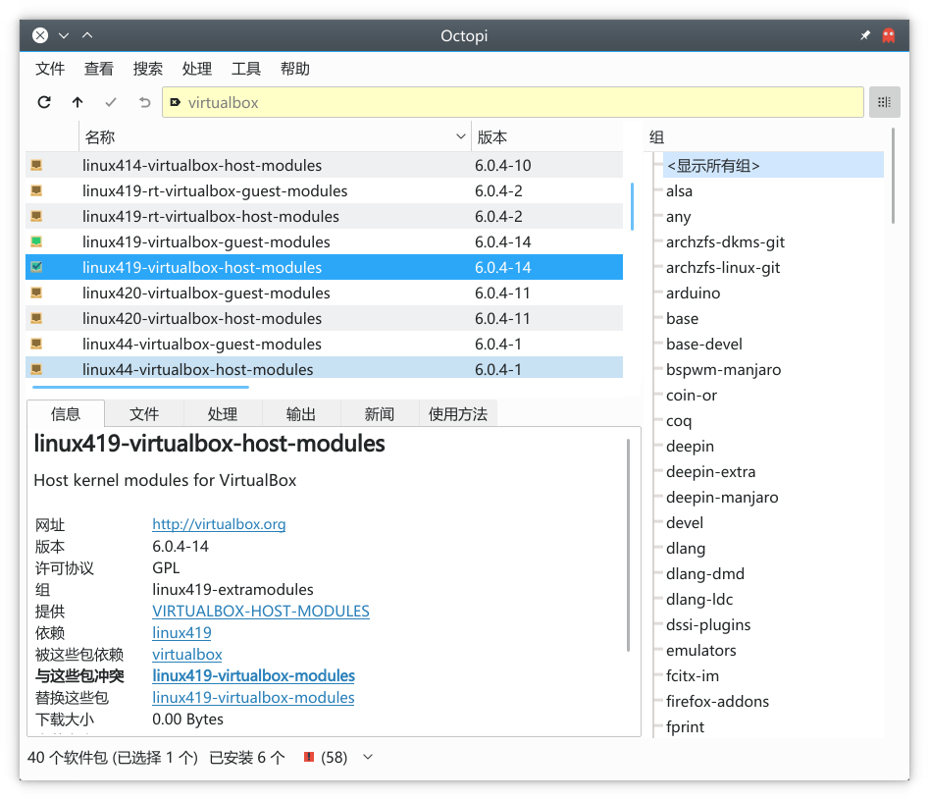
When searching for Virtualbox in Octopi, you'll see many kernel modules available. Here, we select the one corresponding to the kernel version Linux419, as shown in the image:
Activating the Kernel Module
sudo modprobe vboxdrv
Add Current User to virtualbox User Group
sudo gpasswd -a [username] vboxusers
Replace [username] with your username. For example, in my case it looks like this:
sudo gpasswd -a dealiaxy vboxusers
Issue: Imported Existing Virtual Machine Cannot Boot
When importing an existing virtual machine, you may encounter this issue. The primary cause is a change in the virtual hard disk's location. This can be resolved by reassigning the correct path in the settings.
However, you might then encounter an error stating that the virtual hard disk's SSID is invalid. In this case, you'll need to reset the SSID.
Navigate to the directory containing the virtual hard disk file and execute the following command:
VBoxManage internalcommands sethduuid <file.vdi>
Replace <file.vdi> with the name of your virtual hard disk file.
References
- https://forum.manjaro.org/t/kernel-driver-not-installed-virtualbox/65797
- https://wiki.manjaro.org/index.php?title=Virtualbox#Install_VirtualBox
- https://stackoverflow.com/questions/44114854/virtualbox-cannot-register-the-hard-disk-already-exists
Welcome to Chat with Me
- Coding Live Stream: https://live.bilibili.com/11883038
- WeChat Official Account: DealiAxy
- Zhihu: https://www.zhihu.com/people/dealiaxy
- Jianshu: https://www.jianshu.com/u/965b95853b9f
_EOF_
The pitfalls and solutions for installing Virtualbox on Manjaro Linux~
- 本文作者:
- 程序设计实验室
- 版权声明:
- 本博客所有文章除特别声明外,均采用 BY-NC-SA 许可协议。转载请注明出处!
相关文章
ModuleNotFoundError--No-module-named-'apt_pkg'-错误解决
前言 今天在安装docker的时候遇到这个问题了,通过搜索解决方案解决了,所以记录一下。 猜测原因应该是今天升级了系统的Python版本,然后python3的软链接也被我改成指向最新版本了。 解决方法 sudo apt-get remove --purge python-apt sudo apt-get install python-apt -f cd /usr/lib/python3/dist
2025-10-27 · FAQ & Tips · 约 1 分钟
pip和git速度太慢?配置Linux终端代理教程
前言 现在做开发已经严重依赖网络了,但是没办法,很多工具都是国外的,我们国内访问速度太慢了,所以配置一下终端代理就很有必要了 ProxyChains介绍 ProxyChains是一个命令行预加载器,用于挂钩动态链接程序中的套接字,并通过一个或多个socks / http代理重定向它。 GitHub地址 https://github.com/rofl0r/proxychains-ng MacOS和L
2025-10-27 · FAQ & Tips · 约 1 分钟
How-to-change-mouse-cursor-and-theme-
In order to get your custom cursor to work with all applications do: Download a cursor theme. Extract it to /usr/share/icons or ~/.local/share/icons Open Gnome Tweak Tool and change the cursor theme.
2025-10-27 · FAQ & Tips · 约 1 分钟
Useful-Gnome-Plugins
About 了解更多有趣的操作请关注我的微信公众号:DealiAxy 每一篇文章都在我的博客有收录:blog.deali.cn
2025-10-27 · FAQ & Tips · 约 1 分钟
讨论
共 0 条加载评论中…