A hassle-free Linux distro: Manjaro experience and configuration notes, out-of-the-box - truly delightful!
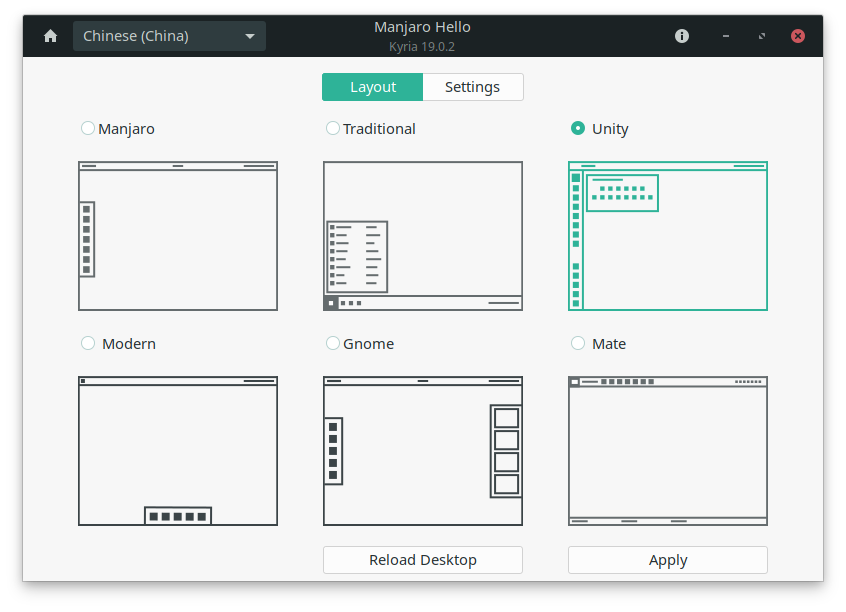
The system configuration section of this article will be updated continuously. Feel free to follow and share your thoughts~ I recently installed the KDE version of Manjaro, then switched to Hackintosh, but I didn’t get it to work well. So, I obediently switched back to Manjaro. This time, I used Gnome—it’s been a while since I last used Gnome, and I have to say, Manjaro’s fine-tuning really impressed me~ First, when the system boots up, a Hello interface pops up. I hadn’t paid much attention to it before, but this time I discovered that it already comes with several preset layouts—it really has everything, saving me the trouble of tinkering myself. I immediately chose my favorite Unity layout (essentially installing u)
目录15 个章节
The system configuration section of this article will be continuously updated. Feel free to follow and discuss!
A while back, after installing the KDE version of Manjaro, I switched to Hackintosh, but it didn’t work out well. So, I obediently switched back to Manjaro. This time, I used GNOME. I haven’t used GNOME for a long time, and I must say, Manjaro’s setup has really impressed me!
Right from the boot-up, a "Hello" interface pops up. I hadn’t paid much attention to it before, but this time I discovered it already has several layouts pre-set. Seriously, it has everything—no need to tinker around myself. I immediately chose my favorite Unity layout (which is essentially the Unite plugin installed), and the result is quite nice!
Actually, I mainly used Ubuntu before. Later, when I switched to Manjaro, I wasn’t quite used to it. In between, I used Deepin, KDE, Xfce, and GNOME for quite a while. Now, I can finally say I’ve truly settled in. I used to worry that the system would crash after an update or that it might be less stable than Ubuntu. Turns out, Ubuntu’s stability is actually much lower than Manjaro’s!
For Ubuntu usage and configuration, you can refer to these two articles of mine:
This time, I unexpectedly found that ssh-agent works directly without any configuration. Back when I was using the KDE version, I had to set it up manually. This time, no extra steps were needed at all—Manjaro is improving so quickly...
There are still a few minor issues, though. For example, live streaming in the browser seems a bit more laggy compared to Windows... And when typing in the blog editor, sometimes the input gets messed up (not ruling out an input method issue).
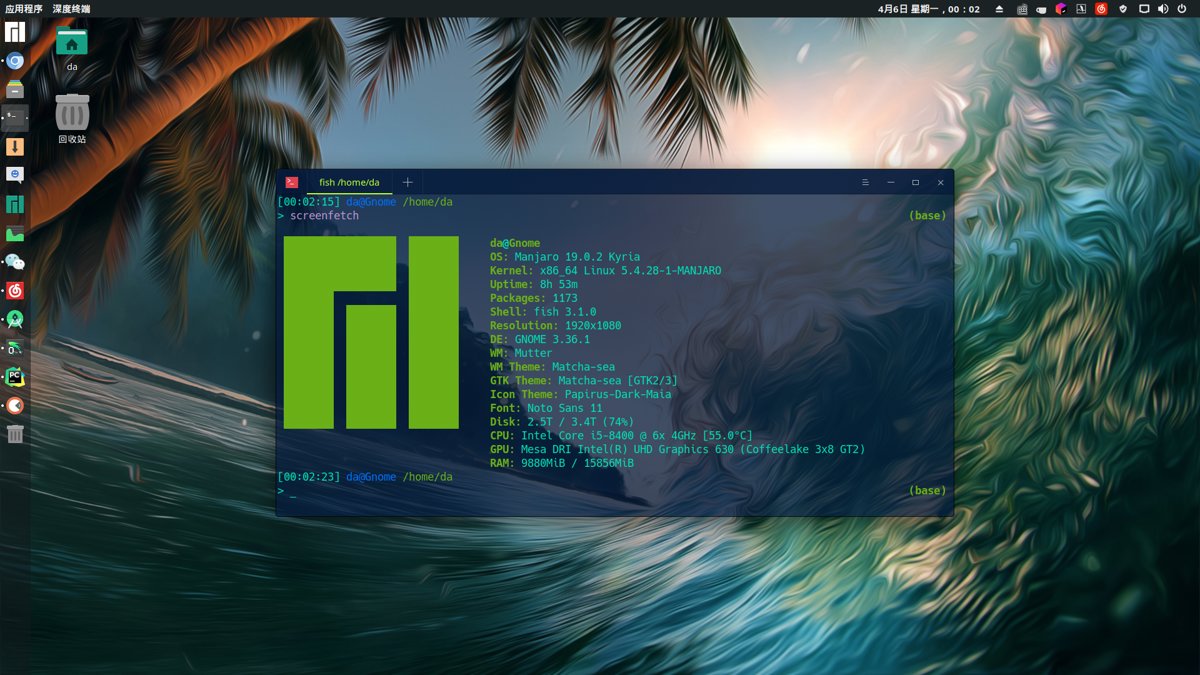
Here’s a screenshot of my desktop:
Below, I’ll document the configuration process.
Essential Websites
The Arch Wiki! I feel that almost any problem encountered during system installation and usage can find a corresponding solution there. https://wiki.archlinux.org/
Archlinuxcn Repository
The simplest approach is to add the Tuna mirror. Edit the /etc/pacman.conf file and append the following content at the end:
[archlinuxcn]
Server = https://mirrors.tuna.tsinghua.edu.cn/archlinuxcn/$arch
Next, execute the following commands:
sudo pacman -Sy archlinuxcn-keyring haveged
sudo systemctl enable haveged
sudo systemctl start haveged
sudo pacman-key --init
sudo pacman-key --populate manjaro
sudo pacman-key --populate archlinux
sudo pacman-key --populate archlinuxcn
After that, you can happily install various useful software from the archlinuxcn repository~
Community mirror list: https://github.com/archlinuxcn/mirrorlist-repo
Input Method
New Setup
I've stopped installing Sogou—it's been too long since their last update and there are likely issues. Instead, I'm using sunpinyin/google pinyin + cloudpinyin, where cloudpinyin provides cloud input. The experience is excellent, comparable to Sogou, except for lacking Sogou's skins.
Installation steps:
sudo pacman -S fcitx-im fcitx-configtool fcitx-cloudyinpin fcitx-sunpinyin fcitx-googlepinyin
After installation, add environment variables: append the following code to ~/.xprofile and /etc/environment.
PS: Note that the latter is for Wayland support.
export XMODIFIERS=@im=fcitx
export QT_IM_MODULE=fcitx
export GTK_IM_MODULE=fcitx
Then restart.
You Really Want to Install Sogou? It's Not Impossible
Currently, the official Arch Linux repository has removed the fcitx-qt4 package, which Sogou depends on. As a result, the methods commonly found online no longer work. Installing the fcitx-im package will cause the input method to fail to activate. You need to use fcitx-lilydjwg-git instead.
However, this package is still available in the archlinuxcn repository, so it's quite simple. The installation method is as follows:
sudo pacman -S fcitx-lilydjwg-git fcitx-configtool fcitx-sogoupinyin
Then, add the environment variables:
mkdir ~/.config/autostart
If you have installed fcitx, a prompt about the existing folder will appear. Ignore it and proceed to the next step.
cp /etc/xdg/autostart/fcitx-autostart.desktop ~/.config/autostart/

echo "GTK_IM_MODULE=fcitx
QT_IM_MODULE=fcitx
XMODIFIERS=@im=fcitx" > .pam_environment

echo "export GTK_IM_MODULE=fcitx
export QT_IM_MODULE=fcitx
export XMODIFIERS=@im=fcitx" > .xprofile
Log out and log back in to use it.
PS: If you really cannot install Sogou, you can try the combination of sunpinyin+cloudpinyin. For reference: https://forum.manjaro.org/t/sunpinyin-cloudpinyin/114282
Reference: https://zhuanlan.zhihu.com/p/80867772
Installing zsh
There's no question about it—zsh is a must-have.
PS: After trying fish, I thought it was quite good, but I haven't used it deeply enough to recommend it casually. I'll mention fish briefly later.
Installation
sudo pacman -S zsh
Change default shell
chsh -s /bin/zsh
Restart and that's it.
fish
Fish is short for "the friendly interactive shell," and its biggest feature is its convenience and ease of use. Many functionalities that other shells require configuration to enable are provided by default in Fish, without any setup.
If you want a convenient and easy-to-use shell without having to learn a bunch of syntax or spend a lot of time configuring, you should definitely try Fish.
Personally, using Fish feels like coding in an IDE—smart prompts, auto-completion, and even a visual configuration interface. It really has everything you need, and it's really wonderful.
For specific usage, you can refer to: http://www.ruanyifeng.com/blog/2017/05/fish_shell.html
Installing Docker
Essential for backend development~
Docker is available directly in the official Manjaro repository.
sudo pacman -S docker
Start the Docker service.
sudo systemctl start docker
Set it to auto-start on boot.
sudo systemctl enable docker
By default, Docker installed this way is only usable by the root user. We need to add the current user to the docker group to use it.
# If the docker group doesn't exist yet, add one
sudo groupadd docker
# Add your login name (${USER}) to this group. Then log out and log back in for the changes to take effect.
sudo gpasswd -a ${USER} docker
# Restart Docker Service
sudo systemctl restart docker
# Switch the current session to a new group or restart the X session
# Note: This step is mandatory; otherwise, because the `groups` command retrieves cached group information, the newly added group details will not take effect. Consequently, running `docker images` will also result in an error.
```bash
newgrp - docker
OR
pkill X
Tinkering with the Network
Learning Tools
It's the most painful fiddling time again, so difficult >_<.
The best graphical interface written in Qt: https://github.com/Qv2ray/Qv2ray
Configure SwitchyOmega: https://github.com/FelisCatus/SwitchyOmega/wiki/GFWList
Configuration: https://www.teaper.dev/2019/06/02/v2ray/
There is also a mediocre one written in PyQt: https://github.com/jiangxufeng/v2rayL
(This part is a bit hard to explain in detail, so please figure it out on your own.)
Git Proxy Settings
git config --global http.proxy "http://127.0.0.1:12333"
git config --global https.proxy "http://127.0.0.1:12333"
npm Proxy Settings
(It seems to work with or without the equal sign)
npm config set proxy=http://127.0.0.1:12333
npm config set https-proxy http://127.0.0.1:12333
Remove the proxy
npm config delete proxy
npm config delete https-proxy
Setting Up Automatic Hard Disk Mounting
I've personally tested that the Gnome version can be set up directly within the Disk program, but it seems the KDE version doesn't work the same way—each time I set it, there's no effect. You have to modify the fstab file. For specific instructions, please refer to the reference materials below.
References:
- https://blog.csdn.net/weixin_43840399/article/details/93475915
- https://www.jianshu.com/p/0098ee403e77
Welcome to Communicate
I've compiled a series of technical articles and resources. Reply with keywords such as linux, flutter, c#, netcore, android, java, python, etc. in the background of the official account [Programming Lab] (程序设计实验室) to receive related technical articles and materials. Feel free to leave a message in the background of the official account if you have any questions~
_EOF_
A hassle-free Linux distro: Manjaro experience and configuration notes, out-of-the-box - truly delightful!
- 本文作者:
- 程序设计实验室
- 版权声明:
- 本博客所有文章除特别声明外,均采用 BY-NC-SA 许可协议。转载请注明出处!
相关文章
国产Linux发行版Deepin浅度体验
前言 昨天系统又重装了两次,所以没时间写推文了,今天刚刚搭完就来写了。 这几天电脑升级硬件之后系统还没配置好,只是装了个Win10,我还是更喜欢在Linux环境工作,又看到Deepin的界面设计得很好看,于是就装了一个试试效果。 但是用的时间还不长,所以只能是浅度体验。 系统截图 两种模式的桌面。 时尚模式(类似于Mac系统) 高校模式(类似与Windows系统) Dashboard(所有应用程序
2021-12-18 · Linux评测 · 约 1 分钟
在鸡哥14x上安装Linux:Fedora 42 上手体验
鸡哥14x装Fedora42挺顺,驱动开箱即用。GNOME小清新,但Wayland半死不活,终端没透明度,多任务不如Windows整齐。小bug不少,网络又废了?重装吧。
2025-09-07 · Linux评测 · 约 1 分钟
最好的Linux发行版:Ubuntu-18-04-深度使用体验
前言 经常看我博客和公众号的同学应该知道,我是狂热的Linuxer,对Linux系统有一种偏执的喜好,所以当你看到这篇文章的时候应该不会觉得奇怪,不过,真正应该疑惑的是,为什么说Ubuntu才是最好的Linux发行版呢?按照我的习惯和风格,不应该是大蜥蜴(OpenSUSE)或是Arch(Manjaro)么? 接下来本文将解答这些问题。 Why Ubuntu 是大蜥蜴不好看?还是Arch不好用?玩什
2021-12-18 · Linux评测 · 约 1 分钟
关于系统的折腾-&-OpenSuSE养老
前言 最近python写得多了真的受不了Windows的开发环境了,于是又开始折腾系统,先是试了黑苹果,结果发现真的是难,问题一大堆 = = ... 于是果断选择回到我大蜥蜴的怀抱,用过那么多桌面环境,最喜欢的还是Gnome,所以就这样吧,在大蜥蜴养老就行了,好像这次安装完之后没什么大问题了,除了输入法暂时用不了搜狗,其他都ok,不折腾了,太浪费时间。 附上截图 欢迎与我交流 打代码直播间:htt
2021-12-18 · Linux评测 · 约 1 分钟
讨论
共 0 条加载评论中…