Linux Enthusiast Essential: Ubuntu Complete Configuration Guide
Foreword The author has been in contact with Linux for four years since 2014. Initially, I experimented with various distributions, ranging from domestic ones like StartOS and Deepin to Debian, Ubuntu, OpenSUSE, Fedora, and Arch Linux. Currently, my primary systems are Manjaro and Ubuntu 16.04. This article is intended for beginners who have just started using Linux and have a basic understanding of the command line. It is written based on my personal experience with Linux, and all software and commands have been tested and run successfully on the Ubuntu 16.04 system.
目录39 个章节
Preamble
I have been using Linux for 4 years since I first encountered it in 2014. Initially, I experimented with various distributions, ranging from domestic ones like StartOS and Deepin to Debian, Ubuntu, OpenSUSE, Fedora, and then to Arch Linux. Currently, my primary systems are Manjaro and Ubuntu 16.04. This article is intended for beginner users who have just started using Linux and have some command line basics. It is written based on my experience with Linux, and all software and commands have been tested and run on the Ubuntu 16.04 system.
Due to the extensive content and length, this article will be continuously updated. The plan is to update it once a month, so please stay tuned. If you have any tips or methods related to using Linux, you are also welcome to share and discuss~
Modifying Software Sources
Ubuntu's default software sources are located overseas, which can slow down software installation. We'll change them to Alibaba Cloud's domestic mirrors.
Open Settings.
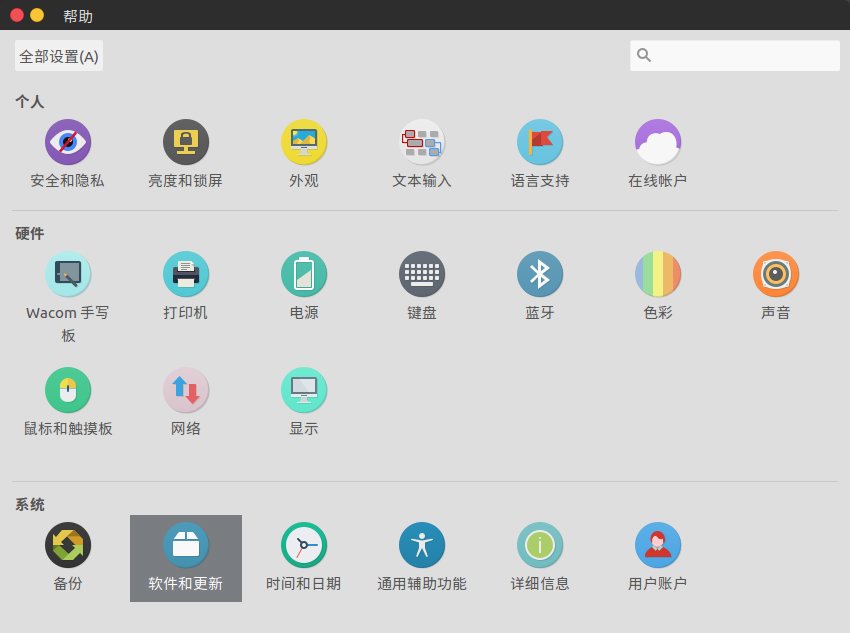
Select Software Updates.
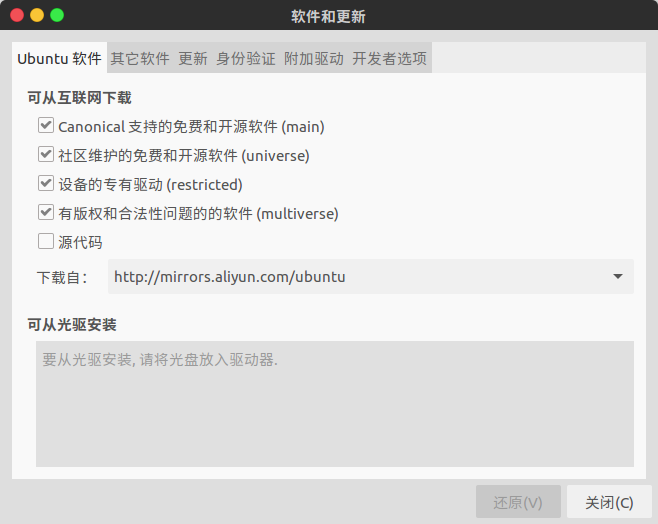
Click Download from and select Other servers.
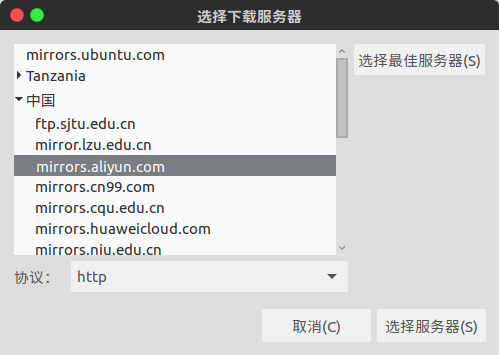
Click Close to save. It will prompt you to refresh the list; just refresh it once.
Essential Software Installation
I've noticed many people still have an impression of Linux from over a decade ago. However, nowadays, Linux can fully meet the demands of daily work and life (aside from not being able to run as many games). For most software you need to use, there are corresponding solutions or alternatives available on Linux.
Common (Domestic) Windows Software
The following software listed can run perfectly on Linux, thanks to the efforts and selfless dedication of Deepin and the project authors! All these software rely on Deepin-Wine, a Wine environment configured by Deepin engineers.
Deepin wine Ubuntu Project Homepage: https://github.com/wszqkzqk/deepin-wine-ubuntu
Here is an archive of Deepin-Wine containers (with minimal optimizations for Ubuntu), which are the installation packages for the software listed below. Deepin wine containers for Ubuntu Project Homepage: https://github.com/wszqkzqk/deepin-wine-containers-for-ubuntu
Installation Method:
You can choose to use git to clone this project locally, or you can choose to directly download the complete compressed package. If your network is not very stable, it is recommended to download the complete compressed package.
git clone https://github.com/wszqkzqk/deepin-wine-ubuntu.git
After cloning is complete, enter the project directory to install deepin-wine
cd deepin-wine-ubuntu ./install.sh
Then, in this project or from the software list above, download the required installation packages to install:

> **Deepin wine containers for Ubuntu** project homepage: https://github.com/wszqkzqk/deepin-wine-containers-for-ubuntu

For information on the deepin wine series of applications, you can also refer to this blog post: https://www.lulinux.com/archives/1319
### Listening to Music

The reputable NetEase Cloud Music has released a Linux version that can run perfectly on Ubuntu 16.04. You can simply download the installation package from the official website and install it~
Official website: https://music.163.com/#/download
### Input Method

Sogou Input Method is also quite user-friendly. It offers a Linux version that is free, ad-free, and supports synchronization—far superior to its Windows counterpart in terms of user experience.
Official website: https://pinyin.sogou.com/linux/?r=pinyin
## Office Software

In the past, one major criticism of Linux was its poor office editing capabilities. Now, that has changed—the kind folks at Kingsoft have released a Linux version of WPS. It has the same features as the Windows version and best of all, it comes without pop-up ads!
Official website: http://www.wps.cn/product/wpslinux

After downloading is complete, open the folder containing the installation package, right-click, and select **Open Terminal Here**.
Enter the following command to install (the specific filename will depend on the version you downloaded):

```bash
sudo dpkg -i wps-office_10.1.0.6757_amd64.deb
If you encounter errors during the installation, it's most likely due to missing dependency packages. Please enter the following command to install the necessary dependencies:
sudo apt install -f
For a better user experience, it is recommended to import Windows fonts. This will ensure seamless editing of all types of documents. You can refer to this blog post of mine: https://www.jianshu.com/p/5042a4855267
Shell Command-Line
I love zsh for its powerful features and high customizability. With various configurations and plugins, it allows you to explore endless possibilities.
Installation Method:
sudo apt install zsh
A common approach is to use oh-my-zsh to automatically manage configurations. You can check its official website: https://ohmyz.sh/
However, here I recommend using the official zsh plugin manager antigen for management. For detailed usage, refer to its GitHub page: https://github.com/zsh-users/antigen
Development Related
Linux is practically a system built specifically for developers, with all kinds of development tools readily available, all of which can be installed with just one click, making it extremely convenient.
Vim Editor
When using Linux, you absolutely cannot miss the famous Vim tool. No need for too much explanation—just experience it for yourself!
sudo apt install vim
Related Learning Materials
- Vim Learning Guide http://www.linuxidc.com/Linux/2013-08/89096.htm
- Learn the Vi Editor Quickly http://www.linuxidc.com/Linux/2013-08/88586.htm
- The Powerful Vim Editor http://www.linuxidc.com/Linux/2013-07/87544.htm
- Setting Up a Vim Development Environment on CentOS 6.2 http://www.linuxidc.com/Linux/2013-07/87363.htm
- Turning Vim into an Excellent C++ IDE http://www.linuxidc.com/Linux/2016-06/132262.htm
- Vim Tips Sharing: C Language Settings http://www.linuxidc.com/Linux/2012-12/77124.htm
- Setting Line Numbers for Vim in Ubuntu http://www.linuxidc.com/Linux/2012-12/75485.htm
sublime-text3
Also a very famous editor tool, installation method:
sudo add-apt-repository ppa:webupd8team/sublime-text-3
sudo apt-get update
sudo apt-get install sublime-text
vscode
An open-source editor developed by Microsoft that's quickly becoming a dominant force in the field—it's incredibly powerful and a must-try! Simply go to the official website to download and install it. Official website: https://code.visualstudio.com/
JetBrains All Products
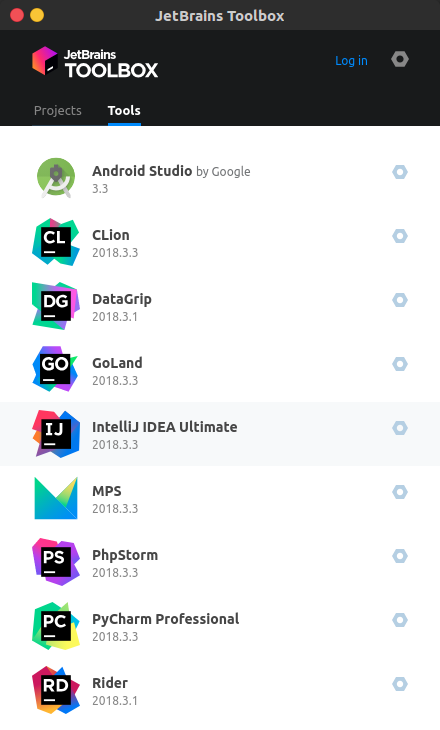
JetBrains is undeniably powerful—its IDEs are truly excellent. When using them on Linux, I highly recommend managing them with the JetBrains Toolbox. This tool can be downloaded from the official JetBrains website, and the installation is a one-click process, making it extremely convenient!
System Configuration
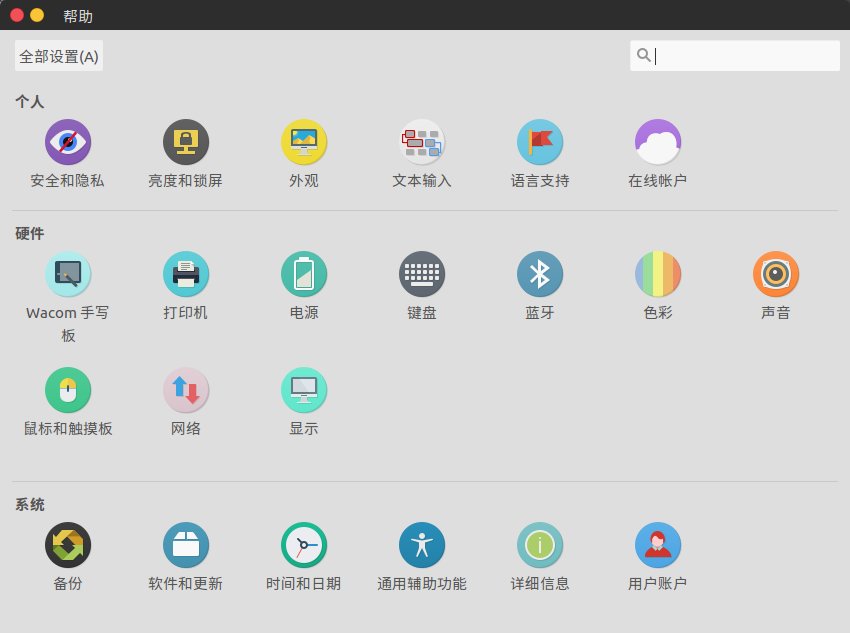
Before starting this section, you need to open the System Settings interface.
Global Menu Settings
The defining feature of Ubuntu's Unity desktop is the global menu. However, as screens get larger, having all window menus in the top-left corner of the screen can be quite inconvenient. We can move the menus to the window's title bar, which makes efficient use of space without affecting usability.
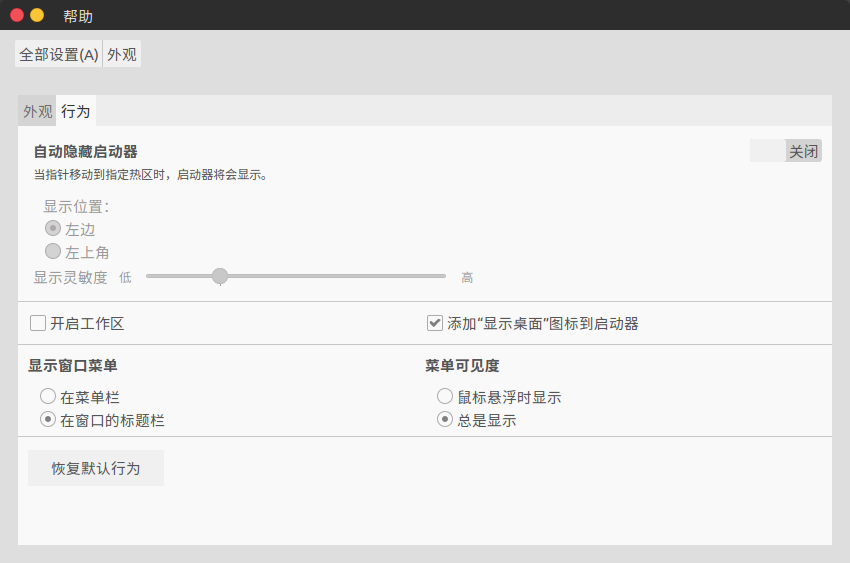 As shown in the image below, select 【Appearance】-【Behavior】-【Show window menus】 and change it to 【In the window's title bar】.
Theme Customization
The most distinctive feature of Linux systems is that you can customize the configuration according to your preferences. You can achieve any desired appearance—the level of customization is incredibly high.
Below, I'll introduce my simple customization approach, based on Ubuntu 16.04 (I will later supplement with methods for Ubuntu 18.04 and above, which are based on the GNOME desktop environment).
First, you need to install unity-tweak-tool. We'll use this tool later to modify themes and icons.
sudo apt-get install unity-tweak-tool
Installing the Flatabulous Theme
GitHub URL: https://github.com/anmoljagetia/Flatabulous Start the theme installation
sudo add-apt-repository ppa:noobslab/themes
sudo apt-get update
sudo apt-get install flatabulous-theme
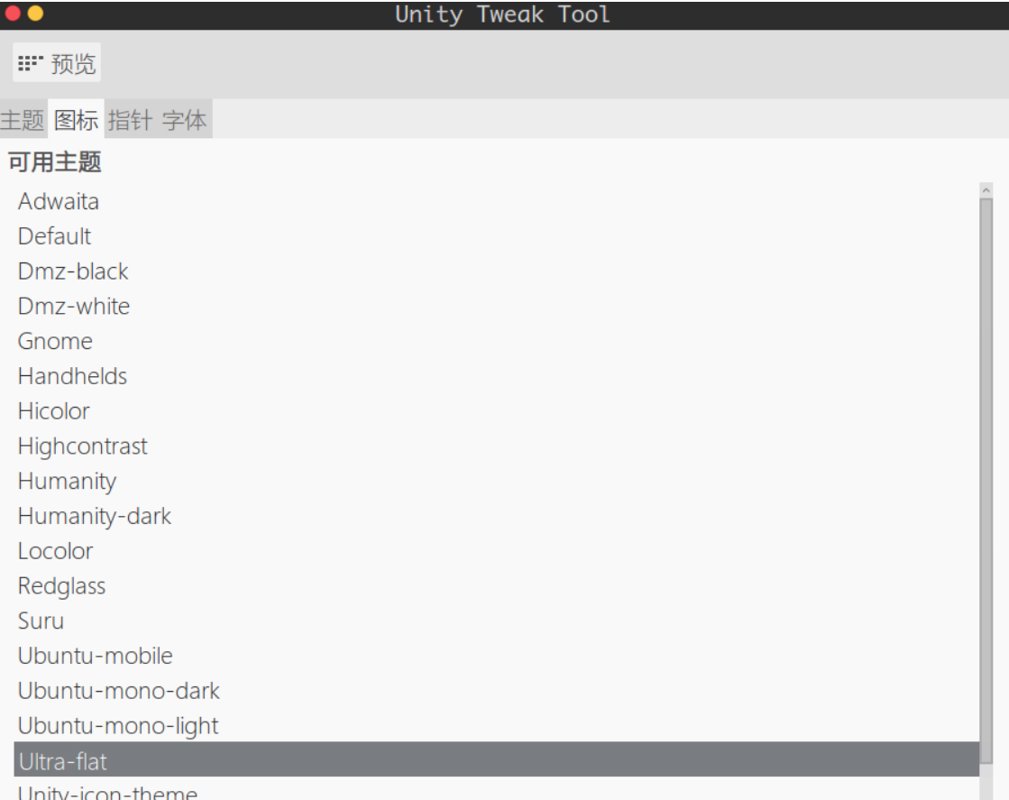
Install the matching ultra-flat-icons package for the theme:
sudo add-apt-repository ppa:noobslab/icons
sudo apt-get update
sudo apt-get install ultra-flat-icons
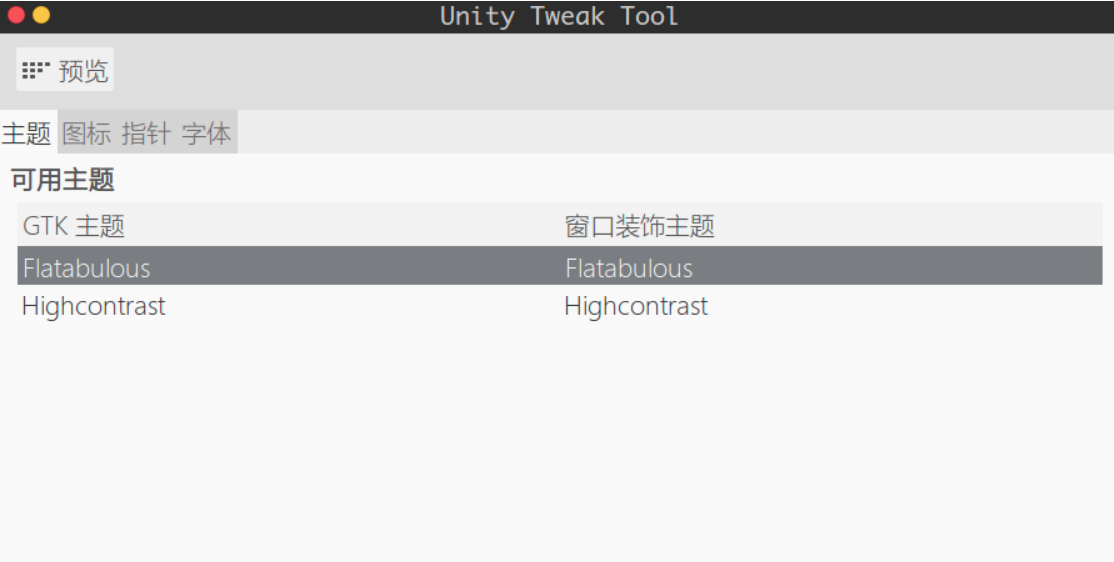
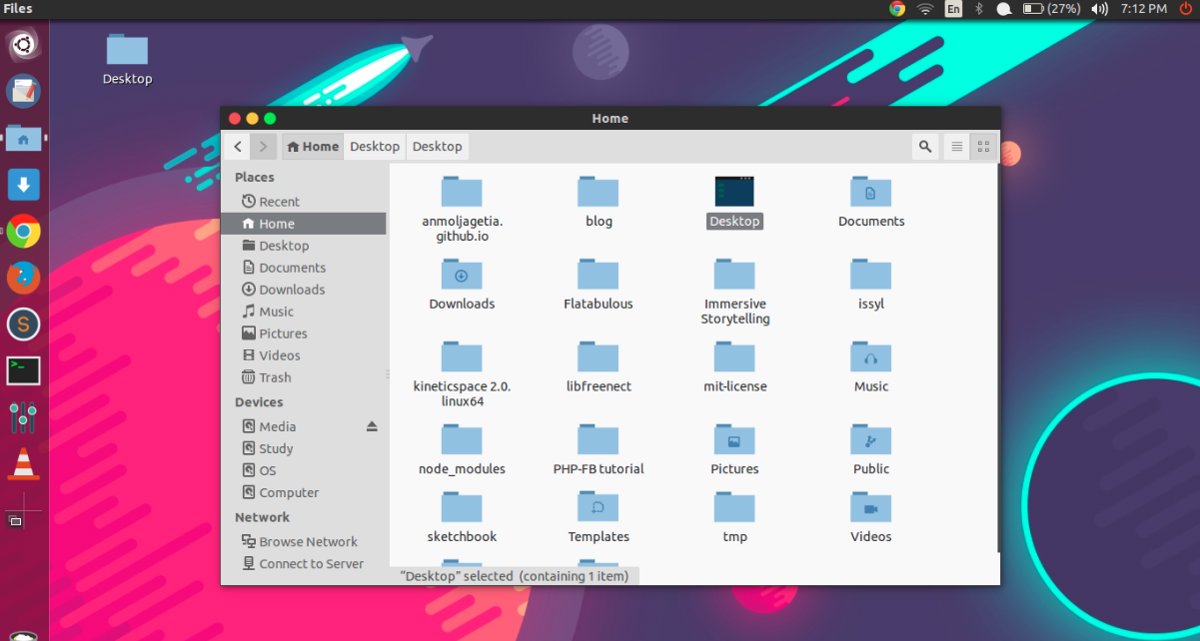
Once the installation is complete, open unity-tweak-tool, click on Themes, and change it to Flatabulous, as shown below:
Change the icons:
Theme effect:
Installing Arc Theme
This is also a flat design theme for Ubuntu. The official GitHub page is: https://github.com/horst3180/arc-theme
To install the theme:
sudo add-apt-repository ppa:noobslab/themes
sudo apt-get update
sudo apt-get install arc-theme
To install the matching icons:
sudo add-apt-repository ppa:noobslab/icons
sudo apt-get update
sudo apt-get install arc-icons
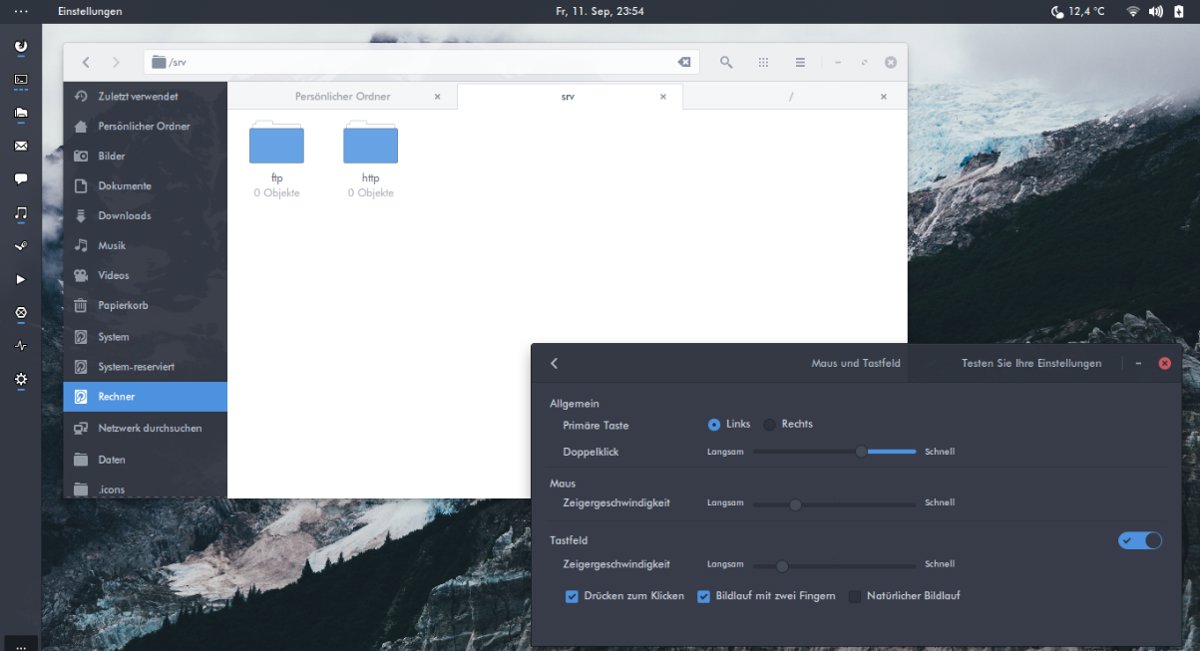
We will not elaborate on how to change the theme and icons here.
Fun Command Line Terminal
The Linux terminal is super powerful, and almost all tasks can be accomplished through commands. While typing commands, the terminal can also be used to do many interesting things. This section lists some fun and interesting commands, and I recommend trying them one by one ~ If you discover anything even more fun, feel free to let me know, and we can share it together.
boxes
As the name suggests, this command allows you to enclose your message in boxes, with a variety of box styles to choose from. For more details, visit its code repository.
GitHub address: https://github.com/ascii-boxes/boxes
Installation:
sudo apt install boxes
Let's try it:
╰─$ echo hello | boxes -d diamonds -a c
       /\          /\          /\
    /\//\\/\    /\//\\/\    /\//\\/\
 /\//\\\///\\/\//\\\///\\/\//\\\///\\/\
//\\\//\/\\///\\\//\/\\///\\\//\/\\///\\
\\//\/                            \/\\//
 \/                                  \/
 /\                                  /\
//\\             hello              //\\
\\//                                \\//
 \/                                  \/
 /\                                  /\
//\\/\                            /\//\\
\\///\\/\//\\\///\\/\//\\\///\\/\//\\\//
 \/\\///\\\//\/\\///\\\//\/\\///\\\//\/
    \/\\//\/    \/\\//\/    \/\\//\/
       \/          \/          \/
you-get Command-line Video Downloader
Supports downloading from many video websites; please test it yourself. GitHub URL: https://github.com/soimort/you-get
tget Seed Download Tool
Github address: https://github.com/jeffjose/tget
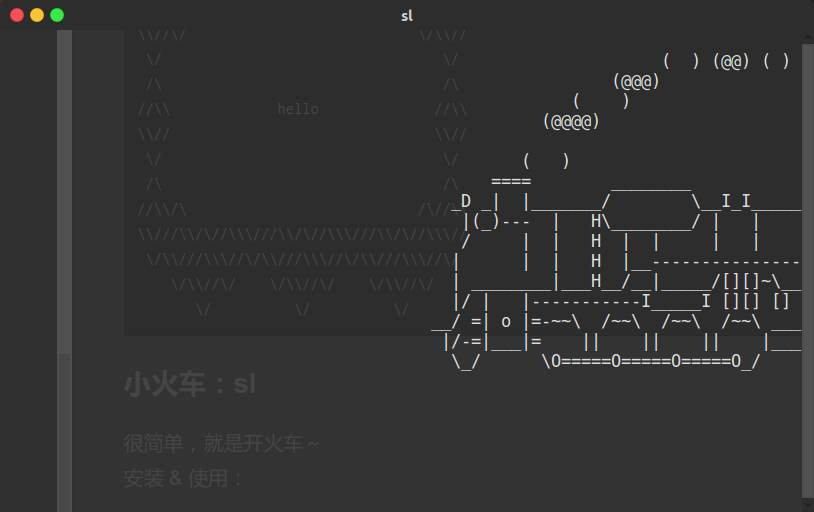
Little Train: sl
Very simple - just run a train!
Installation & Usage:
sudo apt install sl
sl
Effect: You'll see a little train (小火车) chugging across the screen.
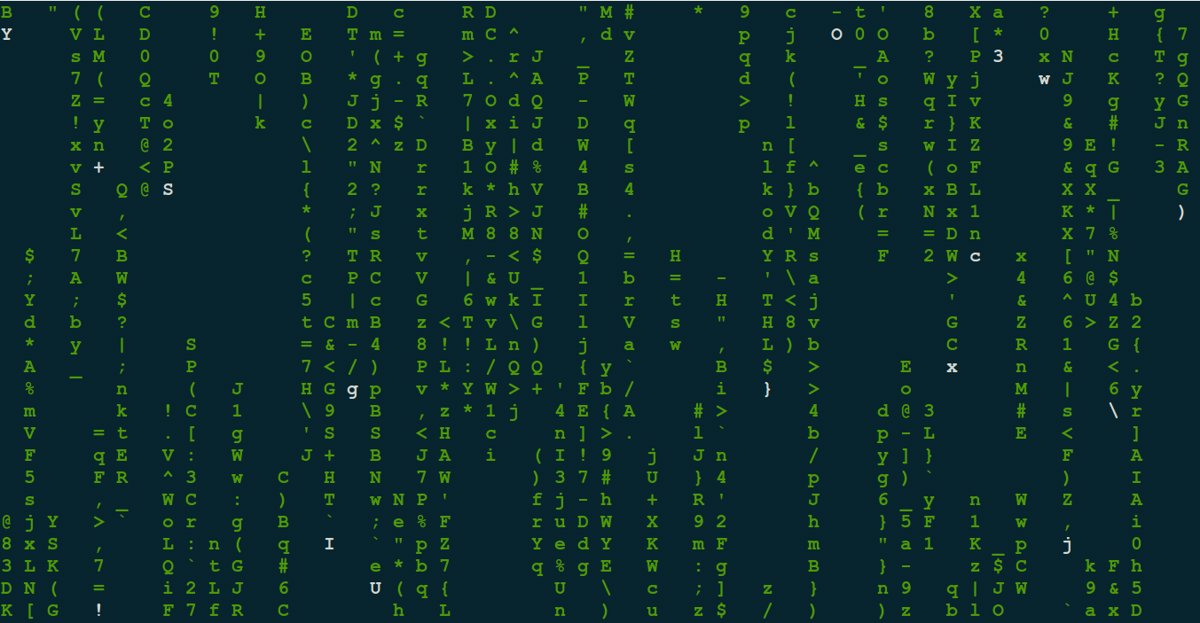
cmatrix Code Rain
sudo apt install cmatrix
cmatrix
Effect:
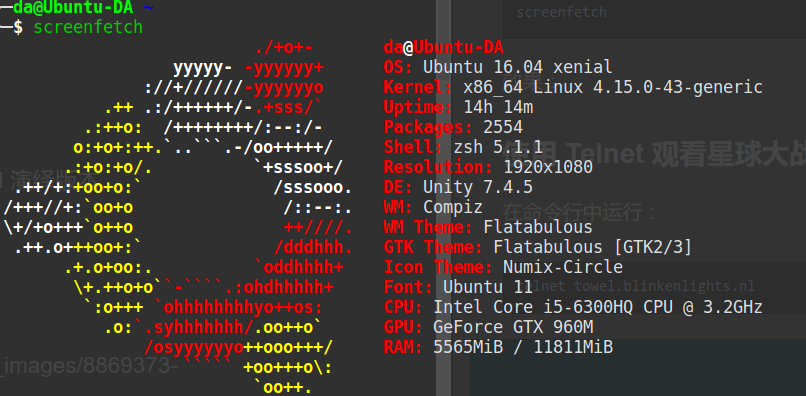
screenfetch
sudo apt install screenfetch
screenfetch
Effect:
pv
You might have seen simulated subtitles in movies that appear as if they are being typed out in real-time. Would it be great if we could achieve this effect in the terminal?
sudo apt install pv
# Usage
echo typewriter lalala | pv -qL 10
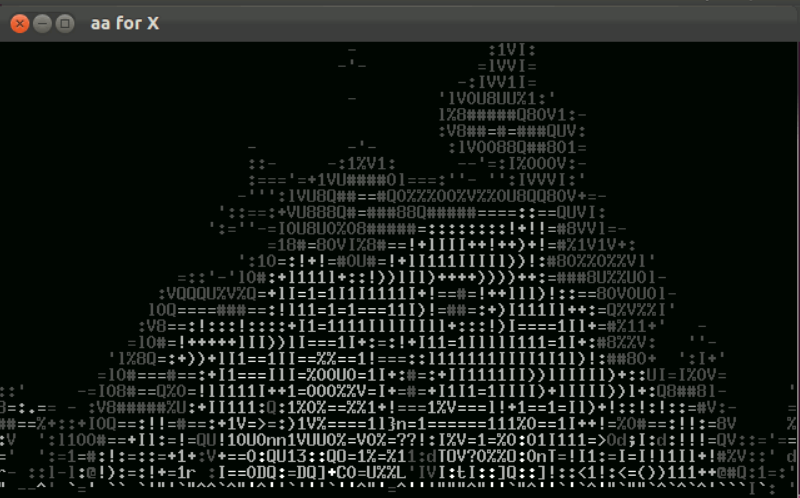
Terminal Flames
sudo apt-get install libaa-bin
aafire
Effect:
ddate meticulously crafted mixed calendar
sudo apt install ddate
Test
ddate
Output: Today is Pungenday, the 33rd day of Chaos in the YOLD 3185
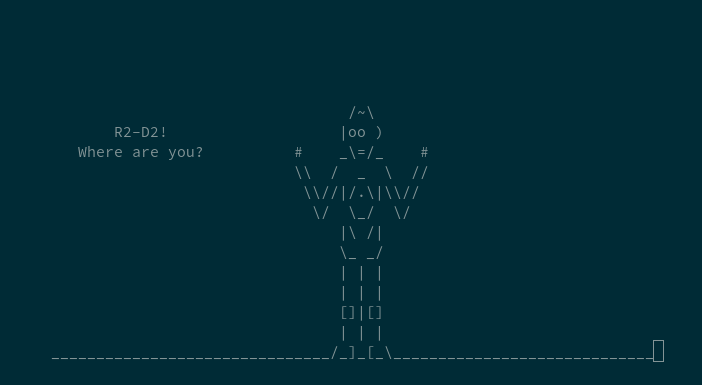
Watching an ASCII Version of Star Wars Using Telnet
Run the following command in your terminal:
telnet towel.blinkenlights.nl
Check the Weather in the Terminal
curl wttr.in
You can also specify a city name, for example
curl wttr.in/guangzhou

### Terminal Art Text
figlet is a tool for displaying art text in the terminal.
```bash
sudo apt install figlet
Running Effect
╰─$ echo hello | figlet
 _          _ _
| |__   ___| | | ___
| '_ \ / _ \ | |/ _ \
| | | |  __/ | | (_) |
|_| |_|\___|_|_|\___/
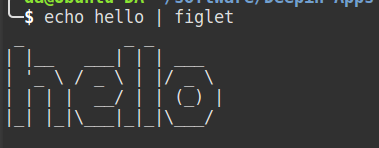 A similar tool is toilet, which you can also try.
Terminal Snake Game
Run the Snake game via Docker with the following command:
docker run -ti dyego/snake-game
Note: This command requires Docker to be installed on your system. For Docker installation and usage, you can refer to this article: https://www.jianshu.com/p/724315d13ad7
Play Tetris on the Command Line
GitHub homepage: https://github.com/samtay/tetris
Download command:
curl -L https://github.com/samtay/tetris/releases/download/0.1.3/tetris-`uname -s`-`uname -m` -o tetris
chmod +x tetris
Run command:
tetris
NetEase-MusicBox Command-Line Version of NetEase Cloud Music
GitHub Homepage: https://github.com/darknessomi/musicbox Installation:
pip3 install NetEase-MusicBox
sudo apt install mpg123
Running:
musicbox
Keyboard Shortcuts:
| Key | Effect | |
|---|---|---|
| j | Down | |
| k | Up | |
| h | Back | |
| l | Forword | |
| u | Prev page | |
| d | Next page | |
| f | Search | |
| [ | Prev song | |
| ] | Next song | |
| = | Volume + | |
| - | Volume - | |
| Space | Play/Pause | |
| ? | Shuffle | |
| m | Menu | |
| p | Present/History | |
| i | Music Info | |
| ⇧+p | Playing Mode | |
| a | Add (to DJ List) | |
| ⇧+a | Enter album | |
| g | To the first | |
| ⇧+g | To the end | |
| z | DJ list | |
| s | Star | |
| c | Collection | |
| r | Remove | |
| ⇧+j | Move Down | |
| ⇧+k | Move Up | |
| ⇧+c | Cache | |
| , | Like | |
| . | Trash FM | |
| / | Next FM | |
| q | Quit | |
| t | Timing Exit | |
| w | Quit&Clear |
For more operations, please refer to the documentation on the GitHub homepage.
axel Multithreaded Download Tool
axel is an excellent HTTP/ftp high-speed download tool for Linux. It supports multithreaded downloading, resume downloading (断点续传), and can download the same file from multiple addresses or multiple connections from a single address. It is ideal for improving download speeds when the network connection is poor. For example, using Axel to download the LNMP one-click installation package on a domestic VPS or server is faster than using wget.
Installation:
sudo apt install axel
For more usage details, please refer to: http://man.linuxde.net/axel
Afterword
Managed to complete the first version of the Ubuntu Complete Configuration Guide just before the Spring Festival. Subsequent content will be continuously updated, so please stay tuned. I would also like to take this opportunity to wish all readers a Happy New Year and a happy family life!
Feel free to connect with me
- Live Coding Stream: https://live.bilibili.com/11883038
- WeChat Official Account: DealiAxy
- Zhihu: https://www.zhihu.com/people/dealiaxy
- Jianshu: https://www.jianshu.com/u/965b95853b9f
_EOF_
Linux Enthusiast Essential: Ubuntu Complete Configuration Guide
- 本文作者:
- 程序设计实验室
- 版权声明:
- 本博客所有文章除特别声明外,均采用 BY-NC-SA 许可协议。转载请注明出处!
相关文章
UbuntuUnity20.04安装记录
IDEA输入法不跟随问题 是IDEA的jre有问题 下载:https://github.com/RikudouPatrickstar/JetBrainsRuntime-for-Linux-x64 解压jbr到一个固定的地方 打开IDEA安装目录,大概是/home/da/.local/share/JetBrains/Toolbox/apps/Rider/ch-0/213.6775.4,类似这样的,准
2025-10-27 · 安装笔记 · 约 1 分钟
2024年,我又开始用Linux桌面作为主力系统了~
我从大学就开始把 Linux 桌面作为主力系统使用了,曾经有很长一段时间都只使用 Linux 单系统,不过后来还是觉得 Linux 桌面差了点意思,不过现在 Wayland 逐渐成熟了,情况似乎有所改善,至少这次给笔记本换成 Linux 的体验还是不错的。
2025-10-27 · 安装笔记 · 约 1 分钟
聊聊一个差点被放弃的项目以及近期的开源计划
差点放弃的单点认证项目,硬撑着做完了。计划重构开源,叫StarSSO。其他项目如EchoSubs、SnapMix?随缘。
2024-05-23 · 2024 · 约 1 分钟
现代 Python 程序优雅处理日期时间的避坑指南
Python 时间处理还是得踩坑?`datetime`、`time`、`calendar` 搞得人头大,Naive vs Aware 时区陷阱更是坑爹。2026 年了还用 `pytz`?标准库 `ZoneInfo` 加上 `Pendulum`、`Arrow` 才叫现代化,至少不用再写反人类的时间字符串解析。数据库存 UTC,前端传 ISO 8601,简单点行不行?
2026-03-25 · Python · 约 1 分钟
讨论
共 0 条加载评论中…