In 2024, I started using the Linux desktop as my main system again~
I started using Linux desktop as my primary system since college, and for a long time I only used Linux as a single system. However, I later felt that Linux desktop was lacking in some aspects. But now that Wayland has gradually matured, the situation seems to have improved. At least, the experience of switching to Linux for my laptop this time has been quite good.
目录33 个章节
Preface
In 2019, I bought a MateBook 14 laptop with an 8th-gen i5 and 8GB of RAM. At the time, as a thin and light notebook, it was sufficient. But now it's 2024, and this memory size reminds me of Apple's new Mac mini last year. The base model, costing over three thousand, came with 8GB of configuration, causing quite a stir in the tech community 😄
In short, the time has come for a radical change 😮. I previously tried installing the LTSC version of Windows 10, which did use slightly fewer resources, but it still wasn't great and struggled to meet daily use needs. So, recently, whenever I had free time, I got back into my old habit and started tinkering with Linux again 😊.
My first choice was to install Linux Mint MATE Edition. However, MATE doesn't seem to support Wayland, meaning it can't handle non-integer scaling for display scaling. So, I had to switch to Ubuntu 22.04. There are a few reasons for this choice 🤔:
- I like the package management of the Debian-based system.
- I like the GNOME desktop; I find it quite good-looking.
The rest are unimportant details. Linux distributions are mostly similar in the big picture.
After using it for a few days, everything is OK 👌. Resource usage is indeed better than Windows 10, and power management is also decent, with battery life lasting 3-4 hours. Functions like sleep work normally.
The only downside is that Ubuntu forcefully promotes snap, this kind of garbage, which is really annoying.
Therefore, I will very likely continue switching to other distributions and keep tinkering with Linux 🐧
PS
Entering BIOS on the Matebook14 requires pressing F2, and selecting the boot device is done with F12.
A familiar formula.
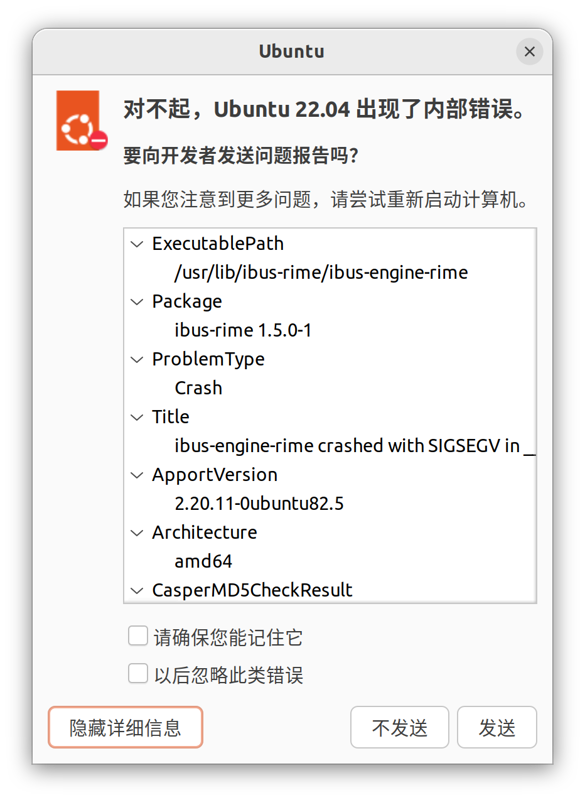
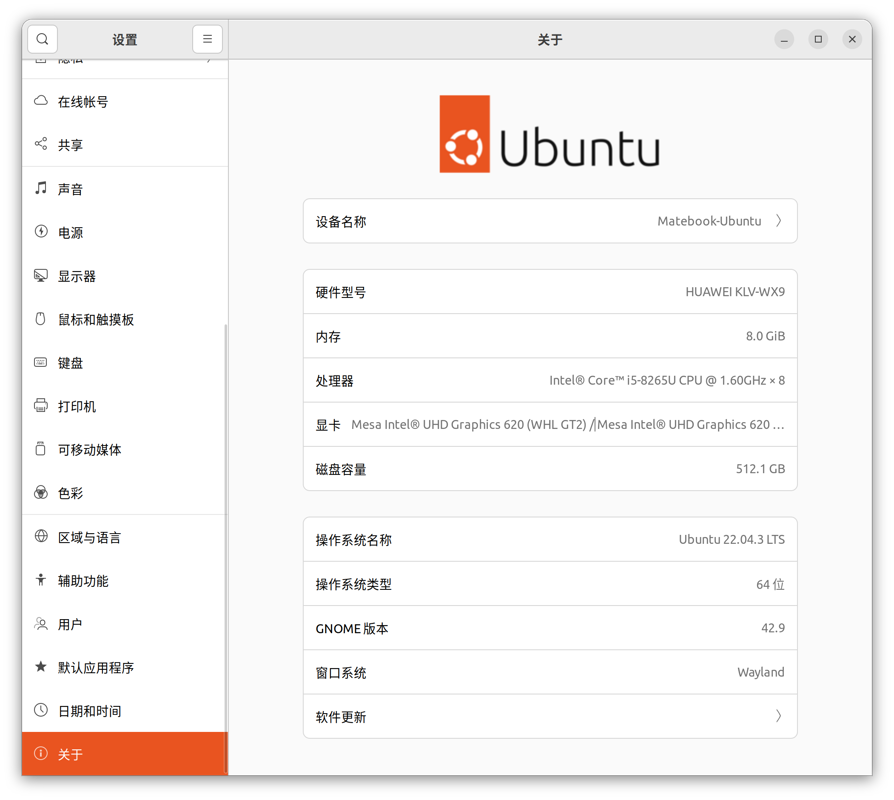
System Information
Take a screenshot of the system information
You can switch to Ubuntu on Wayland in the bottom-right corner of the login screen. Although it's still in beta, the experience is already much better than the previous Xorg. The high-DPI screen scaling (高分屏适配), which is the most impactful feature on laptops, is almost perfectly supported in Wayland.
Uninstalling Snap
The most annoying aspect of Ubuntu is the snap system.
Without switching distributions, you can uninstall snap to improve your user experience.
First, stop and remove all snap-related services.
sudo systemctl | grep snap
Disable all services related to snap listed by the command above.
sudo systemctl disable [snap-related service name]
Next, identify the applications installed via snap.
snap list
Remove all applications installed via snap listed by the command above. Note that some applications have dependencies, like bare/core, etc. These should be removed last. Pay attention to the specific prompts.
sudo snap remove [application name]
References
- https://zhuanlan.zhihu.com/p/646697356
- https://www.zhihu.com/question/580286026/answer/3281762866
- https://zhuanlan.zhihu.com/p/651007475
Video Decoder
Due to copyright issues, Linux generally does not come with a complete set of video decoding libraries, so you may encounter prompts about missing decoders when playing certain videos.
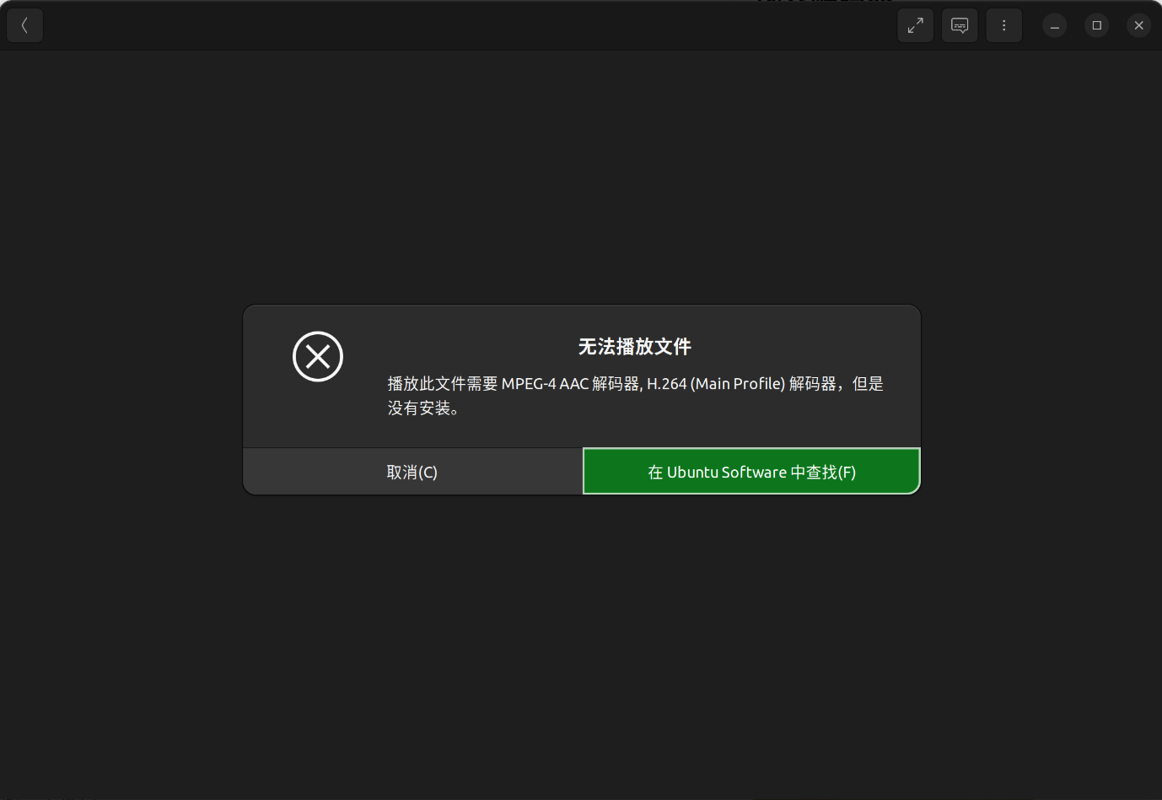
After clicking "Search," the following will appear:
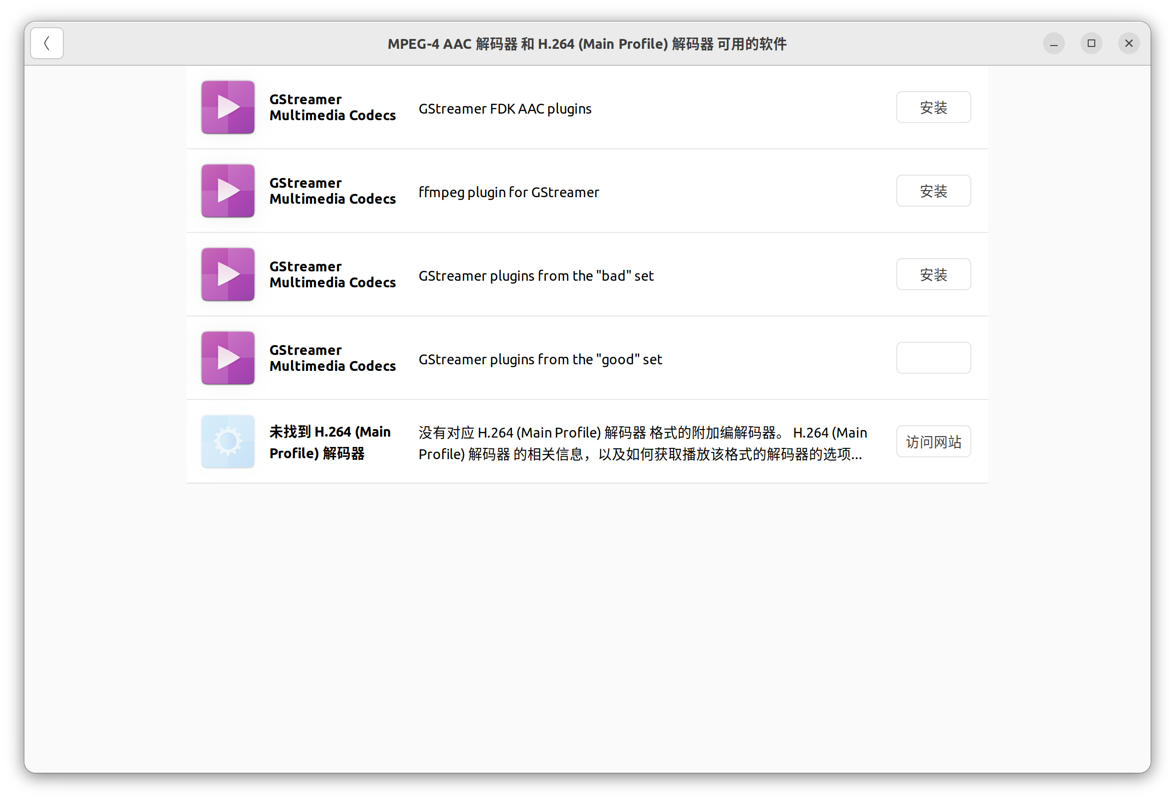
It was never recommended to install decoders in this way, especially since I had already uninstalled snap and removed Ubuntu's software management tool.
It's still necessary to use Linux's own solutions.
The Ubuntu system provides a basic package called ubuntu-restricted-extras, which includes many common audio and video decoders, as well as some extra packages like Microsoft fonts.
One command is all it takes:
sudo apt install ubuntu-restricted-extras
Finally, a note: the default video player in Ubuntu isn't very efficient and uses excessive resources. You can install VLC or MPV as alternatives.
Reference Materials
Installing GNOME Extensions
Using the GNOME desktop, you need to install some extensions to tinker with it for added fun.
However, some extensions have bugs, and installing too many can make the desktop unstable—essentially, it's a balance of benefits and risks.
GNOME extensions are installed directly via web pages, but this requires installing the associated tools first.
For example, on Ubuntu 22.04:
sudo apt-get install chrome-gnome-shell
Then, by installing the browser extension, you can install GNOME extensions from the website.
For details, refer to the official wiki.
References
System Monitoring Plugin
This is an essential tool for me when using GNOME, as it allows me to see current system resource usage. Windows seems to have something similar, but the performance of my Windows computers is more than sufficient, so I rarely pay attention to resource usage.
https://extensions.gnome.org/extension/1460/vitals/
The effect is as shown in the image
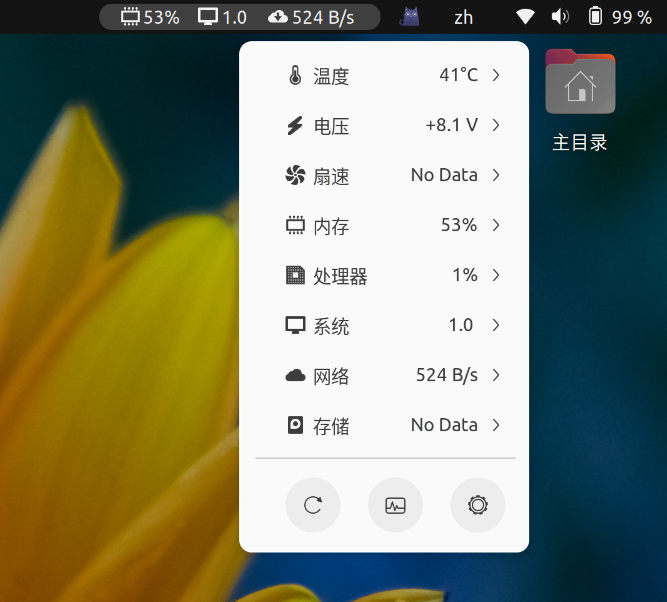
According to the official documentation: https://github.com/corecoding/Vitals
You need to install lm-sensors, but even after installing it, I couldn't get fan information.
sudo apt install gnome-shell-extension-manager gir1.2-gtop-2.0 lm-sensors
Shell
1. Basic Concept of Shell
Shell is an interface between the user and the operating system kernel, providing a command-line environment where users can interact with the system by entering commands. In Linux/Unix systems, Shell is also a powerful programming language that supports variables, control structures, and functions.
2. Common Shell Types
- Bash (Bourne Again SHell): The most common Shell in Linux systems.
- Sh (Bourne Shell): An early standard Shell.
- Zsh: Provides more features and better customization.
- Fish: Focuses on user-friendliness and intelligent completion.
3. Basic Shell Commands
ls          # List directory contents
cd          # Change directory
pwd         # Print current working directory
cp          # Copy files or directories
mv          # Move or rename files or directories
rm          # Delete files or directories
mkdir       # Create directories
echo        # Output text
cat         # View file contents
grep        # Search for specific content in files
4. Shell Script Basics
Shell scripts are text files containing a series of commands, typically with a .sh extension.
#!/bin/bash
# This is a comment
echo "Hello, World!"
- The first line
#!/bin/bashis called a "shebang" or "hashbang," specifying the interpreter to use. - Save the file with a
.shextension and grant execution permissions:chmod +x script.sh. - Execute the script:
./script.shorbash script.sh.
5. Variables
# Variable assignment (no spaces around =)
name="John Doe"
age=30

# Variable usage
echo "Name: $name"
echo "Age: $age"

# Special variables
echo "Script name: $0"
echo "First parameter: $1"
echo "All parameters: $@"
echo "Number of parameters: $#"
echo "Script exit status: $?"
6. String Operations
str="Hello World"

# String length
echo ${#str}          # Output: 11

# Substring extraction
echo ${str:0:5}       # Output: Hello

# String replacement
echo ${str/World/Bash} # Output: Hello Bash
7. Control Structures
Conditional Statements
# if-else statement
if [ $age -gt 18 ]; then
    echo "Adult"
elif [ $age -eq 18 ]; then
    echo "Just became an adult"
else
    echo "Minor"
fi

# Numerical comparison operators:
# -eq (equal), -ne (not equal), -gt (greater than), -lt (less than), -ge (greater than or equal), -le (less than or equal)

# String comparison operators:
# = (equal), != (not equal), -z (empty string), -n (non-empty string)

# File test operators:
# -f (file exists), -d (directory exists), -r (readable), -w (writable), -x (executable)
Loop Structures
# for loop
for i in 1 2 3 4 5; do
    echo "Number: $i"
done

# C-style for loop
for ((i=0; i<5; i++)); do
    echo "Index: $i"
done

# while loop
count=0
while [ $count -lt 5 ]; do
    echo "Count: $count"
    count=$((count + 1))
done

# until loop
num=0
until [ $num -ge 5 ]; do
    echo "Number: $num"
    num=$((num + 1))
done
8. Functions
# Function definition
function greet() {
    local name=$1  # local variable
    echo "Hello, $name!"
    return 0
}

# Function call
greet "Alice"

# Get function return value
result=$(greet "Bob")
echo "$result"
9. Arrays
# Array definition
arr=("Apple" "Banana" "Cherry")

# Array operations
echo ${arr[0]}        # Access first element: Apple
echo ${arr[@]}        # All elements: Apple Banana Cherry
echo ${#arr[@]}       # Array length: 3

# Array traversal
for fruit in "${arr[@]}"; do
    echo "Fruit: $fruit"
done
10. Input/Output Redirection
# Output redirection
echo "Hello" > file.txt    # Overwrite to file
echo "World" >> file.txt   # Append to file

# Input redirection
while read line; do
    echo "$line"
done < file.txt

# Pipeline
cat file.txt | grep "Hello" | wc -l

# Error redirection
command 2> error.log       # Redirect error output
command 2>&1               # Redirect error output to standard output
command > /dev/null 2>&1   # Discard all output
11. Advanced Features
- Regular Expressions and
grep,sed,awkcommands - Process Management: background execution (
&), process viewing (ps), process termination (kill) - Signal Handling:
trapcommand - Debugging:
set -xenables debug mode
This is a concise overview of Shell knowledge. Shell is a powerful tool that can greatly improve work efficiency through practice and continuous learning.
zsh Theme
powerlevel10k,one theme to rule them all
First,install the font,then
git clone --depth=1 https://github.com/romkatv/powerlevel10k.git ${ZSH_CUSTOM:-$HOME/.oh-my-zsh/custom}/themes/powerlevel10k
References
starship
https://starship.rs/zh-cn/guide/
The official site describes this as a highly customizable terminal prompt, but since it depends on other shells, can it really be considered a standalone "terminal"?
Though it does look nice.
nushell
A shell developed in Rust
Direct binary download: https://github.com/nushell/nushell/releases
I tried it and it feels pretty good
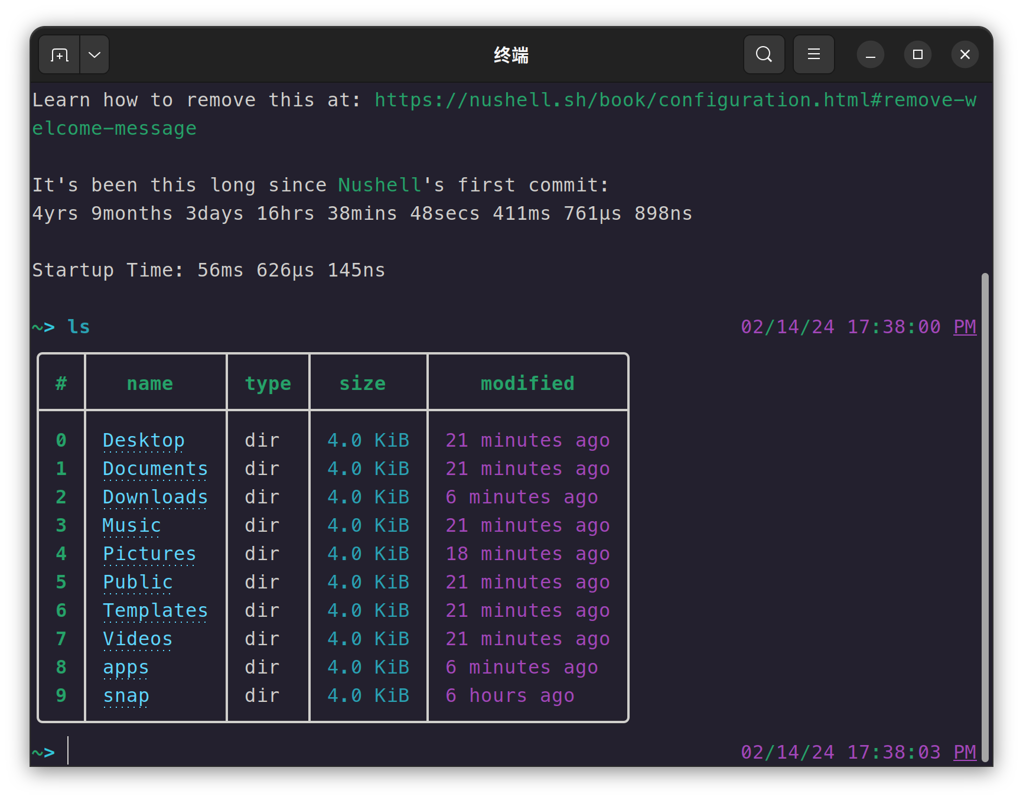
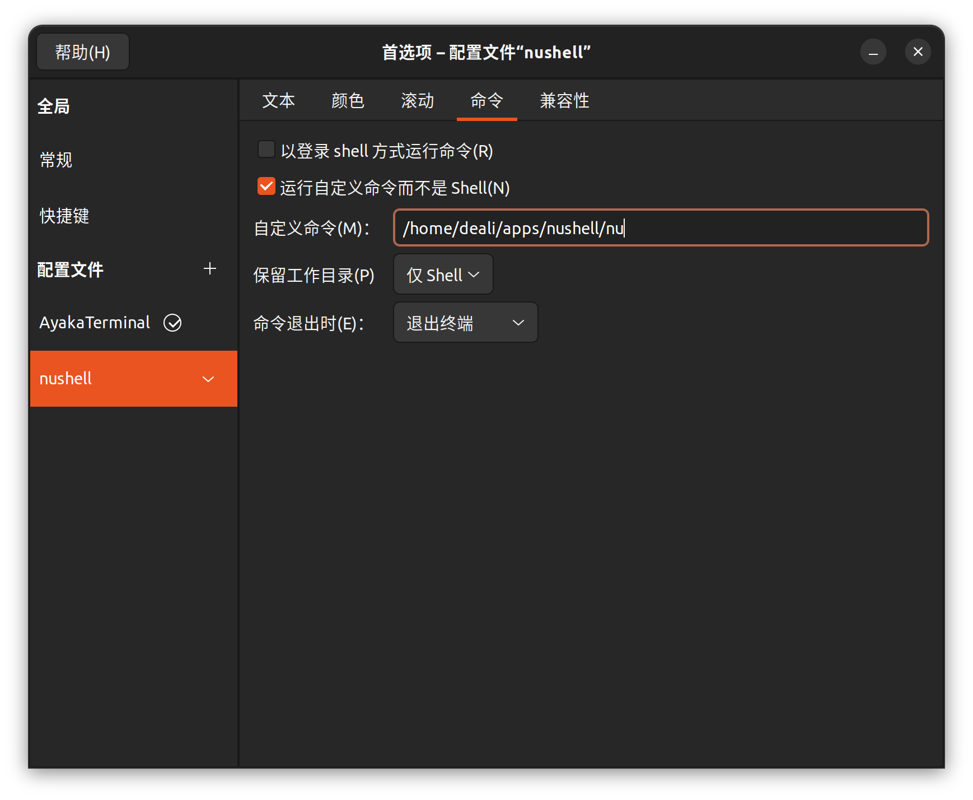
But many commands are quite different, so my default shell is still zsh
This shell has a separate profile set up, just select it when needed
jetbrains-toolbox
This time, using jetbrains-toolbox on Ubuntu was unexpectedly not smooth.
It seems AppImage has some kind of dependency (依赖). After some searching, I found out it needs to be installed.
require FUSE
https://github.com/AppImage/AppImageKit/wiki/FUSE
For example, on Ubuntu (>= 22.04):
sudo add-apt-repository universe
sudo apt install libfuse2
Modifying Folder Names in the Home Directory
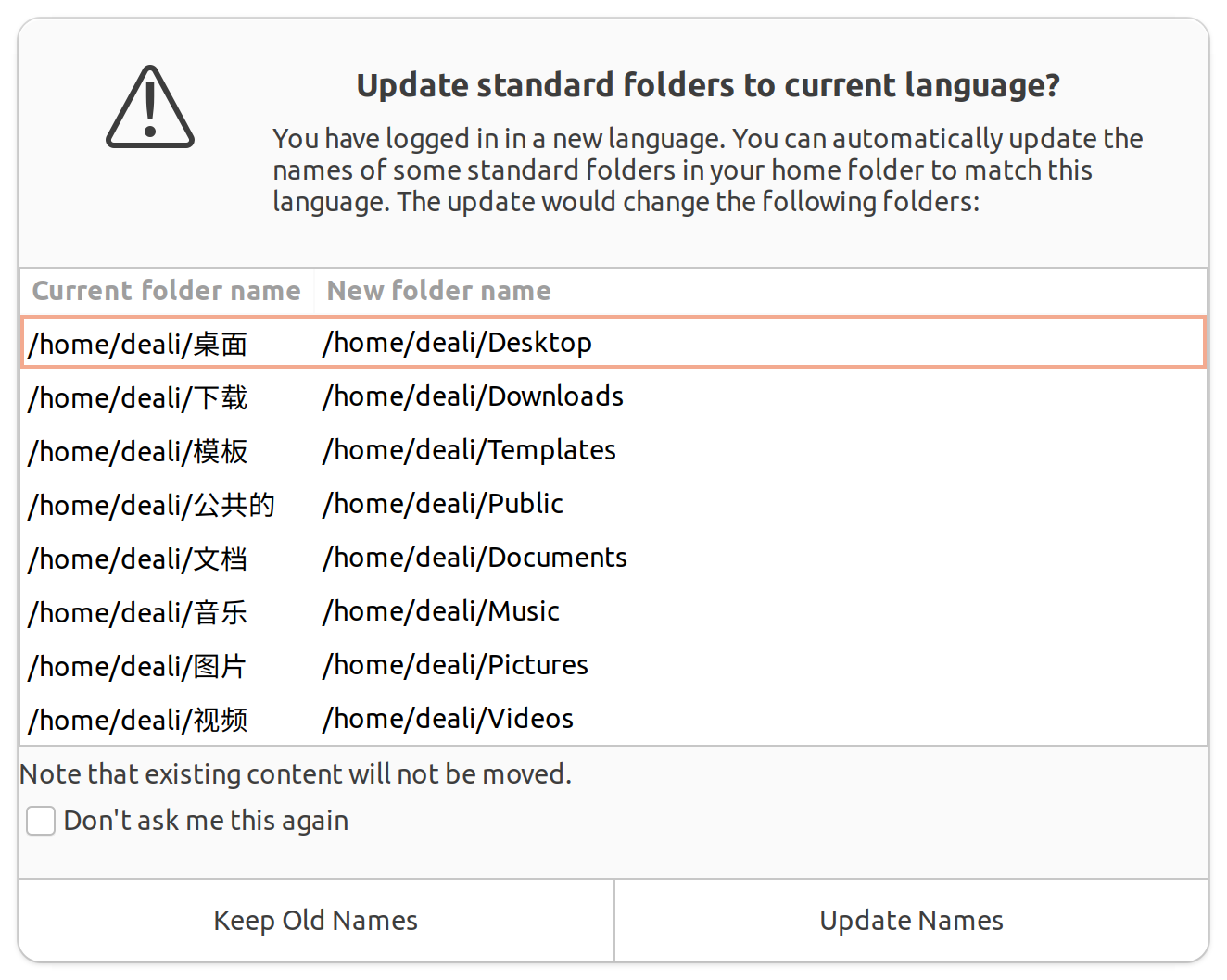
During system installation, I chose Chinese as the language, so the names of folders like "Download" in the Home directory were also changed to Chinese.
This causes inconvenience when using the command line, but you only need two commands to modify this.
export LANG=en_US
xdg-user-dirs-gtk-update
A window will pop up as shown below; simply click update to proceed.
Input Method
This time I used Ubuntu Gnome's built-in ibus input method.
Previously, when using Linux, I always used Sogou, but felt it had quite a few bugs when paired with Gnome.
This time, I was too lazy to tinker with it. The intelligent Pinyin in ibus now also has a cloud input feature, which is good enough for now.
Then I continued to research how to improve the input experience.
That's when I discovered Rime - https://rime.im/
Install it using the following command:
sudo apt install ibus-rime
Then configure it: https://github.com/jayknoxqu/ibus-rime
Configure the input method candidate box to be horizontal:
tee ~/.config/ibus/rime/build/ibus_rime.yaml <<-'EOF'
style:
   horizontal: true
EOF
At this point, it was already very user-friendly.
For an advanced step, you can pair it with dictionaries from skilled developers: https://github.com/iDvel/rime-ice
Additional Note
I've already started using this RIME-Ice, and it feels quite good. The input experience is on par with Sogou, and it has a lot of emojis, which is a weakness of the Sogou desktop version.
I plan to try this RIME on Windows to see how it performs.
Summary
I started using Linux as my primary desktop system back in university. For a long time, I exclusively used a Linux-only setup, but later I felt that the Linux desktop experience was still lacking something. However, now that Wayland is becoming more mature, the situation seems to be improving. At least the experience of switching my laptop to Linux this time has been quite good.
The core issue with the Linux desktop remains insufficient investment; whether it works well or not largely depends on luck. This time, it just so happened that Ubuntu Wayland adapted well to my older laptop, so the experience was pretty good. If minor issues arise—such as power management, dual graphics card switching, etc.—and I need to spend a lot of time tinkering to resolve them, it becomes very frustrating.
Therefore, I would no longer recommend the Linux desktop to others.
_EOF_
In 2024, I started using the Linux desktop as my main system again~
- 本文作者:
- 程序设计实验室
- 版权声明:
- 本博客所有文章除特别声明外,均采用 BY-NC-SA 许可协议。转载请注明出处!
相关文章
UbuntuUnity20.04安装记录
IDEA输入法不跟随问题 是IDEA的jre有问题 下载:https://github.com/RikudouPatrickstar/JetBrainsRuntime-for-Linux-x64 解压jbr到一个固定的地方 打开IDEA安装目录,大概是/home/da/.local/share/JetBrains/Toolbox/apps/Rider/ch-0/213.6775.4,类似这样的,准
2025-10-27 · 安装笔记 · 约 1 分钟
Linux玩家必备:Ubuntu完全配置指南
前言 笔者从14年接触Linux至今已有4年,一开始折腾各种发行版,从国产的StartOS、Deepin到Debian、Ubuntu、OpenSUSE、Fedora到Arch Linux,目前主力系统是Manjaro和Ubuntu16.04,本文适用于刚刚开始使用Linux,并且有一定命令行基础的新手玩家,根据我使用Linux的经验进行编写,所有软件和命令均在Ubuntu16.04系统上测试运行通
2025-10-27 · 安装笔记 · 约 1 分钟
HelloGanss-XS75T键盘开箱
HelloGanss XS75T,屏幕旋钮buff叠满,性价比最高?就这颜值,啧。轴体行程短手感硬,麻将音晚上吵,键帽高度不对回弹崩了,呵呵。可拆卸电池设计,但电池仓盖难拆,拨杆鸡肋,算差异点?勉强吧。
2025-10-28 · 键盘 · 约 1 分钟
我用Qt和Python开发了一个视频合并工具
想合并视频,但是却找不到比较好用的工具,很多都要收费,我想着「这破功能还得收费?」,于是决定自己搞一个,一开始用Python做了一个,效果还不错,完美完成了我的视频合并任务,不过没有图形界面,想分享给朋友一起用也没办法,于是昨天用Qt写了个图形界面套上去,中间还是遇到一些问题的,通过这篇文章记录一下。 软件的界面就是这样啦,用Qt Designer随便拖出来的,和VS拖控件也差不了多少。 用起来挺
2021-12-18 · Python · 约 1 分钟
讨论
共 0 条加载评论中…