

Kali Linux on WSL2 Installation and Simple Configuration Guide
After Windows was updated to version 2004, it officially enabled WSL2 support. This time it's a complete Linux system running in a Hyper-V virtual machine, which can be called a real Linux. Could it be that Windows is about to become the best Linux distro? The actual experience is pretty decent, though there are quite a few minor issues. If you like tinkering, give it a shot—it still helps a lot with improving the development experience on the Windows platform~ Kali on WSL2 Installation Guide Upgrade the System First check your current system version. Press Win+
目录15 个章节
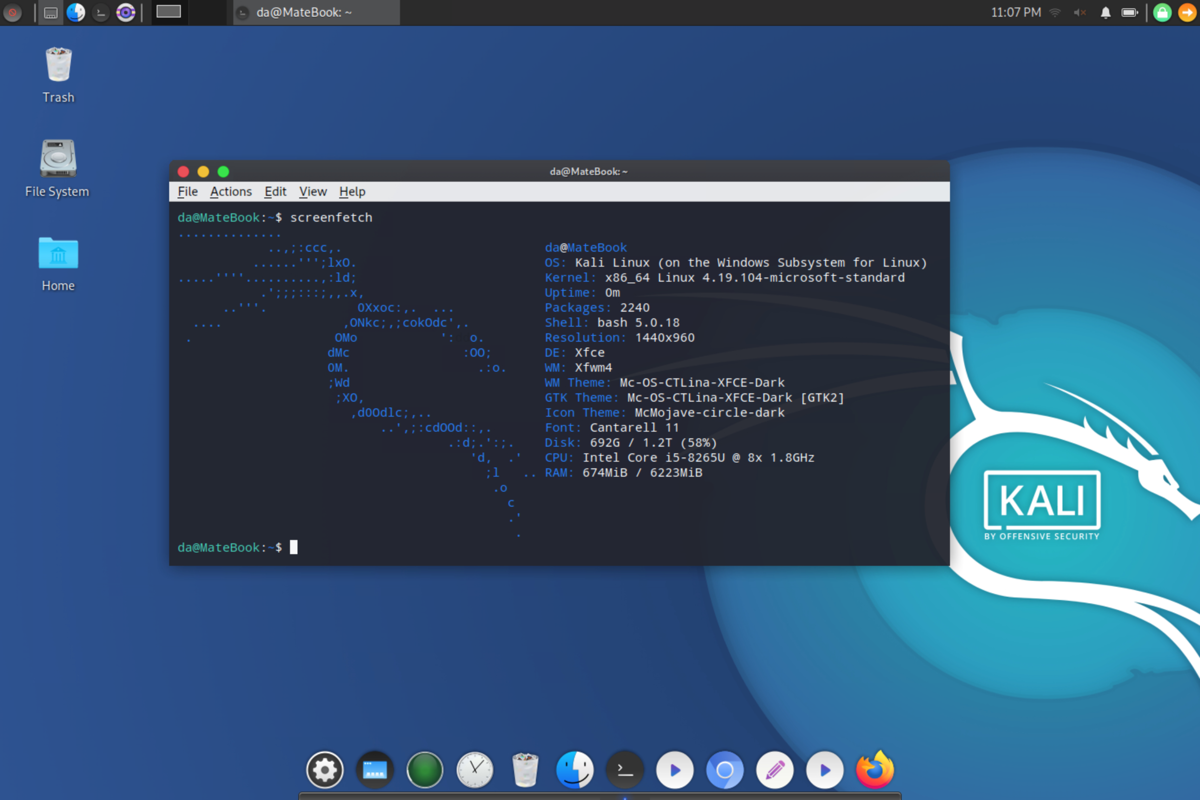
After Windows was updated to version 2004, it officially enabled WSL2 support. This time it's a complete Linux system running in a Hyper-V virtual machine, which can be called a real Linux. Could it be that Windows is about to become the best Linux distro?
The actual experience is pretty decent, though there are quite a few minor issues. If you like tinkering, give it a shot—it still helps a lot with improving the development experience on the Windows platform~
Kali on WSL2 Installation Guide
Upgrade the System
First check your current system version. Press Win+R, type winver, and you can see the current system version:
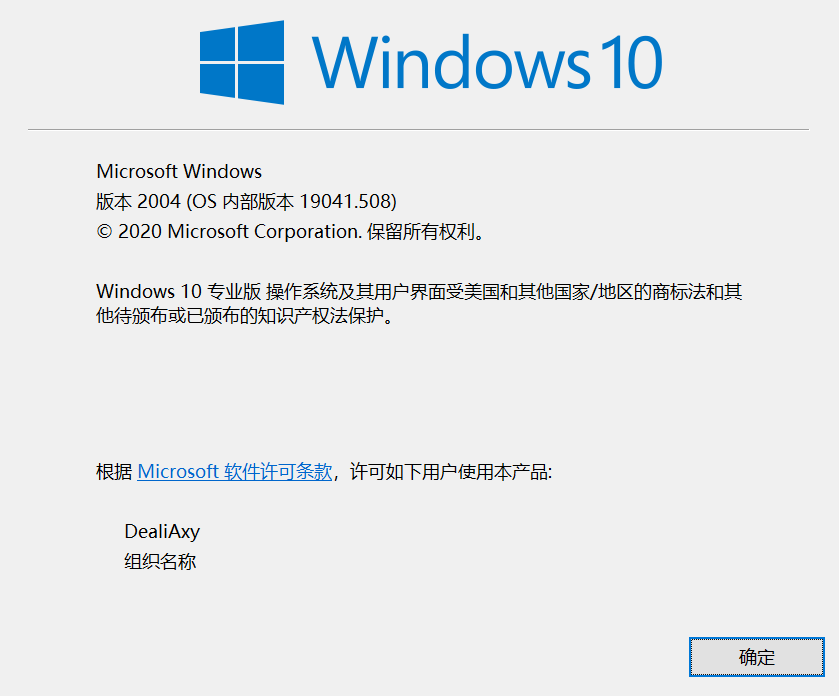
If it's not version 2004, you need to upgrade the system to version 2004. Microsoft says there is a push update, but it's hit or miss. If you can't find the update, please download the official “Update Assistant” (易升) tool yourself to check for updates.
Enable the Linux Subsystem
After upgrading to version 2004, you can start installing the system. If the Linux subsystem is not enabled, you need to enable it first.
PS: Since WSL2 uses a Hyper-V virtual machine, enabling it will conflict with VMware and VirtualBox. This can be resolved by upgrading VMware and VirtualBox to versions that support Hyper-V.
Open PowerShell with administrator privileges and enter the following command to enable the Linux subsystem:
Enable-WindowsOptionalFeature -Online -FeatureName Microsoft-Windows-Subsystem-Linux
A restart is required afterward.
Enable Virtualization
Open PowerShell with administrator privileges and enter the following commands:
dism.exe /online /enable-feature /featurename:VirtualMachinePlatform /all /norestart
dism.exe /online /enable-feature /featurename:Microsoft-Windows-Subsystem-Linux /all /norestart
Restart the system
Download the WSL2 Linux Kernel
Download link: https://aka.ms/wsl2kernel
Install it after downloading.
Set the Default Subsystem Version to WSL2
Open PowerShell with administrator privileges and enter the following command:
wsl --set-default-version 2
Install Kali Linux
Open the Microsoft Store, search for and install Kali Linux.
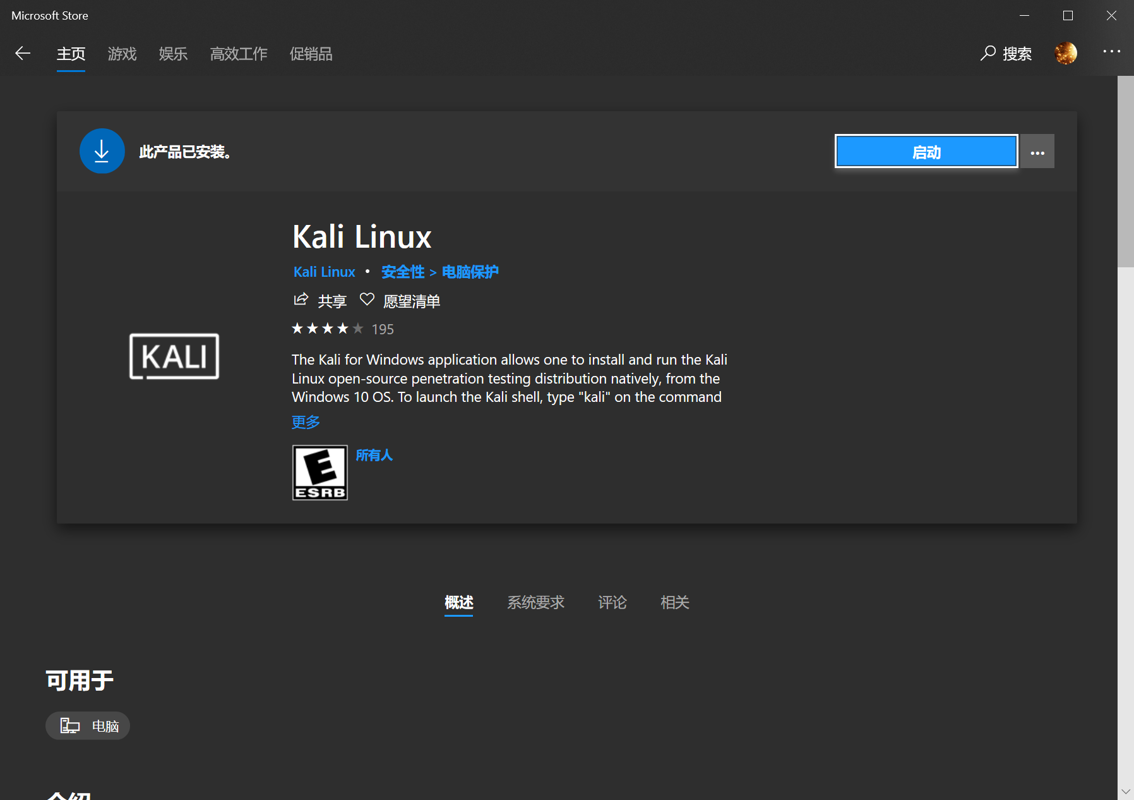
After installation, choose “Launch”, and it will start extracting and installing. Then enter a username and password and you're done.
Upgrade an Existing System to WSL2
If you already have WSL installed, you can upgrade it directly to WSL2.
Open PowerShell with administrator privileges and enter the following command:
wsl --set-version kali-linux 2
Install the Win-Kex Toolkit
The Win-Kex toolkit is a graphical toolkit provided by Kali for running on Windows. It lets you run a GUI in WSL in a one-click, foolproof way.
Enter the following command in the Kali command line to install:
sudo apt update && sudo apt install kali-win-kex
After installation, you can start the graphical interface with the following commands:
cd ~
kex
The first time you start it, you'll be asked to enter a new password. This password is saved as the kex password.
Note that you need to switch the current directory to the home directory before starting kex, otherwise it won't be able to get the key.
Simple Configuration
Install Kali Linux Toolkits
- Install the standard toolkit
sudo apt install kali-linux-default
- Install the large toolkit (about 7–8 GB)
sudo apt install kali-linux-large
Configure a Windows Terminal Shortcut
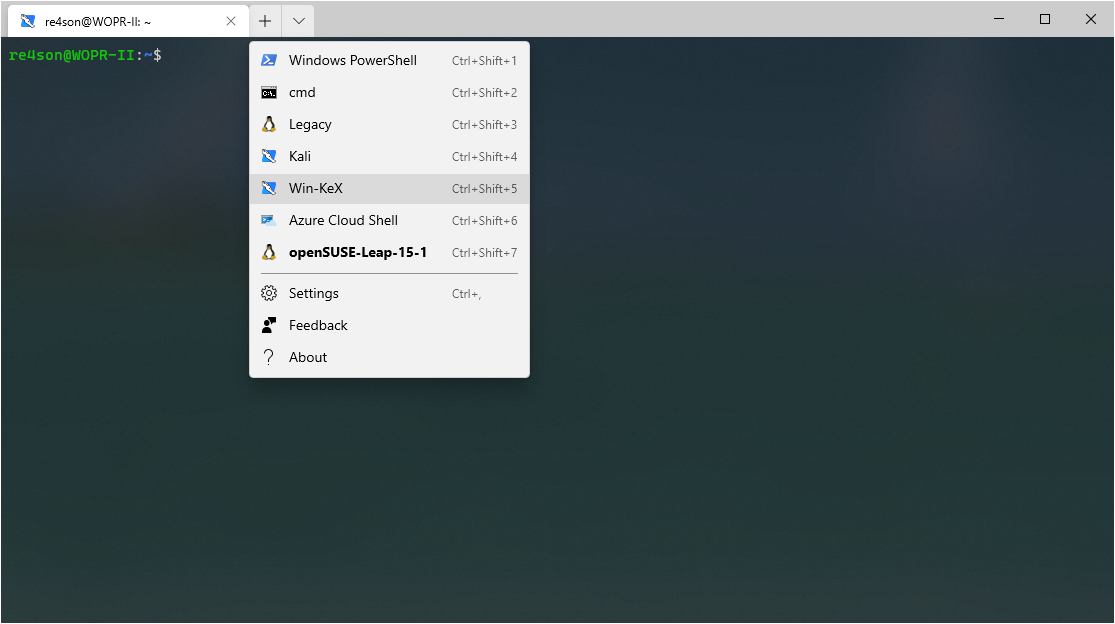
Opening it from the command line every time is too much hassle. You can configure a shortcut in Windows Terminal, and next time you can open Kex's graphical interface from this dropdown menu.
Open the Windows Terminal configuration file and add the following configuration items:
{
        "guid": "{55ca431a-3a87-5fb3-83cd-11ececc031d2}",
        "hidden": false,
        "name": "Win-KeX",
        "commandline": "wsl kex wtstart",
},
{
         "guid": "{55ca431a-3a87-5fb3-83cd-11ececc031d2}",
         "hidden": false,
         "icon": "file:///c:/users/<windows user>/pictures/icons/kali-menu.png",
         "name": "Win-KeX",
         "commandline": "wsl kex wtstart",
  	 "startingDirectory" : "//wsl$/kali-linux/home/<kali user>"
},
After that, click the “Win-Kex” menu item to launch the graphical interface directly.
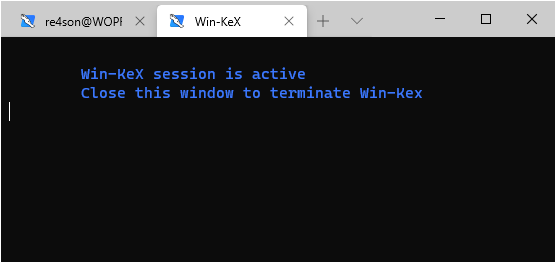
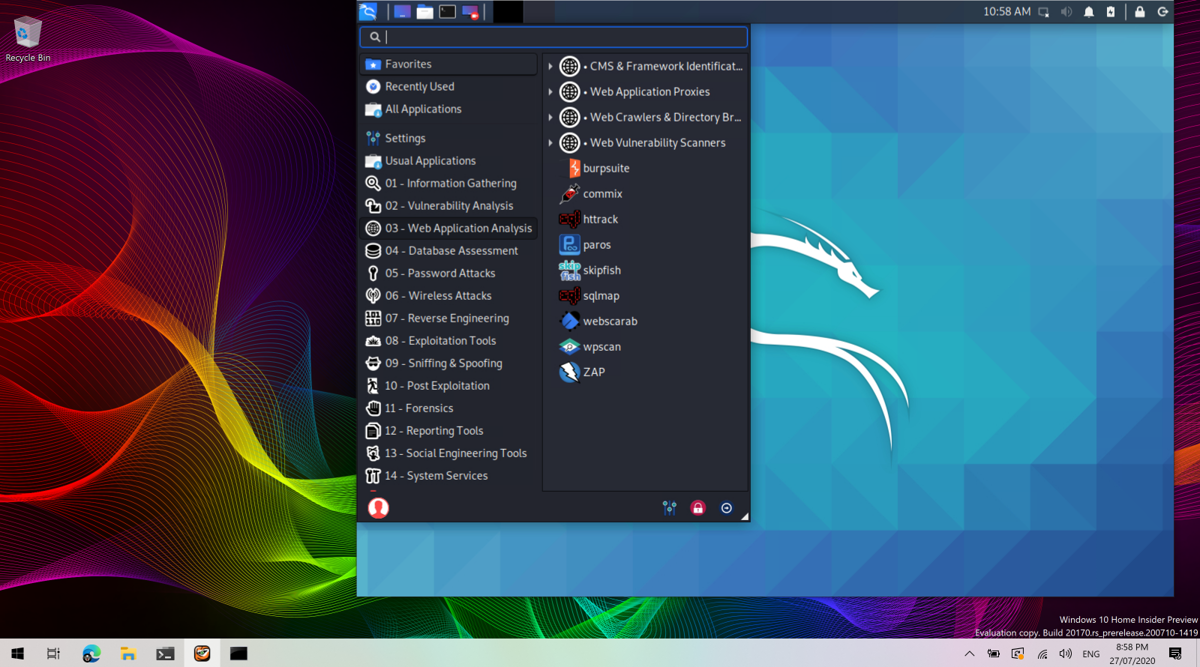
PS: After entering the fullscreen graphical interface, press F8 to open the context menu.
Fix the Unable to Connect to the Network Issue
- Create a file: /etc/wsl.conf.
- Put the following lines in the file
[network]
generateResolvConf = false
- In a cmd window, run wsl --shutdown
- Restart WSL2
- Create a file: /etc/resolv.conf. If it exists, replace existing one with this new file.
- Put the following lines in the file
nameserver 8.8.8.8
Repeat step 3 and 4. You will see git working fine now.
- Repeat step 3 and 4. You will see git working fine now.
Referenced from: https://github.com/microsoft/WSL/issues/4285
Fix the kex Unable to Start Issue
The error message is as follows:
unable to connect to socket: No connection could be made because the target machine actively refused it. (10061)
The Chinese prompt is something like the remote host actively refused
The solution is to run kex stop in bash, then restart kex.
Reference: https://unix.stackexchange.com/questions/605309/not-able-to-initialize-gui-for-kali-linux-in-wsl-2
References
_EOF_
Kali Linux on WSL2 Installation and Simple Configuration Guide
- 本文作者:
- 程序设计实验室
- 版权声明:
- 本博客所有文章除特别声明外,均采用 BY-NC-SA 许可协议。转载请注明出处!
相关文章
在Windows上部署OpenSSH服务
Windows终于学会了没羞没臊地用命令行装OpenSSH,结果设置界面还是卡得像屎,算了,至少比以前强点。不过这SSH连上去还是CMD,是哪个脑回路觉得这操作体验没问题啊?
2025-06-12 · Windows · 约 1 分钟
在Windows上将git与ssh-agent搭配使用
Windows git 还自带 ssh?真是老土的兼容性思路。一行配置就能解决,不过得先管好 ssh-agent 的连接。 ProxyCommand 居然又添乱,难怪老出毛病。
2025-08-21 · Windows · 约 1 分钟
忘记WSL的root密码怎么办
解决方法 首先,打开WSL是不需要输入密码的,如果你打开WSL时的默认用户不是root,请按照一下方式修改。 修改默认登录WSL用户 以管理员权限启动Powershell lxrun /setdefaultuser root 此时重新打开WSL就是root用户了,并且不需要密码。 然后输入以下命令修改密码。 passwd root About 了解更多有趣的操作请关注我的微信公众号:DealiA
2021-12-18 · Windows · 约 1 分钟
修复winget命令找不到的问题
微软官方包管理器winget在Windows 10 1809以上版本中,用于快速安装、更新和管理应用程序。本文介绍了因系统环境变化导致winget命令失效的问题,分析了可能原因,并提供了解决方案及预防措施,包括修复命令、定期更新检查、备份环境变量等。
2025-04-04 · Windows · 约 1 分钟
讨论
共 0 条加载评论中…