

Java Development: JDK Installation and Environment Configuration
Preface Environment configuration is the most basic part of development, but recently many newcomers have been asking how to install the JDK and configure the environment, so I decided to write a post about it. Note that development on Windows and Linux platforms is different. Developing Java on Windows requires you to manually configure JDK environment variables, while most Linux systems do not need this—installing OpenJDK is enough (many distributions may even come with OpenJDK preinstalled), which is quite convenient. Downloading the Java JDK Window
目录8 个章节
Preface
Environment configuration is the most basic part of development, but recently many newcomers have been asking how to install the JDK and configure the environment, so I decided to write a post about it. Note that development on Windows and Linux platforms is different. Developing Java on Windows requires you to manually configure JDK environment variables, while most Linux systems do not need this—installing OpenJDK is enough (many distributions may even come with OpenJDK preinstalled), which is quite convenient.
Downloading the Java JDK
Windows Platform
Open Oracle's JDK website: http://www.oracle.com/technetwork/java/javase/downloads/index.html
The website looks like this.
Make sure you check the version when downloading.
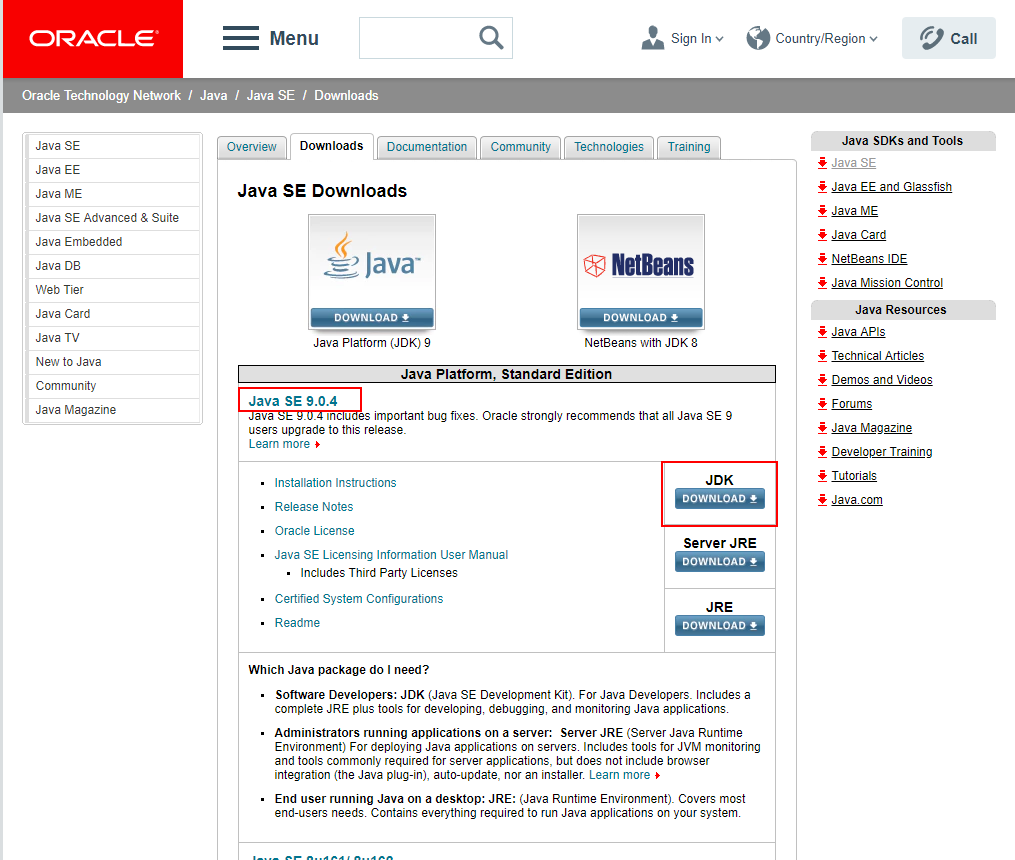
The version chosen in this article is JDK 8
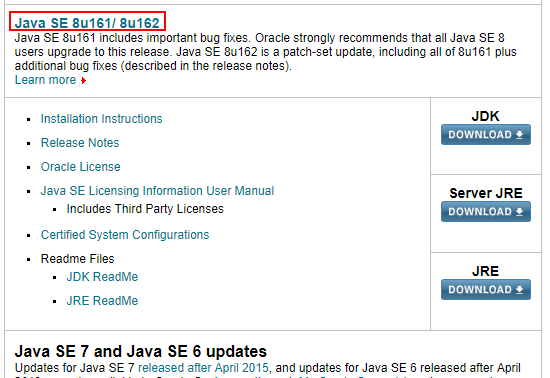
Click the download button to download.
After the download is complete, open it and install.
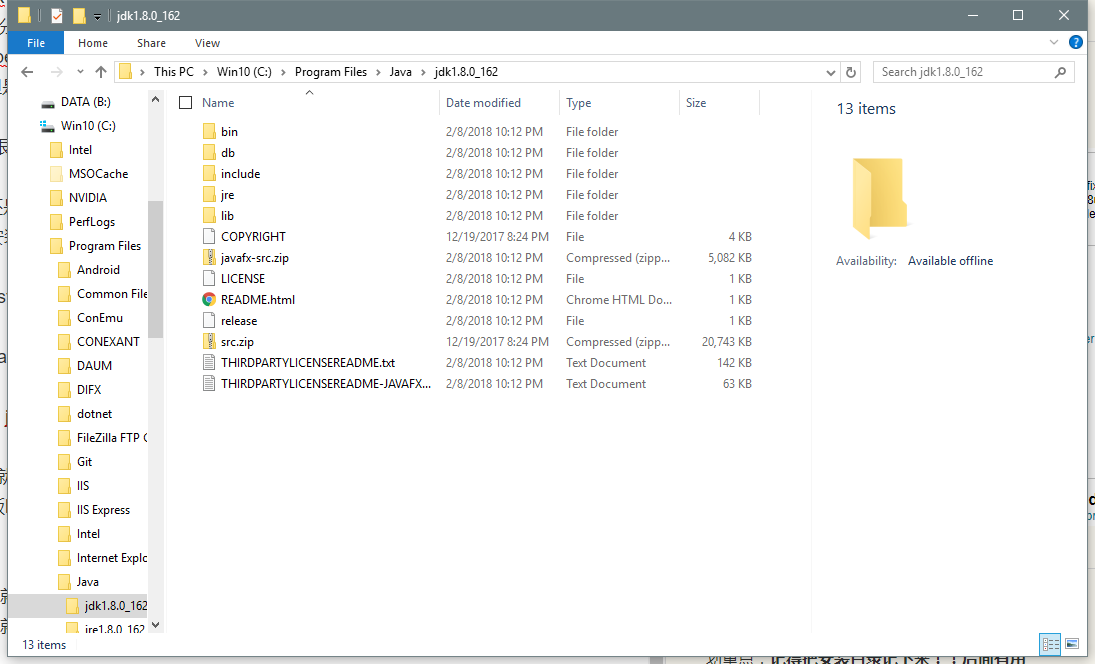
Key point: Remember to note down the installation directory!! You'll need it later

Linux Platform
On Linux, you can choose OpenJDK or the JDK provided by Oracle. There are differences between the two.
Here's a recap of the differences between OpenJDK and JDK. (The following is quoted from Zhihu user Aloys寒风)
Historically, OpenJDK is the open-source version of the JDK, released under the GPL (General Public License) (the "open" mentioned by the OP refers to open source). By the time of JDK 7, OpenJDK had already become the main trunk of JDK 7 development. SUN JDK 7 was released based on OpenJDK 7; most of the source code is the same, with only a small portion replaced. It was released under the JRL (Java Research License). As for OpenJDK 6, it has an even more complicated side: first, OpenJDK 6 is a branch of JDK 7, and it tries as much as possible to remove the new features of Java SE 7 so that it conforms as much as possible to the Java 6 standard. The differences between JDK and OpenJDK can be summarized as follows:
Different licenses: OpenJDK is released under the GPL V2 license, while SUN JDK is released under the JRL. Although both licenses are open source, they differ in usage in that GPL V2 allows commercial use, while JRL only allows personal research use. OpenJDK does not include Deployment functionality: deployment features include: Browser Plugin, Java Web Start, and the Java Control Panel, which cannot be found in OpenJDK.
OpenJDK source code is incomplete: This is easy to understand. In OpenJDK, which uses the GPL license, some of SUN JDK's source code cannot be opened to OpenJDK due to proprietary rights issues. The most significant part is the code for the optional SNMP component in JMX. Therefore this source code that cannot be opened is made into a plug for use when compiling OpenJDK; you can also choose not to use the plug. Icedtea developed source code with the same functionality for these incomplete parts (OpenJDK 6), making OpenJDK more complete.
Some source code is replaced with open-source code: Due to proprietary rights issues, a lot of source code whose rights do not belong to SUN was replaced with open-source code that has the same functionality, for example the font rasterization engine, replaced with Free Type.
OpenIDK only includes the most minimal JDK: OpenJDK does not include other software packages, such as Rhino Java DB JAXP..., and packages that can be separated are also separated as much as possible, but most of these are free software, and you can download and add them yourself. Cannot use the Java trademark: This is easy to understand. On a machine with OpenJDK installed, entering
java -versiondisplays OpenJDK, but if it is OpenJDK using the Icedtea patch, it displays java.In short, in the Java ecosystem, there are still many non-free components, and the development of the source code is not thorough enough.
So, on Linux, should you use JDK or OpenJDK??
I think OpenJDK is completely sufficient, and it's also convenient to install. Enter jdk in the package manager to install, and what you get is OpenJDK.
Debian-based install: sudo apt install jdk
Red Hat-based install: yum apt install jdk
SUSE install: sudo zypper in jdk
If you insist on using Oracle's JDK, then go to the Oracle official website to download it. The download URL is above. As for the installation method, it varies slightly across Linux distributions. Anyone who can tinker with Linux shouldn't have a problem installing a piece of software.
Path Configuration
Alright. I admit the most annoying thing about Java is having to configure environment variables, especially on Windows. Can't you just have it configured automatically after installation?! Python can be that convenient, but you can't = =
Windows Platform Configuration
First, open the path you noted down after the installation above.
Then press Win+R to open Run.
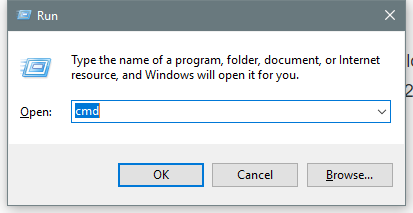 Enter:
control to open the Control Panel
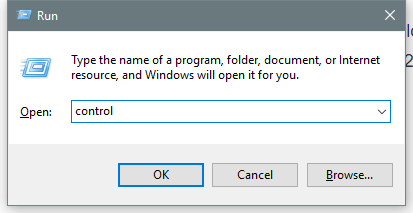
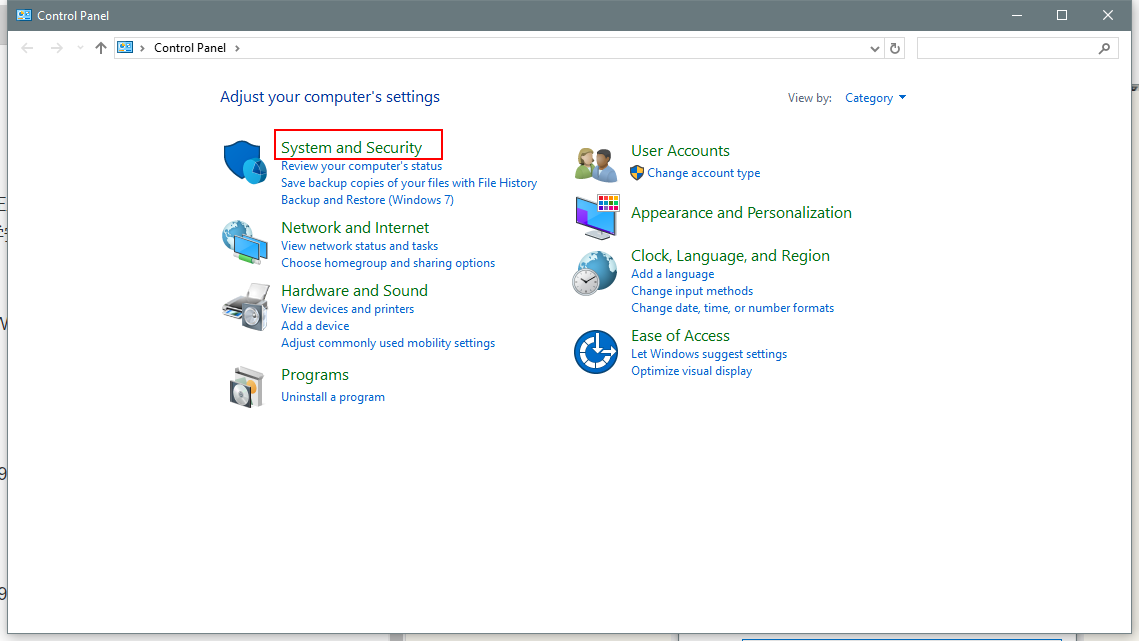
I'm using an English version of the system, but you can follow along with the screenshots the same way.
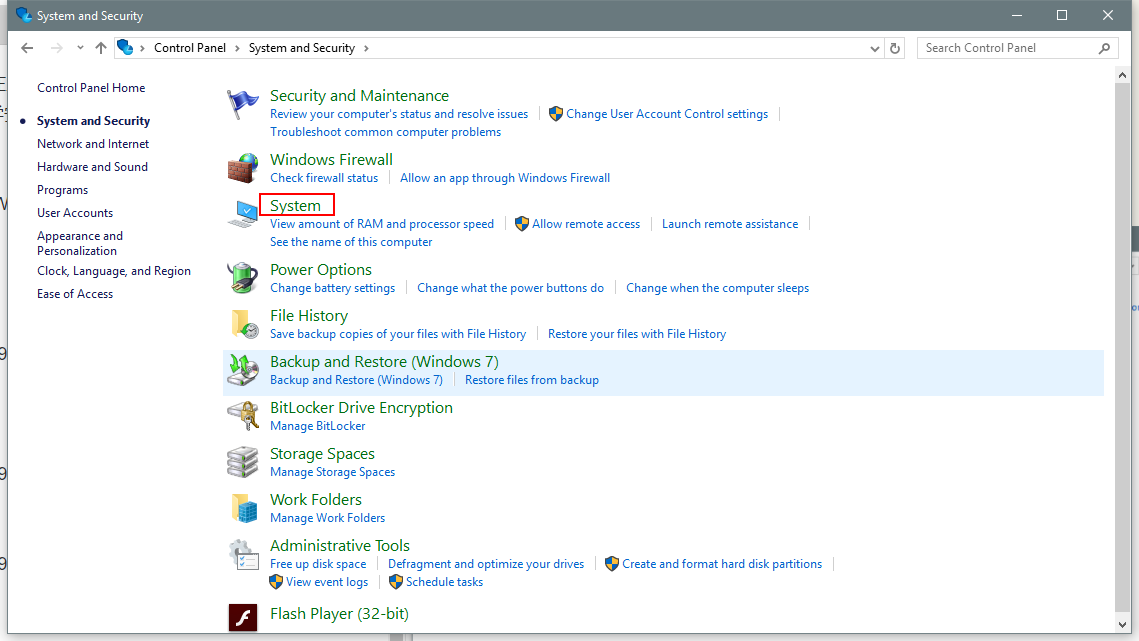
Select "System".
Select "Advanced system settings"
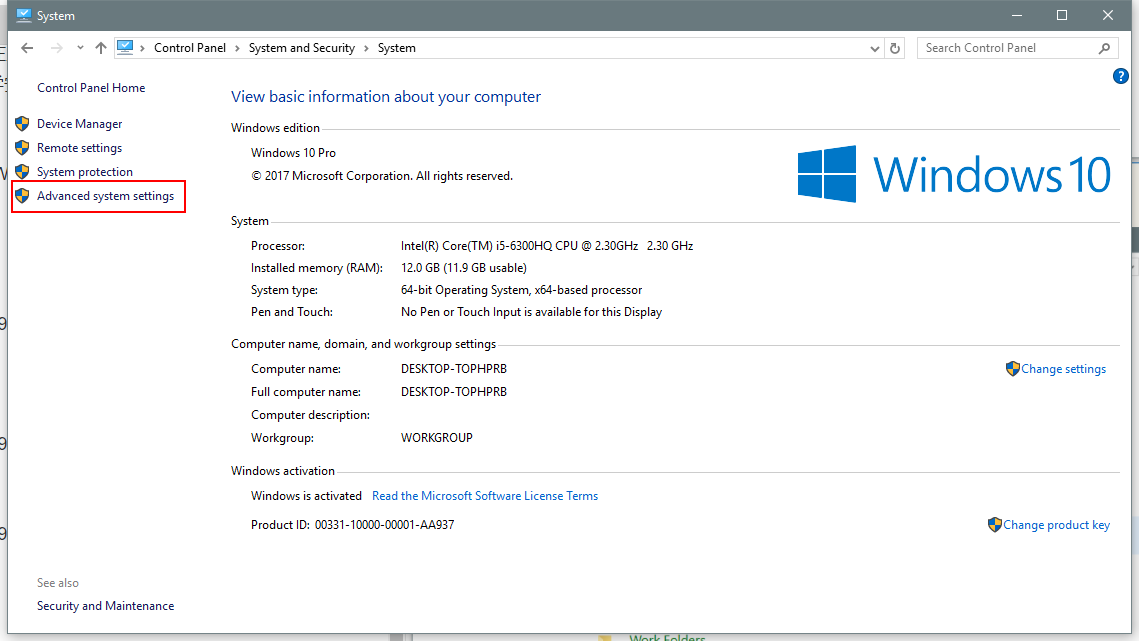
Environment Variables
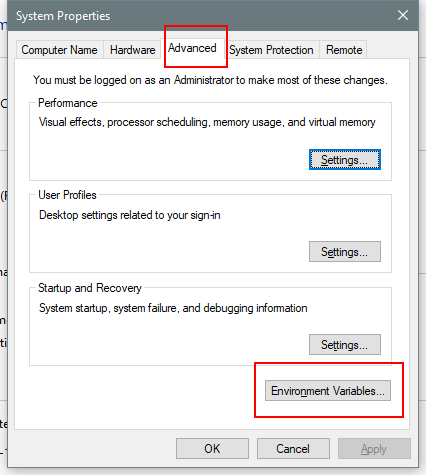
This opens the environment variable editor
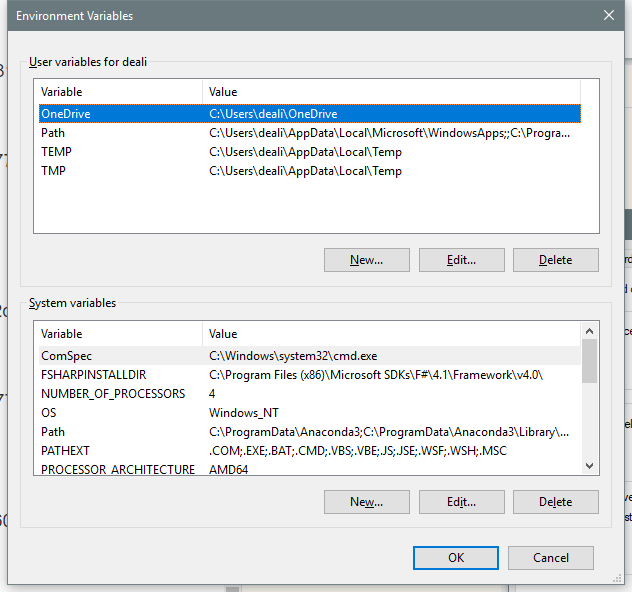
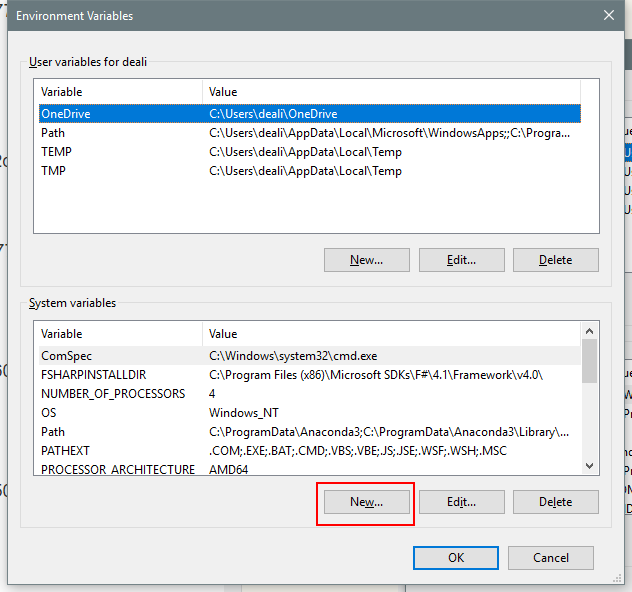
First, create a JAVA_HOME environment variable. The value is the JDK installation location from earlier.
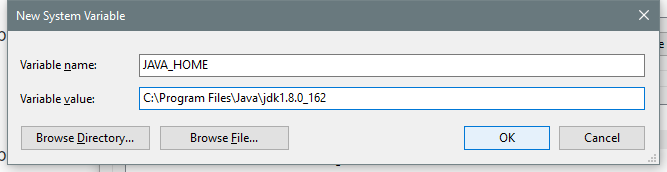
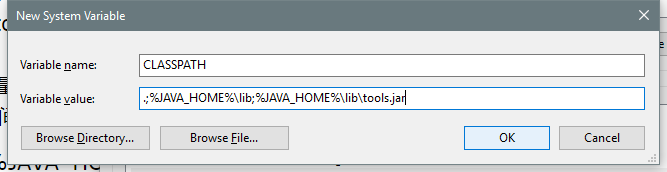
Next, add a CLASSPATH variable.
Value: .;%JAVA_HOME%\lib;%JAVA_HOME%\lib\dt.jar;%JAVA_HOME%\lib\tools.jar;
Finally, add javahome and classpath to the system's Path.
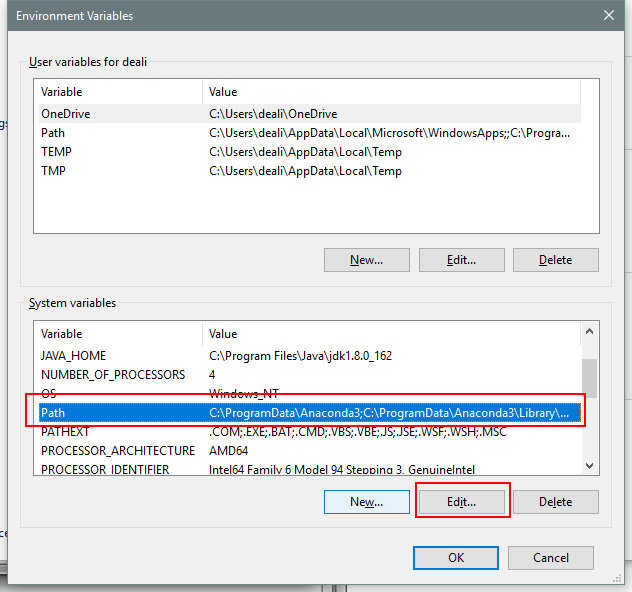 Click "Add".
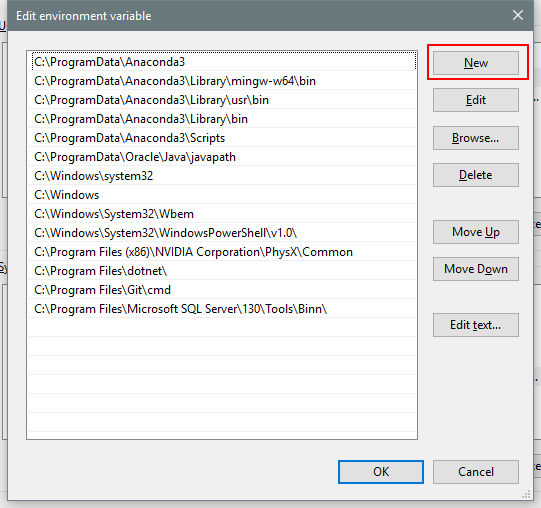 Add the following two paths.
%JAVA_HOME%\bin
%JAVA_HOME%\jre\bin
If you're not on Windows 10 and don't have this Path editor, append the following to the original Path variable:
;%JAVA_HOME%\bin;%JAVA_HOME%\jre\bin Note there is a semicolon at the front
Then click "OK".
Garbled Text When Running Java on Windows
It works fine on Linux and macOS; the problem only appears in the Windows environment, and running through an IDE is also fine
It's fair to call Windows garbage at this point, right?
Solution:
Add a new user variable
JAVA_TOOL_OPTIONS=-Dfile.encoding=UTF-8
After that, when you run Java commands in Windows terminal, there's no more garbled text~
Testing
Open the console and enter jave -version
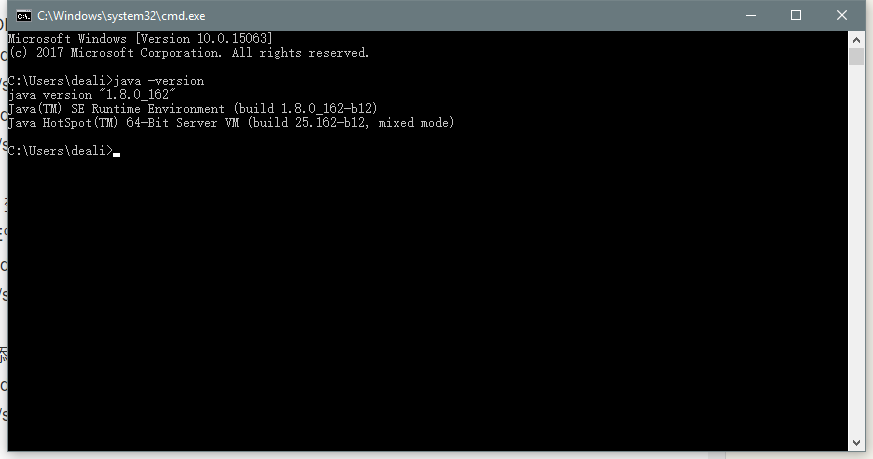 Configuration completed successfully!
_EOF_
Java Development: JDK Installation and Environment Configuration
- 本文作者:
- 程序设计实验室
- 版权声明:
- 本博客所有文章除特别声明外,均采用 BY-NC-SA 许可协议。转载请注明出处!
相关文章
Spring-Boot:创建第一个应用
简介 Spring Boot 是一个轻量级框架,可以完成基于 Spring 的应用程序的大部分配置工作。在本教程中,将学习如何使用 Spring Boot 的 starter、特性和可执行 JAR 文件结构,快速创建能直接运行的基于 Spring 的应用程序。 本文使用IDEA作为开发工具,Gradle作为构建工具,创建一个简单的SpringBoot应用,暂时不涉及数据库的配置。 使用IDEA创建
2022-05-27 · Java · 约 1 分钟
JavaWeb开发---Servlet的生命周期实验
前言 Servlet是运行在服务器端的程序,它的运行状态由Servlet容器(简称容器)来维护。 通常,在容器收到客户对Servlet的请求时,容器会判断这个Servlet是否为第一次被访问,如果是第一次被访问,则会创建一个Servlet实例同时调用该实例的init()方法,进行初始化。 每个Servlet只会被创建一个实例,同时也只会被初始化一次。然后将这个实例一直保存在内存中,对所有的请求进行
2022-05-27 · Java · 约 1 分钟
Apache-Commons-IO-最佳实践
本文列举了Java输入输出部分(IO area)的大量“最佳实践”(best practices)。 java.io.File 通常你需要去处理文件或文件名时,有许多会出错的情况: 一个类可在Unix运行但不能在Windows运行,反之亦然。 由于双路径分隔符(path separator)或缺失路径分隔符(path separator)导致文件名无效。 (在Windows上的)符合通用命名标准(
2022-05-27 · Java · 约 1 分钟
深入Jar包:Gradle构建可执行jar包与访问jar包中文件夹与文件
前言 Java的跨平台功能听起来很诱人可口,号称“Write Once,Run Everywhere”,实际上是“Run Once,Debug Everywhere”... 在实际开发过程中还是会遇到各种各样的坑的,刚刚解决了一系列问题,特地写个文章总结一下。 使用Gradle构建Jar包 感谢万能的Gradle,极大提高了Java开发的生产力~ 在Gradle中生成jar包可以使用官方的插件:a
2022-05-27 · Java · 约 1 分钟
讨论
共 0 条加载评论中…