

GitLab Installation, Configuration, and Usage
Preface Last week I attended the “China Digital Economy Innovation and Development Conference,” then got busy with a new project, so the blog went without updates for a while again. Today is Monday and things are relatively quiet, so I’m starting to write right away—there’s quite a bit worth recording lately~ On to the main topic: we recently set up a GitLab instance and migrated all the project code we’re developing to our self-hosted GitLab. The whole process was fairly smooth~~ (it just uses a lot of memory~~ PS: Immediately ordered four 16G memory sticks for this server to run in quad-channel~ Before this, our team had been using Gitee Enterprise Edition as
目录7 个章节
Preface
Last week I attended the “China Digital Economy Innovation and Development Conference,” then got busy with a new project, so the blog went without updates for a while again. Today is Monday and things are relatively quiet, so I’m starting to write right away—there’s quite a bit worth recording lately~
On to the main topic: we recently set up a GitLab instance and migrated all the project code we’re developing to our self-hosted GitLab. The whole process was fairly smooth~~ (it just uses a lot of memory~~
PS: Immediately ordered four 16G memory sticks for this server to run in quad-channel~
Before this, our team had been using Gitee Enterprise Edition for code management. However, as cybersecurity and information security controls have become increasingly strict, and with the new policies in May tightening control over domestic open-source projects, we decided it would be better to put our code on a more controllable platform.
After comparing Gitea and GitLab, we decided to use GitLab to set up our team’s own code management system.
Getting Started
GitLab has a free open-source Community Edition with enough features. If we need more features later, we can still switch to the Enterprise Edition.
So to make subsequent upgrades convenient, we chose to use the Enterprise Edition image. Without activation it is no different from the Community Edition; if we need to upgrade, we just purchase its subscription and can smoothly upgrade to the Enterprise Edition.
As for the deployment method, in the cloud-native era we of course use Docker~
As usual, I’ll use my favorite Compose to orchestrate the image.
Find a disk with enough space, create a gitlab directory, then create a docker-compose.yml file.
The configuration is as follows
version: "3"
services:
  gitlab:
    image: gitlab/gitlab-ee:latest
    restart: always
    hostname: gitlab
    ports:
      - 1100:80
      - 1101:443
      - 1102:22
    volumes:
      - /etc/localtime:/etc/localtime
      - ./config:/etc/gitlab
      - ./logs:/var/log/gitlab
      - ./data:/var/opt/gitlab
You can define the specific port mapping rules yourself, and the volume mappings can also be changed, but remember that the first /etc/localtime is fixed—it passes the host’s time to the GitLab image.
After saving, run docker-compose up in the directory and it will start up.
First Login
GitLab’s default admin user is root
The password is in the /etc/gitlab/initial_root_password file
You can go inside the container to view it
Optimizing Memory Usage
GitLab’s reputation as a memory hog is well deserved
The server we’re using has 32G of memory. Under the default configuration it kept filling up all the memory; we even frequently ran into various 5xx errors during use, and then we’d look and see only a few hundred MB left……
It really is a memory tiger~
Then I tried various configurations, and after a few days of tinkering, I finally got memory usage down to around 16G
Edit the configuration file. Inside the GitLab container, this file is at /etc/gitlab/gitlab.rb
We mapped it in docker compose earlier, so you can also edit the ./config/gitlab.rb file in the host directory
puma['worker_timeout'] = 30
gitlab_rails['time_zone'] = 'Asia/Shanghai'
puma['worker_processes'] = 2
postgresql['shared_buffers'] = "256MB"
sidekiq['max_concurrency'] = 8
postgresql['max_worker_processes'] = 4
puma['per_worker_max_memory_mb'] = 600
prometheus_monitoring['enable'] = false
sidekiq['min_concurrency'] = 8
After making changes, you need to go into the container and run one of the following commands (reload the configuration or restart GitLab) for the changes to take effect
gitlab-ctl reconfigure
gitlab-ctl restart
Clone URL
Right after starting it up, the clone URL looks like this—that won’t do. You can’t copy it and clone directly to local; it needs to be configured
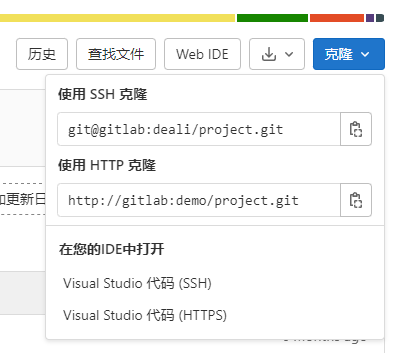
HTTP domain configuration is relatively simple: go to menu->admin->settings->general->Visibility and access controls->Custom Git clone URL for HTTP(S)
Fill in GitLab’s URL and port number and click save for it to take effect
But HTTP requires logging in, which is too much hassle; we usually use SSH
The SSH URL doesn’t seem configurable from the frontend; you need to edit the configuration file
Still the same configuration file mentioned earlier; edit these two lines to configure the IP address and port respectively
gitlab_rails['gitlab_ssh_host'] = 'ssh.域名或IP地址'
gitlab_rails['gitlab_shell_ssh_port'] = 1102
Just reload the configuration~
external_url Configuration
This URL configuration is involved in several places, such as the jump links in sent emails, the jump links when editing code snippets, etc.~
Still edit it in the configuration file
Find this line, # external_url 'GENERATED_EXTERNAL_URL'
Remove the # comment at the beginning, and change the URL to GitLab’s internal network address http://ip:1100 (we previously mapped 1100 to port 80)
One thing to note is that GitLab will decide the port for providing the web service based on the port in this URL
So if you set this URL, you need to update the port mapping configuration in docker-compose.yml accordingly
For example, if you set 1100 here, then update docker-compose.yml to
ports:
  - 1100:1100
Done~
References
- GitLab Deployment Notes (Docker): https://www.hash070.top/archives/gitlab-withdocker.html
- GitLab Latest Version Limiting Memory Size puma Commands: https://blog.csdn.net/m0_46542378/article/details/125344764
- GitLab Changing Ports and Changing the Prefix of Email Jump Addresses: https://www.52jingya.com/aid4087
_EOF_
GitLab Installation, Configuration, and Usage
- 本文作者:
- 程序设计实验室
- 版权声明:
- 本博客所有文章除特别声明外,均采用 BY-NC-SA 许可协议。转载请注明出处!
相关文章
GitLab的CI_CD配置与使用
前言 写代码这项工作,本质就是将工作自动化,减少手工操作提供效率,~~因为人的本质都是懒狗~~,程序员也不能例外,为了各种意义的效率提升~~(懒)~~,我们需要持续集成工具,将代码测试、编译、发布这些重复性很高的工作,全部变成自动化,减轻工作量,提高效率,解放生产力,~~为华夏伟大复兴贡献力量~~ 说回正题,持续集成工具主流的就 Jenkins 、Gitlab CI/CD 这些,因为我们刚好在用
2022-09-30 · DevOps · 约 1 分钟
Coolify: Vercel 的开源版私有化部署平替版
又一个Vercel平替,开源自托管PaaS。自动构建部署是像模像样,但界面简陋得让人想翻白眼。网络要求还挑剔,国内服务器就别凑热闹了。
2026-02-05 · DevOps · 约 1 分钟
部署MatterMost-开源团队协作平台
MatterMost,开源协作平台,自托管安全可控?部署折腾Docker配置,SSO集成文档坑爹。手机App不支持Play Store,界面劝退,何必自虐?SaaS更省心。
2024-08-11 · DevOps · 约 1 分钟
单点认证(SSO)方案调研总结
单点登录(SSO)是一种身份验证解决方案,可让用户通过一次性用户身份验证登录多个应用程序和网站。这意味着用户只需输入一次用户名和密码,即可访问所有相互信任的系统,而无需在每个系统中单独登录。
2025-01-14 · DevOps · 约 1 分钟
讨论
共 0 条加载评论中…