Enable GitLab email notifications and some appearance settings.
This time I've configured the email functionality, domain, and appearance, so I'm writing an article to document it.
目录12 个章节
Foreword
The colleague who maintained GitLab left
And just then, a new intern needed to apply for an account
I had to step in
Actually, after installing GitLab previously, we had been using it in a rather rough manner
It was at a barely usable level, with some configurations not even properly set up
This time, I configured the email functionality, domain (域名), and appearance, etc., and decided to write an article to document it
Directory Structure
Let's first review GitLab's directory structure.
Our GitLab is deployed using Docker.
gitlab
├── config
├── data
├── logs
├── shell
└── docker-compose.yml
The specific directory structure also depends on the actual configuration.
In this article, we will use this directory structure as an example to explain the specific configuration.
Configuring Email Functionality
Modify the config/gitlab.rb file
Come to think of it, GitLab is actually written in Ruby? (No wonder it feels a bit sluggish)
Edit the email configuration section
Here, we'll use Tencent Enterprise Email (腾讯企业邮箱) as an example
gitlab_rails['smtp_enable'] = true
gitlab_rails['smtp_address'] = "smtp.exmail.qq.com"
gitlab_rails['smtp_port'] = 465
gitlab_rails['smtp_user_name'] = "gitlab@codelab.com"
gitlab_rails['smtp_password'] = "email-password"
gitlab_rails['smtp_domain'] = "smtp.exmail.qq.com"
gitlab_rails['smtp_authentication'] = "login"
gitlab_rails['smtp_enable_starttls_auto'] = false
gitlab_rails['smtp_tls'] = false
gitlab_rails['smtp_ssl'] = true
gitlab_rails['smtp_pool'] = false
gitlab_rails['gitlab_email_from'] = "gitlab@codelab.com"
Saving and Loading Configuration
Once configured, save the changes.
Enter the GitLab container.
docker compose exec gitlab bash
Execute the commands.
gitlab-ctl reconfigure
gitlab-ctl restart
Done
Additional Email Configuration
Oh, there's also an additional configuration that can be modified. I've only changed gitlab_email_from here; other settings can be adjusted by those who need them.
Email Settings
gitlab_rails['gitlab_email_enabled'] = true
##! If your SMTP server does not like the default 'From: gitlab@gitlab.example.com' ##! you can change the 'From' with this setting. gitlab_rails['gitlab_email_from'] = 'example@example.com' gitlab_rails['gitlab_email_display_name'] = 'Example' gitlab_rails['gitlab_email_reply_to'] = 'noreply@example.com' gitlab_rails['gitlab_email_subject_suffix'] = '' gitlab_rails['gitlab_email_smime_enabled'] = false gitlab_rails['gitlab_email_smime_key_file'] = '/etc/gitlab/ssl/gitlab_smime.key' gitlab_rails['gitlab_email_smime_cert_file'] = '/etc/gitlab/ssl/gitlab_smime.crt' gitlab_rails['gitlab_email_smime_ca_certs_file'] = '/etc/gitlab/ssl/gitlab_smime_cas.crt'
### Sending Test Emails

The method I use is to enter the Ruby console and send them manually.

I couldn't find any place for test-sending on the GitLab instance's front-end page.

First, enter the shell of the GitLab container.

```bash
docker compose exec gitlab bash
Then, launch the Ruby console.
gitlab-rails console
Enter the command to send the email.
Notify.test_email('your-email@example.com', 'Test Email', 'This is a test email.').deliver_now
This method is great because if there's any misconfiguration, you can clearly see it from the error message.
Several Email-Related Features
- Log in to your GitLab instance.
- Go to
Admin Area. - Navigate to
Settings>Integrations.
The page for this section should be labeled "Instance-level integrations management." In my version of GitLab, there are two email-related options:
- Push events (推送时发送电子邮件)
- Pipeline events (流水线状态电子邮件)
As the names suggest, once the email configuration is done, you can enable these two features.
After that, when conditions are met, notification emails will be sent to the designated email address.
Reusing SWAG for Domain Assignment + HTTPS
In the previous GitLab installation article, I directly mapped several ports.
Now, with SWAG handling reverse proxy, I need to modify several settings.
For example, if the domain assigned to GitLab is gitlab.dealiaxy.com
First, modify the docker-compose configuration to add the container to the SWAG network.
version: "3"
services:
  gitlab:
    image: gitlab/gitlab-ee:latest
    restart: always
    hostname: gitlab
    container_name: gitlab
    ports:
      - 9443:443
      - 9022:22
    networks:
      - swag
    volumes:
      - /etc/localtime:/etc/localtime
      - ./config:/etc/gitlab
      - ./logs:/var/log/gitlab
      - ./data:/var/opt/gitlab

networks:
  swag:
    name: swag
    external: true
Restart the container.
Set up reverse proxying for GitLab container's port 80 within SWAG.
Then, make modifications in the config/gitlab.rb configuration.
external_url "http://gitlab.dealiaxy.com"
Here, using HTTP is sufficient. HTTPS will be configured on the SWAG side. If you specify HTTPS here, you would need to provide certificate configuration within GitLab, which is more cumbersome.
Then, the SSH host also needs to be changed.
gitlab_rails['gitlab_ssh_host'] = gitlab.dealiaxy.com
Done.
Appearance Configuration
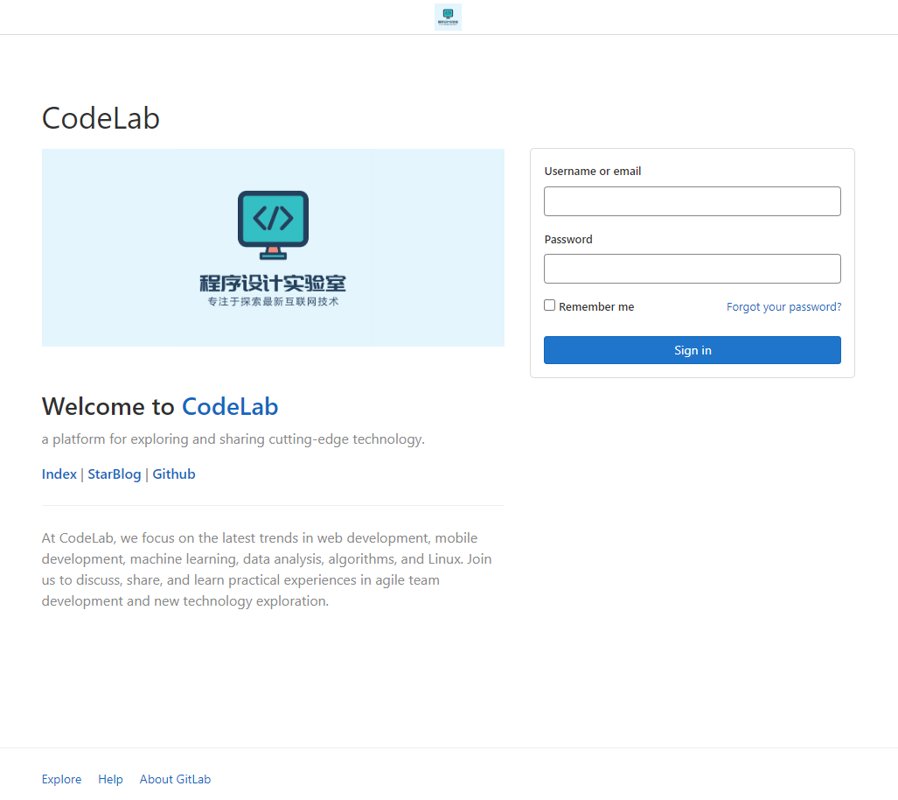
Also within the Admin Area, there's an "Appearance" configuration section.
Here, you can modify the logo, login page image, description (which even supports Markdown), and other elements.
I made some minor adjustments, and the result looks like this:
There are also "New Project Guidelines" and "Profile Image Guidelines" settings.
These are the guiding prompts displayed on the left when creating a project or when users modify their avatar, respectively.
You can just jot something down or use a large language model to generate the content, and you're good to go.
With these configurations in place, the interface will look polished and professional.
Version Upgrade
Use the docker-compose pull command to pull the latest images.
First run down and then up to apply the updates~
If you just restart, it will only restart the existing containers.
Summary
This article primarily recorded the email configuration.
There were also some rather scattered configurations.
Next, I will continue to improve the CI/CD pipeline.
Once it's done, I will write another article to document it.
_EOF_
Enable GitLab email notifications and some appearance settings.
- 本文作者:
- 程序设计实验室
- 版权声明:
- 本博客所有文章除特别声明外,均采用 BY-NC-SA 许可协议。转载请注明出处!
相关文章
Traefik,想说爱你不容易:一场动态反向代理的心累之旅
如果说 Nginx 是稳重的老好人,那 Traefik 就像一个特立独行的极客。它不按常理出牌,拒绝繁琐配置文件,宣称“自动发现,一切皆自动”,用 Docker label 就能配好反向代理,听起来是不是很优雅?
2025-04-16 · DevOps · 约 1 分钟
GitLab的CI_CD配置与使用
前言 写代码这项工作,本质就是将工作自动化,减少手工操作提供效率,~~因为人的本质都是懒狗~~,程序员也不能例外,为了各种意义的效率提升~~(懒)~~,我们需要持续集成工具,将代码测试、编译、发布这些重复性很高的工作,全部变成自动化,减轻工作量,提高效率,解放生产力,~~为华夏伟大复兴贡献力量~~ 说回正题,持续集成工具主流的就 Jenkins 、Gitlab CI/CD 这些,因为我们刚好在用
2022-09-30 · DevOps · 约 1 分钟
Sentry的安装、配置、使用
前言 上一篇文章介绍了ExceptionLess这个日志收集系统:ExceptionLess的安装、配置、使用 由于ExceptionLess官方提供的客户端只有.Net/.NetCore平台和js的,本文继续介绍另一个日志收集系统:Sentry Sentry 是一个实时事件日志记录和聚合平台。(官方说的是错误监控 Error Monitor)它专门用于监视错误和提取执行适当的事后操作所需的所有信
2022-07-23 · DevOps · 约 1 分钟
Gitlab的CI_CD自动部署前端项目
前言 之前陆续写了 Gitlab 的安装使用还有 Gitlab CI/CD 的配置使用,已经把 AspNetCore 的后端项目都做了持续集成了,尝到甜头之后,现在前端的项目也要加入自动化部署,所以经过一番折腾,有了本文~ 前文回顾: GitLab 的安装、配置、使用 持续集成指南:GitLab 的 CI/CD 工具配置与使用 跟之前的 AspNetCore 项目操作差不多,我依然使用 docke
2022-09-30 · DevOps · 约 1 分钟
讨论
共 0 条加载评论中…