

Who's Still Using Sublime Text to Write Code in 2026?
Sublime Text still this smooth after more than a decade? C++ native-driven is the real deal—default settings that can last ten years? Tinker a bit and it's surprisingly good? The Adaptive theme's auto-coloring looks pretty nice, and the LSP plugin can stand in for VSCode? People still using Sublime these days?
目录11 个章节
Preface
My history with Sublime goes back to college ten years ago (it went by so fast—ten years already 😂)
Back then, editors of every kind were competing with one another—nothing like now, when it's all VSCode and all kinds of AI IDE editors built on VSCode.
In an era overrun by Electron (Chromium) wrapper editors, Sublime Text, with the silky feel of being natively driven by C++, is still my first choice as a Notepad replacement.
That said, I never really configured Sublime before—I just used the defaults, out of the box.
Recently, while working on some scripts and notes, I suddenly felt like tinkering with it again, and only then realized Sublime is far more fun to customize than I'd imagined.
This post is a brief record of that tinkering process.
Here's a screenshot first
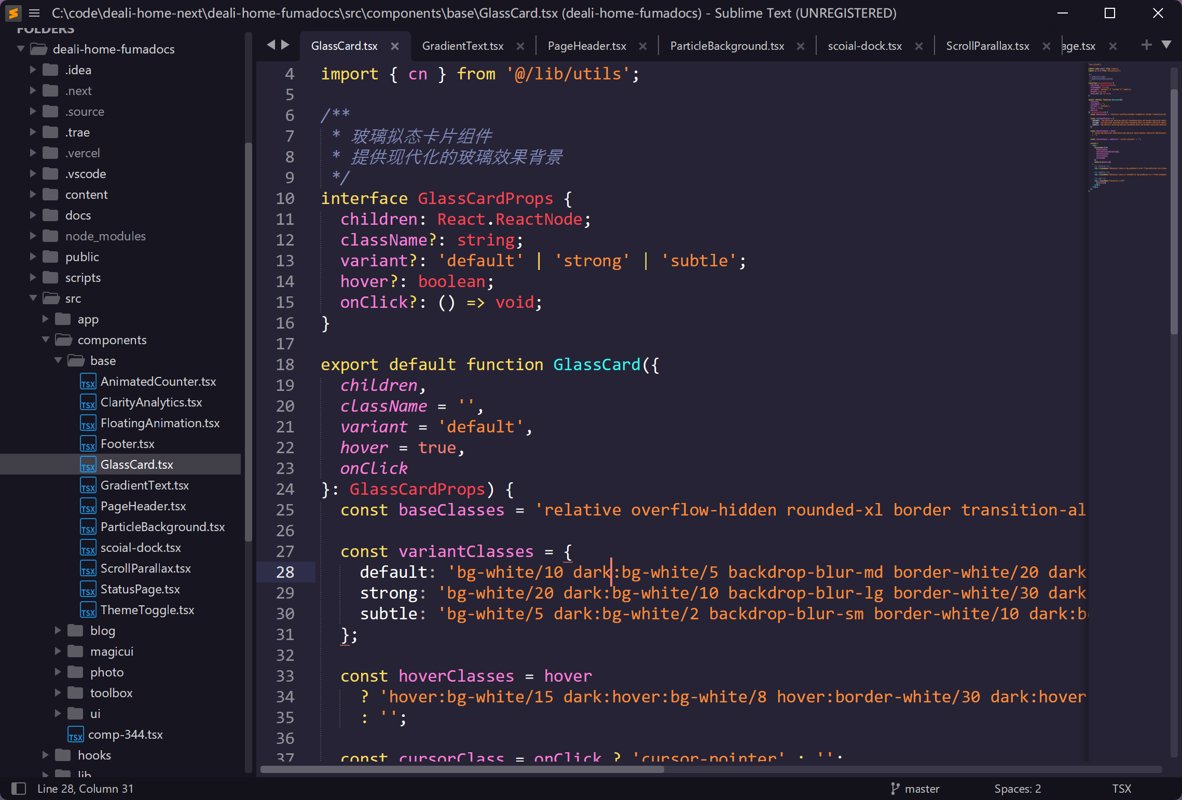
Package Manager (Plugins)
Before we get started, Package Control is a must-install.
It's the gateway to the entire Sublime ecosystem.
Similar to VSCode, you can bring up the command palette with Ctrl + Shift + P, and most operations can be done via commands.
Type Install Package Control and a new world opens up.
Themes and Color Schemes
For developers who believe “looks are justice,” color is the soul of an editor.
Similar to IDEA, Sublime Text lets you customize the theme and color scheme, and the two have different scopes:
- Color Scheme: its scope only affects the code editing area
- Theme: affects the entire UI of the app—the sidebar background, the shape of the tabs, the status bar style, and the command palette colors.
A lot of people finish configuring and find that only the code changed color, while the sidebar is still the stock look. At that point you need to search for two things in the command palette (Ctrl+Shift+P):
UI: Select Color Scheme: change the colors of the code area.UI: Select Theme: change the skin of the sidebar and tabs.
Strongly recommended: turn on the official built-in Adaptive theme. It automatically extracts the dominant colors from your code color scheme and applies them to the sidebar, unifying the look of the whole app!
Theme Recommendations
I think the built-in Adaptive already looks great, so I didn't bother installing other themes. If you want to tinker, feel free to explore on your own.
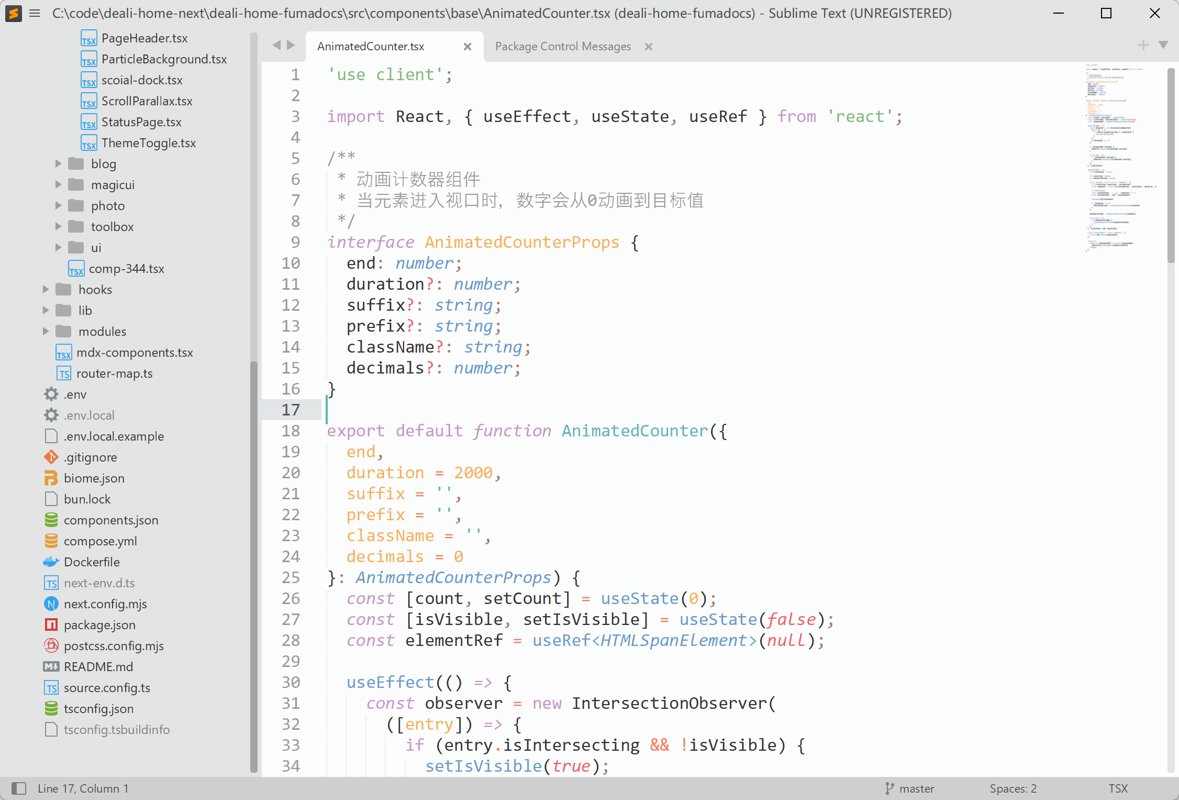
Adaptive (built into Sublime)
If you don't want a heavy third-party theme, Sublime's built-in Adaptive theme is actually extremely clever.
- Look: it automatically recolors based on the Color Scheme you pick.
- Effect: if you pick a purple code color scheme, the sidebar automatically turns deep purple too.
- How to set it:
UI: Select Theme-> selectAdaptive.sublime-theme.
Material Theme (the classic all-in-one)
It's one of the most famous themes in Sublime's history.
- Look: follows Google's Material Design guidelines.
- Effect: after installing, the sidebar, search box, and even the context menu become very modern and flat.
- Highlight: it comes with a matching Color Scheme, so the whole editor is highly consistent from the inside out.
Color Scheme Recommendations
If you're tired of the default mediocre gray-black look, try these high-saturation color schemes:
| Color Scheme | Visual Style | Why I Recommend It |
|---|---|---|
| SynthWave '84 | Neon glow, deep purple background | Peak cyberpunk, code comes with a glow effect |
| Neon | Extreme contrast, fluorescent colors | Every line of code is like traffic lights in the dead of night—high impact |
| Glowfish | Deep-sea dream, cyan-blue tones | Elegant glow, cool-toned geek aesthetic |
| Dracula | Classic purple-pink, vampire palette | Extremely compatible, a perfect balance of flashy and comfortable |
Tip: pair it with the A File Icon plugin so the sidebar fills up with matching colorful icons by file type (Python, Rust, PowerShell, etc.)—looks maxed out.
Switching themes: bring up the command palette with Ctrl + Shift + P, type Select Color Scheme to switch
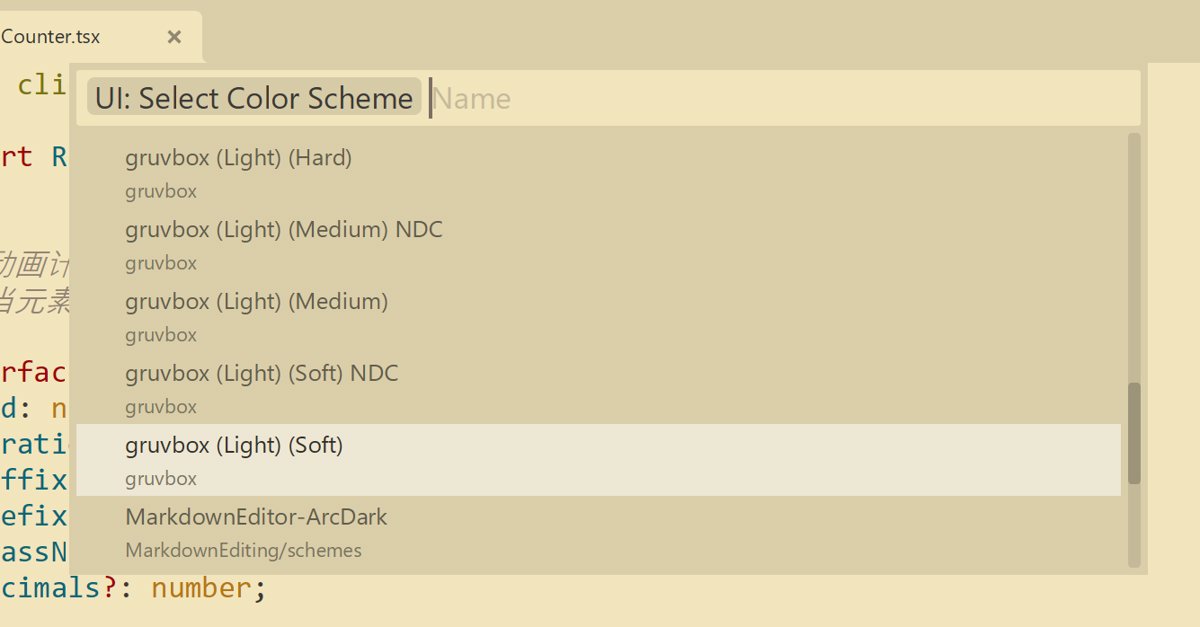
You can also set it to automatically switch between dark/light themes based on system settings
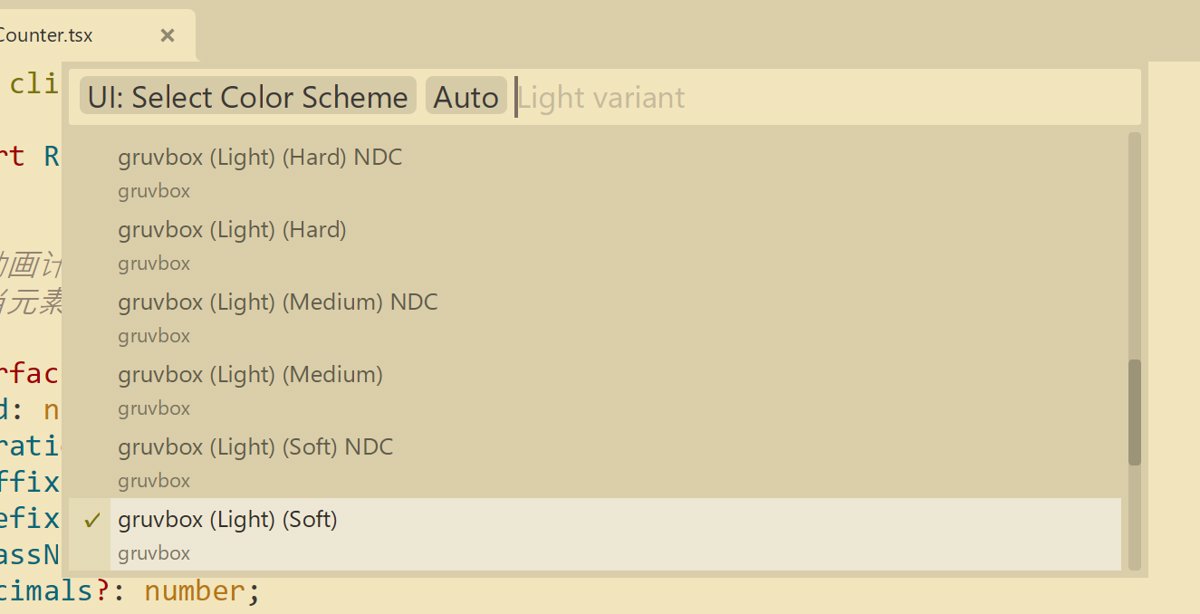
Programming Language Support
Sublime Text can add support for different languages via plugins
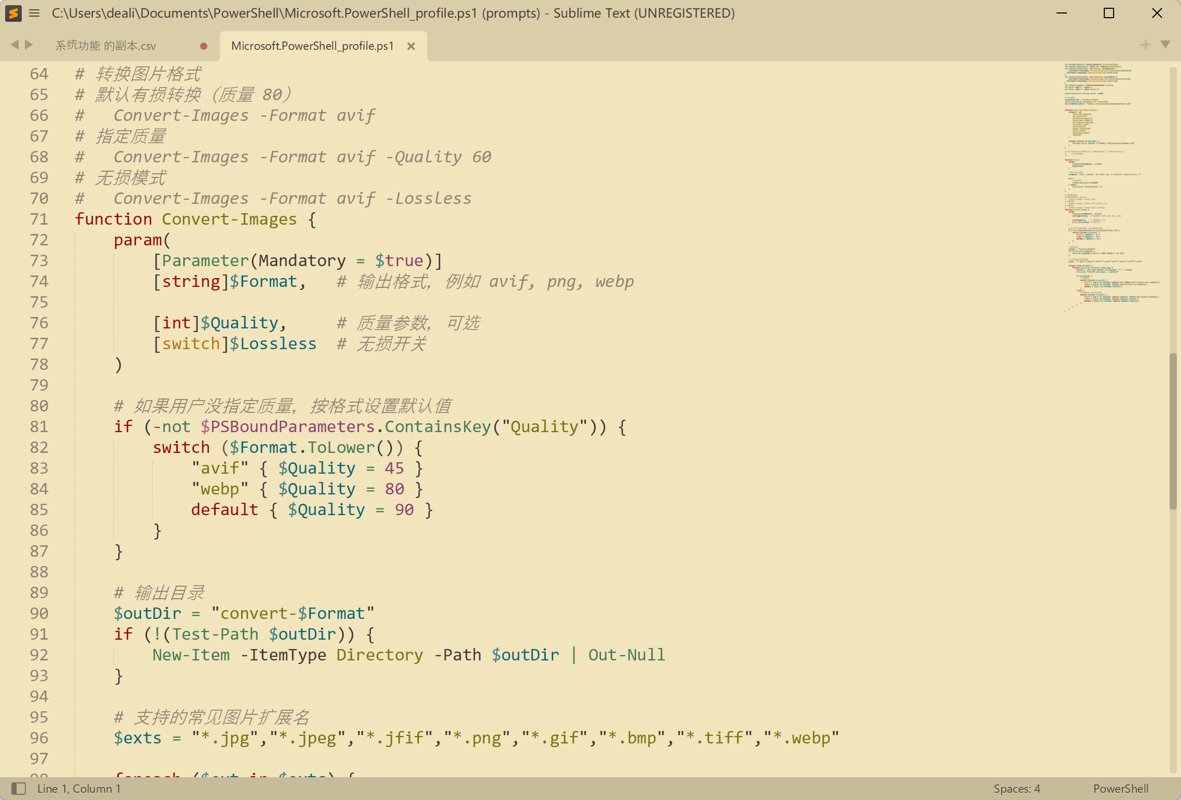
I mostly use Sublime Text to edit PowerShell scripts and occasionally tweak markdown notes, so I installed the following plugins.
PowerShell
As a staple for sysadmins and script enthusiasts, Sublime's PowerShell support can be very fine-grained. After installing the PowerShell plugin, even complex script logic becomes clearly structured.
LSP
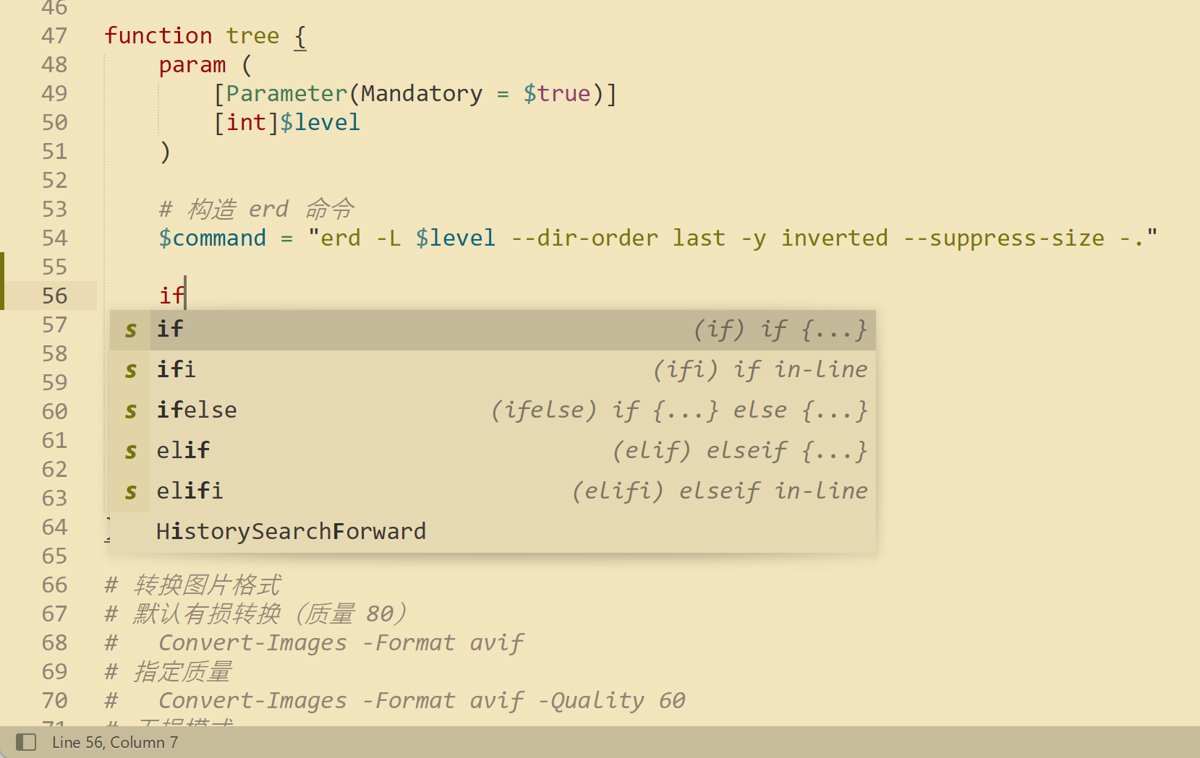
If you want IntelliSense-like features similar to VSCode, the LSP plugin is the core. It lets Sublime talk to external language servers:
Install the LSP plugin as the base framework.
Install plugins for each language (such as LSP-PowerShellEditorServices or LSP-pyright). You can enjoy native editor speed while still having go-to-definition, real-time error checking, and more.
The LSP I use for PowerShell: https://github.com/sublimelsp/LSP-PowerShellEditorServices
Markdown Support
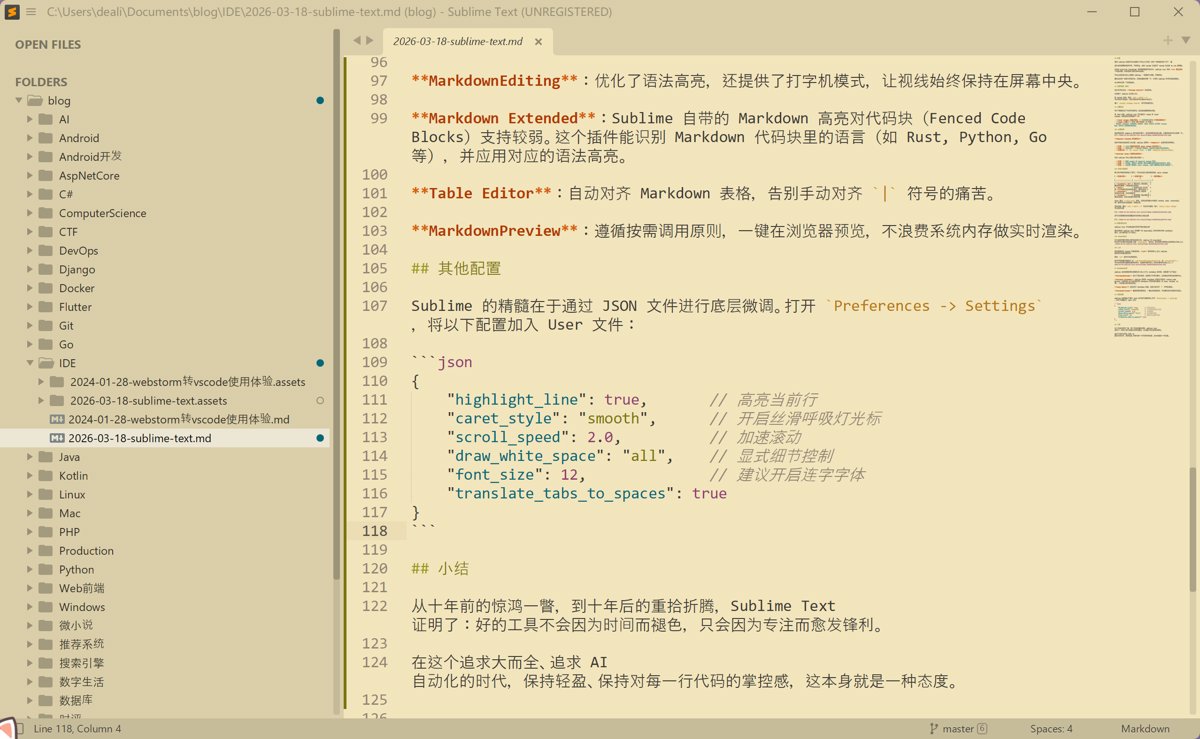
Sublime is also my favorite lightweight note-taking tool. To make Markdown nicer to use, I set up the following combo:
MarkdownEditing: improves syntax highlighting and also provides typewriter mode, keeping your gaze centered on the screen.
Markdown Extended: Sublime's built-in Markdown highlighting has weak support for fenced code blocks. This plugin can recognize languages inside Markdown code blocks (such as Rust, Python, Go, etc.) and apply the corresponding syntax highlighting.
Table Editor: auto-aligns Markdown tables, so you can say goodbye to the pain of manually lining up | characters.
MarkdownPreview: follows an on-demand principle—preview in the browser with one click, without wasting system memory on live rendering.
The result after configuring it is pretty nice
Other Settings
The essence of Sublime is low-level fine-tuning via JSON files. Open Preferences -> Settings and add the following to the User file:
{
    "highlight_line": true,       // 高亮当前行
    "caret_style": "smooth",      // 开启丝滑呼吸灯光标
    "scroll_speed": 2.0,          // 加速滚动
    "draw_white_space": "all",    // 显式细节控制
    "font_size": 12,              // 建议开启连字字体
    "translate_tabs_to_spaces": true
}
Wrap-up
Who's still using Sublime Text in 2026?
Me.
In an era when every editor wants to become an operating system, and even Notepad is stuffing in AI models, staying light, staying native, and keeping that instant-launch thrill is itself a kind of geek obstinacy.
From a fleeting glimpse ten years ago to picking up the tinkering again a decade later, Sublime Text proves that a good tool doesn't fade with time—it only grows sharper through focus.
In an age that chases all-in-one suites and AI automation, staying light and keeping a sense of control over every line of code—that's the attitude a programmer should have.
PS: I've also been tinkering with Zed lately, a native IDE written in Rust—very light and very fast. Paired with a large model you can build your own AI Code Agent. I'll write a post about it when I have time.
_EOF_
Who's Still Using Sublime Text to Write Code in 2026?
- 本文作者:
- 程序设计实验室
- 版权声明:
- 本博客所有文章除特别声明外,均采用 BY-NC-SA 许可协议。转载请注明出处!
相关文章
2026年AI编程工具横评:Cursor、Codex、Claude Code、Zed、Windsurf
Cursor还稳坐江山?Windsurf的Agent面板真那么神?Zed快是快,但AI功能跟不跟得上潮流再说。2026年选IDE,光看单点优势够呛,组合拳才王道——Cursor生态强还是Windsurf Agent管理顺?Codex细致度抵不过Claude Code速度?别傻了,工具好不好用,看的是能不能让你少写点代码。
2026-04-13 · IDE · 约 1 分钟
解决 VSCode 的自动换行问题
VSCode 的 Markdown 自动换行看似简单,中文字体一上场就开始装死。问题根源是 `simple` 策略计算失准,改用 `advanced`,再配合 `wordWrap: on`,终于不用拖横向滚动条欣赏长句了。
2026-09-05 · IDE · 约 1 分钟
从 WebStorm 转到 VSCode!使用一周体验报告
JetBrains 开源门槛提高?被迫转 VSCode,体验槽点满满:路径识别弱,自动引入加错后缀,标签不自动关闭,控制面板还无法折叠。轻量响应快,但细节反人类,免费还要啥自行车?
2024-01-28 · IDE · 约 1 分钟
Zed AI 白嫖免费模型,搭配 DeepSeek v4,玩转 Agent 编程技巧
Zed AI功能够用但不算顶尖,自由度高轻量灵活,比主流工具舒服些。配置ACP协议和外部agent效果还行,但稳定性一般。白嫖DeepSeek、智谱等模型免费额度可行,但配置稍繁琐,Zed Agent虽开放但插件生态不足,Git Graph这类常用插件缺失令人头疼。
2026-04-28 · IDE · 约 1 分钟
讨论
共 0 条加载评论中…